Chronos - Task & Gantt Chart
pendingby Elfet
Task management plugin with Gantt chart, day/week schedule, and drag-and-drop support.
Chronos - Task & Gantt Chart for Obsidian
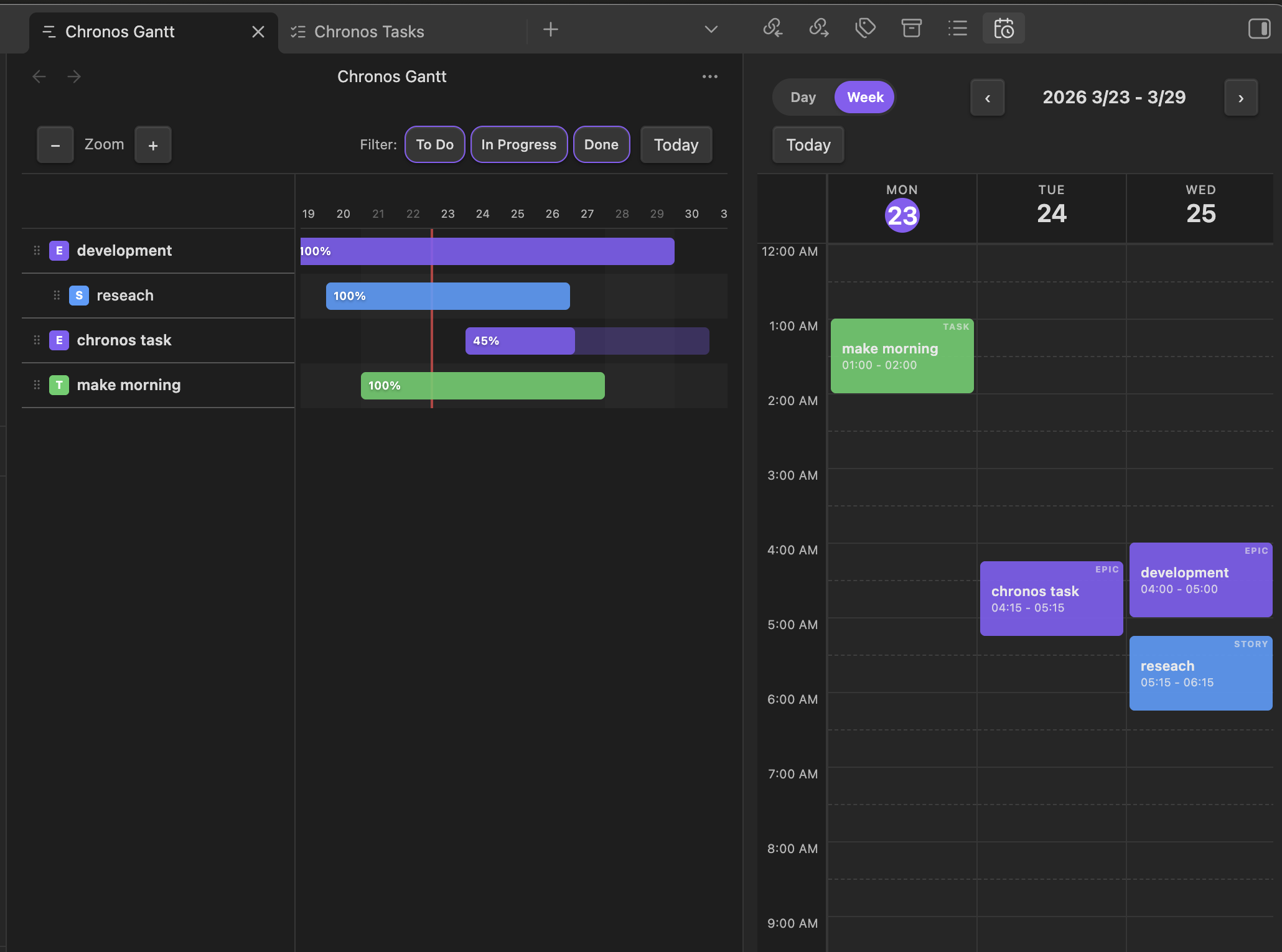
A powerful task management plugin for Obsidian with interactive Gantt charts and day/week schedule views. Manage your projects like Jira — right inside your vault.
Features
- Hierarchical Task Management — Organize tasks in Epic > Story > Task structure
- Interactive Gantt Chart — Visualize timelines, drag to adjust dates, resize durations
- Day & Week Schedule — Google Calendar-like daily/weekly view with time blocks
- Drag & Drop Everywhere — Move tasks between views seamlessly
- Status Filtering — Filter by To Do, In Progress, and Done across all views
- Progress Tracking — Automatic progress calculation from child tasks
Views
Task List
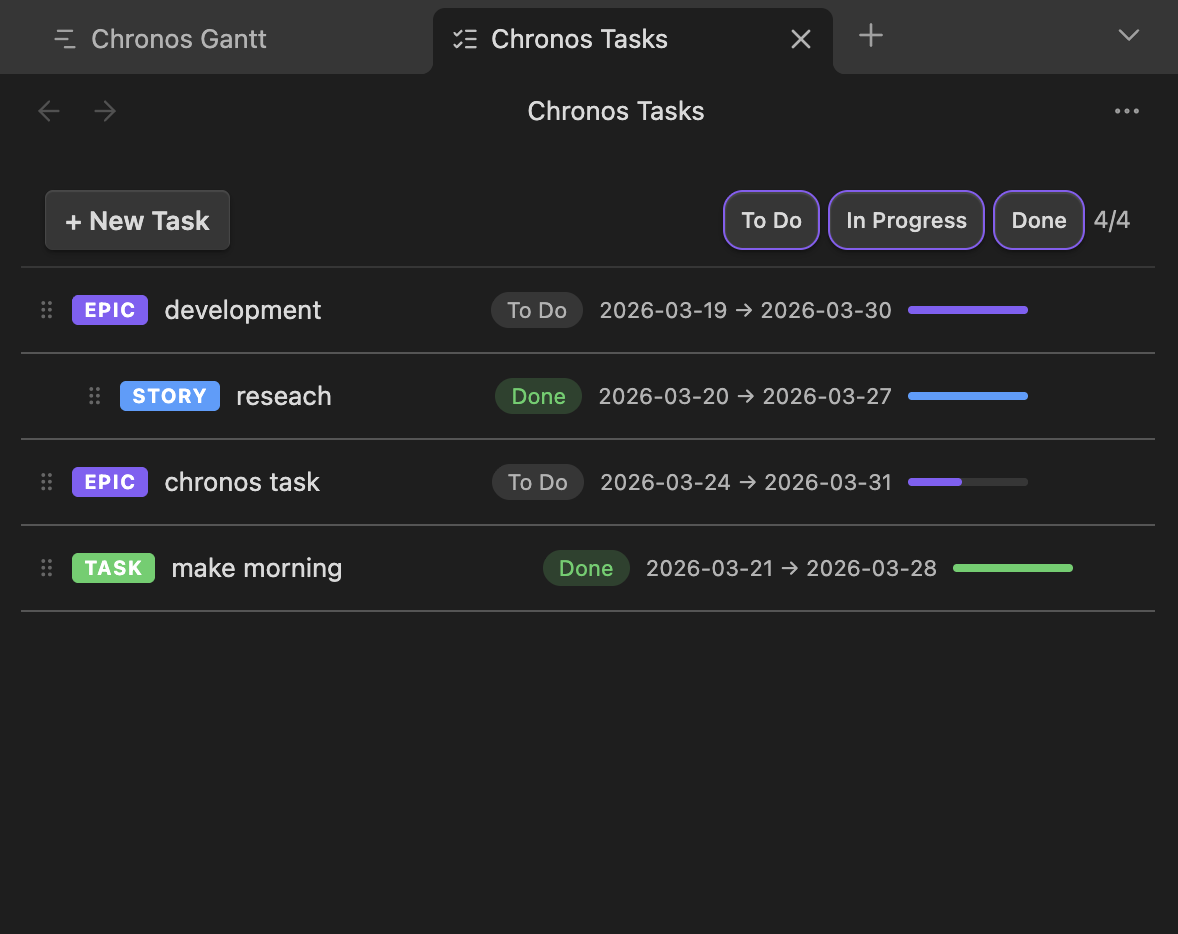
Create and manage tasks with a hierarchical tree structure. Supports Epic, Story, and Task types with status tracking and progress bars.
Key actions:
- Click "+ New Task" to create a task
- Click "+" on an Epic/Story to add a child task
- Click "✎" or right-click to edit/delete
- Drag any task row to reorder, or drop it onto the Schedule view
Gantt Chart
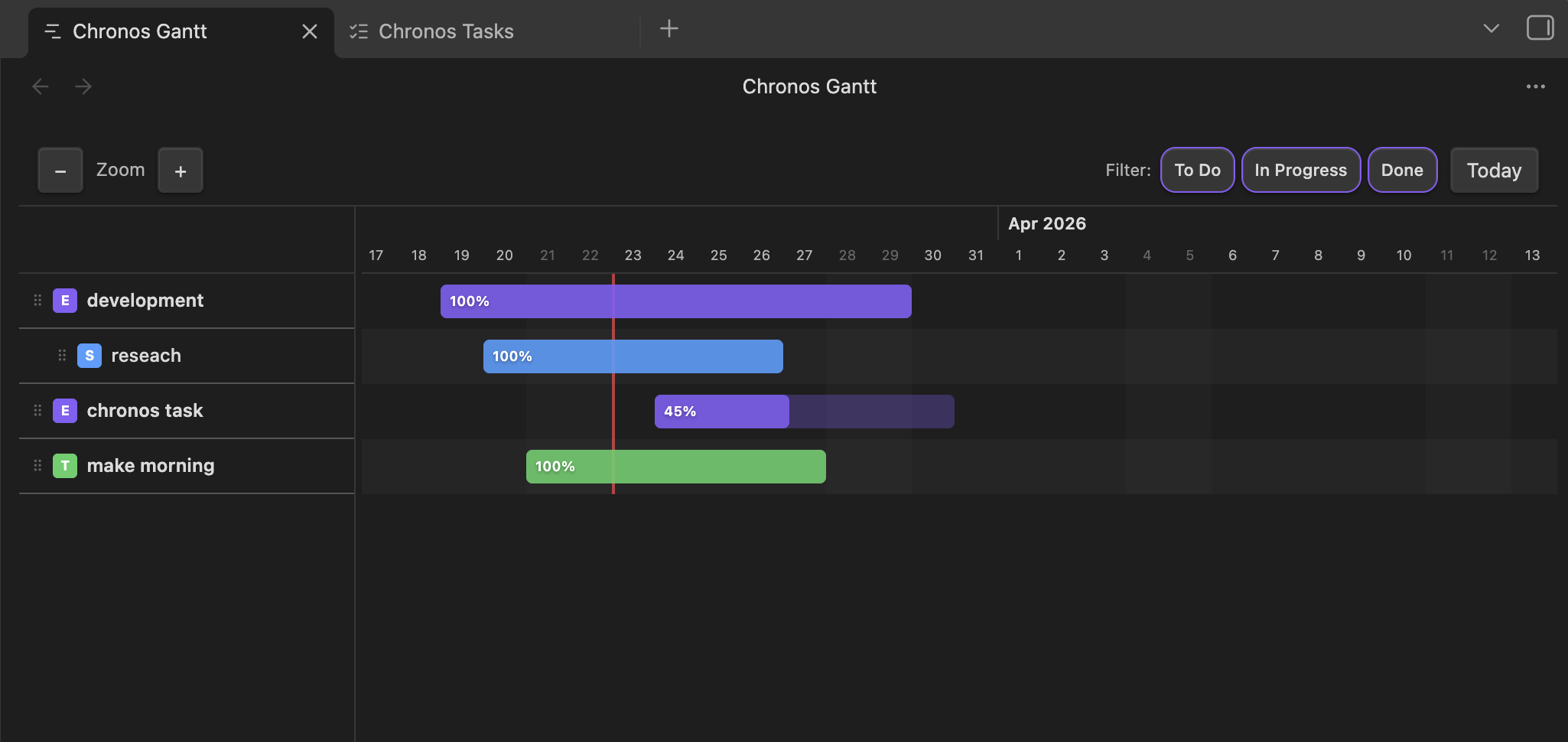
Visualize your project timeline with an interactive Gantt chart. Task names are fixed on the left while the timeline scrolls horizontally.
Key actions:
- Drag a bar to move a task's date range
- Drag the edges of a bar to resize the duration
- Click a bar or task name to open the edit modal
- Drag a task name to the Schedule view to create a time block
- Use Zoom +/− to adjust the time scale
- Use Today button to jump to the current date
- Filter by status (To Do / In Progress / Done)
- Resize the label column by dragging the border
Day & Week Schedule
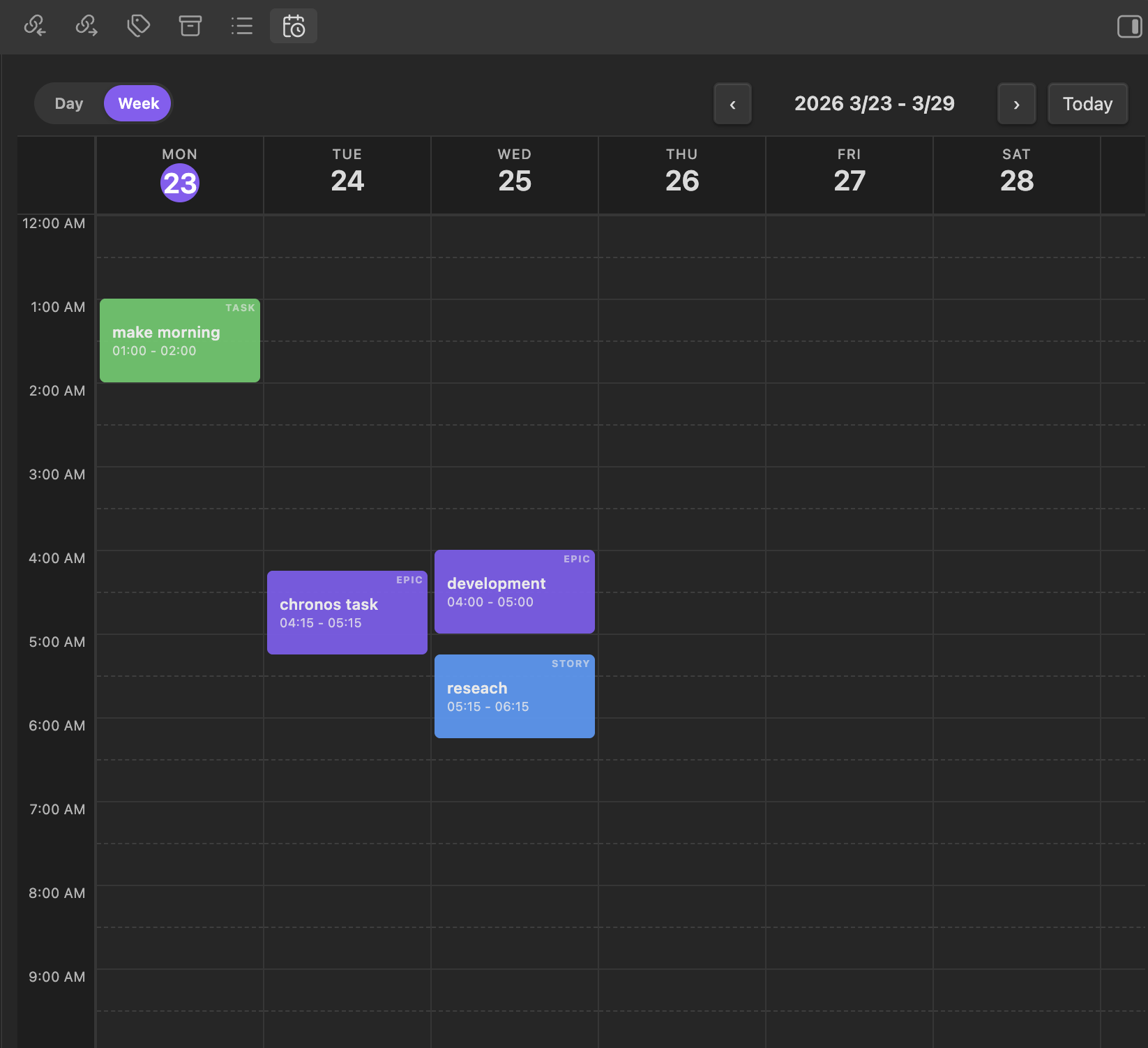
Plan your day with a time-based schedule view, similar to Google Calendar. Switch between Day and Week views with the slide toggle.
Key actions:
- Click an empty time slot to add a task from a quick-select list
- Drag a task from the Task List or Gantt Chart and drop it on a time slot
- Drag a block to move it to a different time or day
- Drag the bottom edge of a block to resize its duration
- Click a block to edit its details (change task, date, or time)
- Drag a block outside the schedule area to remove it
- Right-click a block for more options
- Use ‹ › to navigate between days/weeks
Getting Started
1. Open the views
Use the icons in the left ribbon or open the Command Palette (Cmd/Ctrl + P) and search for:
- Chronos: Open Task List
- Chronos: Open Gantt Chart
- Chronos: Open Day Schedule
2. Create your first task
- Open the Task List view
- Click "+ New Task"
- Set a title, type (Epic/Story/Task), dates, and status
- Click Create
3. View in Gantt Chart
Open the Gantt Chart to see your tasks on a timeline. Drag bars to adjust dates.
4. Schedule your day
Open the Day Schedule and drag tasks from the Task List or Gantt Chart onto time slots to plan your day.
Task Hierarchy
| Type | Purpose | Can contain |
|---|---|---|
| Epic | Large feature or initiative | Stories, Tasks |
| Story | A group of related tasks | Tasks |
| Task | A concrete work item | — |
Child task progress automatically rolls up to parent tasks.
Data Storage
All task data is stored in the plugin's data.json file within your vault's .obsidian/plugins/obsidian-chronos/ directory. No external services are used — your data stays in your vault.
Installation
From Community Plugins (Recommended)
- Open Obsidian Settings > Community Plugins
- Click Browse and search for "Chronos"
- Click Install, then Enable
Manual Installation
- Download
main.js,manifest.json, andstyles.cssfrom the latest release - Create a folder
obsidian-chronosin your vault's.obsidian/plugins/directory - Place the downloaded files into the folder
- Restart Obsidian and enable the plugin in Settings > Community Plugins
Support
If you encounter any issues or have feature requests, please open an issue on the GitHub repository.
License
For plugin developers
Search results and similarity scores are powered by semantic analysis of your plugin's README. If your plugin isn't appearing for searches you'd expect, try updating your README to clearly describe your plugin's purpose, features, and use cases.