Planner
pendingby Sawyer Rensel
Unified calendar, kanban, timeline, and task list for project and time management.
Obsidian Planner
Unified calendar, kanban, timeline, and task list for project and time management in Obsidian.
Planner is a powerful Obsidian plugin that brings together calendar visualization, Kanban boards, timeline views, and task lists—all powered by Obsidian's native Bases feature. Your data stays in plain Markdown files with YAML frontmatter, giving you complete ownership and flexibility.


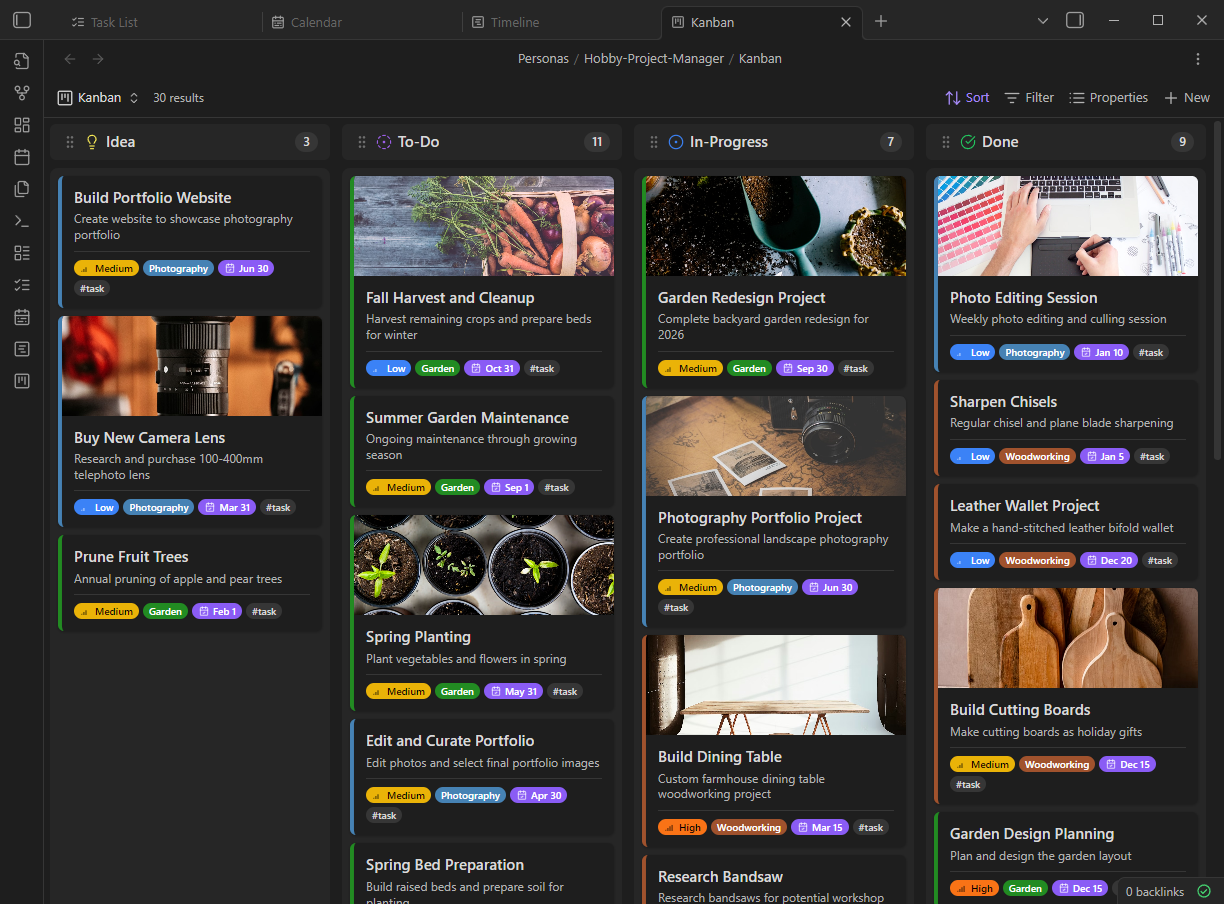
Features
- Four Powerful Views - Calendar, Kanban, Timeline, and Task List views, all integrated with Obsidian Bases
- Full Recurrence Support - Complex recurring events with iCal RRULE compatibility (daily, weekly, monthly, yearly, custom patterns)
- Natural Language Input - Create items with "Meeting tomorrow at 3pm @work #event"
- Drag & Drop - Reschedule events on the calendar, move tasks between Kanban columns
- Item Hierarchy - Parent/child relationships for projects and subtasks
- Dependencies - Block items based on other items with
blocked_byrelationships - Multiple Calendars - Color-coded calendar categories for work, personal, projects
- Mobile Optimized - Touch-friendly with gesture support
- Keyboard Navigation - Full keyboard support including vim-style shortcuts (h/j/k/l)
- Customizable - Configure statuses, priorities, colors, icons, and more
Who It's For
The Casual Planner — You want a simple, beautiful replacement for Google Calendar that lives inside your vault. No external accounts, no complex setup. Type "Dentist appointment next Tuesday at 2pm" and let natural language parsing do the rest. Set up recurring reminders and get on with your day.
The Hobbyist — That novel you're writing, the home renovation, the app you're building on weekends—they all deserve proper planning. Break big dreams into parent tasks and subtasks, visualize the entire journey on a Timeline, and watch your projects take shape one milestone at a time.
The Academic — You're juggling research projects, paper deadlines, conference submissions, and teaching responsibilities. Track literature review progress, writing milestones, and advisor meetings in one place. Plan multi-year projects with clear dependencies and milestones.
The Freelancer — You're managing multiple client projects simultaneously. Keep each client's work in separate calendars, track project milestones on the Timeline, and use Kanban to visualize what's in progress across all your engagements.
The Power Organizer — You've outgrown Asana, Trello, and ClickUp—or you just want everything in Obsidian. Kanban boards, dependencies, progress tracking: Planner gives you the tools to replicate complex workflows entirely within your vault.
Views
Calendar View
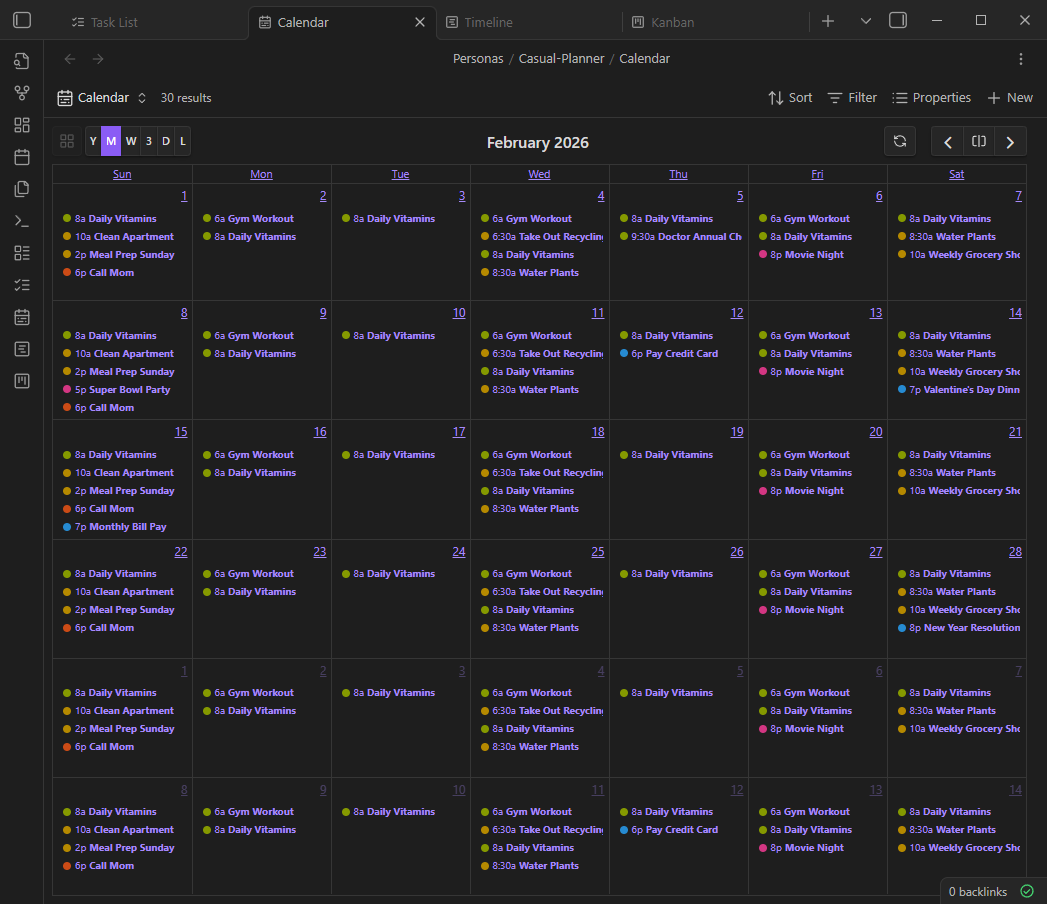
Full calendar display with six layouts powered by FullCalendar:
- Year - Overview of the entire year
- Month - Traditional month grid
- Week - 7-day view with time slots
- 3-Day - Rolling 3-day view
- Day - Single day with time slots
- List - Chronological agenda view
Features include drag-to-reschedule, click-to-create, color coding by any field, and recurring event display.
Kanban View
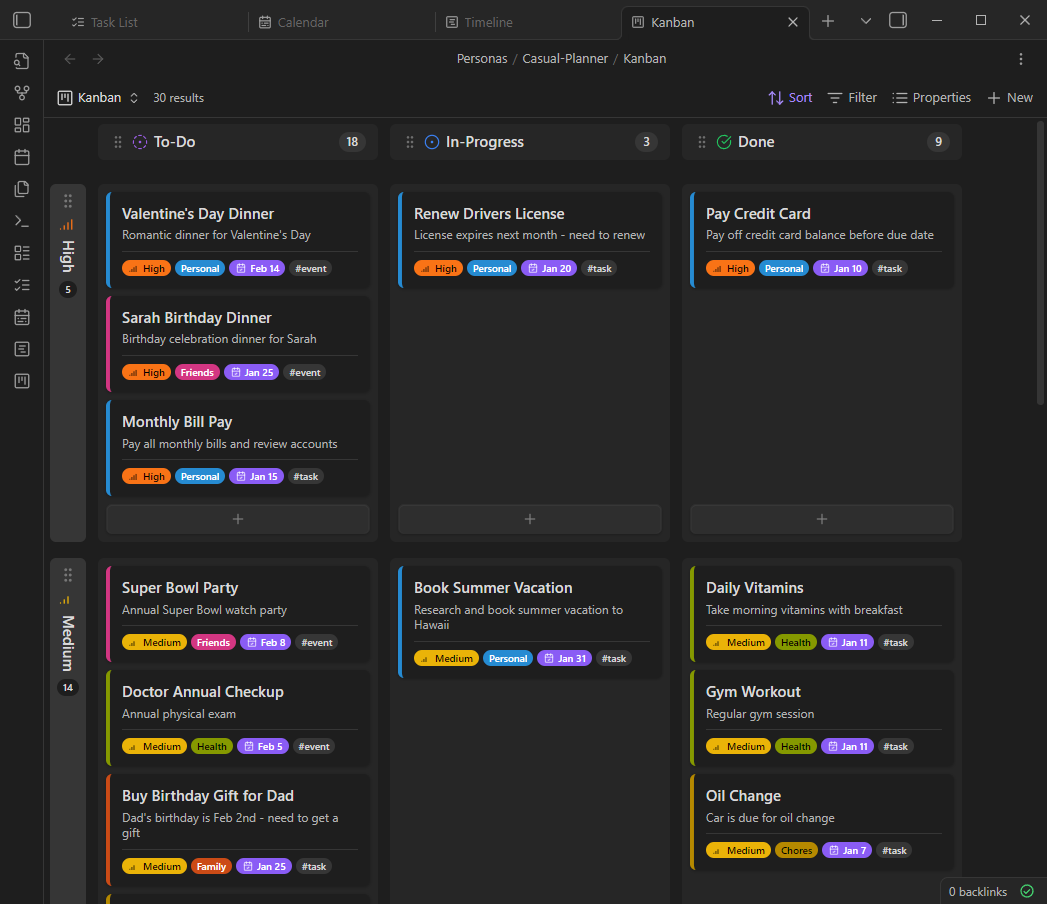
Drag-and-drop board for visual task management:
- Configurable columns by status, priority, calendar, or any property
- Swimlanes for 2D grouping
- Cover images and styled field badges
- Virtual scrolling for large boards
- WIP limits per column
Timeline View
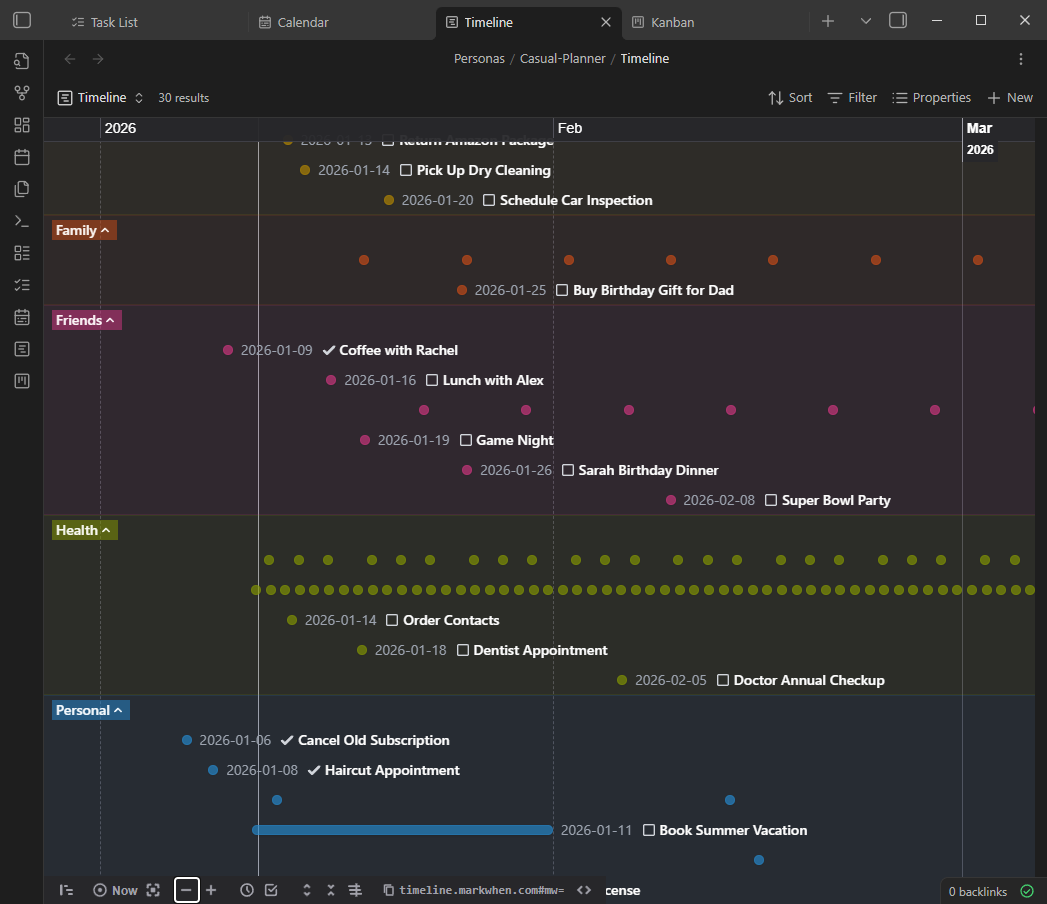
Beautiful chronological visualization powered by Markwhen:
- Group events by calendar, status, people, or priority
- Drag events to reschedule
- Zoom and pan navigation
- Progress indicators on events
- Color coding by any field
Task List View
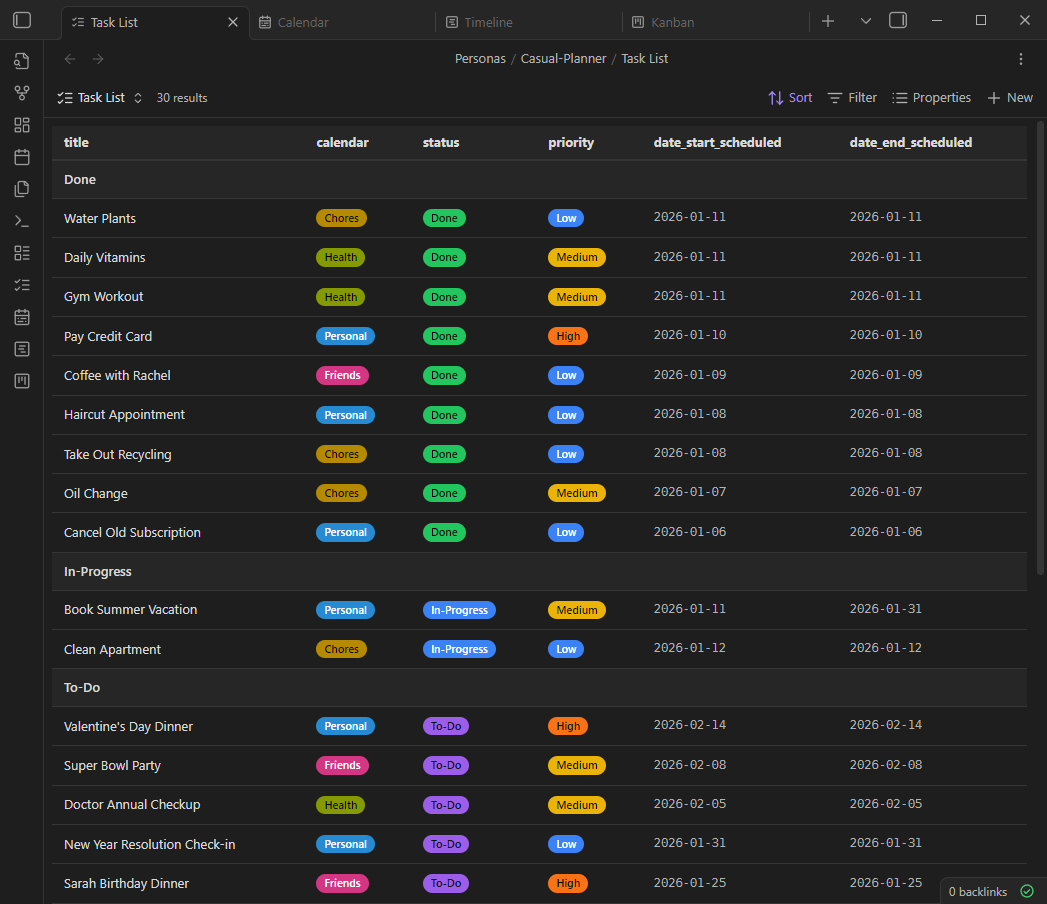
Table view for managing items:
- Configurable columns via Bases properties
- Click any row to edit in the Item Modal
- Context menu with quick status changes
- Colored badges for status, priority, and calendar
- Virtual scrolling for large datasets (50+ items)
Installation
From Obsidian Community Plugins (Coming Soon)
- Open Settings > Community Plugins
- Click Browse and search for "Planner"
- Click Install, then Enable
Manual Installation
- Download the latest release from the Releases page
- Extract
main.js,main.css,manifest.json, andtimeline.htmlto your vault's.obsidian/plugins/planner/folder - Enable the plugin in Settings > Community Plugins
Quick Start
Create Your First Item
- Press
Ctrl+Pand type "Planner: Quick capture" to open the Item Modal - Enter a title—try natural language: "Team meeting tomorrow at 2pm @work #meeting"
- Click Save
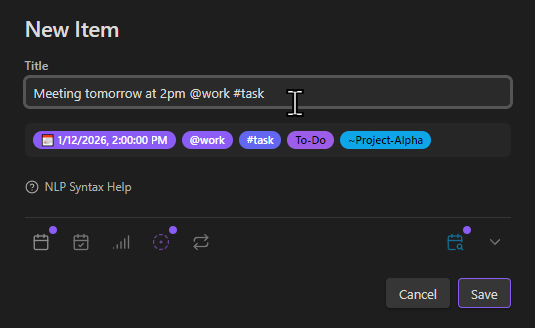
Open Views
Use the ribbon icons in the left sidebar or the command palette:
Planner: Open calendar- Calendar viewPlanner: Open Kanban- Kanban boardPlanner: Open Timeline- Timeline visualizationPlanner: Open task list- Table view
Basic Workflow
- Create Items - Use the Item Modal with dates, status, priority, calendar, and tags
- Organize - View items in Calendar, Kanban, Timeline, or Task List
- Update - Click any item to edit, or drag to reschedule/change status
Data Model
All items are stored as Markdown files with YAML frontmatter. Every field is optional.
---
title: Website Redesign
summary: Complete overhaul of company website
status: In-Progress
priority: High
calendar:
  - Work
tags:
  - task
  - project
date_start_scheduled: 2025-01-15T09:00:00
date_end_scheduled: 2025-01-31T17:00:00
parent: "[[Q1 Initiatives]]"
children:
  - "[[Design mockups]]"
  - "[[Implement frontend]]"
blocked_by:
  - "[[Brand guidelines approval]]"
context:
  - "office"
people:
  - "[[John Smith]]"
progress: 35
---

## Description

Full redesign incorporating new brand identity...
Recurrence Example
---
title: Daily Standup
repeat_frequency: daily
repeat_interval: 1
date_start_scheduled: 2025-01-01T09:00:00
---
---
title: Team Sync
repeat_frequency: weekly
repeat_interval: 2
repeat_byday:
  - TU
  - TH
---
Configuration
Access settings via Settings > Plugin Options > Planner
Statuses
Configure statuses with custom names, colors, and Lucide icons:
| Status | Color | Icon | Completed |
|---|---|---|---|
| To-Do | Purple | circle-dot-dashed | No |
| In-Progress | Blue | circle-dot | No |
| Done | Green | circle-check-big | Yes |
| Cancelled | Red | ban | Yes |
Priorities
| Priority | Color | Icon |
|---|---|---|
| Urgent | Red | alert-triangle |
| High | Orange | chevrons-up |
| Medium | Yellow | chevron-up |
| Low | Blue | chevron-down |
Calendars
Define calendar categories with custom colors. Items can belong to multiple calendars.
Other Settings
- Items Folder - Default location for new items
- Date/Time Format - Display format preferences
- Week Starts On - Sunday or Monday
- Open Behavior - How items open (same tab, new tab, split)
Keyboard Shortcuts
| Shortcut | Action |
|---|---|
Ctrl/Cmd+Enter | Save item (in modal) |
Escape | Close modal / Clear focus |
Arrow Keys or h/j/k/l | Navigate (Kanban) |
Enter | Open focused item |
Technology Stack
| Component | Technology |
|---|---|
| Language | TypeScript |
| Platform | Obsidian Plugin API |
| Views | Obsidian Bases |
| Calendar | FullCalendar |
| Timeline | Markwhen |
| Recurrence | rrule |
| NLP Dates | chrono-node |
Documentation
Full documentation is available at sawyerrensel.github.io/planner
Development
# Clone the repository
git clone https://github.com/sawyerrensel/planner.git
cd planner

# Install dependencies
npm install

# Build for development (watches for changes)
npm run dev

# Build for production
npm run build
The build outputs to the project root and can be copied to your vault's plugin folder for testing.
Contributing
Contributions are welcome! Please:
- Fork the repository
- Create a feature branch (
git checkout -b feature/amazing-feature) - Commit your changes (
git commit -m 'Add amazing feature') - Push to the branch (
git push origin feature/amazing-feature) - Open a Pull Request
Roadmap
Current (0.1.1)
- Calendar, Kanban, Timeline, and Task List views
- Item Modal with NLP parsing
- Full recurrence support
- Item hierarchy and dependencies
- Mobile optimization
License
This project is licensed under the GNU General Public License v3.0 - see the LICENSE file for details.
Acknowledgments
- Obsidian - The incredible knowledge base application
- FullCalendar - Calendar component
- Markwhen - Timeline visualization
- TaskNotes - UI/UX inspiration
Author: Sawyer Rensel (@sawyerrensel)
For plugin developers
Search results and similarity scores are powered by semantic analysis of your plugin's README. If your plugin isn't appearing for searches you'd expect, try updating your README to clearly describe your plugin's purpose, features, and use cases.