Tracker: habits and metrics
pendingby Vlad Ross
A tracker for habits and metrics. Features heatmaps, charts, and streaks while keeping your data in pure Markdown files. No hidden databases.

Tracker: Habits and Metrics
Note‑based habit & metrics tracker for Obsidian with heatmaps, charts, smart statistics, and local data storage.


Transform your Obsidian vault into a powerful tracking system. Track everything from simple daily habits to complex numeric metrics — all stored as human‑readable Markdown inside your vault. No external databases, no cloud, no telemetry.
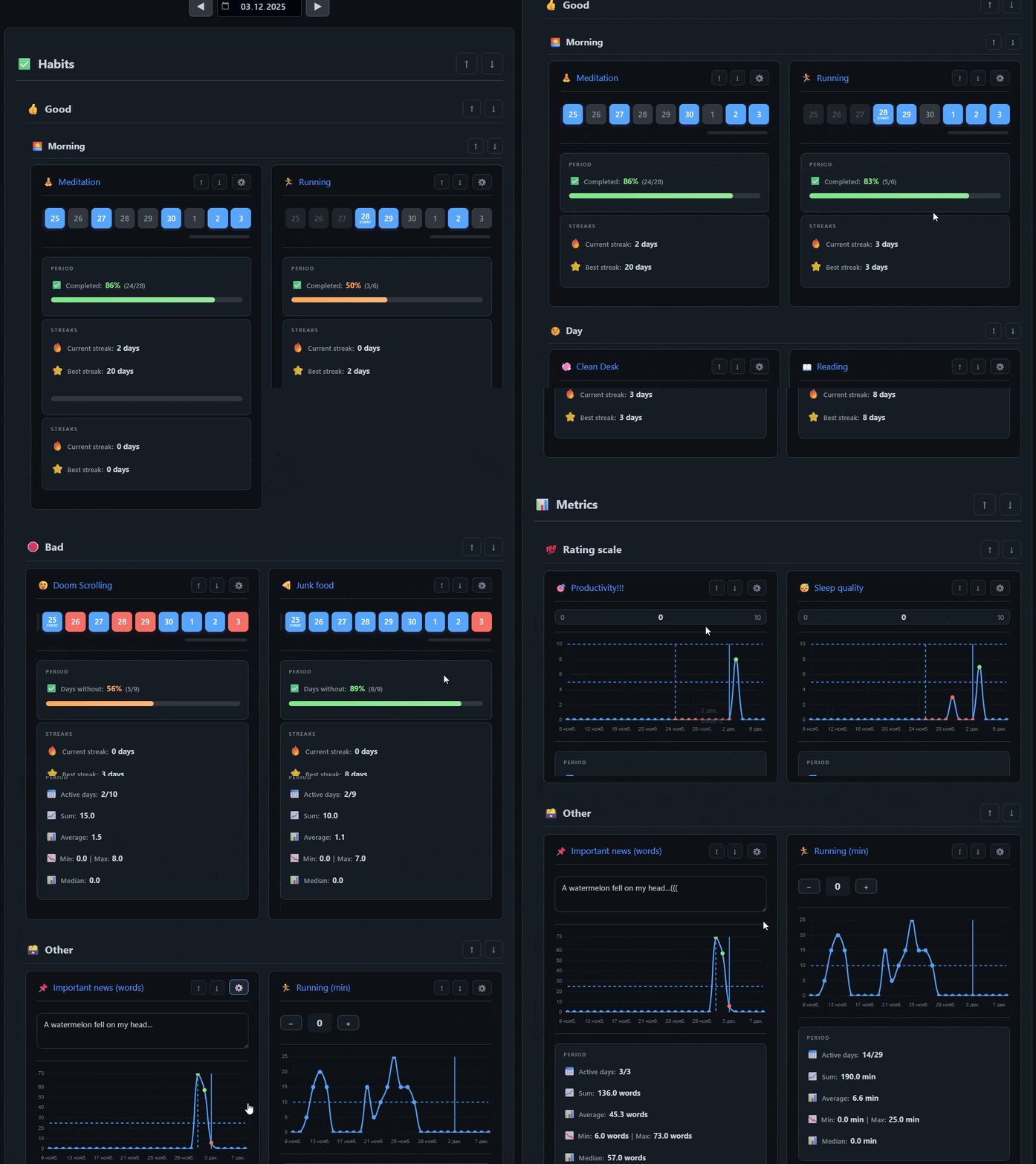
✨ Key Features
🎯 Six tracker types
- Good Habit – track positive habits with interactive heatmaps
- Bad Habit – monitor habits you want to reduce or eliminate
- Number – record numeric values with debounced auto‑saving
- Counter – increment/decrement via “+ / –” buttons
- Text – store daily notes and observations
- Scale – slider input with customizable range (min/max/step)
📈 Smart Statistics
-
Habits:
- Completion percentage & active days
- Current streak 🔥
- Best streak ⭐
- Total completed days
- Period summaries (last N days)
-
Metrics:
- Minimum / maximum / median
- Sum & average
- Active days
- Period summaries
🎨 Visuals & UX
- Heatmaps — calendar overview of habit activity
- Interactive charts — line graphs with optional limit guides
- Limit indicators (targets) — animated visual feedback when crossing thresholds
- Date navigation — one date picker controls all trackers in the block
- Hierarchical view — folders (up to 3 levels) act as categories/subcategories
- Iconize integration — automatic display of emoji or icon from Iconize plugin
🚀 Quick Start
Create your first tracker in under a minute.
1. Create a tracker
Method 1: Command Palette
- Press
Ctrl+P(orCmd+Pon Mac). - Run "Create new tracker".
- Enter a name (e.g., "Morning Workout").
- Choose (or auto create) a folder.
- Select the tracker type.
- Configure limits, units, start date, etc.
- Click Create.
Method 2: Context Menu (Right-click)
- Right-click on any folder in the file explorer or in a tracker block.
- Select "Add new tracker in folder".
- The creation modal will open with the folder path already filled in.
- Enter a name, select the tracker type, configure settings, and click Create.
You can structure trackers inside folders (up to 3 levels). The plugin will automatically interpret these folders as categories/subcategories. Folders containing the word
archiveare ignored, so old trackers can be saved there.
📋 Displaying trackers
Embed trackers anywhere using a habit code block.
2.1 Global (default settings)
```habit
```
Uses default folder & display settings from the plugin.
2.2 Local override
```habit
folder: 0. Files/Trackers/Habits
date: 2025-01-01
days: 30
showChart: true
showStats: true
```
Parameters:
folder— where tracker files are storeddate— date to display- default: today
- auto-detected from filename in daily notes
days— number of days for charts/statisticsshowChart— display chart for all trackersshowStats— display statistics for all trackers
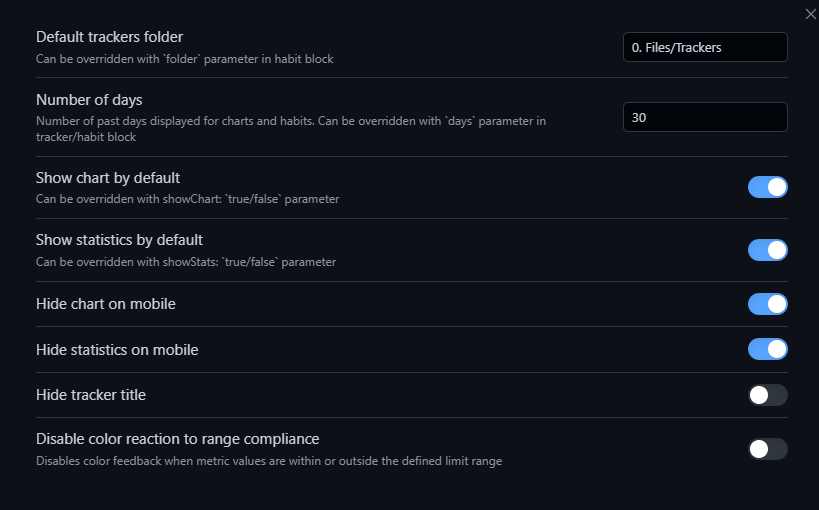
⚙️ Settings
Access via Settings → Tracker: Habits and Metrics
Most users can start without changing anything. These options let you fine‑tune defaults.
📁 Tracker File Structure
You normally don’t need to edit trackers manually — they are managed automatically.
Advanced users can use Dataview to extract data from trackers:
---
type: good-habit          # good-habit, bad-habit, number, plusminus, text, scale
trackingStartDate: "2025-01-01"

minValue: 0               # scale only
maxValue: 10              # scale only
step: 1                   # scale and plusminus

minLimit: 5               # optional, can be your target
maxLimit: 100             # optional, a limit you don't want to cross

unit: "kg"                # optional, will appear next to the title and in the chart

data:{"2025-01-01":1,"2025-01-02":1,"2025-01-03":0}

---
Value types by tracker type
- good-habit / bad-habit:
1or0 - number: numeric value
- plusminus: numeric counter with step
- text: string
- scale: numeric value within
[minValue … maxValue]
📊 Statistics Explained
This section breaks down every statistic displayed in the tracker.
For Habits (Good Habit / Bad Habit)
PERIOD section:
- Completion rate (or "Days without" for bad habits) – percentage of successful days in the selected period with visual progress bar
- Shows completion percentage and ratio of active days to total days (e.g., "75% (15/20)")
STREAKS section:
- Current streak 🔥 – consecutive successful days from the selected date backwards
- Best streak ⭐ – longest consecutive successful period ever recorded
For Metrics (Number / Scale / Counter / Text)
PERIOD section:
- Active days 📅 – number of days with recorded values vs total days in period (e.g., "18/30")
- Sum 📈 – total sum of all values in the selected period
- Average 📊 – average value across the period
- Min | Max 📉 – minimum and maximum values in the period
- Median 📊 – median value of all entries in the period
Note: For text trackers, values are counted as word count. Statistics are calculated for the period specified by the
daysparameter (default: 30 days).
🎨 Iconize Integration
Optional, but powerful.
Features
- Automatically displays icons configured via Iconize
- Supports emoji & Lucide icons
- Works even without Iconize — just put an emoji in the tracker title
Setup
- Install Iconize
- Assign icons to folders or files
- Trackers will show icons automatically
🛠 Commands & Context Menu
Command Palette (Ctrl+P / Cmd+P):
- Create new tracker — guided creation flow
Context Menu (Right-click on folders):
- Add new tracker in folder — quick creation with pre-filled folder path (available in file explorer and tracker blocks)
🎯 Roadmap
- Compact mode
- Reminders & notifications
- Period comparison (week-over-week, month-over-month)
- Data export/import
- Additional chart types
- Cross‑tracker analytics (correlations, trends)
- And much, much more...
💬 Support & Feedback
Feedback, ideas, and bug reports are very welcome:
- Issues & feature requests:
https://github.com/justrelaxdc/tracker-habits-metrics/issues - Telegram: https://t.me/vladrosss
- Support me directly to my Ukrainian card (choose GPay/Apple Pay) or

📝 License
MIT License © 2025 Vladislav (Vlad Ross)
Turn your Obsidian vault into a powerful tracking system — start tracking what matters
For plugin developers
Search results and similarity scores are powered by semantic analysis of your plugin's README. If your plugin isn't appearing for searches you'd expect, try updating your README to clearly describe your plugin's purpose, features, and use cases.