Bases Paginator
pendingby sean2077
Adds a paginated table view with quick filtering to Bases. Features include pagination controls, global search, click-to-filter, and filter presets.
Bases Paginator





A plugin for Obsidian that adds a paginated table view with column filtering to Obsidian Bases.
Note: Requires Obsidian v1.10.0+ with the Bases core plugin enabled.
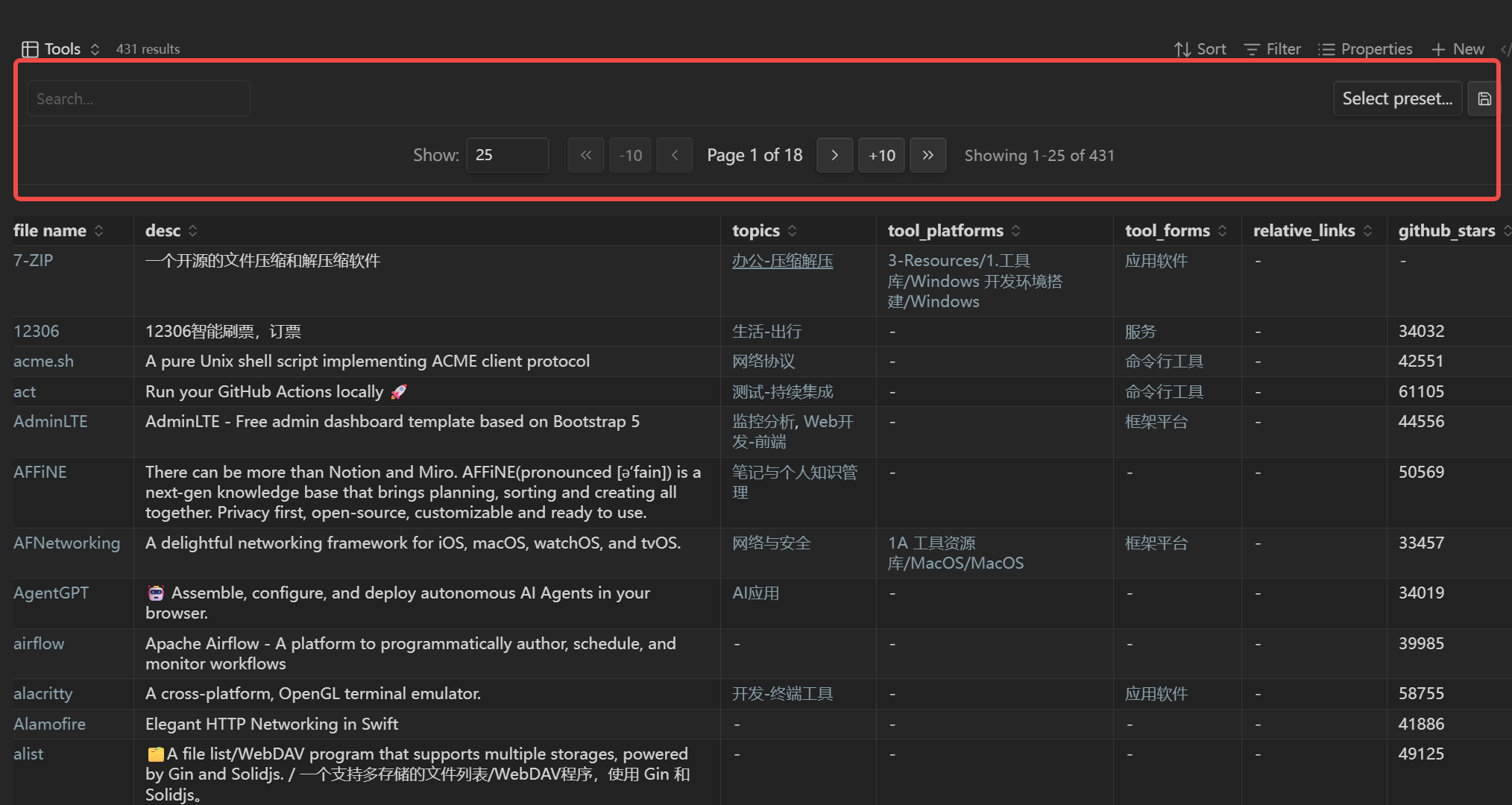
Features
- Pagination: Navigate large datasets with configurable page sizes (10/25/50/100)
- Global Search: Real-time search across all visible columns
- Column Filters: Multi-select dropdown filters on column headers (right-click to enable)
- Sorting: Click column headers to sort with natural ordering (e.g., "file2" before "file10")
- Filter Presets: Save, update, and delete complete view state (search, column filters, page size, current page)
- List Rendering: Configurable display for multi-value properties (line-by-line with bullets or comma-separated)
- Column Reordering: Drag column headers to rearrange columns (session-only, see Limitations)
- Native Rendering: Uses Bases' native rendering for links, tags, etc.
Limitations
This is a read-only custom view. Due to Bases API limitations:
- Cannot edit cell values (use native Bases Table view or edit source files)
- Cannot add/delete rows or list items
- Column drag-and-drop reordering is session-only (not persisted). The Bases API doesn't expose a
setOrder()method. For persistent column ordering, use the native Properties toolbar menu.
Usage
In .base Files
- Open any
.basefile in Obsidian - Click the view switcher in the toolbar
- Select "Paginated Table" from the view options
- Configure view options:
- Items per page
- Filterable columns (or right-click column headers to enable)
- Toggle search box
- Show/hide filter bar
- Sticky header
- Pagination position (top/bottom)
- List rendering mode (line-by-line or comma-separated)
- Drag column headers to reorder columns (session-only), or use Properties toolbar for persistent ordering
In Markdown (Base Code Block)
You can embed a paginated table directly in any Markdown note using a base code block:
```base
filters:
  and:
    - file.hasTag("task")
views:
  - type: paginated-table
    name: "My Tasks"
    pageSize: "25"
    showSearchBox: true
    showFilterBar: true
    stickyHeader: true
    paginationPosition: "top"
    listRenderMode: "comma"
```
View Options Reference
| Option | Type | Default | Description |
|---|---|---|---|
pageSize | string | "25" | Items per page ("10", "25", "50", "100") |
showSearchBox | boolean | true | Show global search input |
filterableColumns | string[] | [] | Columns with filter dropdowns (property IDs) |
showFilterBar | boolean | true | Show filter bar with search and presets |
stickyHeader | boolean | true | Keep table header visible when scrolling |
paginationPosition | string | "top" | Position of pagination bar ("top" or "bottom") |
listRenderMode | string | "comma" | List rendering ("bullet" for line-by-line, "comma" for comma-separated) |
Embedding Base Views
You can also embed a specific view from a .base file into another note:
![[MyDatabase.base#My Tasks]]
This will render the "My Tasks" view (if it's a paginated-table type) inline in your note
Installation
From Community Plugins (Coming Soon)
- Open Obsidian Settings
- Go to Community Plugins
- Search for "Bases Paginator"
- Click Install, then Enable
Using BRAT
- Install BRAT from Community Plugins
- Open BRAT settings and click "Add Beta plugin"
- Enter repository URL:
https://github.com/sean2077/obsidian-bases-paginator - Click "Add Plugin" and enable it in Community Plugins
Manual Installation
- Download
main.js,styles.css, andmanifest.jsonfrom the latest release - Create folder:
VaultFolder/.obsidian/plugins/bases-paginator/ - Copy the downloaded files into the folder
- Reload Obsidian
- Enable the plugin in Settings > Community Plugins
Development
# Install dependencies
npm install

# Development mode (watch)
npm run dev

# Production build
npm run build

# Lint code
npm run lint
Requirements
- Obsidian v1.10.0 or higher
- Bases core plugin enabled
License
See LICENSE.
For plugin developers
Search results and similarity scores are powered by semantic analysis of your plugin's README. If your plugin isn't appearing for searches you'd expect, try updating your README to clearly describe your plugin's purpose, features, and use cases.