Deadline
pendingby Javlonbek Saydullaev
All-in-one productivity plugin with calendar, Pomodoro timer, and task manager.
Deadline
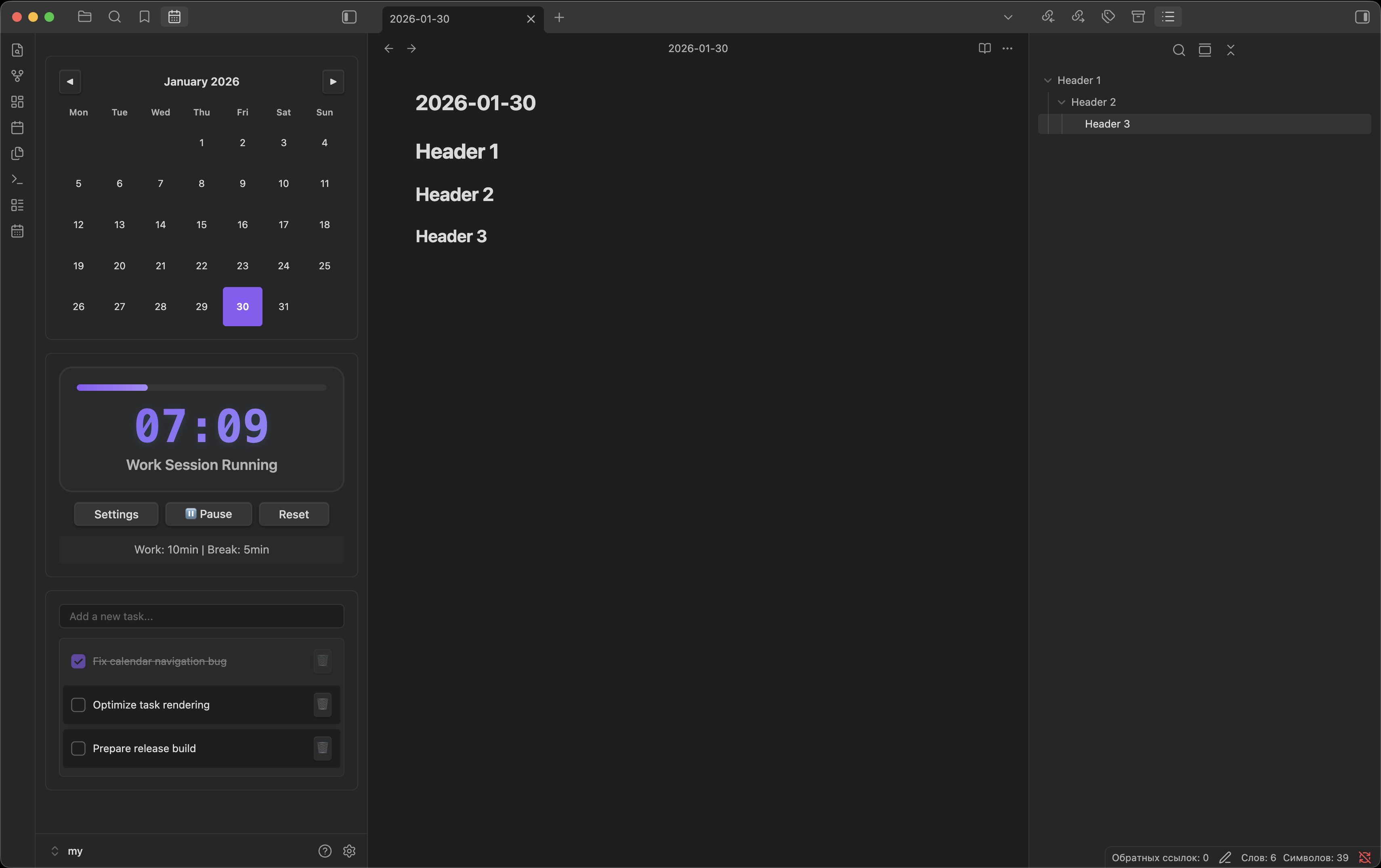
Deadline is an all-in-one productivity plugin for Obsidian that combines a calendar, Pomodoro timer, and task manager into a single, clean workspace view.
It is designed to help you plan your day, stay focused, and manage tasks without switching between multiple plugins.
Features
Calendar
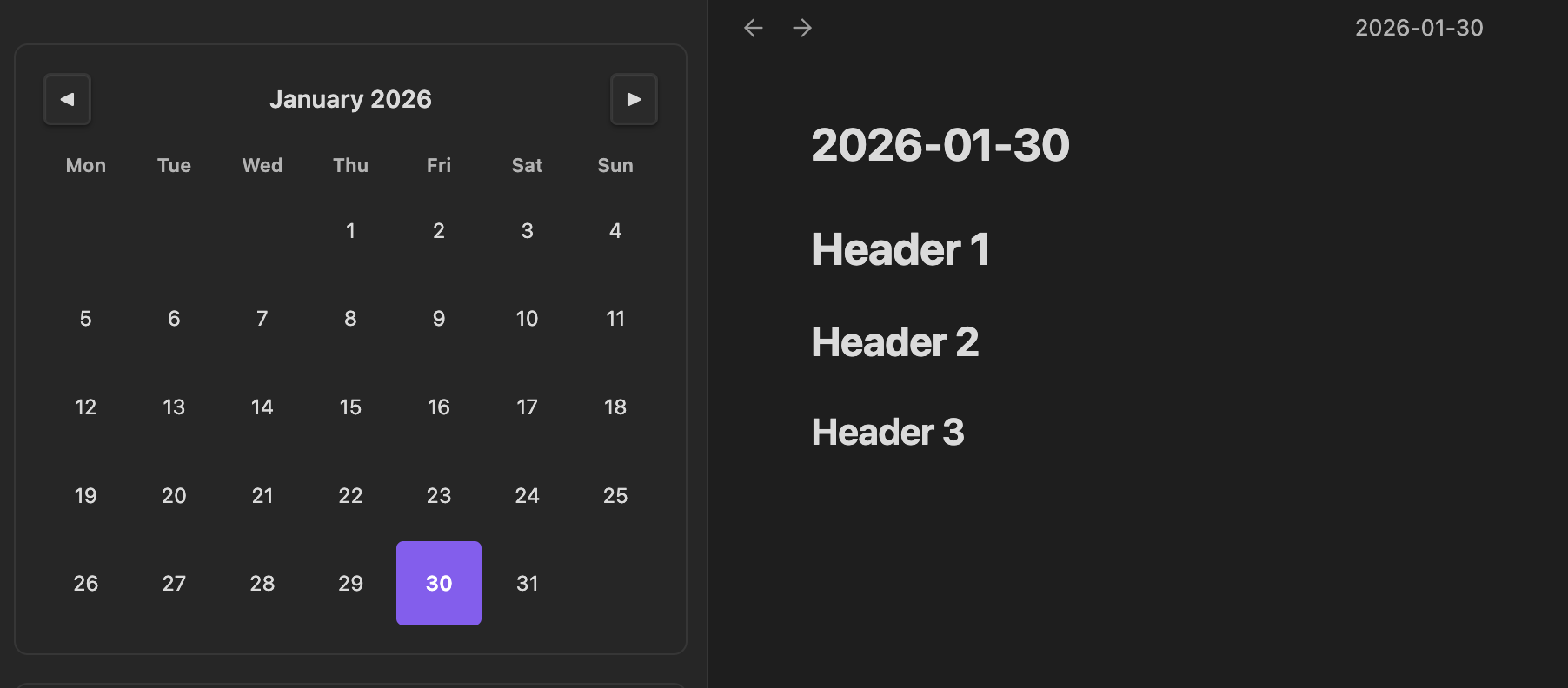
- Monthly calendar view
- Easy navigation between months
- Click any date to create or open a daily note
- Daily notes use the format:
YYYY-MM-DD.md - Automatically highlights today
- Opens daily notes in a new tab
Pomodoro Timer
- Default 40-minute work and 5-minute break sessions
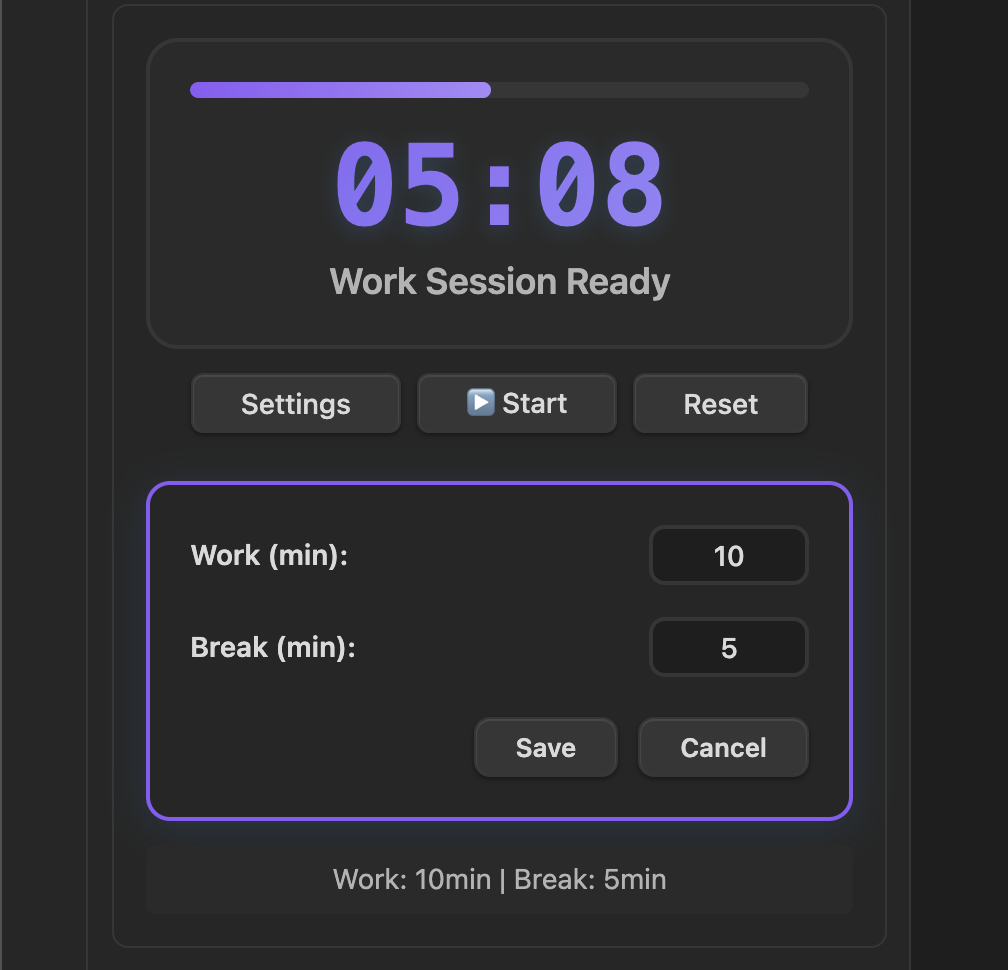
- Fully customizable work and break durations
- Large, clear time display (MM:SS)
- Animated progress bar
- Status indicators: Ready / Running / Complete
- Sound notification on completion
- Automatically resets after finishing
Task Manager
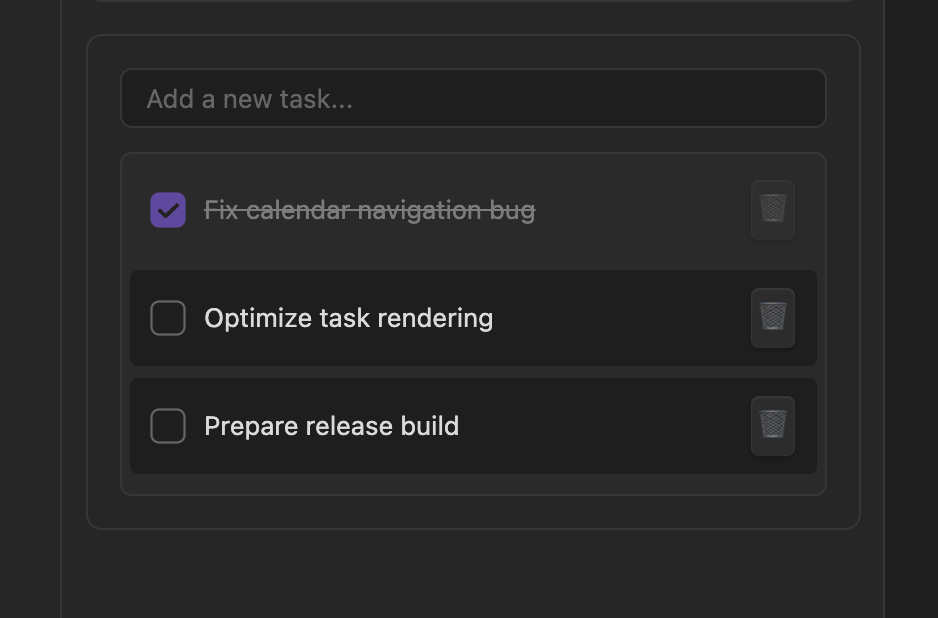
- Quickly add tasks with Enter key
- Checkbox-based task list
- Mark tasks as completed or active
- Delete tasks individually
- Clear empty-state messaging
- Visual distinction for completed tasks
Design & UX
- Native Obsidian look and feel
- Fully compatible with light and dark themes
- Smooth animations and transitions
- Responsive layout for different panel sizes
- Uses Obsidian CSS variables for full theme support
Screenshots
- Main plugin view
- Calendar interaction
- Pomodoro timer in action
- Task manager overview
Installation
Method 1: Community Plugins (Recommended)
- Open Settings → Community Plugins
- Disable Safe Mode
- Click Browse
- Search for Deadline
- Click Install → Enable
Method 2: Manual Installation
- Download the latest release from
👉 https://github.com/Saydullayev017/deadline/releases - Extract the files into:
~/.obsidian/plugins/deadline/ - Restart Obsidian
- Enable Deadline in Settings → Community Plugins
▶️ Opening the Plugin
You can open Deadline using:
- Command Palette →
Open Deadline - Ribbon icon (if enabled)
⚙️ Configuration
Default Settings
- Work duration: 40 minutes
- Break duration: 5 minutes
- Daily note format:
YYYY-MM-DD.md
Customization
All UI elements follow Obsidian’s theme variables, ensuring compatibility with:
- Light and dark themes
- Custom color schemes
- Font and scaling preferences
File Structure
deadline/
 ├── main.js
 ├── manifest.json
 ├── styles.css
 └── README.md
Troubleshooting
Plugin Not Loading
- Ensure the plugin is enabled
- Restart Obsidian
- Check the developer console for errors
Calendar Not Creating Files
- Verify vault permissions
- Ensure files with the same name do not already exist
Timer Issues
- Disable conflicting plugins
- Reset plugin settings
- Restart Obsidian
Task Persistence
- Tasks are currently stored per session
- Persistent task storage is planned for future versions
Roadmap
- Persistent task storage
- Multiple Pomodoro presets
- Custom daily note templates
- Productivity statistics
- Import / export support
📄 License
MIT License — free for personal and commercial use.
Contributing
Contributions, issues, and feature requests are welcome.
Please open an issue or submit a pull request on GitHub.
Support
If you find Deadline useful:
- ⭐ Rate it in the Obsidian Community Plugins browser
- 🐛 Report bugs or issues
- 💡 Suggest new features
Built with ❤️ for the Obsidian community.
For plugin developers
Search results and similarity scores are powered by semantic analysis of your plugin's README. If your plugin isn't appearing for searches you'd expect, try updating your README to clearly describe your plugin's purpose, features, and use cases.