Tasks Dashboard
pendingby Sean Shmulevich
Visual task dashboard that reads #todo tags from your vault with Discord-style sidebar, categories, and two-way sync.
Tasks Dashboard
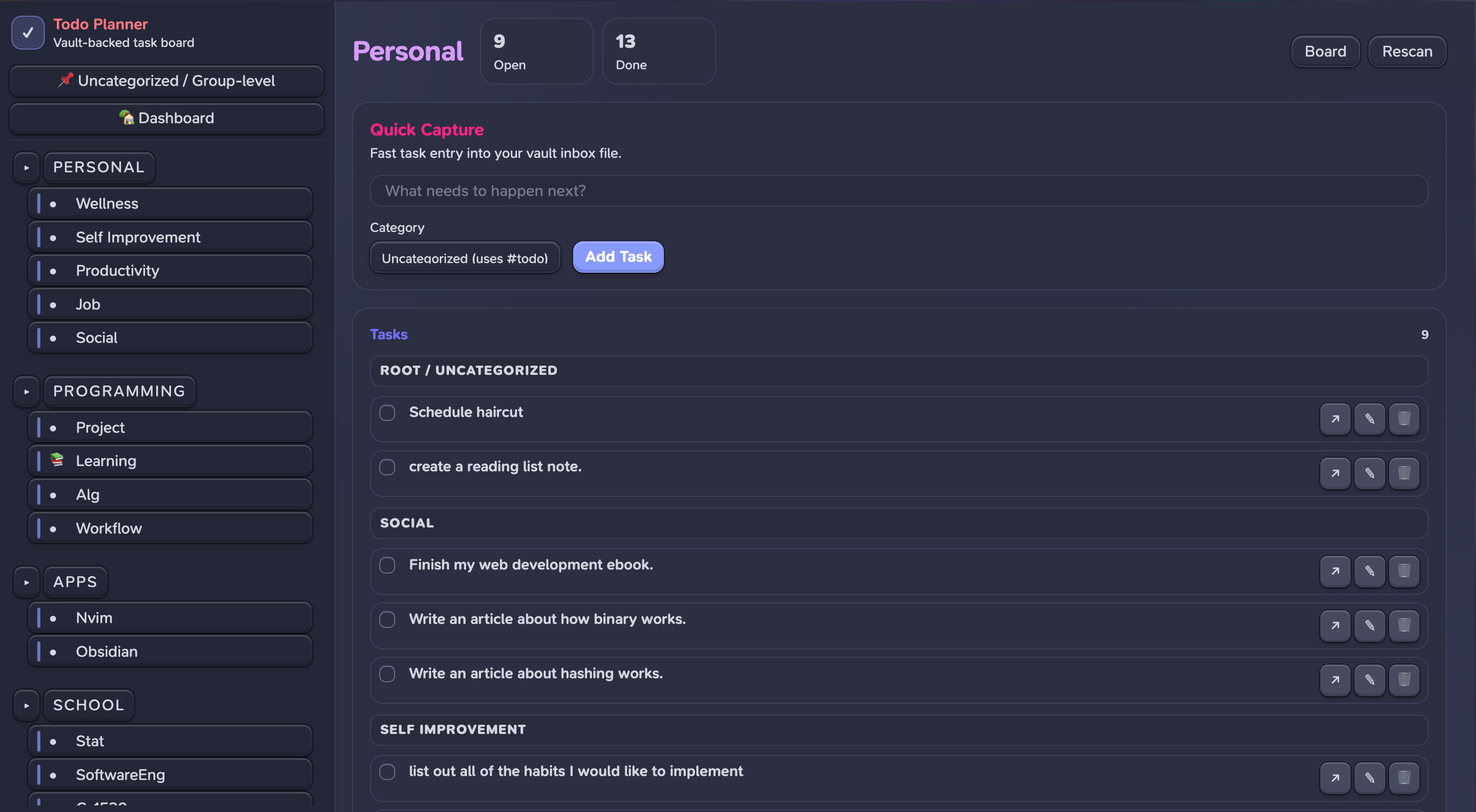
An Obsidian plugin that turns your vault's #todo tags into a visual task planner with a Discord-style sidebar, category grouping, and two-way sync.
How It Works
Tasks Dashboard scans your vault for #todo tags and renders them in an interactive UI. Completing a task in the UI checks it off in the source .md file. Adding a task writes it to your vault. No external database — your vault is the source of truth.
Tag Convention
- [ ] #todo/personal/social/blog Write an article about hashing
- [x] #todo/school/CS1622-Compilers Read chapters 4.1-4.2 ✅ 2024-10-13
- [ ] #todo/programming Get my compiler on git
- #todo/personal/job Schedule mentor calls
Structure: #todo/<group>/<category>/<subtag>
| Tag | Group | Category | Subtag |
|---|---|---|---|
#todo/school/CS1550-OS/project | School | CS1550 OS | project |
#todo/personal/social/blog | Personal | Social | blog |
#todo/programming | Programming | (root-level) | — |
#todo | (ungrouped) | — | — |
Both checkbox (- [ ]) and plain list (- #todo/...) formats are supported.
Features
- Discord-style sidebar — groups and categories with collapsible sections
- Two-way vault sync — check off tasks, add new ones, changes write back to
.mdfiles - Group views — click a group to see tasks organized by category (e.g., Apps → Obsidian, Nvim, Root)
- Category views — click a category to see tasks with subtag sections
- Subtag grouping —
#todo/personal/social/blogand#todo/personal/social/ebookrender as subsections within Social - Quick Capture — add tasks from any view; locked to the current category with optional subtag input
- Dashboard — all incomplete tasks across the vault, grouped by recency (This Week / This Month / All)
- Finished Tasks — collapsible section per view
- Drag reorder — reorder tasks within views, persisted across sessions
- Open in Obsidian — jump to the source file and line for any task
- Responsive — works in narrow panes with collapsible sidebar
- Obsidian theme integration — uses native CSS variables, adapts to light/dark themes
Installation
From source (recommended for now)
git clone https://github.com/Sean-Shmulevich/obsidian-tasks-dashboard.git
cd obsidian-tasks-dashboard
npm install
npm run build
Symlink into your vault:
ln -s /path/to/obsidian-tasks-dashboard /path/to/vault/.obsidian/plugins/tasks-dashboard
In Obsidian: Settings → Community Plugins → enable Tasks Dashboard.
Usage
- Click the ✅ ribbon icon or Cmd/Ctrl+P → "Open Tasks Dashboard"
- Opens as a tab in the main editor area
- Click groups/categories in the sidebar to filter
- Check off tasks — updates the source file
- Use Quick Capture to add tasks to your vault inbox
Settings
- Tag prefix — default
#todo, customize if you use a different convention - Inbox file — where Quick Capture writes new tasks (default
Todo Inbox.md) - Archived groups — groups to collapse by default
- Show completed — toggle finished task visibility
Tech Stack
- Obsidian Plugin API + Svelte 5 (runes)
- esbuild + esbuild-svelte
- TypeScript
- CSS custom properties (Obsidian theme variables)
Project Structure
├── main.ts              # Plugin entry point
├── TodoView.ts          # ItemView — mounts Svelte app
├── vault-scanner.ts     # Scans vault for #todo tags
├── vault-writer.ts      # Writes changes back to vault files
├── state.svelte.ts      # Reactive state (Svelte 5 runes)
├── settings.ts          # Plugin settings tab
├── types.ts             # Task, Category, CategoryGroup types
├── components/
│   ├── App.svelte       # Root layout (sidebar + content)
│   ├── Sidebar.svelte   # Discord-style navigation
│   ├── TaskBoard.svelte # Dashboard + category/group views
│   ├── TaskCard.svelte  # Individual task with actions
│   └── QuickCapture.svelte
├── styles.css           # Obsidian-themed styles
├── manifest.json
└── esbuild.config.mjs
License
MIT
For plugin developers
Search results and similarity scores are powered by semantic analysis of your plugin's README. If your plugin isn't appearing for searches you'd expect, try updating your README to clearly describe your plugin's purpose, features, and use cases.