Year Glance
pendingby YY Ahn
Render yearly calendar views with events marked and color-coded.
Year Glance
A yearly calendar plugin for Obsidian that renders a whole-year view with events marked using colored indicators.
Installation
Community Plugin (Recommended, but currently under review and not yet available)
- Open Obsidian Settings → Community plugins
- Click "Browse" and search for "Year Glance"
- Click "Install" then "Enable"
Manual Installation
- Download
main.js,manifest.json, andstyles.cssfrom the latest release - Create a folder called
year-glancein your vault's.obsidian/plugins/directory - Copy the downloaded files into this folder
- Restart Obsidian and enable "Year Glance" in Settings → Community plugins
Basic Usage
Create a code block with year_glance as the language:
```year_glance
---
year: 2026
---

@Trips
- 20260601-20260608: A trip to Boston
- 20260815-20260820: Summer vacation

@Deadlines
- 20260731: Project X deadline
- 20261215: Annual review
```
Configuration Options
All options are specified in the YAML frontmatter between --- markers.
| Option | Values | Default | Description |
|---|---|---|---|
year | Any year (e.g., 2026) | Current year | The year to display |
layout | 3x4, 12-rows | 3x4 | Calendar layout style |
weekStart | sunday, monday | sunday | First day of the week |
style | compact, expanded | compact | Display style |
showToday | true, false | true | Show today indicator (diamond + accent color) |
Layouts
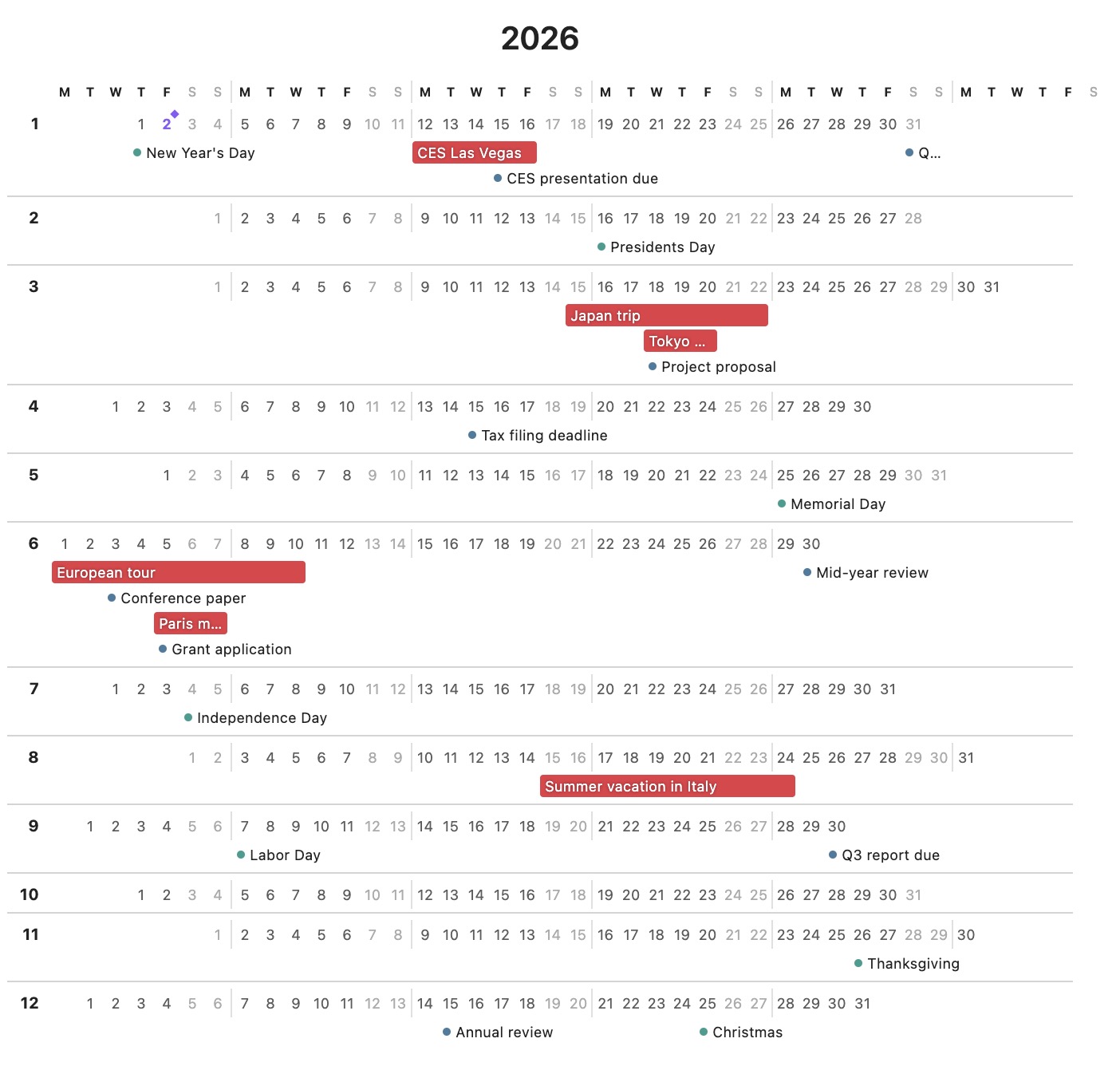
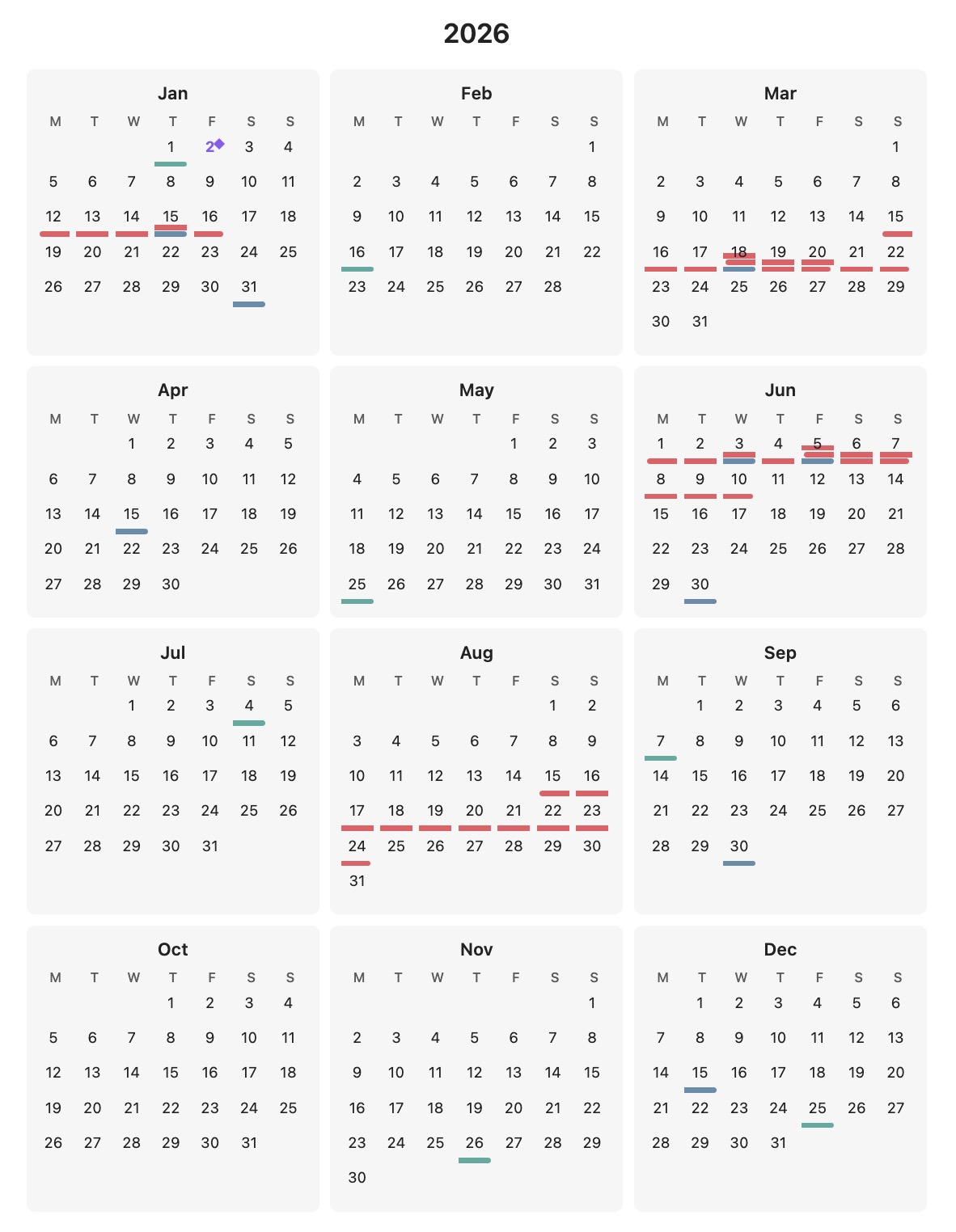
3x4- Traditional 3×4 grid with months arranged in rows12-rows- One month per row, all days shown horizontally
Display Styles
compact- Minimal look with small colored indicator bars. Hover over a day to see event details in a tooltip.expanded- Event text is visible directly on the calendar. Multi-day events show as colored bars spanning multiple days; single-day events show as bullets with text.
Event Syntax
Categories
Categories group related events and share a color. Define them with @CategoryName:
@Trips
- 20260601-20260608: Boston conference

@Deadlines
- 20260731: Project deadline
Custom Colors
Optionally specify a hex color for a category:
@Trips [#ff6b6b]
- 20260601-20260608: Boston conference

@Holidays [#4ecdc4]
- 20261225: Christmas
If no color is specified, colors are auto-assigned from a built-in palette.
Date Formats
- Single day:
YYYYMMDD(e.g.,20260715) - Date range:
YYYYMMDD-YYYYMMDD(e.g.,20260601-20260608)
Full Example
```year_glance
---
year: 2026
layout: 3x4
weekStart: monday
style: expanded
---

@Trips [#e63946]
- 20260601-20260608: Boston conference
- 20260815-20260820: Summer vacation in Hawaii

@Deadlines [#457b9d]
- 20260131: Q1 planning complete
- 20260430: Tax filing deadline
- 20260731: Project X milestone

@Holidays [#2a9d8f]
- 20260101: New Year's Day
- 20260704: Independence Day
- 20261225: Christmas
```
Color Palette
When colors are not specified, the following palette is used (in order):
#e63946- Red#457b9d- Steel Blue#2a9d8f- Teal#e9c46a- Yellow#f4a261- Orange#9c89b8- Purple#a8dadc- Light Cyan#264653- Dark Teal
For plugin developers
Search results and similarity scores are powered by semantic analysis of your plugin's README. If your plugin isn't appearing for searches you'd expect, try updating your README to clearly describe your plugin's purpose, features, and use cases.