Quick snippets and navigation
approvedby ieviev
Keyboard navigation up/down for headings - Configurable default code block and callout - Copy code block via keyboard shortcut.
Quick snippets and navigation for Obsidian
- Keyboard navigation up/down for headings
- Configurable default code block and callout shortcuts
- Copy code block via keyboard shortcut
- Quick Switcher extensions
no keybinds are set on install, you have to configure them yourself
List of commands:
- Go to previous heading
- Go to next heading
- Select current heading block
- Go to previous empty line
- Go to next empty line
- Copy Next Code Block
- Copy Code Block
- Search by Tag
- Increase Heading level
- Decrease Heading level
- Insert Default Callout
- Insert Code Block
Go to previous/next heading and Go to previous/next empty line
- note: only works in edit mode
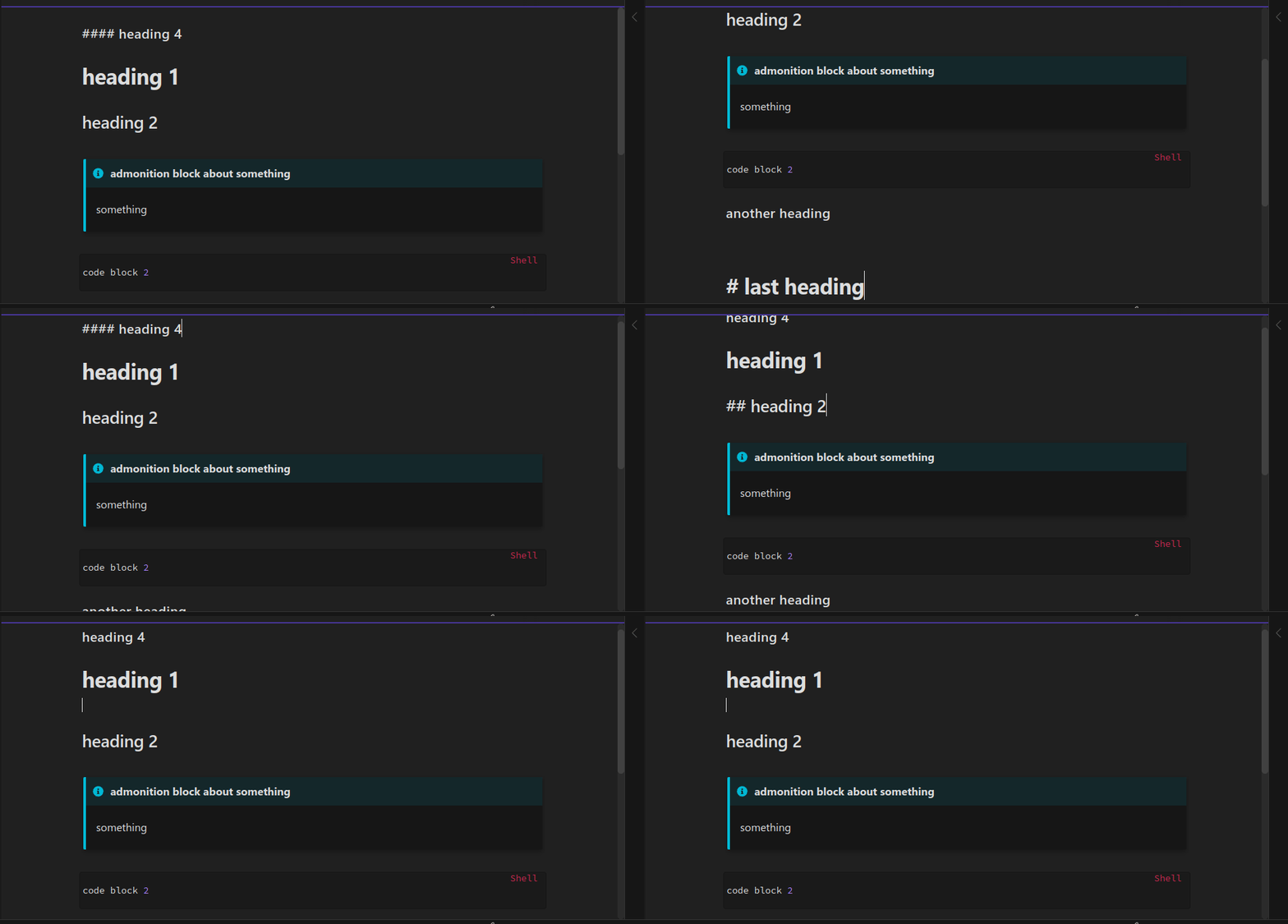
Select current heading block
- Select current heading block: selects text until the next heading or end of document
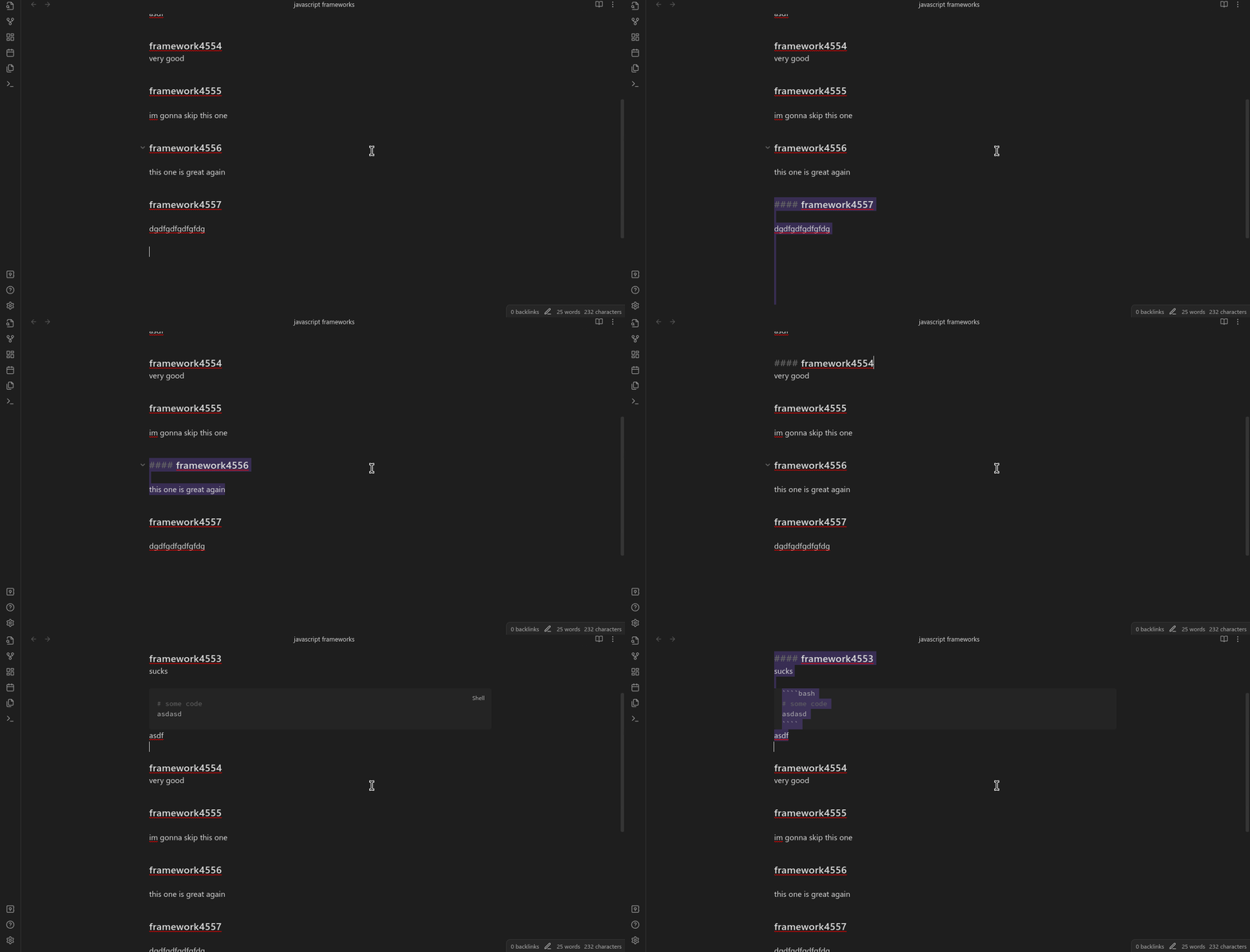
Copy code block / Copy next code block
- Copy code block: shows a list of code blocks and allows you to search and copy one of them
- Copy next code block: copies the next code block, closest to the cursor
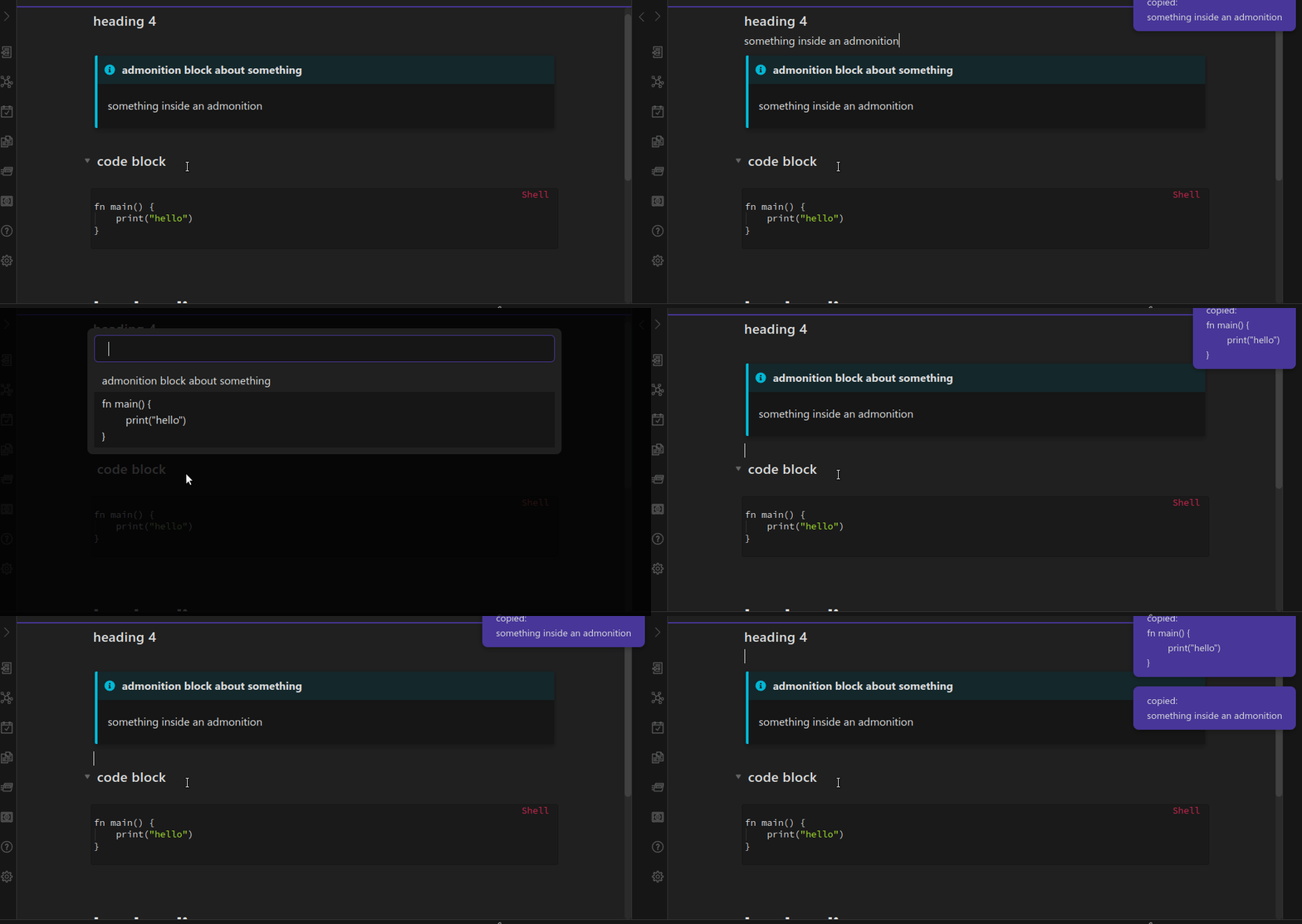
Switcher extensions
NOTE: these require you to configure
Default modal commandin the plugin settings:
For the following demos i used the Another Quick Switcher plugin which supports tags and set
Default modal commandto:
obsidian-another-quick-switcher:search-command_recent-search
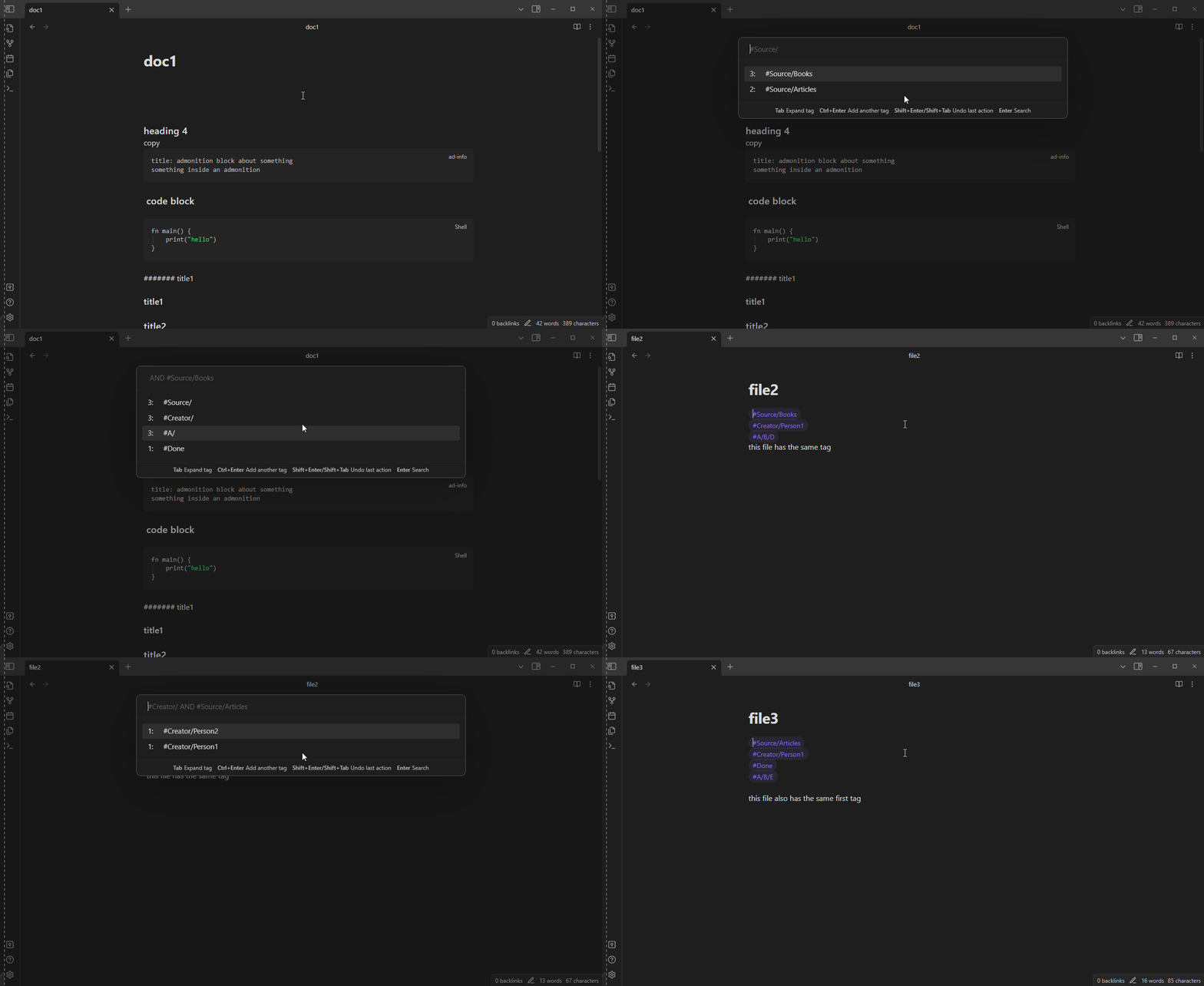
Switcher extensions / Search by tag
Allows performing a 2-step search, first filtering notes by tag.
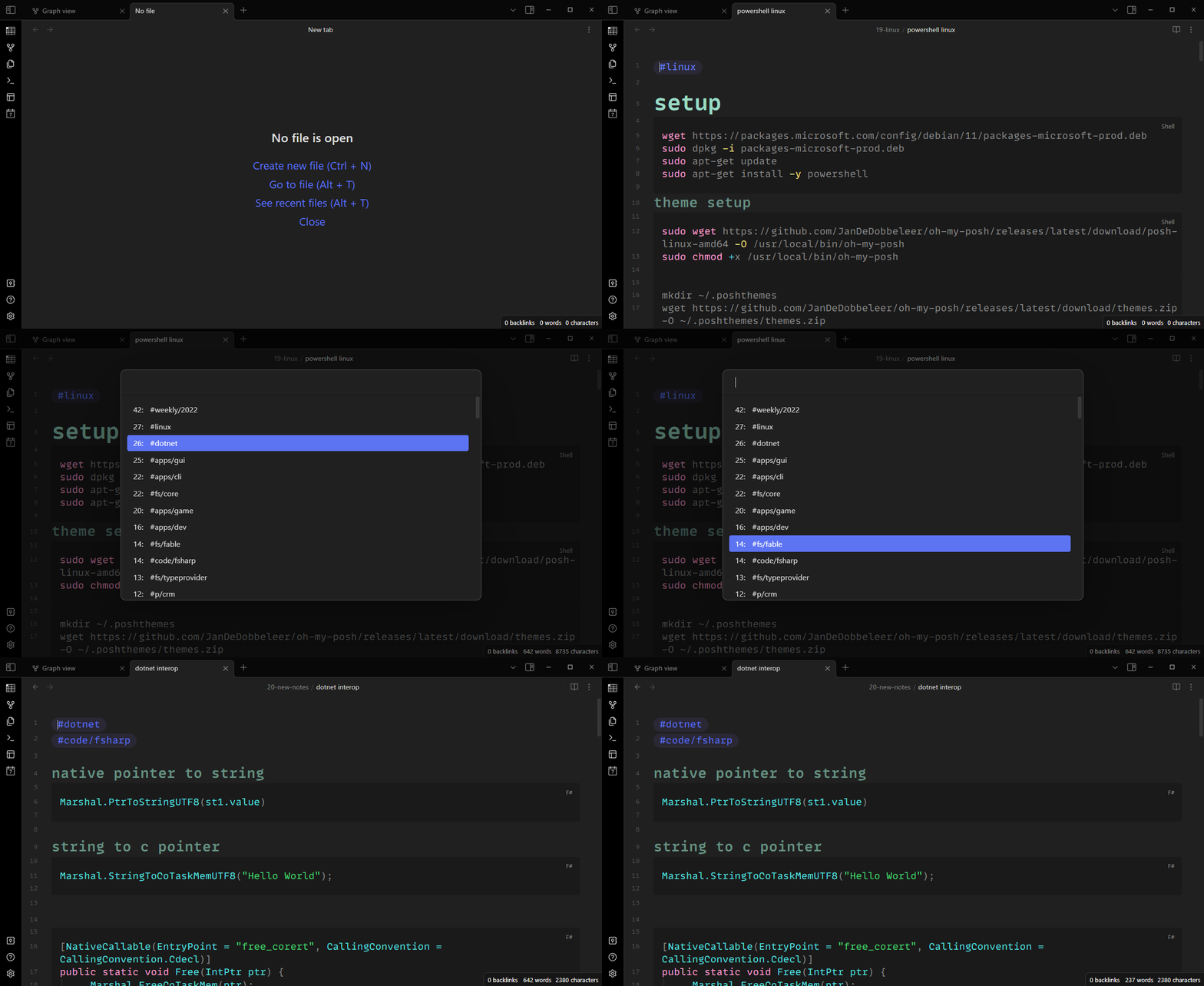
Switcher extensions / Folded search by Tag
Tag search with:
- Unfolding tags
- AND queries
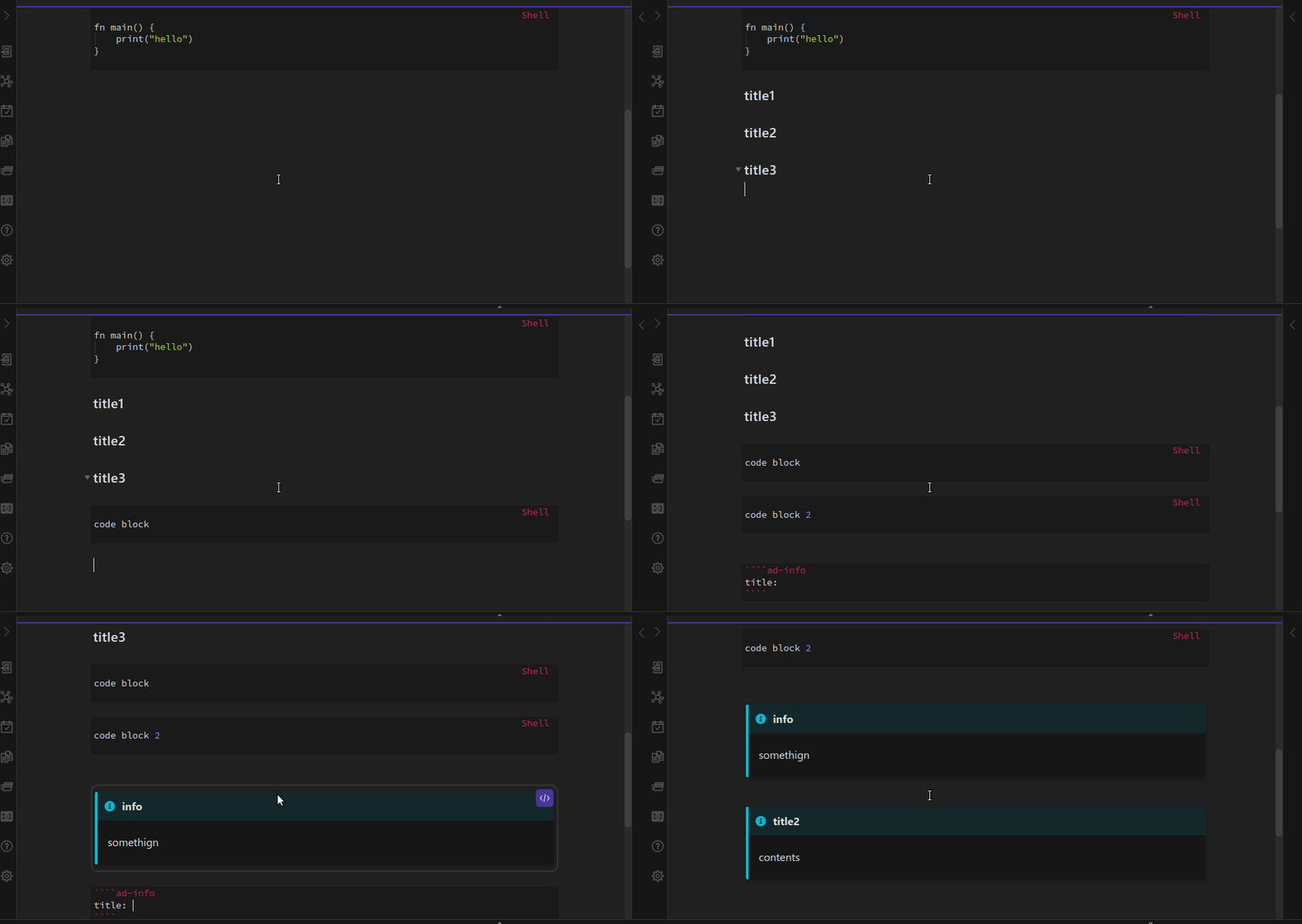
Insert code block / Insert callout
- also moves the cursor inside the code block / to the title after using
- the default language of the code block is configurable in settings
- the default callout type is also configurable in settings
development
dependencies
- dotnet sdk
- npm
---
installing node and dotnet dependencies
npm i
npm run install
compiling F# to js
npm run build
publishing to dist/
npm run publish
For plugin developers
Search results and similarity scores are powered by semantic analysis of your plugin's README. If your plugin isn't appearing for searches you'd expect, try updating your README to clearly describe your plugin's purpose, features, and use cases.