Reading Markers
approvedby ptwm
Adds persistent color-coded reading markers inside Markdown notes. - This plugin has not been manually reviewed by Obsidian staff.
Reading Markers
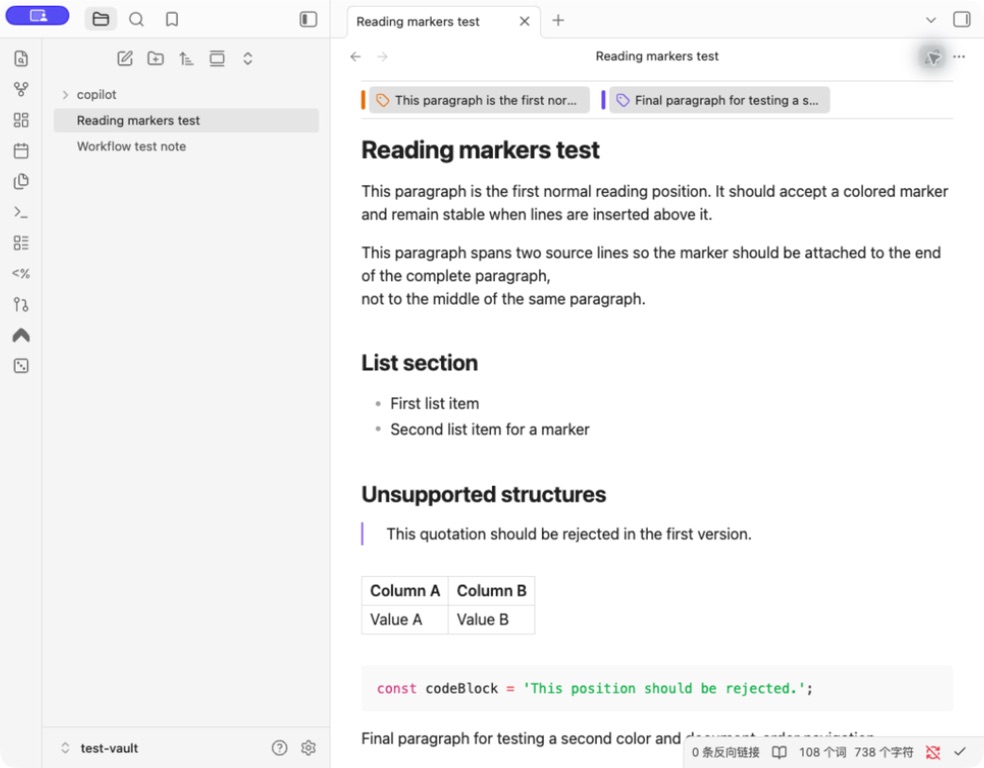
Reading Markers adds persistent, color-coded reading positions to Markdown notes and PDF pages. Save several places in one document, scan them near the top of the document, and jump back without searching through the document.
Features
- Add a marker from a paragraph, heading, or list item in editing view or Reading view.
- Choose from red, orange, yellow, green, blue, and purple.
- Group markers by color below the note title.
- Identify unnamed markers by an automatically generated text excerpt.
- Jump to a saved position from the marker bar.
- Use the vertical side controls to jump to the nearest marker above or below the current reading position.
- Before an up or down jump, optionally save the current position for a temporary return; the middle control returns there and saves replace the previous temporary position.
- Fall back to the session's center marker with the middle control when no temporary return position exists.
- Drag the navigation panel by its grip, move it to either side, or collapse it to the edge when it is not needed.
- Change a marker's color or remove it from the marker context menu.
- Keep positions stable when lines are inserted above the marked content or the note is renamed.
- Add page-level markers to PDF documents without modifying the original PDF file.
- Right-click a PDF page or use the PDF toolbar action to add a marker to the visible page.
- View, recolor, remove, and jump to PDF page markers from the marker bar.
Reading Markers is currently desktop-only and requires Obsidian 1.13.7 or later.
Usage
Add a marker
- Right-click a paragraph, heading, or list item.
- Select Add reading marker.
- Select one of the six colors.
The marker appears below the note title. Click it to return to the saved position.
Change or remove a marker
Right-click a marker in the marker bar. Select another color, or select Delete reading marker to remove it.
Mark a PDF page
- Open a PDF in Obsidian.
- Right-click the page you are reading and select Add PDF reading marker, or use the tag action in the PDF toolbar.
- Select a color.
The marker bar appears above the PDF pages and shows entries such as Page 8. Click an entry to return to that page. PDF markers are saved in the plugin data, so the original PDF is not changed.
Navigate between markers
In Markdown editing view, Markdown Reading view, and PDF view, the right-side vertical control contains three buttons. In editing view, the editor cursor is used as the current position; in Reading view, the position is estimated from the reading scroll; in PDF view, the current page is used. The up arrow jumps to the nearest marker above the current position, and the down arrow jumps to the nearest marker below it. Before either jump, the plugin asks whether to save the current position for return. Saving creates a temporary session-only return point and replaces the previous temporary point; choosing not to save keeps the previous temporary point. The middle button returns to the temporary point first, then falls back to the session center marker. When neither exists, it asks you to add a permanent reading marker. Permanent markers remain independently manageable and are not deleted by this temporary behavior.
The panel automatically collapses after four seconds without pointer or keyboard activity. Use the small grip to drag it vertically or horizontally. Moving it near the left or right edge snaps it to that side and collapses it; click the edge handle to expand it again. Its position is retained locally in the current Obsidian installation.
The PDF phase uses page-level positions. The same PDF page cannot have two separate markers, and text selection, text excerpts, and PDF annotation are not part of this phase. Scanned image PDFs can still use page markers; when no text layer is detected, the plugin explains that text-level locations are unavailable.
Settings
- Show success notices controls short notices after successful changes. Error notices remain enabled.
- Enable debug logging adds prefixed action logs at the developer console's verbose level. It is disabled by default.
Interface text automatically follows Obsidian in English or Chinese. Other languages use English.
Saved settings are validated when the plugin starts. Missing or malformed values fall back to safe defaults.
Data format
For Markdown notes, the plugin appends an Obsidian block ID to the marked Markdown block:
This paragraph has a blue reading marker. ^study-marker-blue-a1b2c3d4
The block ID keeps the marker attached to the content instead of a line number. Removing a marker removes only the plugin-owned block ID and preserves the original text.
Reading Markers intentionally rejects YAML properties, fenced code blocks, tables, blockquotes, Callouts, HTML blocks, blank lines, and blocks that already have another block ID. It displays a notice instead of guessing where to write.
Block IDs are an Obsidian Markdown extension and may appear as plain text in other Markdown applications.
For PDFs, the plugin stores a record containing the Vault-relative file path, page number, color, and plugin-owned marker ID in its local plugin data. It does not write annotations into the PDF.
Privacy and permissions
Reading Markers works locally and only reads or updates Markdown notes and plugin data inside the active Vault. PDF markers do not modify PDF files. It does not use network services, telemetry, ads, accounts, payments, or files outside the Vault.
Installation
After the plugin is available in the Community directory, install it from Settings -> Community plugins.
For a manual installation, download main.js, manifest.json, and styles.css from the same GitHub Release. Place them in:
<your-vault>/.obsidian/plugins/reading-markers/
Restart Obsidian, then enable Reading Markers under Community plugins.
Development
npm ci
npm run check
npm run release:check
npm run release:prepare
npm run release:prepare creates a local release directory containing the three files Obsidian installs.
Support
Report reproducible problems in GitHub Issues. See CONTRIBUTING.md for the expected diagnostic details and local verification Gate.
License
Reading Markers is available under the 0BSD license.
For plugin developers
Search results and similarity scores are powered by semantic analysis of your plugin's README. If your plugin isn't appearing for searches you'd expect, try updating your README to clearly describe your plugin's purpose, features, and use cases.