SketchMatter
approvedby Tyler Carrol
Render SVG images from frontmatter-defined objects, layers, and views. - This plugin has not been manually reviewed by Obsidian staff.
SketchMatter Plugin for Obsidian


This logo was created using this plugin and is available in the
/sketch-matter-demo-vault
SketchMatter renders SVG images from the frontmatter in Obsidian notes.
Examples
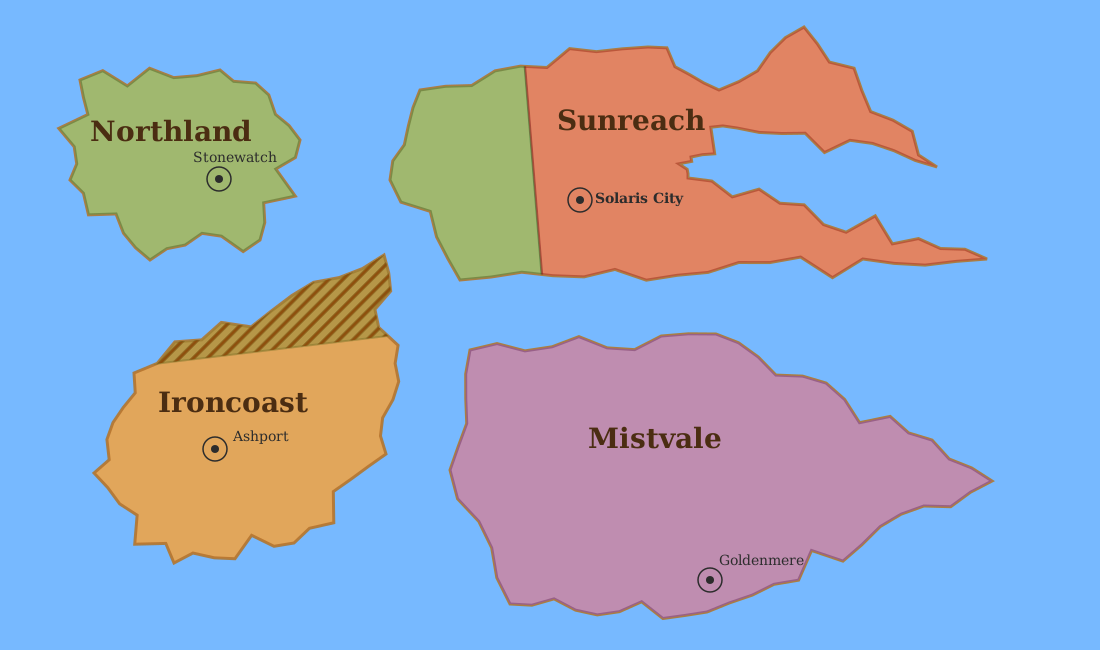
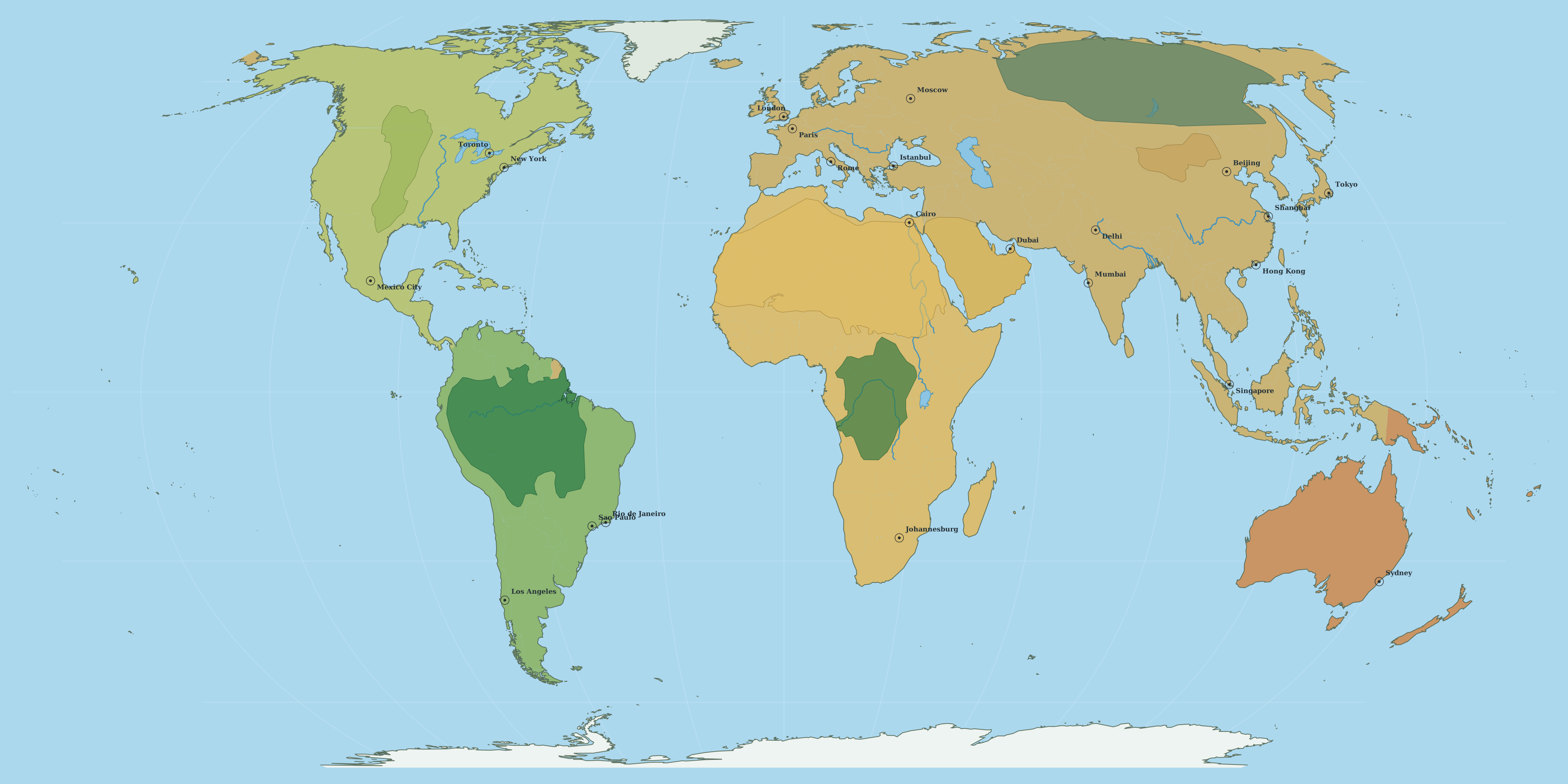
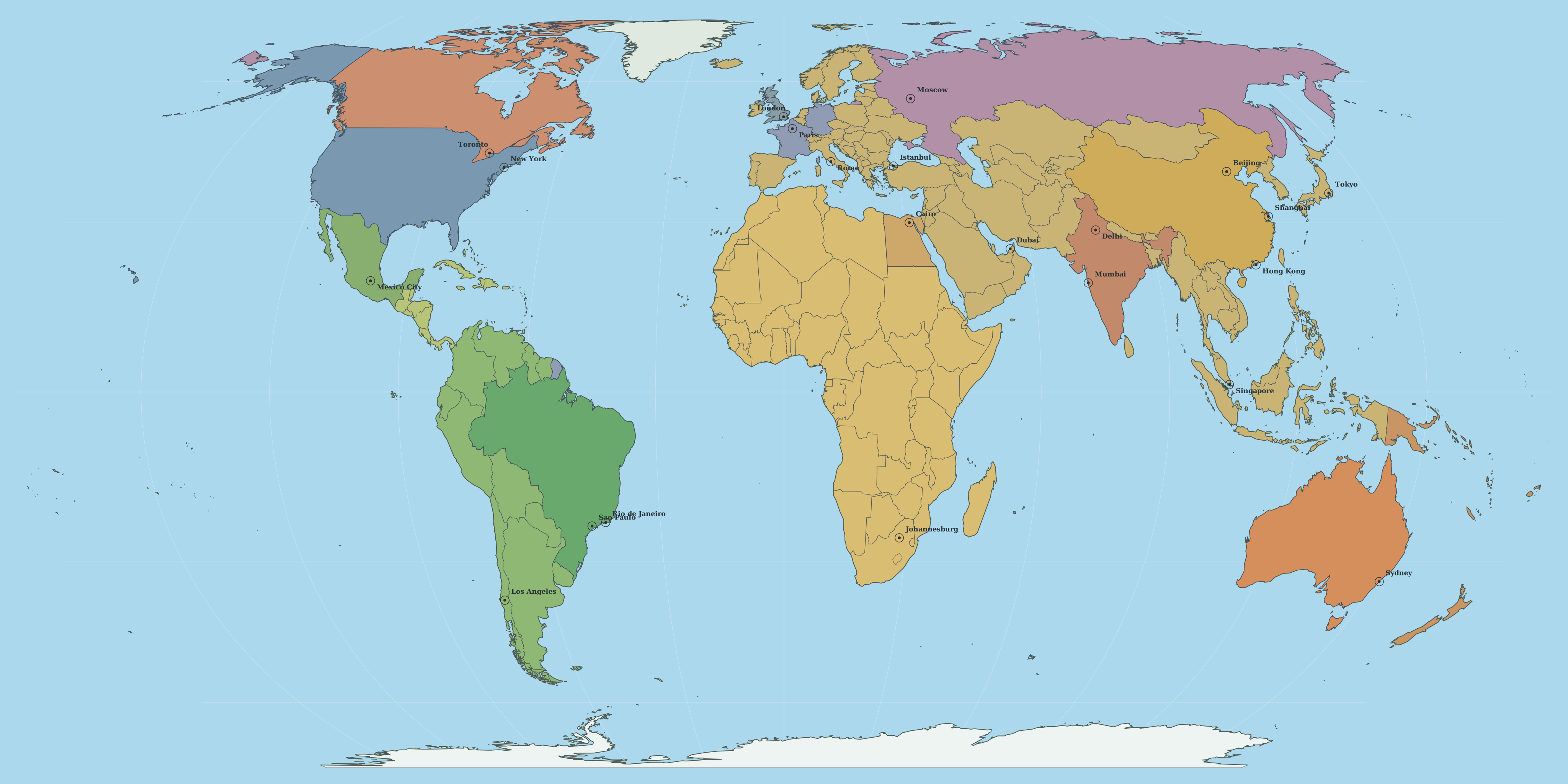
The following examples are available in the
/sketch-matter-demo-vault
Features
Preview Panel
- View image preview
- Edit by drag-and-drop
- Toggle a customizable grid
- Zoom and pan
Export
- Export a render as SVG
Inline Code Block
- Select an image and optional view to render directly in a note
Details
- Draw objects from note frontmatter
- Support built-in shapes:
polygon,polyline,line,circle,rect,ellipse,text, andcomposite - Create type definitions to extend base shapes, or other type definitions
- Support built-in shapes:
- Order objects by layer
- Filter objects by layer using views
- Blend to soften edges
- Mask to keep items within certain bounds
- Noise to create jagged edges from a seed
Object notes
An object note usually contains:
- a type tag such as
sketchmatter-type/continent - optionally additional type tags when the same note should render as multiple objects
- coordinates
- optional label coordinates for label rendering
- an optional layer override
- optional image IDs
- optional style overrides such as
fill,stroke,strokeWidth, andopacity
Example:
---
tags:
  - sketchmatter-type/continent
  - sketchmatter-type/label
sketchmatter-layer: 100
sketchmatter-coordinates:
  - "100, 100"
  - "300, 120"
  - "360, 240"
  - "220, 300"
sketchmatter-label-coordinates:
  - "240, 190"
sketchmatter-label-text: Sunreach
sketchmatter-font-family: Georgia
sketchmatter-font-size: 24
sketchmatter-font-style:
  - bold
  - italic
sketchmatter-font-color: "#4b2d12"
sketchmatter-image-id: map1
---
sketchmatter-image-id can be a single ID, a comma-separated string, or a YAML array when one object belongs to multiple images.
Coordinates are interpreted by the resolved shape renderer. Type definitions in plugin settings provide the usual shape and style defaults, and object-level frontmatter can override them. If a note has multiple matching type tags, SketchMatter emits one object per type tag so a single note can render, for example, both a continent polygon and its label.
Type definitions
Type definitions are configured in Settings → Community plugins → SketchMatter.
Each type definition can specify:
- Type name
- Extends for inherited defaults
- Shape
- Default layer
- Layer override property (optional, type-specific layer frontmatter key such as
sketchmatter-label-layer) - Style JSON
- optional extra properties consumed by a shape
The default settings include:
- a
labeltype definition that uses the built-intextshape and reads its position fromsketchmatter-label-coordinates - a
citytype definition that uses the built-incompositeshape for a marker symbol
If a shape is not explicitly set, SketchMatter can infer one from the coordinate structure.
View definitions
View definition notes are tagged like this:
tags:
  - sketchmatter-view/political
Supported frontmatter:
sketchmatter-include-layerssketchmatter-exclude-layersincludeImageIdsexcludeImageIds
Example:
---
tags:
  - sketchmatter-view/political
sketchmatter-include-layers: 100-400
includeImageIds:
  - map3
---
Views can be selected in the panel or referenced from a sketchmatter code block.
Image definitions
Image definition notes are tagged like this:
tags:
  - sketchmatter-image/map2
Supported frontmatter:
sketchmatter-widthsketchmatter-heightsketchmatter-background-colorsketchmatter-background-imagesketchmatter-preserve-aspect-ratio
sketchmatter-background-image accepts vault assets, wikilinks, absolute URLs, and data URLs.
Embedding in notes
Use a sketchmatter code block:
image: map1
view: political
Supported parameters:
imageview
Both are optional. The view value is case-insensitive. If an image is omitted, SketchMatter will try to resolve one from the selected view or the filtered objects.
Styling and advanced rendering
In addition to type-definition styles, object notes can opt into:
- Opacity with
sketchmatter-opacity - Texture fills with
sketchmatter-texture - Masks with
sketchmatter-mask - Soft-edge blending with
sketchmatter-blendandsketchmatter-blend-radius - Overlap-only patterns with
sketchmatter-overlap-pattern,sketchmatter-overlap-thickness,sketchmatter-overlap-spacing,sketchmatter-overlap-angle, andsketchmatter-overlap-color - Deterministic edge noise with
sketchmatter-seed,sketchmatter-magnitude, andsketchmatter-noise - Label text with
sketchmatter-label-text - Label font family, size, style list, and color with
sketchmatter-font-family,sketchmatter-font-size,sketchmatter-font-style, andsketchmatter-font-color
sketchmatter-texture accepts the same asset forms as background images: vault paths, wikilinks, absolute URLs, and data URLs.
Mask selectors can target:
type:<type-name>file:<path-or-basename>- a plain value matched against type or file name, such as
continent
Overlap patterns are drawn only where objects of the same type intersect. Supported pattern values are:
lineshatchcrosshatchdots
For lines, use sketchmatter-overlap-angle to rotate the line direction (degrees, default 0).
Exporting SVG
In the panel, select Export SVG to write the current render to the vault root.
Typical filenames look like:
sketch-matter-export-all.svgsketch-matter-export-political-map1.svg
Configurable property names
All user-facing frontmatter and tag-prefix keys are configurable in plugin settings. The defaults include:
sketchmatter-typesketchmatter-viewsketchmatter-imagesketchmatter-layersketchmatter-shapesketchmatter-childrensketchmatter-coordinatessketchmatter-image-idsketchmatter-label-coordinatessketchmatter-label-textsketchmatter-font-familysketchmatter-font-sizesketchmatter-font-stylesketchmatter-font-colorsketchmatter-widthsketchmatter-heightsketchmatter-background-colorsketchmatter-background-imagesketchmatter-preserve-aspect-ratiosketchmatter-opacitysketchmatter-texturesketchmatter-masksketchmatter-seedsketchmatter-magnitudesketchmatter-noisesketchmatter-blendsketchmatter-blend-radiussketchmatter-overlap-patternsketchmatter-overlap-thicknesssketchmatter-overlap-spacingsketchmatter-overlap-anglesketchmatter-overlap-colorsketchmatter-fillsketchmatter-strokesketchmatter-stroke-widthdefaultLayer:1000(fallback layer for objects with no layer set)
Install for development
- Install dependencies:
npm install - Build the plugin:
npm run build - Copy
main.js,manifest.json, andstyles.cssto:<Vault>/.obsidian/plugins/sketch-matter/ - In Obsidian, enable Settings → Community plugins → SketchMatter.
- Run SketchMatter: Open panel from the command palette.
For watch mode during development:
npm run dev
Fastest way to try it
This repository includes a ready-made demo vault in /sketch-matter-demo-vault.
- Windows/PowerShell:
.\scripts\build-to-demo-vault.ps1 - Any platform:
- Run
npm run build - Copy
main.js,manifest.json, andstyles.csstosketch-matter-demo-vault/.obsidian/plugins/sketch-matter/ - Open
sketch-matter-demo-vaultin Obsidian
- Run
See sketch-matter-demo-vault/README.md for a guided walkthrough.
How the plugin is organized
SketchMatter works with three note types:
- Object notes
Notes tagged with the configured type-tag prefix become drawable objects. - View definition notes
Notes tagged with the configured view-tag prefix filter objects by layer and image ID. - Image definition notes
Notes tagged with the configured image-tag prefix define SVG-wide settings such as size and background.
At render time, the plugin collects objects, applies any selected view and image filters, resolves shapes and styling, and renders the matching objects into one SVG.
For plugin developers
Search results and similarity scores are powered by semantic analysis of your plugin's README. If your plugin isn't appearing for searches you'd expect, try updating your README to clearly describe your plugin's purpose, features, and use cases.