svgeditor
approvedby kpaede
Edit SVG files. - This plugin has not been manually reviewed by Obsidian staff.
SVG Editor for Obsidian
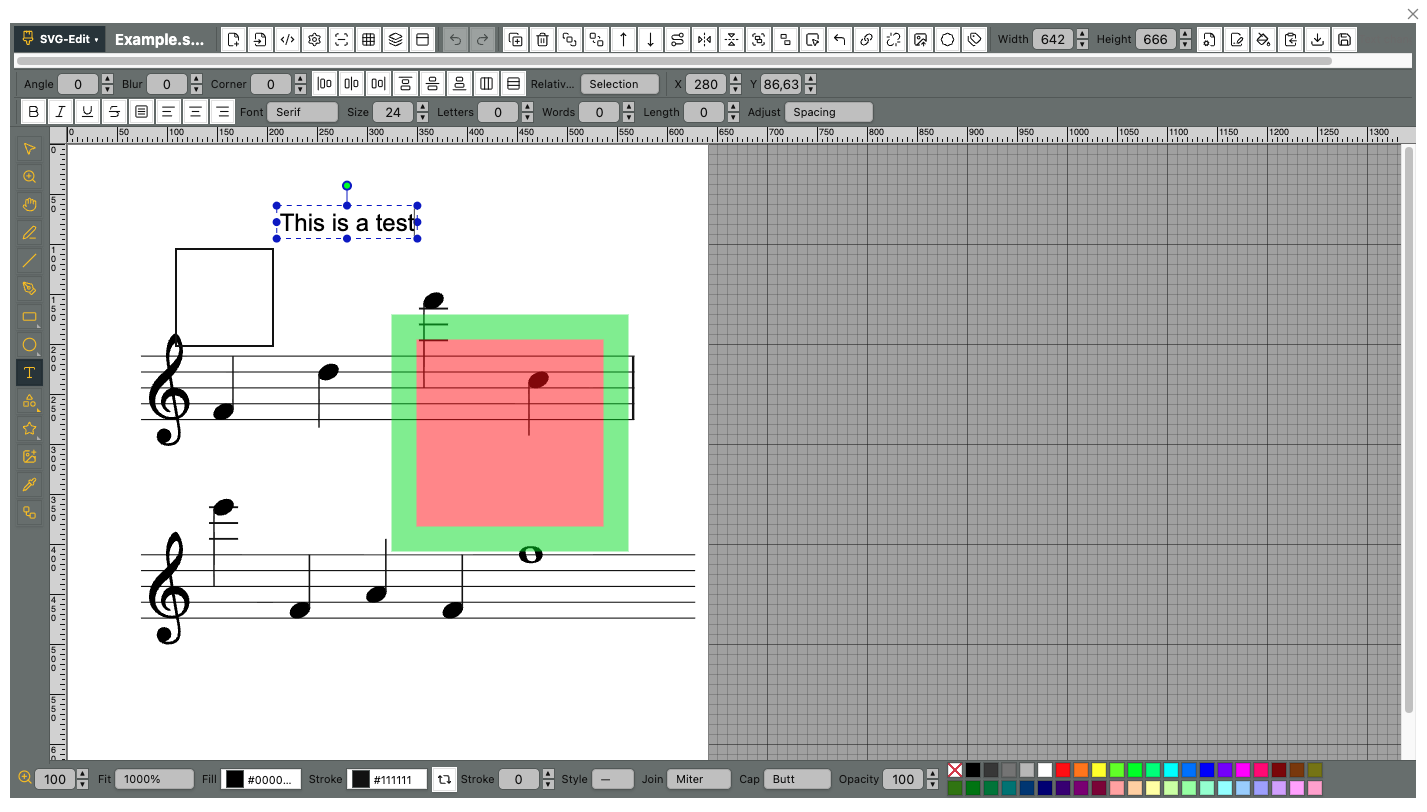
SVG Editor for Obsidian brings an SVG-edit based vector editor directly into your vault. It lets you create, open, edit, and save .svg files without leaving Obsidian.
Features
- Direct SVG editing: Open
.svgfiles from the file menu, the ribbon icon, commands, or the pencil button on the SVG. - Edit button: Rendered SVGs show a small pencil button in the upper-right corner. Click it to open that SVG directly in the editor. This is enabled by default and can be disabled in the plugin settings.
- Drawing tools: Selection, rectangles, ellipses, lines, freehand paths, text, connectors, panning, zooming, and more.
- Shape library: Includes categories such as Basic, Arrows, Flowchart, Music, Mathematics, Animals, Objects, Symbols, and more.
- Rulers and grid: Use rulers, grid display, snapping, and multiple units including px, cm, mm, in, pt, and pc.
- Layers and overview: Manage layers, visibility, ordering, and use the overview panel for navigation.
- Styling controls: Edit fills, strokes, opacity, markers, gradients, line joins, line caps, and other SVG properties.
- Source editing and export: Edit SVG XML directly, use dynamic sizing, and export images from the editor.
- Draft safety: Changes are buffered as drafts before they are saved back to the vault file.
Usage
-
Create a new SVG
- Click the ribbon icon.
- Or run
SVG Editor: Create new SVGfrom the command palette.
-
Edit an existing SVG
- Right-click an SVG file in the file explorer and choose
Edit with SVGEdit. - Or focus an SVG file and click the ribbon icon.
- Or hover over a rendered SVG in a note and click the pencil button in its upper-right corner.
- Right-click an SVG file in the file explorer and choose
-
Use the editor
- Use the left toolbar for drawing and selection tools.
- Use the top and bottom toolbars for object properties, fill/stroke settings, zoom, source editing, export, and document options.
- Save to write the edited SVG back to the vault file.
Settings
- Show inline edit button: Shows or hides the pencil button on rendered SVGs. Enabled by default.
- Default document size: Controls the width and height used when creating new SVG files.
Technical Details
This plugin uses SvgCanvas from SVG-edit inside an Obsidian modal instead of embedding a separate iframe editor. The plugin integrates with Obsidian files (TFile), menus, commands, settings, and Markdown rendering so SVGs can be edited as normal vault files.
Disclaimer
I vibecode my plugins—and the scope of this work exceeds my programming skills. Because of this, there is always a residual risk when using them. I do this primarily to bridge certain gaps in my own workflow. Should these plugins ever become obsolete because a professional developer used them as inspiration to code something truly solid and sophisticated, I would be absolutely thrilled.
For plugin developers
Search results and similarity scores are powered by semantic analysis of your plugin's README. If your plugin isn't appearing for searches you'd expect, try updating your README to clearly describe your plugin's purpose, features, and use cases.