by theluckystrike
Create sentence cards from local subtitle files and keep each source path and timestamp.
Subtitle Sentence Miner
Subtitle Sentence Miner creates Markdown study cards from SRT and VTT files in your vault. Read the cue list, choose a sentence and mark the text you want to learn. The resulting note keeps the source path, cue number and start and end times.
The free core uses local files. It has no media player, audio cutter or subtitle download service. You supply the subtitle file and decide which cues belong in a study note.
Features
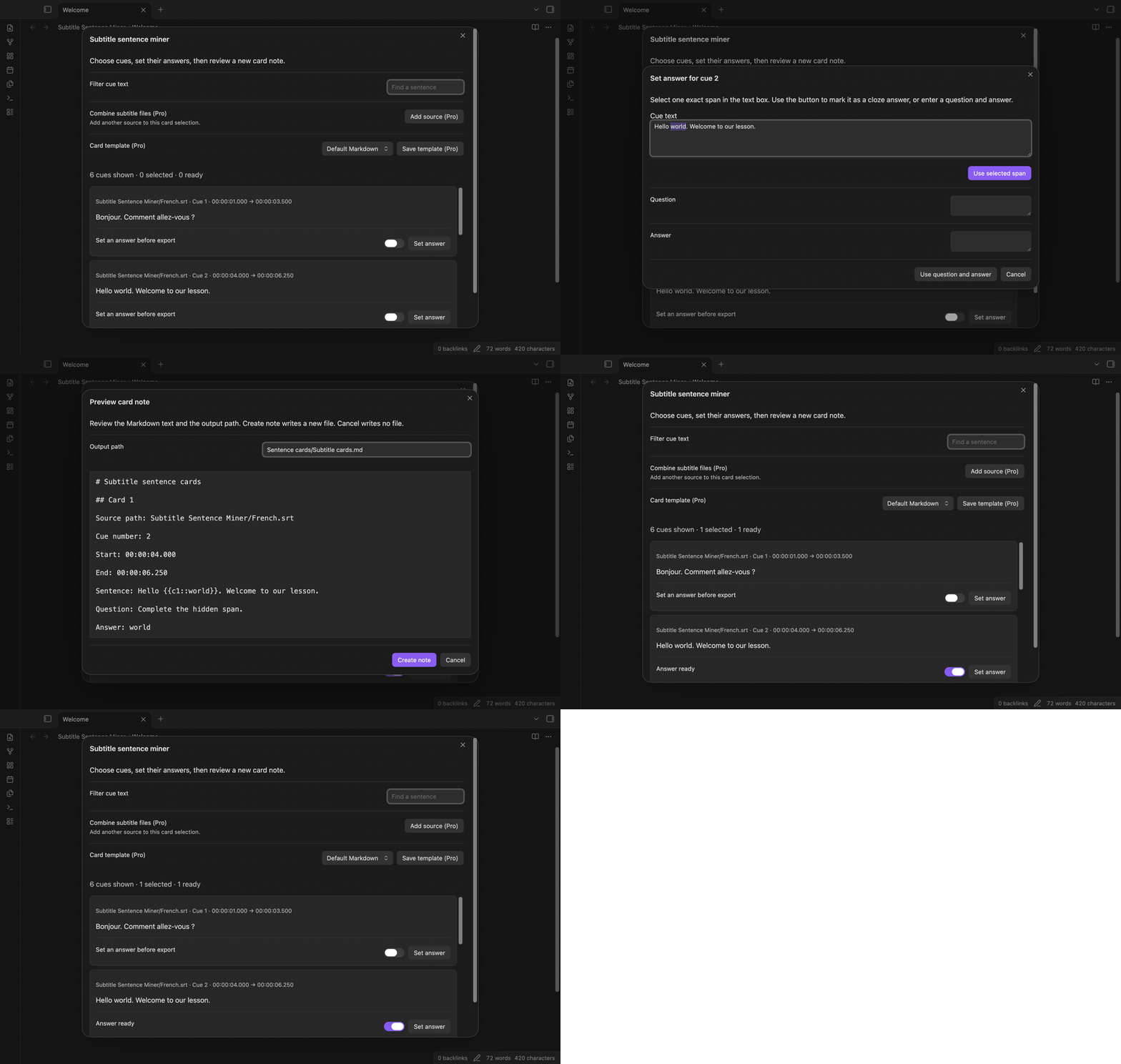
Read local subtitle cues
Run “Select a subtitle file” from the command palette. The picker lists SRT and VTT paths in your vault. Choose a path to see valid cues with their text and times. Multiple text lines keep their order. VTT layout settings do not appear as sentence text. Open parser warnings to see which blocks were skipped.
Filter and select sentences
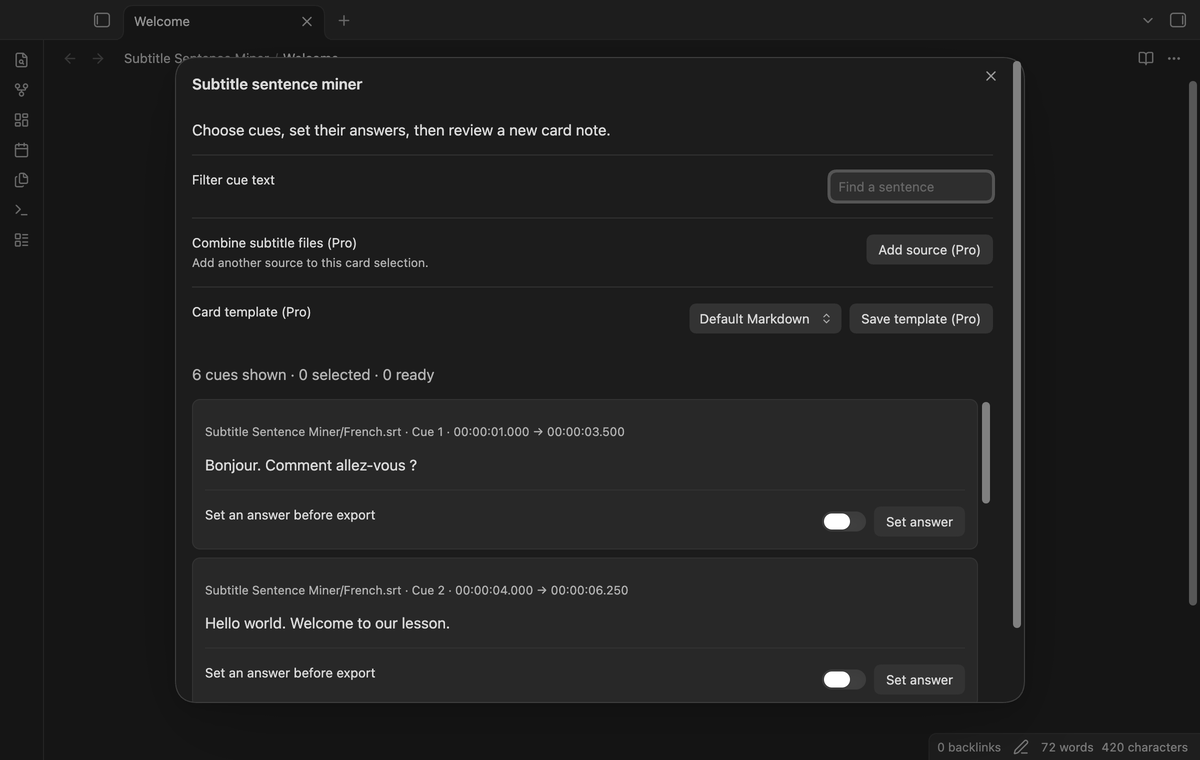
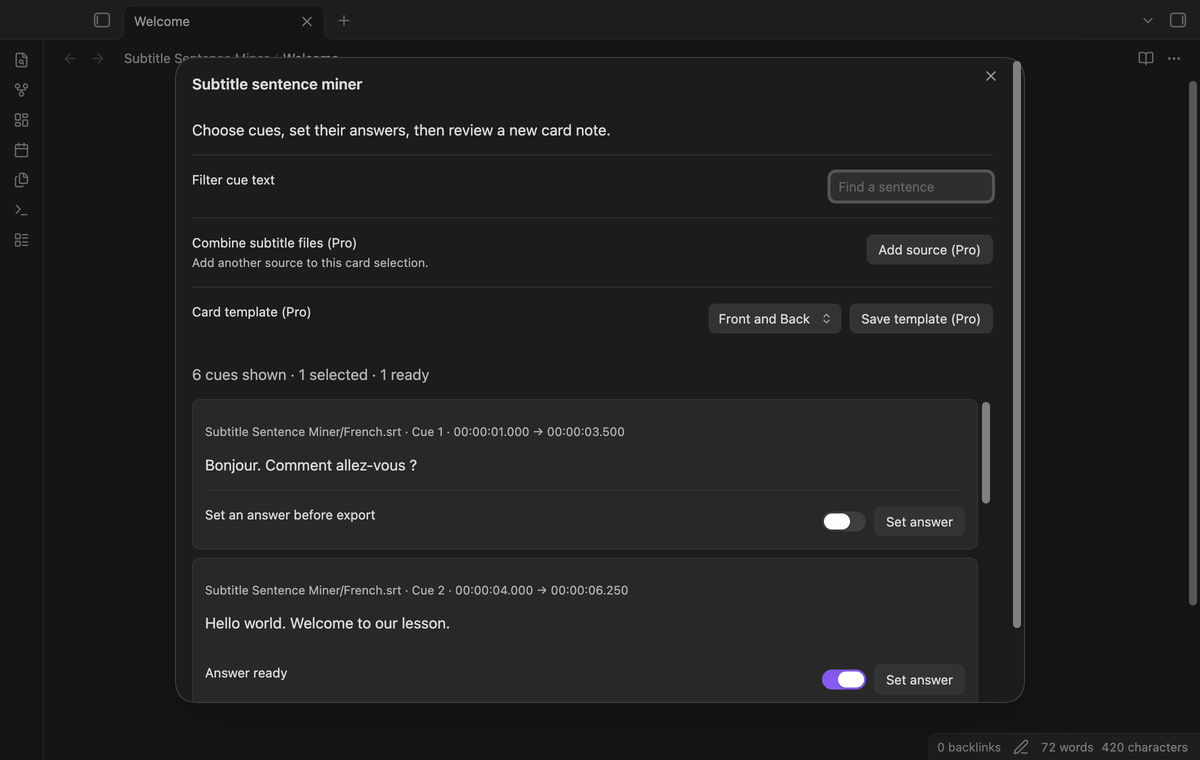
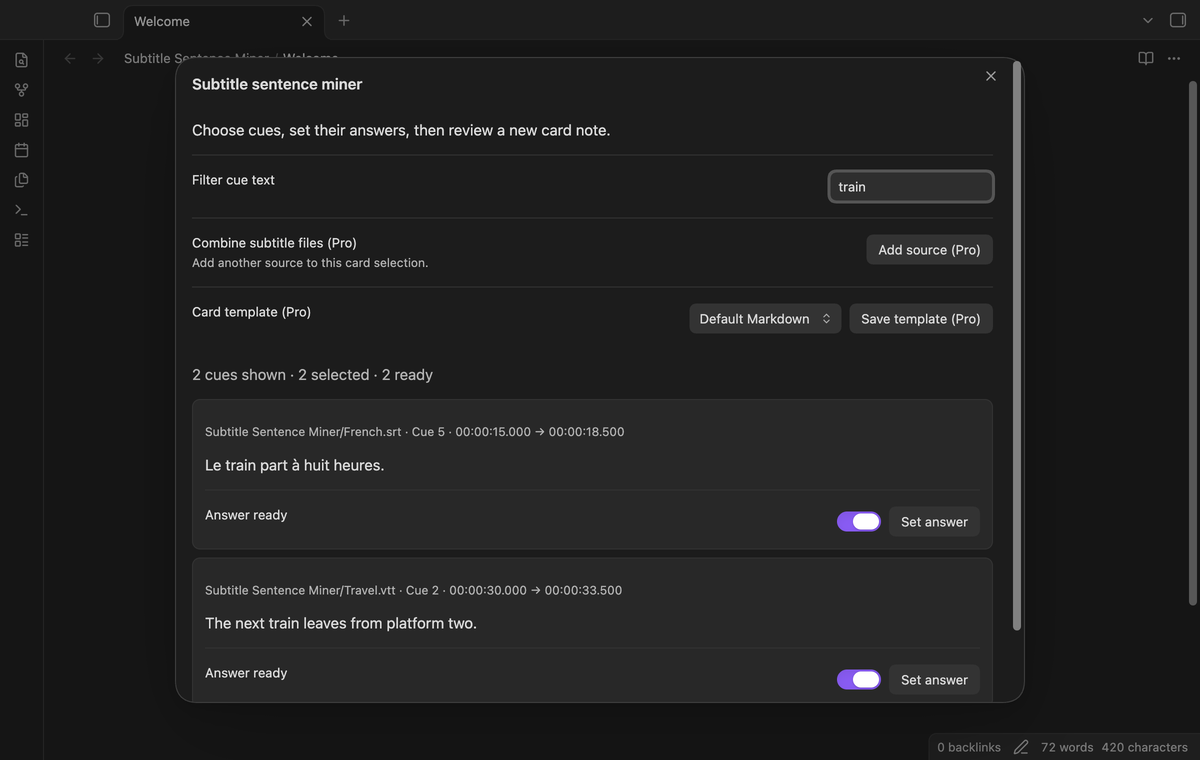
Type part of a sentence in “Filter cue text.” The filter ignores letter case. Select individual cues with their switches, or use “Select shown cues.” A selected cue stays selected when a filter hides it. The summary shows the number selected and the number with an answer ready. Clear the filter to review hidden selections before export.
Mark one exact hidden span
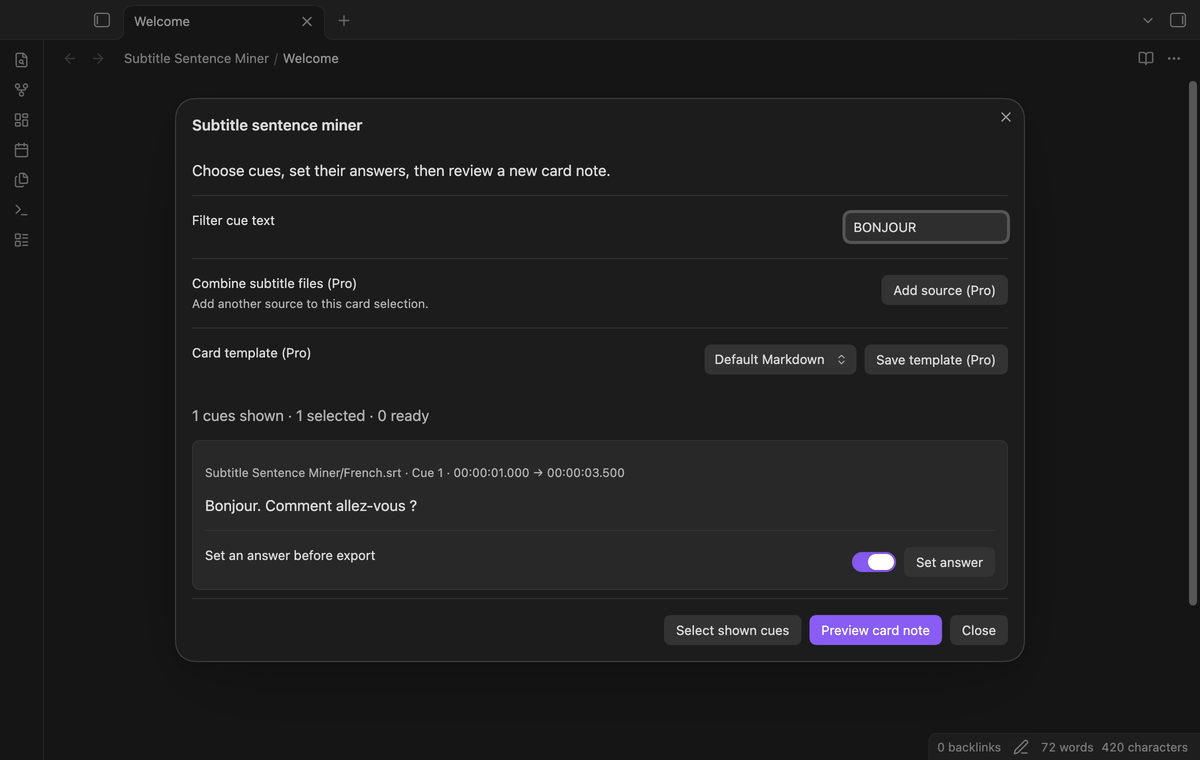
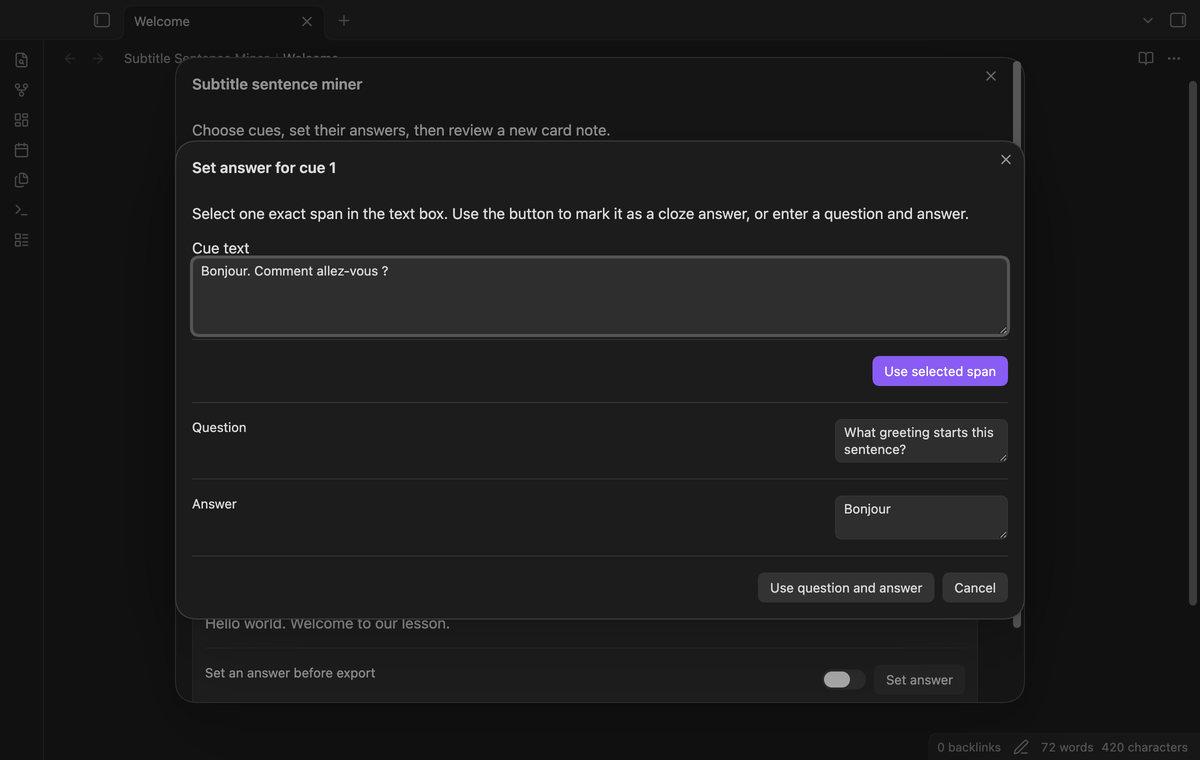
Select “Set answer.” In the read-only cue text box, select a word or phrase and choose “Use selected span.” The card uses cloze syntax such as Hello {{c1::world}}. Text positions identify the span, so a repeated word can be marked without changing an earlier occurrence. An empty selection is refused. Text with reserved cloze markers needs a question and answer instead.
Enter a question and answer
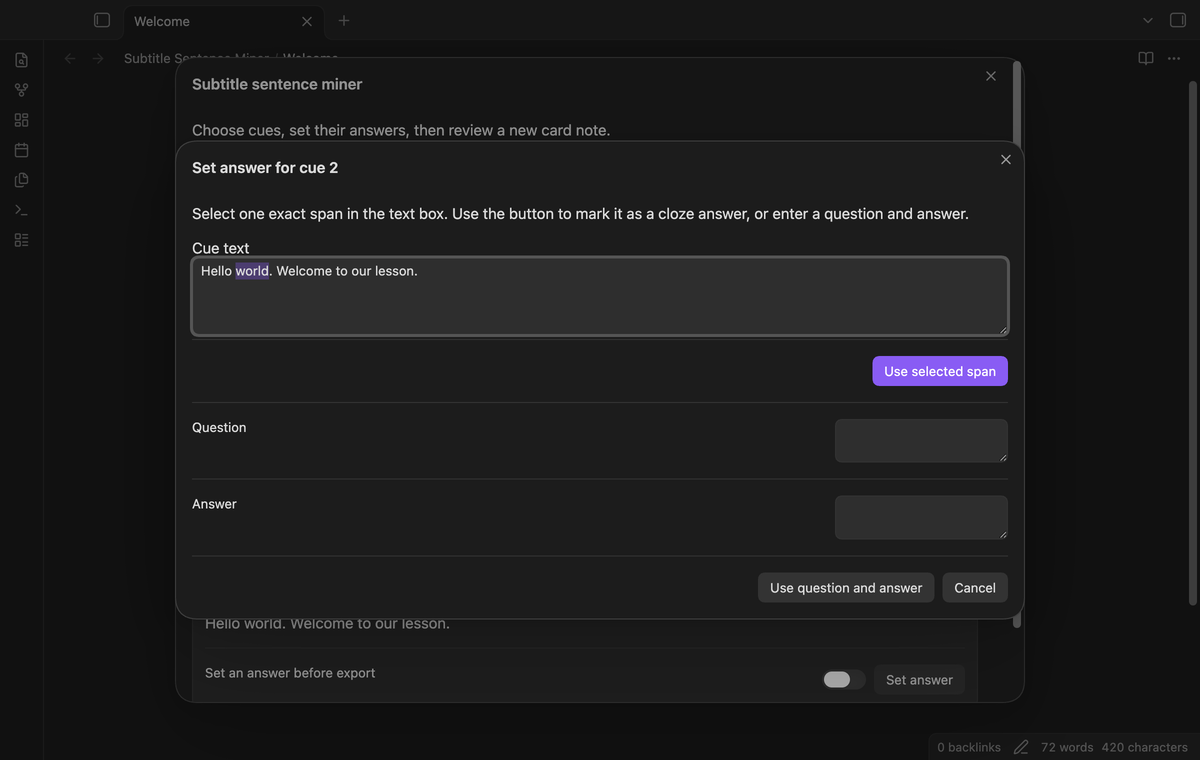
The same editor has separate “Question” and “Answer” fields. Fill both fields and choose “Use question and answer.” This selects the cue and stores the answer for the current session. The original sentence remains in the card. This format can help with translations, meanings or questions whose answers are not an exact sentence span.
Preview and create a new note
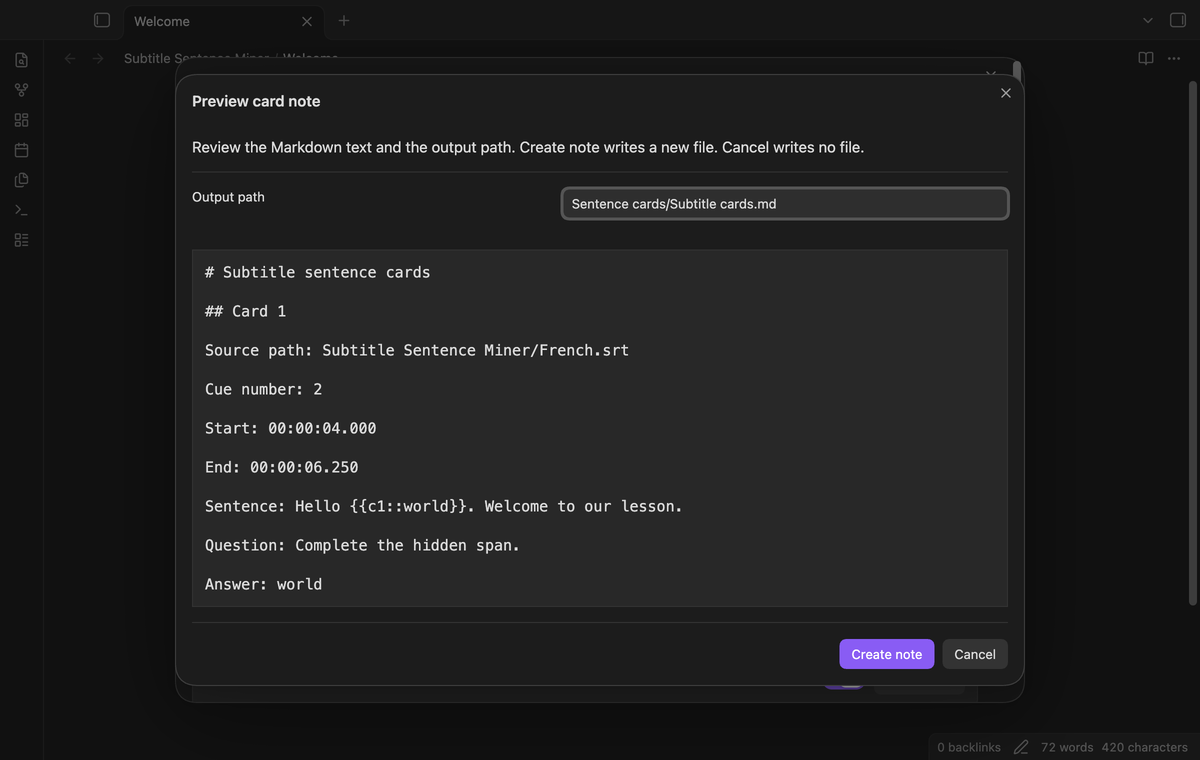
Select “Preview card note” after setting answers for the selected cues. Review the Markdown, source paths, cue numbers and both timestamps. Change the output path if needed. “Create note” writes a new Markdown file and creates missing parent folders. “Cancel” closes the preview without a file write before confirmation. If the path exists, the preview offers a numbered name. A path conflict after preview needs another confirmation.
Save card templates (Pro)
Use “Save template (Pro)” to store a named Markdown body. The supported placeholders are {{sentence}}, {{question}} and {{answer}}. Include the sentence placeholder. Metadata stays outside the body, so the source path and times remain present. Saving closes the cue list; open a subtitle file again and choose the saved template. A name can replace an existing template. The limit is 30 saved templates, each with up to 10,000 characters.
Combine subtitle sources (Pro)
Choose “Add source (Pro)” to add cues from another local subtitle file. Set answers and select cues from the combined list. The output keeps the source path on each card. A source already in the list is refused. The Pro check runs again before creation; a combined preview cannot create its output after Pro turns off.
Install
For a manual install, copy main.js, manifest.json and styles.css from the release into <vault>/.obsidian/plugins/subtitle-sentence-miner/. Use your configured Obsidian folder if it differs from .obsidian. Enable the plugin in Community plugins. Obsidian 1.13.4 or later is required.
The plugin does not install a player or study application. The created notes are Markdown files you can edit with the plugin disabled.
Usage
- Put an SRT or VTT file in the vault. Use UTF-8 text with blank lines between cues.
- Run “Select a subtitle file” and choose the source path.
- Filter the cue list, set an answer and select the sentences to keep.
- Open the preview. Check the paths, timestamps and card text.
- Select “Create note” and look for the created path in the notice.
A session reads a snapshot of the subtitle text. Close and reopen the source after changing that file. Closing the cue list clears its selection and answers. Saved templates and the default output path remain in plugin settings.
Settings
“Output path” sets the default new note location. The initial value is Sentence cards/Subtitle cards.md. Existing notes get numbered alternatives. Use a vault-relative path with a .md extension. Parent directory traversal and paths inside the configured app folder are refused.
The settings tab has the GitHub Sponsors account controls and “Clear templates.” Clearing templates removes the saved template list; it does not change created card notes. The cue filter and answers are session data, not saved settings.
FAQ
What happens to tags, styles and invalid cues?
Cue HTML tags are removed. HTML line breaks become text line breaks. Six named entities and numeric entities are decoded as text. Script and style elements with closing tags are removed with their content. VTT STYLE, REGION and NOTE blocks are skipped with warnings. Invalid timestamps, empty text and blocks with more than one timing arrow are skipped. Inspect warnings before making a study note.
Does this send cards to Anki or another tool?
No study tool connection is included. Cloze syntax is plain text in the Markdown note. Saved templates change the body format, but compatibility with a separate importer depends on that tool. No AnkiConnect call or media clip is created.
What was not tested?
Phone and tablet apps, very large subtitle files, legacy text encodings, unusual subtitle dialects and third-party study tool importers were not tested. Linux and Windows desktop apps were not tested locally. Live GitHub sign-in and paid sponsorships were not tested. Pro tests use local GitHub response fixtures. Desktop tests cover the earliest supported public version and the latest public version.
Payment, account and network
The core features are free. Pro features need a GitHub Sponsors sponsorship of theluckystrike: $5 a month or more, or $15 once. A total payment of $15 meets the payment requirement for Pro without further payment. Sign-in and the checks below still apply. Your notes stay readable and editable with or without Pro.
GitHub handles the payment. Sponsor at https://github.com/sponsors/theluckystrike. You need no account for the free features. Pro needs the GitHub account that sponsors.
Until you select "Sign in with GitHub" in the settings, Subtitle Sentence Miner makes no network requests. Sign in uses the GitHub device flow. Subtitle Sentence Miner sends its public client ID and the scope read:user to https://github.com/login/device/code and shows you a code. While you enter the code at https://github.com/login/device, it asks https://github.com/login/oauth/access_token every few seconds to check the sign-in status. The scope permits profile reads only. GitHub needs this access to show the sponsorship tier. It grants no repository scope and no write access.
After sign in, Subtitle Sentence Miner sends one query to https://api.github.com/graphql. It checks if the signed-in account sponsors theluckystrike. It asks for the tier and the total payment to theluckystrike. The plugin reuses a successful check for 7 days. Failed checks can retry after 6 hours. Select Refresh to request an earlier check. It sends no note content, file names or other vault data, and it has no telemetry.
After a successful check, Pro can work offline for up to 14 days. Sign out or a negative sponsorship answer turns Pro off. The plugin stores the GitHub token through the secret storage API of Obsidian. It does not put the token in its saved settings or its local sponsorship data. The local storage of this device keeps your GitHub login, the tier and the time of the last check. Sign out clears the token. You can also revoke the access in your GitHub settings, under Applications.
Support
Report a problem in this repository’s issues. Include the Obsidian version, the warning text and a small subtitle sample you can share. Remove private dialogue and personal file paths before posting. For output problems, include the chosen template and expected card text. The source and the created Markdown are useful evidence for a parser or formatting problem.
For plugin developers
Search results and similarity scores are powered by semantic analysis of your plugin's README. If your plugin isn't appearing for searches you'd expect, try updating your README to clearly describe your plugin's purpose, features, and use cases.