Weekly Heatmap
unlistedby aj-abhinai
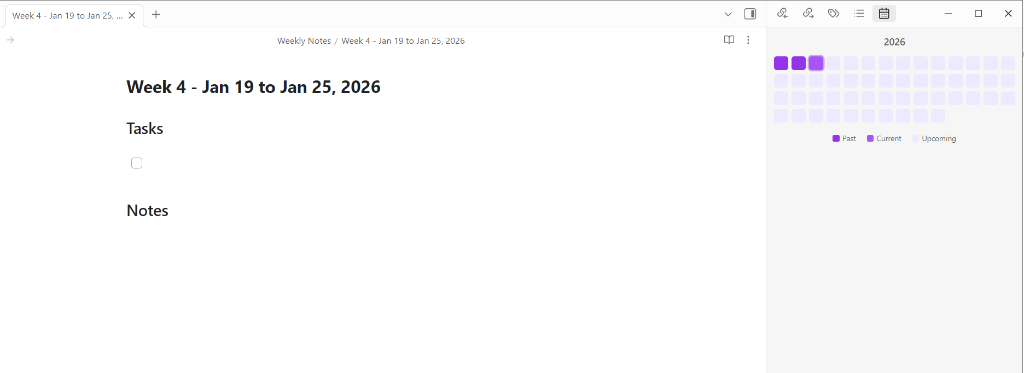
Displays 52 weeks of the year as a heatmap grid. Click to open weekly notes.
Updated 2mo agoMIT
Weekly Heatmap for Obsidian
A simple Obsidian plugin that displays a 52-week heatmap calendar. Click on any week to open (or create) a corresponding weekly note.
Features
- 📅 52-Week Heatmap View - Visual overview of your entire year
- 🎨 Visual Distinction - Past/current weeks are highlighted differently from future weeks
- 📝 Quick Weekly Notes - Click any week to open or create a weekly note
- 🏷️ Smart Naming - Notes are automatically titled with format:
Week [number]: [Start] - [End] - ⚙️ Customizable Settings - Configure folder path, note template, and week start day
Settings
| Setting | Description | Default |
|---|---|---|
| Weekly Notes Folder | Folder where notes are created | Weekly Notes |
| Week Start Day | Monday or Sunday | Monday |
| Note Template | Custom markdown template for new notes | Tasks & Notes sections |
Installation
Option 1: Download from Releases (Recommended)
- Download the latest release from the Releases page
- Extract the downloaded files
- Copy the files into your vault's plugins folder:
<vault>/.obsidian/plugins/weekly-heatmap/ - Make sure these files are in the folder:
main.jsmanifest.jsonstyles.css
- Reload Obsidian
- Enable the plugin in Settings → Community Plugins
Option 2: Manual Installation (For Developers)
- Clone this repository into your vault's plugins folder:
cd <vault>/.obsidian/plugins/ git clone https://github.com/aj-abhinai/weekly-heatmap.git cd weekly-heatmap - Install dependencies:
npm install - Build the plugin:
npm run build - Reload Obsidian and enable the plugin in Settings → Community Plugins
Usage
- Click the calendar icon in the ribbon or use the command palette to open "Weekly Heatmap"
- View the 52-week heatmap in the sidebar
- Click on any week to open or create a weekly note
- Weekly notes are automatically created in the
Weekly Notesfolder
Development
npm run dev- Start development build with watch modenpm run build- Create production build
License
MIT License - see LICENSE file for details
Support
If you find this plugin helpful, please consider:
- ⭐ Starring the repository
- 🐛 Reporting bugs or requesting features via Issues
- 🤝 Contributing via pull requests

For plugin developers
Search results and similarity scores are powered by semantic analysis of your plugin's README. If your plugin isn't appearing for searches you'd expect, try updating your README to clearly describe your plugin's purpose, features, and use cases.