Work Hour Stats
unlistedby Nick Huang
Track daily work hours and visualize month totals with a heatmap view.
Work Hours Stats
Track your day job without leaving Obsidian. Work Hours Stats adds a dedicated right-pane view with a heatmap calendar, quick logging popovers, and a dashboard that compares actual vs expected hours.
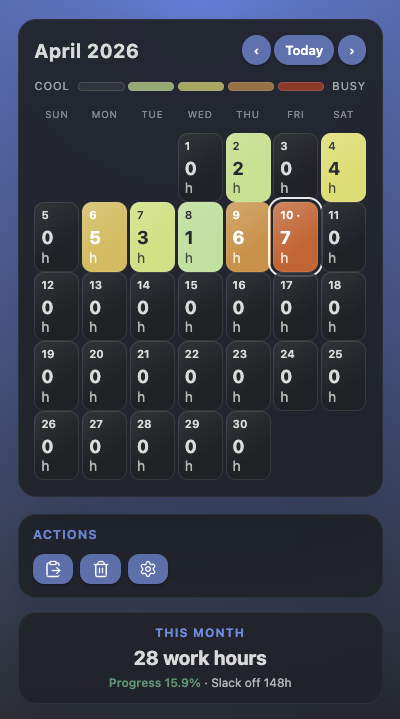
This work-hours plugin lets you capture daily time in Obsidian via a calendar heatmap, review cumulative progress, and instantly fill or clear an entire month.
Preview
Features
- Monthly heatmap – Color-coded grid for the active month. Each square shows the date plus logged hours.
- Quick popover editor – Click a day to set 0–8 h or 8+ h, or clear the entry with one tap.
- Ribbon + command – A clock icon in the ribbon and
Open work statscommand open the view anywhere. - Dashboard – See
This monthtotals, expected hours, slack time, and utilization percentage at a glance. - Bulk actions – Fill an entire month using your configured schedule or wipe it clean via confirmation modals.
- Configurable schedule – Settings tab lets you define working days per week (0–7) and hours per day (1–24). These values drive expected totals and the fill-month action.
- Live updates – Whenever you save data, listening views refresh automatically via the plugin’s observer system.
Installation
Manual install (users)
- Download the latest
main.js,manifest.json, andstyles.cssfrom the Releases page. - Copy them into
<Vault>/.obsidian/plugins/work-hours-stats/(create the folder if missing). - Reload Obsidian and enable Work Hours Stats in Settings → Community plugins.
Dev setup
git clone <repo>
cd obsidian-work-stats-plugin
npm install
npm run dev   # watch mode (esbuild + HMR reload through Obsidian)
While developing, keep the plugin enabled inside your test vault. Run npm run build before releasing—this executes tsc for type checks and esbuild for the production bundle.
Usage
- Open the view through the ribbon clock icon or by running
Open work statsfrom the command palette. - Navigate months with
‹,Today,›buttons. Today’s date shows a dot marker. - Click a day square to open the popover, choose an hour value, and hit Save. Select Clear to log 0 h quickly.
- Use the action buttons beneath the grid:
- Fill expected hours – Fills each day in the visible month based on working days per week × hours per day. Non-working days receive 0 h.
- Clear this month – Deletes all records for the visible month after confirmation.
- Open plugin settings – Shortcut to the settings tab for schedule tweaks.
Settings
- Working days per week – Integer 0–7. Determines which weekdays (Mon→Sun order) count as work days.
- Hours per working day – Integer 1–24. Target hours used for expected totals and fill-month action.
Architecture Overview
src/main.ts– Plugin lifecycle, data persistence (settings + records), command registration, and view management.src/workStats.ts– Pure helpers for clamping hours, generating date keys, calculating totals and expected hours.src/workStatsView.ts– UI layer built atopItemView, handles rendering, heatmap layout, popovers, modals, and action buttons.src/settings.ts– Obsidian setting tab implementation.styles.css– Visual design for the view, popovers, dashboard, and modals.
Data is persisted via this.loadData() / this.saveData(), so uninstalling the plugin removes the stored hours.
License
MIT License © 2026 Nick Huang. Follow Obsidian’s community plugin policies and avoid bundling telemetry without consent.
Enjoy watching your work rhythm light up the heatmap. Share ideas or feedback through issues!
For plugin developers
Search results and similarity scores are powered by semantic analysis of your plugin's README. If your plugin isn't appearing for searches you'd expect, try updating your README to clearly describe your plugin's purpose, features, and use cases.