Masonry
unlistedby Mario Miletta
Browse your vault and filtered Bases as a visual masonry gallery.
Masonry
Masonry is a visual browser for Obsidian notes. It adds two native surfaces while keeping Markdown files and Bases as the source of truth:
- All Docs: a workspace tab for browsing the complete vault as a responsive document wall.
- Masonry for Bases: a custom Base view that renders filtered, sorted, and grouped results without replacing the native Base toolbar.
Selecting a card opens the note in Obsidian's editor. Modifier-click and middle-click open it in a new tab.
Part of the marioverse Obsidian plugin suite.
Screenshots
| Editorial | Compact | Visual |
|---|---|---|
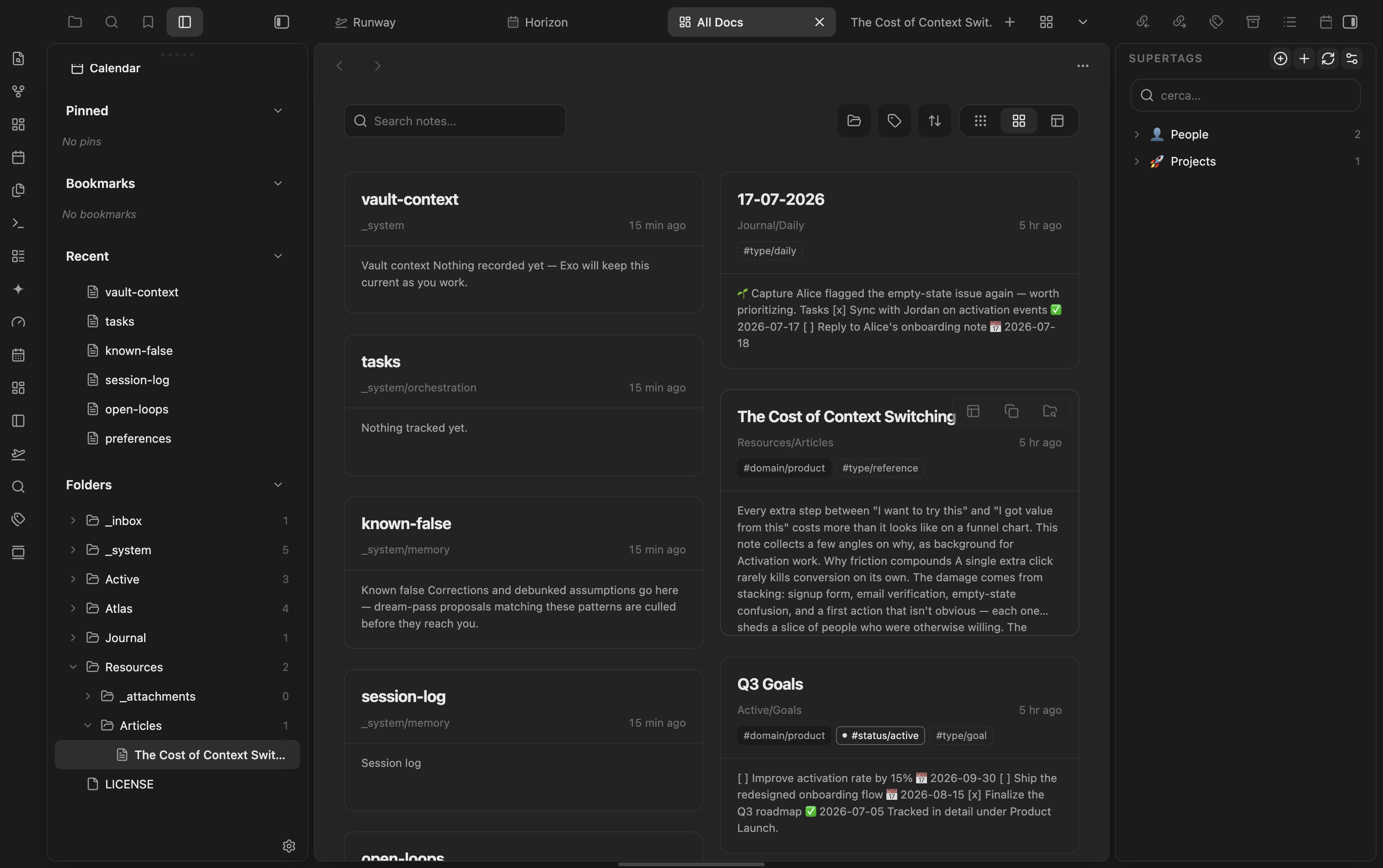 | 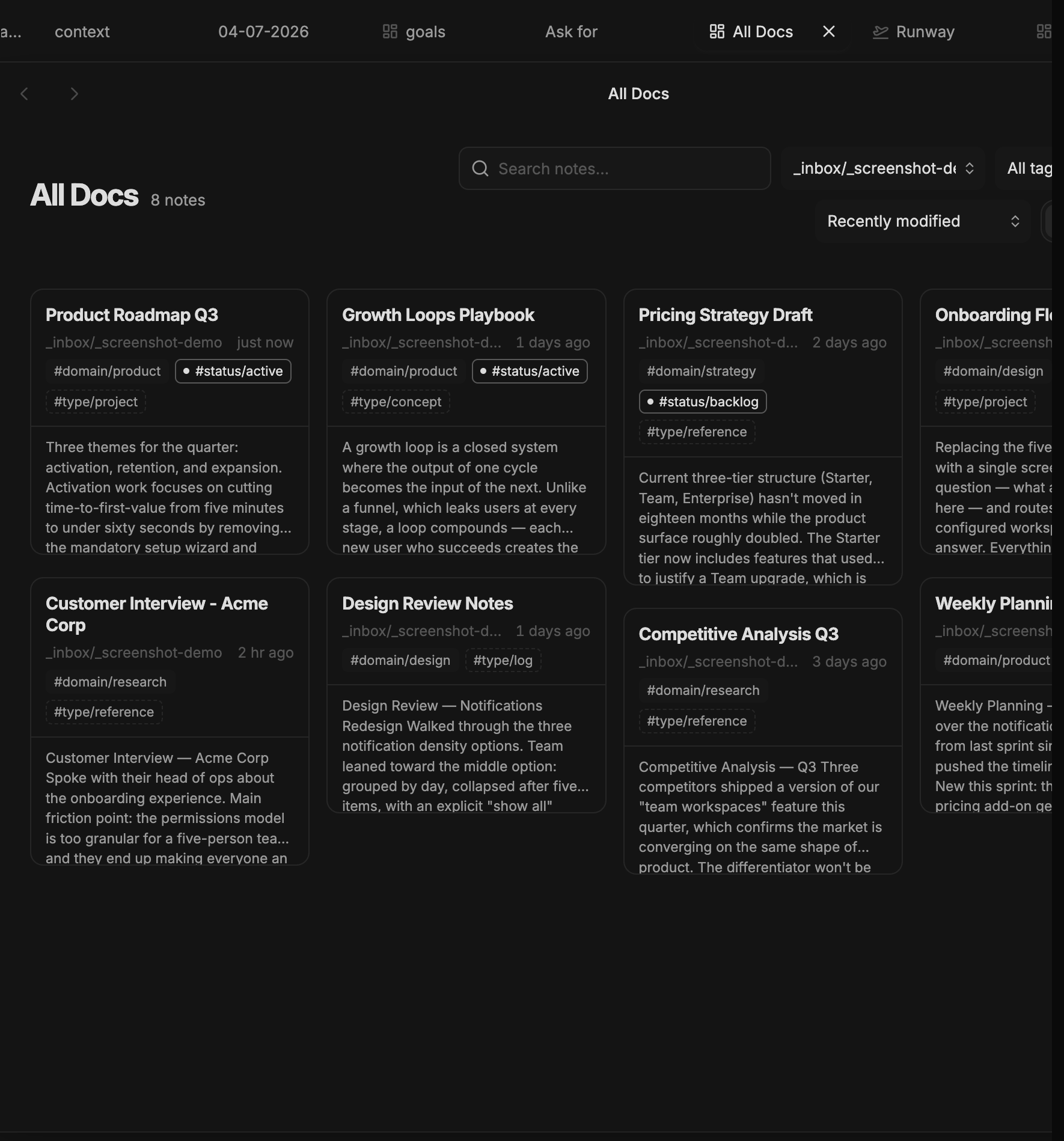 | 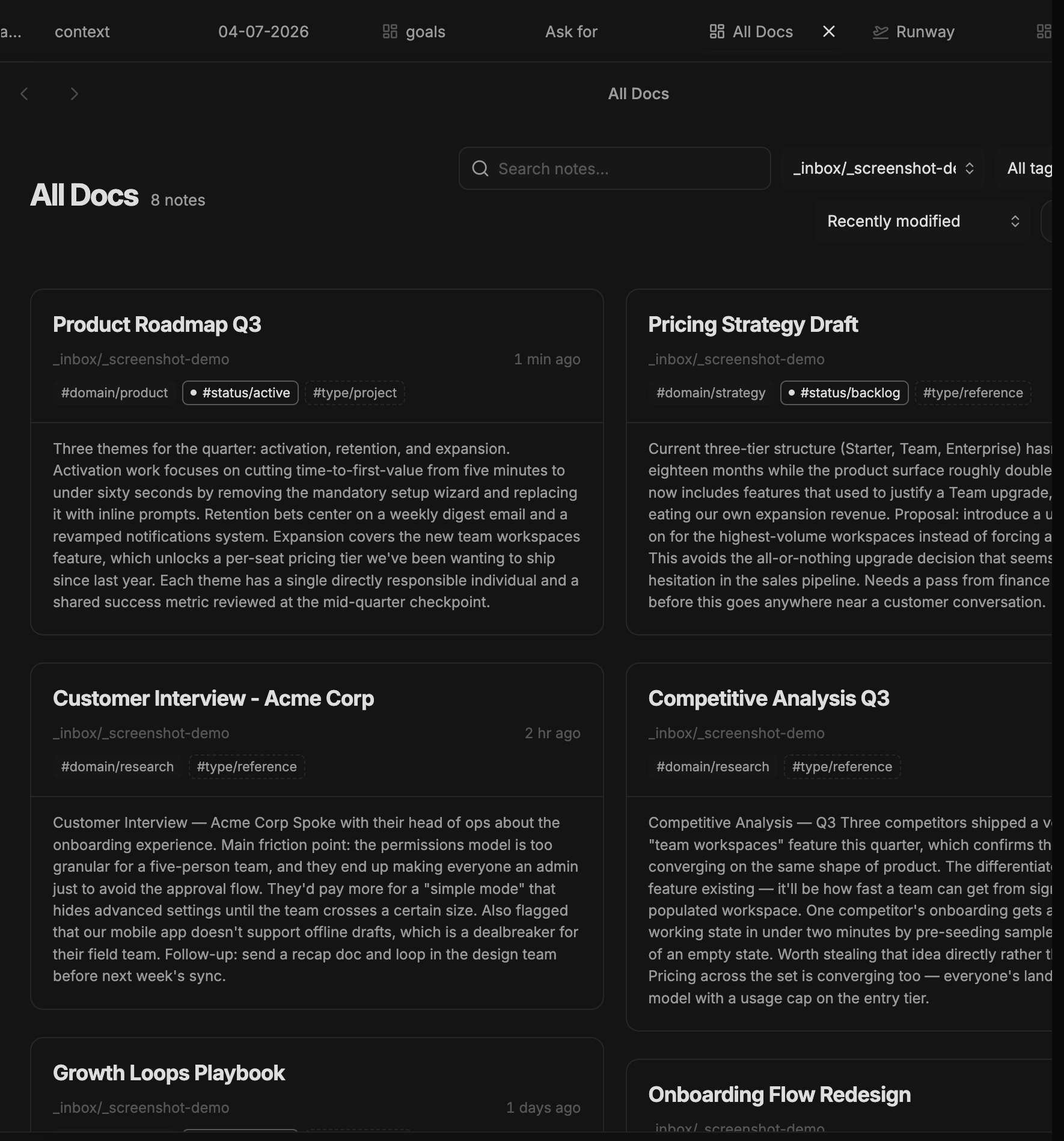 |
Features
- Three presentation modes: Compact, Editorial, and Visual — compact and editorial show a preview excerpt too.
- Search, folder (including subfolders) and tag filters, six sort orders (persisted across sessions), lazy previews, and progressive loading in All Docs.
- Compact icon-button filters and sort open a themed, searchable picker (same style as the Quick Switcher) instead of the OS-native dropdown.
- Exclude folders (e.g. archives, templates) from All Docs via Settings → Masonry → Excluded folders.
- Native Base filtering, sorting, grouping, and configurable view properties.
- Local cover images from
cover,image, orthumbnailfrontmatter and image embeds. - Card actions for opening a new tab, copying a wikilink, and revealing the note in the file explorer.
- Native Obsidian hover previews and keyboard navigation.
Installation
BRAT
- Install and enable the BRAT plugin.
- In Settings → BRAT, choose Add beta plugin.
- Enter
mariomile/obsidian-masonryand enable Masonry.
Manual
- Download
main.js,manifest.json, andstyles.cssfrom the latest GitHub release. - Create
<vault>/.obsidian/plugins/masonry/. - Copy the three files into that directory.
- Reload Obsidian and enable Masonry under Community plugins.
Masonry requires Obsidian 1.12.7 or newer.
Covers and remote images
Masonry resolves the first available cover in this order:
coverfrontmatter propertyimagefrontmatter propertythumbnailfrontmatter property- first local image embed
- first external Markdown image
Frontmatter may contain a vault path, wikilink, Markdown image, or HTTP(S) URL. Local images work by default. Remote HTTP(S) images are disabled by default because loading them contacts the external host and can expose your IP address and request metadata. Enable Settings → Masonry → Load remote images only if you accept that behavior. Changing the setting clears cached previews and refreshes open Masonry views.
Privacy
Masonry works locally in your vault. It does not require an account, collect telemetry, upload notes, or send note content to a Masonry service. The plugin makes no network requests unless you explicitly enable remote images; those image requests go directly to the hosts referenced by your notes.
Configuration
Global defaults are available under Settings → Community plugins → Masonry. Each Masonry Base view can configure its presentation, preview length, folder visibility, and tag visibility through native Base view properties.
Mobile
Verified — isDesktopOnly: false in manifest.json; styles.css ships a pointer: coarse media query extending small control hit areas to 44pt Apple HIG.
Development
pnpm install
pnpm lint
pnpm typecheck
pnpm test
pnpm build
To test a local build in Obsidian:
obsidian plugin:reload id=masonry
Manual validation should cover All Docs persistence, native Base chrome, all presentation modes, keyboard opening, card actions, narrow-container layout, remote-image opt-in, and the complete hover ring on a first-row card.
Try it
See it running in the Obsidianverse sample vault, a small, fictional vault with the whole plugin suite pre-configured.
License
For plugin developers
Search results and similarity scores are powered by semantic analysis of your plugin's README. If your plugin isn't appearing for searches you'd expect, try updating your README to clearly describe your plugin's purpose, features, and use cases.