Oh-My-Immersive
unlistedby volmodaoist
Hide unrelated folders while presenting, arrange files and folders by dragging, and annotate the current window from a browser on your local network.
Oh-My-Immersive
Maintained by volmodaoist. Based on Immersive Folder 0.6.0 by iBlinkQ. The upstream copyright and MIT license are retained. This fork adds file ordering and browser-based temporary ink.
English · 简体中文 · 繁體中文 · 日本語 · 한국어
An Obsidian plugin. While you are working in a folder, one click narrows the file explorer to that folder's notes and covers everything else up until you switch it back.
It also lets you drag files and folders into the order you want, so you no longer have to add numeric prefixes just to make them line up.
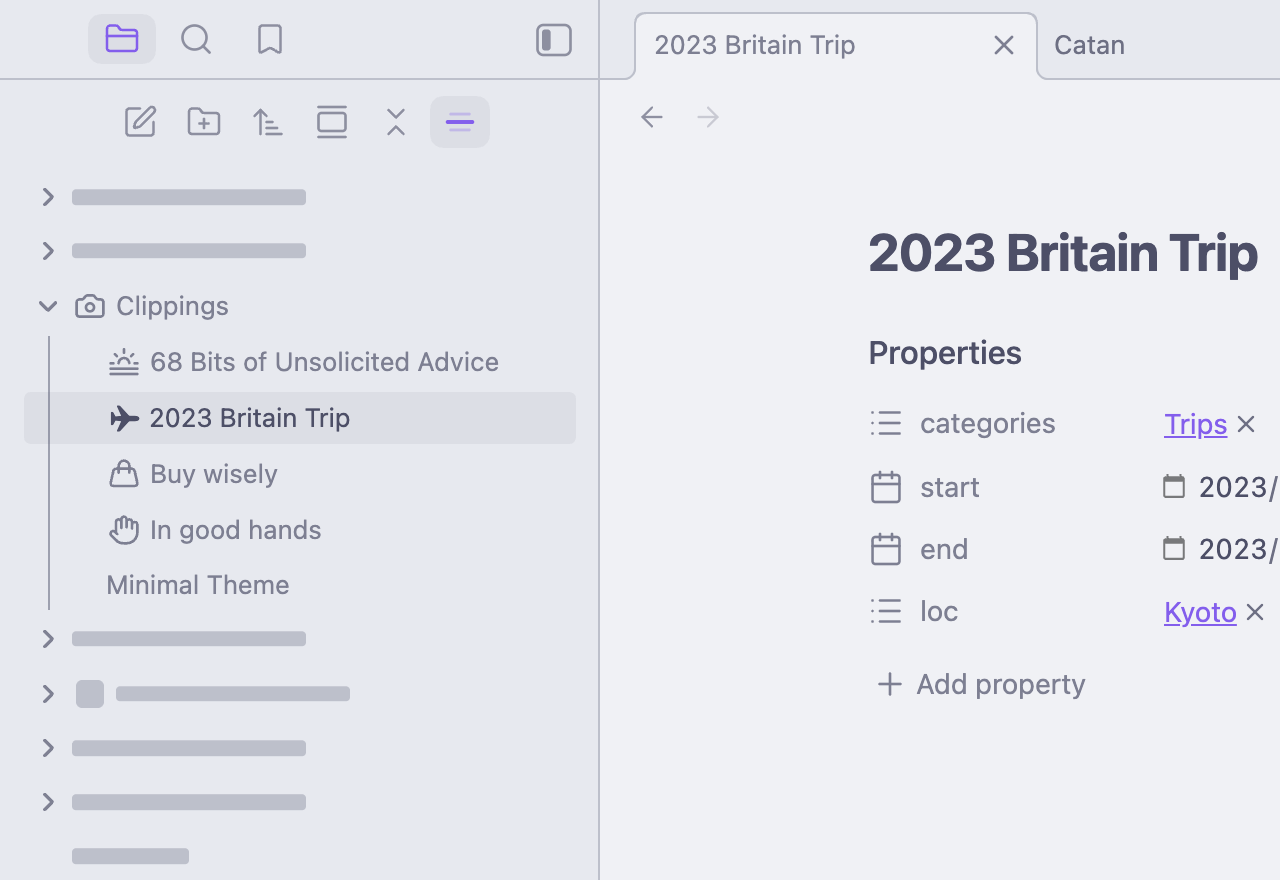
The folder is picked automatically from the file you have open, so there is nothing to select.
Why
- Focus. A vault of two thousand notes stops competing for attention with the dozen you are actually working on.
- Presenting in a meeting. Put one project on the projector to walk a room through it, and the room reads that project, not the name of the one beside it, or of another client, or of whatever you keep for yourself.
- Screen recordings. Show the folder the video is about and leave the rest of the sidebar unreadable, without rearranging your vault first.
Using it
- The button at the top of the file explorer toggles it. It takes on your accent colour while the cover is up, so the state is readable at a glance.
Oh-My-Immersive: Toggle immersive folderdoes the same from the command palette, so you can bind a hotkey. Worth doing if you switch it on and off around recordings.
The state is remembered across restarts.
Arranging files and folders
Click the up-and-down arrow button at the top of the file explorer. Files of any type and folders grow handles, and you can drag them into the order you want. Changes are saved as you make them. Press the button again or Escape to leave the mode. You can also right-click any folder and choose Reorder to enter the same mode.
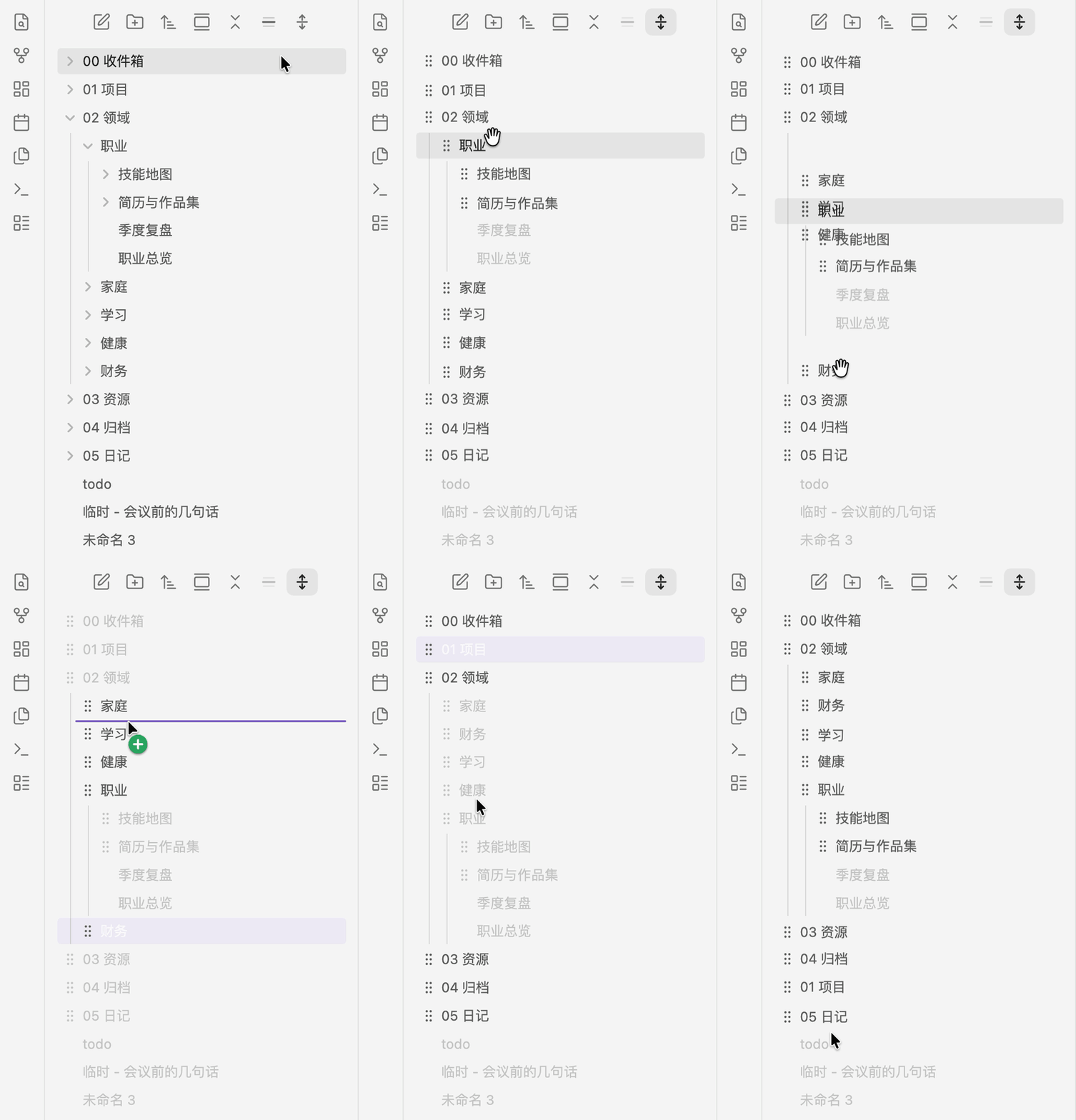
Folders stay before files. Within one directory, reorder folders among folders and files among files, including different file types. You cannot reorder across directories or drag a file into the folder group.
Once you drag an item, that directory keeps the saved order of both groups, even when you change Obsidian's sort menu or restart. Other directories still follow Obsidian's sort menu. New or incoming items appear at the end of their own group, in Obsidian's order, until you arrange them.
To restore a directory's default order, leave arrange mode and right-click a
file or folder. Choose Restore default order for the directory named in
the menu. On a folder, you may see entries for its contents and its parent,
including / for the vault root. This only clears that directory's order;
its subdirectories keep theirs. Settings also offers Restore default order
everywhere to clear all manual arrangements.
Existing folder-only arrangements are cleared once when upgrading to this version.
Leave arrange mode and Obsidian's ordinary dragging works as before. The plugin only saves display order; it does not rename or move files.
Remote ink (desktop prototype)
Hover over the pencil button at the top right of a note to open the remote ink panel. Click to pin or close it. Select Start remote ink in the panel to start the LAN service, then copy the browser address. The address is masked by default; use the eye button to show or hide it. Copying includes the full connection code. The Remote ink connection command and the Remote ink setting open the same panel. Click outside or press Escape to close it; the service keeps running until you select Stop remote ink.
Open the copied address in a browser on the same LAN. It shows the current Obsidian window as a background with a drawing layer on top. You can test with a mouse in another browser: hold the left button and drag. Pencil uses pressure; mouse strokes use a fixed width. Touch does not draw or finish an active stroke. Pen, highlighter, stroke eraser, undo and clear are available. The drawing surface suppresses native long-press selection, image dragging and context menus so they do not interrupt Pencil input. While the service runs, the note header also shows an eraser icon for Clear ink. Clearing from either end clears ink on both ends.
The browser toolbar's Up / Down buttons scroll the selected Markdown note in the main window by half a viewport. You can also use the mouse wheel over the background to scroll vertically. Reading and editing modes are supported. Scrolling pauses during drawing, and existing ink stays fixed on the window. On iPad, tap the toolbar buttons; touch on the drawing surface remains ignored.
Samples stream in batches about every 20ms, so the desktop sees the stroke before the pointer is released. Releasing completes the stroke in memory; cancelled strokes are discarded. The background refreshes periodically. Both ends draw with normalized coordinates.
Ink stays fixed on the window when notes scroll or change. Ink exists only
in memory for the current service session. Stopping the service or closing
Obsidian clears it; a new service starts empty. Refreshing a browser restores
ink from the running service. The prototype's old ink.json is removed on start.
The connection panel uses theme radius variables and native button components. Buttons briefly highlight when clicked and keep their original text and icons. The panel stays open after stopping, and service state and errors appear inline. The header buttons use the same click feedback.
The port defaults to 8674 and accepts integers from 1024 to 65535. Changes
take effect on the next start. The pencil button can be hidden separately.
The host requires desktop Obsidian; clients can use iPad or desktop browsers.
Desktop ink uses a transparent child window, so recordings should capture
the screen composition that includes this layer.
Settings
Language — the interface follows whatever language Obsidian itself is set to. English and 简体中文 ship with the plugin; pick one here to override the match. Everything switches over on the spot, the command name included.
Toolbar buttons — which of the plugin's two buttons sit at the top of the file explorer. Both are switches that show whether their mode is on, so both stay in plain sight by default; hide one if you only ever use the other feature. Whatever you hide is still on the command palette, and the settings page will offer to take you straight to the hotkeys page once something is hidden.
Keep the active file in view — scrolls the explorer to each note as you switch to it, expanding whatever it takes to show it. Without it, switching to a note whose folder is scrolled out of view leaves you looking at a screen of bars and nothing else. On by default.
Collapse every other folder — on each switch, folds away every folder except the one you are in. Less to scroll past, and it stops the bars from giving away how many files the other folders hold. Whatever was open is put back when you leave immersive mode. On by default. Folders opened during immersive mode are collapsed again when you leave.
Keep everything inside this folder readable — the cover spares the folder you are in and whatever sits directly in it. Switch this on and it spares the rest of the way down as well: open a subfolder and its contents read normally instead of turning into bars. The folders beside the one you are in are covered either way; the ones above it have their own setting below. On by default.
Keep the folders above this one readable — every folder from the one you are in back up to the vault root keeps its name, so you can still tell where you are in the tree. Only the path itself is spared: the folders beside it stay covered either way. Off by default, because a top-level folder name is often the most telling thing on the screen.
What it does not do
This is a visual cover, not encryption. The names are still in the page, and anyone with developer tools can read them. It is built for cameras, projectors and the person sitting next to you, not for someone who already has your machine.
The cover applies to the file explorer only: tab titles, the note's own breadcrumb, search results and the quick switcher are untouched, so switch it off when you want to search by name. And with Collapse every other folder turned off, the bars still give away how many files each folder holds and how deep the tree goes.
Installing
Oh-My-Immersive currently supports source installation and manual installation from GitHub Releases. Community directory availability will be announced here after submission and review.
The host requires desktop Obsidian 1.15.1 or later. iPad and desktop browsers can connect to remote ink; the plugin itself is not installed in mobile Obsidian.
Install from source
Install Node.js (an LTS version is recommended), npm and GNU Make. Open the
vault in Obsidian once so its .obsidian directory exists, then run:
git clone https://github.com/volmodaoist/Oh-My-Immersive.git
cd Oh-My-Immersive
make install vault="/path/to/your Obsidian vault"
Quote paths containing spaces. The command installs missing development
dependencies, builds the plugin and copies main.js, manifest.json and
styles.css into <vault>/.obsidian/plugins/oh-my-immersive/. Existing
data.json settings are preserved. It validates the vault before building and
does not create a new vault for a mistyped path.
Enable Oh-My-Immersive under Settings → Community plugins. After updating, reload the plugin or restart Obsidian. If Immersive Folder is enabled in the same vault, disable it first so both plugins do not control explorer sorting.
Install a release manually
Download main.js, manifest.json and styles.css from a matching release,
place them in YourVault/.obsidian/plugins/oh-my-immersive/, and enable the plugin.
main.js is a build artifact, distributed with Releases rather than committed.
Questions and suggestions are welcome in Issues.
Development
npm install
npm run dev     # watch build
npm run build   # type-check and build main.js
npm run lint    # plugin and Node.js tool checks, with zero warnings
make install vault="/path/to/vault"  # build and install into a vault
npm run lint has to be run from the repository root: the rules read
manifest.json from the working directory.
Plugin source uses Obsidian's rules and type-aware TypeScript checks. CLI,
build and test scripts use standard Node.js JavaScript checks.
See the ink module guide (Chinese) for its protocol and
responsibilities. Run npm run format:ink to format that module.
See the plugin API design proposal (Chinese) for
possible extension points. These interfaces are proposed and are not yet public.
Releasing a version
See the GitHub workflow and release guide (Chinese) for checked commits, Actions monitoring and recovery procedures. For Community directory requirements and the submission process, see the Obsidian publication SOP (Chinese).
Configure your Git identity, push access to origin and Python 3. Local GitHub CLI login is not required; GitHub Actions uploads the release assets.
-
Write the changes under
## UnreleasedinCHANGELOG.md, commit the code and notes, and keep the working tree clean. -
On
main, preview the release:make release-dry-run version=1.0.1 -
Publish:
make release version=1.0.1
The command synchronizes the package, lock, manifest and versions files,
moves Unreleased notes into the new version, runs tests/build/lint, checks
the version commit message, creates the matching tag, and atomically pushes
main and the tag. Watch Actions
to confirm completion. Releases include main.js, manifest.json, styles.css
and the new version's CHANGELOG notes.
Use a strictly increasing x.y.z without a v prefix. Dry-run changes no
files, commits, tags or remotes. Failed checks restore the script's own version
changes; if pushing fails after the commit exists, the script prints a retry
command for inspection. Community directory submission is a separate step.
License
MIT
For plugin developers
Search results and similarity scores are powered by semantic analysis of your plugin's README. If your plugin isn't appearing for searches you'd expect, try updating your README to clearly describe your plugin's purpose, features, and use cases.