by wcchristian
Table, List, Kanban, Calendar, and Timeline views for Obsidian Bases.
WCC Base Views
Turn your notes into calendars, agendas, task lists, kanban boards, and timelines with five custom views for Obsidian Bases. Edit properties and move notes directly in each view. Your data stays in ordinary Markdown files.
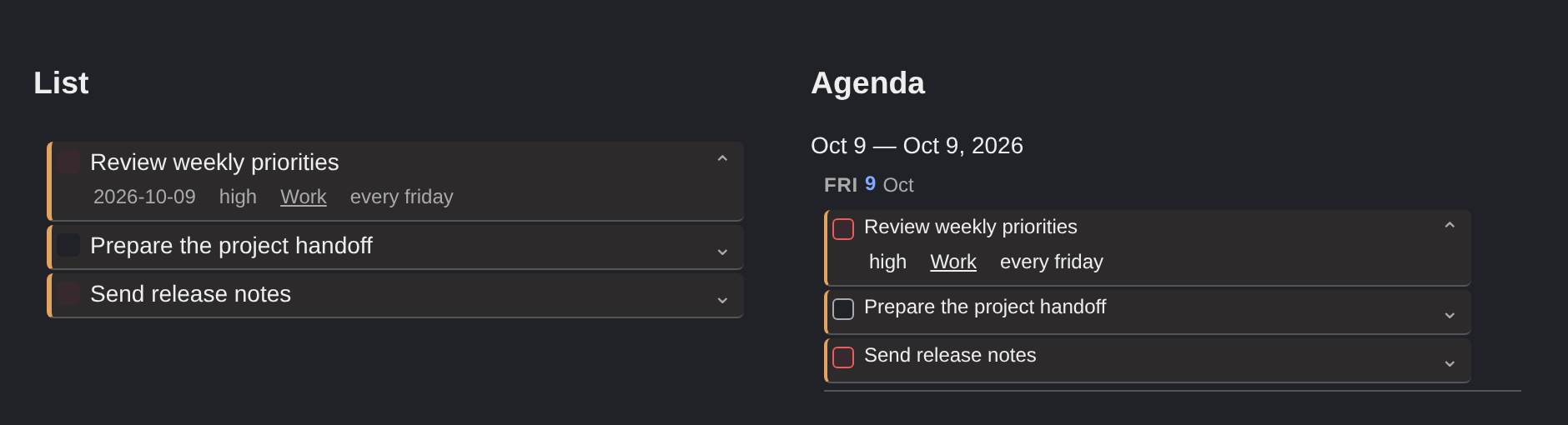
List and Agenda previews with fictional sample notes. The first card in each view has its details expanded; appearance follows your theme.
Choose a view
| View | What you can do |
|---|---|
| Calendar | Plan in month, week, or agenda layouts. Drag notes to reschedule them and create notes for a selected day or date range. |
| List | Browse notes in a flat or grouped list, mark tasks complete, and expand card details when you need them. |
| Kanban | Organize notes into columns and optional swimlanes. Move cards between groups, add notes inline, and show cover images. |
| Timeline | See date ranges at day, week, or month zoom. Drag bars to move them and resize their edges to change dates. |
| Table | Edit properties in columns, group rows, and resize or reorder columns with mouse and keyboard controls. |
Use the native Bases filters, sorting, grouping, and property selection with every view. The plugin works with your own property names; it does not require a particular task or project structure.
Make it fit your workflow
- Compact cards: List and Calendar offer Compact and Comfortable density, adjustable padding, and an option to hide empty properties.
- Expandable details: List, Agenda, and Calendar cards have a details arrow. Turn on Spacing → Expand details by default to start a view expanded. Individual choices survive data refreshes while the view stays open.
- Color by property: Use project colors for cards and separate priority colors for checkboxes. Linked project names work with short color rules such as
Work:orange. - Click or drag: Click a title to open its note or a property to edit it. Drag from the card, including its title, checkbox, details arrow, or displayed metadata. On touch, hold briefly before dragging; a quick swipe scrolls.
- Narrow panes: Calendar and Timeline adapt to smaller panes on desktop as well as mobile. Calendar uses a date selector with a selected-day list; Timeline can stack details above its bars.
Install
Requires Obsidian 1.10.2 or later with the Bases core plugin enabled. Supports desktop and mobile. Dataview is not required.
WCC Base Views is not yet listed in the Community plugins catalog. To install the current release:
- Open the latest release and download
main.js,manifest.json, andstyles.cssfrom its assets. - Place the three files in your vault's
.obsidian/plugins/wcc-base-views/folder, creating the folder if needed. - Reload Obsidian and enable WCC Base Views in Settings → Community plugins.
Once the catalog listing is available, you can search for WCC Base Views under Community plugins → Browse and install it there.
Get started
- Create or open a Base and filter it to the notes you want to see.
- Add a view and choose WCC - Calendar, WCC - List, WCC - Kanban, WCC - Timeline, or WCC - Table as its layout.
- Use Properties to choose the visible fields. Set up grouping and sorting through the native Bases menus.
- In the view's configuration, select the properties used for dates, completion, and colors. Enter plain names such as
date,done, andproject.
For a task list, a note could start with these properties:
---
date: 2026-10-12
done: false
project: '[[Projects/Work]]'
priority: high
status: Todo
order: 10
---
The note's filename supplies its title. None of these property names are mandatory. For this example:
- Set Calendar's Date property to
date, and List or Calendar's Done property todone. - Set Color by property to
project, with a rule such asWork:orange. - Set Color checkbox by property to
priority, with rules such ashigh:red,med:orange, andlow:blue. - Group a Kanban view by
status. Use a numeric Sort order property, such asorder, when you want to save manual ordering.
To hide completed tasks, add a Base filter for done not being true. Completion alone does not remove a note from the view. Calendar needs a valid date to display a note; Timeline needs a start date and can also use an end-date property.
New notes use Bases' own creation settings. Adding a note in a calendar day or grouped view supplies that date or group value.
Editing and data
Edits, completion toggles, and drag operations update note properties in your vault. File and formula properties are read-only. Enter or clicking away saves an edit; Escape cancels it. Links open their targets, and you can click the space beside a link to edit its property.
The plugin does not collect telemetry or require an account or subscription. Backgrounds and Kanban covers can use vault attachments or image URLs. An external image URL loads from its host; use vault attachments for local images.
Help and contributing
- View configuration and interaction guide
- Upgrading an early installation
- Report a bug or request a feature
- Development and release guide
This plugin is under active development. Licensed under MIT.
For plugin developers
Search results and similarity scores are powered by semantic analysis of your plugin's README. If your plugin isn't appearing for searches you'd expect, try updating your README to clearly describe your plugin's purpose, features, and use cases.