Yabacavi
approvedby Leandro Voltolino
Yet Another Bases Calendar View. Lay notes out as cards on a day, week or month grid, and drag them to reschedule a date property. - This plugin has not been manually reviewed by Obsidian staff.
Yabacavi
Yet Another BAses CAlendar VIew — a calendar view for Obsidian Bases.
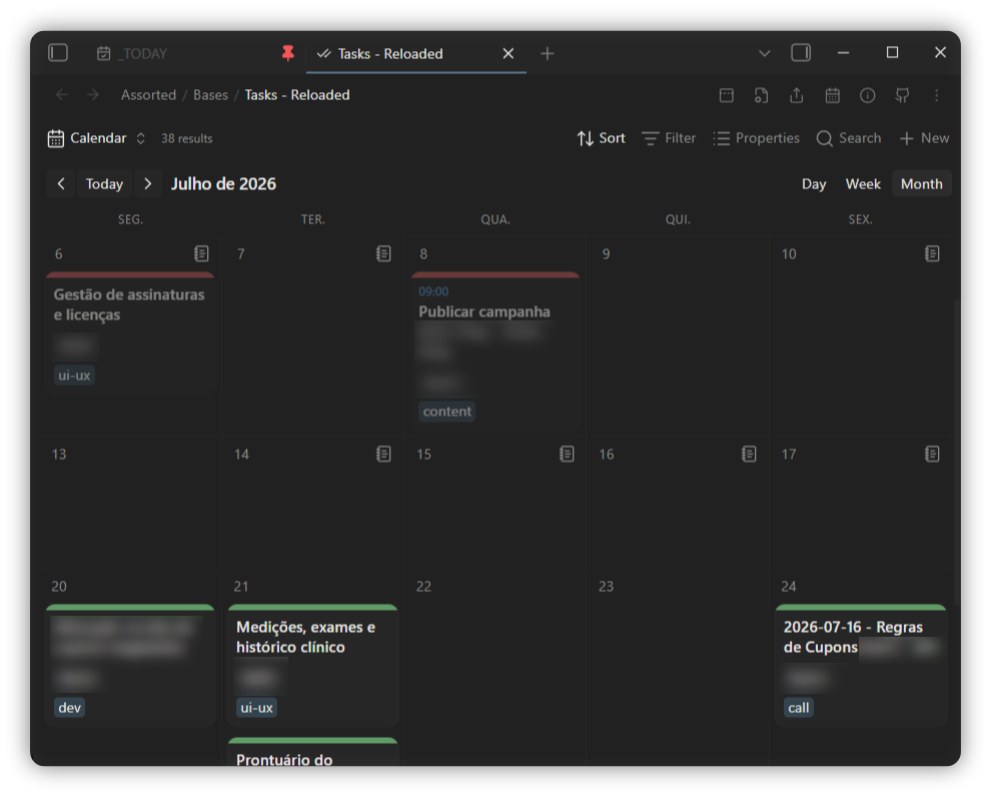
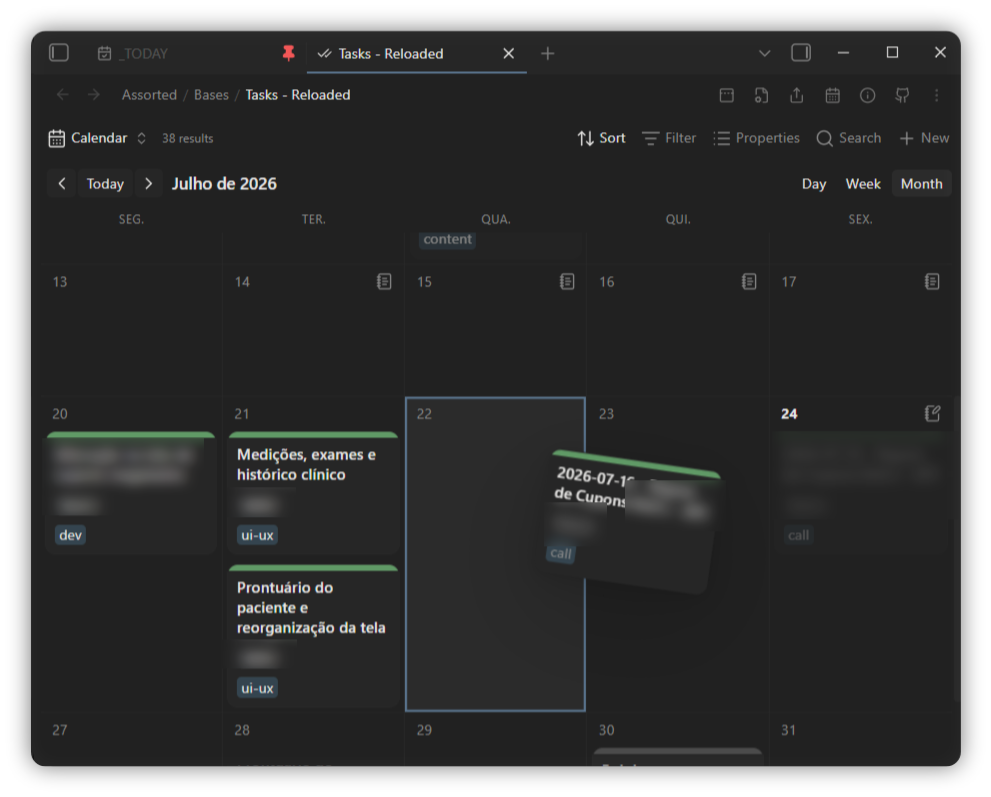
Notes become cards on a day, week or month grid, placed by any date property. Drag a card to another day to reschedule it, and click one to open the note. Optionally, your Todoist tasks land on the same grid beside your notes.
Requires Obsidian 1.11.4+ with the Bases core plugin enabled.
Screenshots
Features
- Day / week / month grid, with toolbar navigation and a Today button. The day
view can span 1–7 days side by side (a
[- +]stepper), laid out masonry-style. - Place notes by any date property — frontmatter, formula or intrinsic file date.
- Also show undated notes by creation date (optional, per view) — surface notes that have no date-property value on the day their file was created.
- Cards show whichever properties you made visible in the base, so a calendar and a
table over the same base stay in sync. Formula properties render through Bases, so
html()in a formula works on a card the same as in a table. - Drag & drop to reschedule — drop a card on another day to rewrite its date property. The time of day and any timezone offset are preserved; a date-only property stays date-only. The dragged card follows the cursor and swings from the point you grabbed it.
- Status → accent colour — map a property's values (e.g.
todo,done) to a coloured accent, shown as a bar or a bullet before the title (or hidden), from the settings tab. - Adjustable cards — set the accent-bar thickness and the title, time and property-pill font sizes from the settings tab.
- Todoist tasks on the calendar — show your Todoist tasks beside your notes, filter them with a Todoist query, optionally include completed tasks, drag them to reschedule, and complete them from the card. See Todoist tasks.
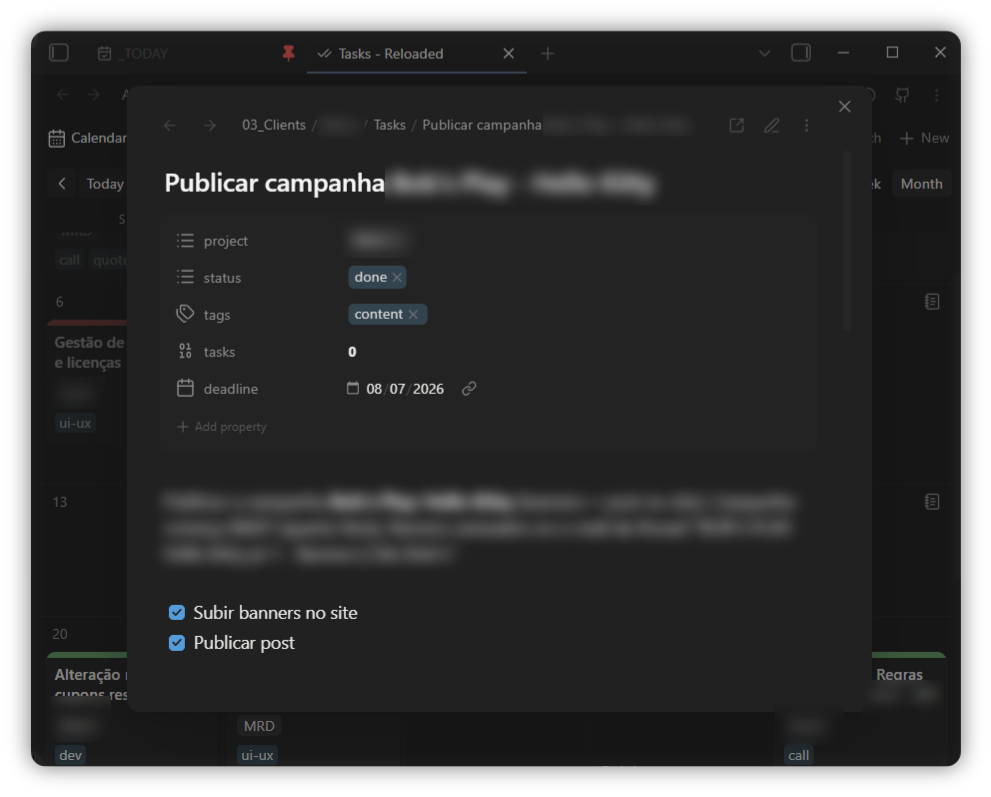
- Open notes in a floating modal, the current tab, a new tab or a split.
- Double-click an empty day to create a note dated to it, optionally from a template file.
- Hover a card for the normal page preview; right-click for the file menu. Ctrl/cmd-click a card opens a new tab, shift-click opens a split.
- Show or hide weekends; choose the week start.
Drag & drop uses the browser's native drag, which doesn't fire on touch, so rescheduling is desktop-only. Viewing, opening and creating notes work on mobile.
Usage
- Open or create a
.basefile. - Add a view and pick Calendar cards as its type (or set
type: calendar-cardsin the view's YAML). - In the view options, choose a Date property — nothing renders until you do.
- Cards display the properties in the base's visible-property list, same as a table.
View options (per view, in the base)
| Option | What it does |
|---|---|
| Date property | Which property places the note on the grid. Required. |
| Range | Day, week or month. The toolbar buttons write the same setting. |
| Days shown (Day range) | How many days (1–7) the day view shows side by side. The toolbar [- +] stepper writes the same setting. |
| Week starts on | Sunday or Monday. |
| Show weekends | When off, Saturday/Sunday are hidden for a 5-column grid. |
| Also show notes by creation date | Place notes that have no date-property value on their file's creation day (read-only). |
| Show time on cards | Show the time when the date has one. |
| Day view card width | Width of the masonry cards in the day view. |
Plugin settings (global)
| Setting | What it does |
|---|---|
| Open notes in | Floating modal, current tab, new tab or split — for clicking a card and for new notes. |
| New note template | Template file copied into notes created from the calendar (raw copy; template variables aren't expanded). |
| Status display | Show the status accent as an accent bar, a bullet before the title, or nothing. |
| Property layout | Arrange card properties stacked (one per line) or inline (flowing together). |
| Accent bar thickness | Height in px of each card's accent bar (0 hides it). |
| Card font sizes | Scale the card title, time and property-pill text, as a percentage of the default. |
| Status property | Frontmatter property whose value selects the accent colour. |
| Status colours | Map status values to accent-bar colours, each with its own opacity. |
| Todoist API token | Your Todoist token, kept in Obsidian's secret storage (not the settings file). |
| Show Todoist tasks | Place your Todoist tasks on the grid by their due date. |
| Todoist filter | Restrict tasks to a Todoist filter query (their own syntax); empty shows all. |
| Show completed tasks (Beta) | Also place completed tasks on their due day, styled like a done note. |
| Todoist auto-refresh | How often to re-fetch tasks — manual only, or every 5/15/30/60 minutes. |
| Todoist accent colour | One accent-bar colour (with opacity) for all Todoist cards; off tints them by priority. |
Todoist tasks
Show your Todoist tasks on the calendar alongside your notes, placed by their due date.
- In Settings → Yabacavi → Todoist, paste your API token (in Todoist: Settings → Integrations → Developer). It's stored in Obsidian's secret storage, not in the plugin's settings file.
- Turn on Show Todoist tasks — from the settings tab, or the toggle that appears in the calendar toolbar.
- Tasks load when you enable them and on the toolbar ↻ button; set an auto-refresh interval for a timed re-fetch.
- Task cards carry a red Todoist mark, show their project and labels, and flag whether the task has a description.
- Click a task for a modal with its description (rendered as markdown), full due date, and a button to open it in the Todoist app (falling back to the web). Tick the checkbox by the title to complete the task.
- Drag a task to another day to reschedule it in Todoist — a timed task keeps its time. Recurring tasks aren't draggable, so their recurrence is never flattened.
- Filter which tasks appear with a Todoist filter query in settings (e.g.
#Work | #Personal,@label) — the same syntax as Todoist's own filters. - Completed tasks (Beta) — optionally show completed tasks on their due day,
styled like a note with status
done(and not draggable). They're fetched per visible month and cached, so browsing months stays light on the Todoist API. - The accent bar is tinted by priority (p1 red … p3 blue) unless you set a single custom accent colour in settings.
- Tasks and notes sort together within a day: timed first (chronological), then the rest alphabetically by title.
The Todoist integration needs Obsidian 1.11.4+ for its secret storage. Leave the token empty and nothing Todoist-related appears — the calendar works on its own.
Commands
With a Todoist token set up, these show in the command palette and can be bound to hotkeys:
- Refresh Todoist tasks — re-fetch now (same as the toolbar ↻).
- Toggle Todoist tasks — show or hide Todoist tasks.
- Toggle completed Todoist tasks — show or hide completed tasks.
Customising with CSS
Every card mirrors its note's frontmatter as data-* attributes and exposes a few
CSS variables, so a theme or snippet can restyle cards freely:
/* colour the accent bar by status */
.yabacavi-card[data-status="done"]  { --yabacavi-accent-color: var(--color-green); }
.yabacavi-card[data-status="doing"] { --yabacavi-accent-color: var(--color-yellow); }

/* fade completed cards */
.yabacavi-card[data-status="done"] { opacity: 0.5; }
Handy hooks:
[data-<property>="…"]on each card, from the note's frontmatter ([data-status],[data-project], …). List values match with~=.--yabacavi-accent-coloron.yabacavi-card;--yabacavi-accent-width, the--yabacavi-title-scale/--yabacavi-time-scale/--yabacavi-pill-scalefont scales, and--yabacavi-day-card-widthon.yabacavi(the settings and view options write these — override them for finer control).--yabacavi-day-min-heighton.yabacavi..yabacavi-card--todoistfor Todoist cards, with[data-priority="1"…"4"]and[data-recurring]to target them (their project/labels are in[data-property="todoist.project"]/[data-property="todoist.tags"]).- Completed Todoist cards carry
[data-completed]and[data-status="done"], so the rules that style yourdonenotes style them too. - Notes placed by their creation date carry
[data-placed-by="created"](read-only, not draggable).
Status colours set in the settings tab are applied inline, so they win over CSS rules; leave the list empty to drive the accent entirely from your own CSS.
Install (Community plugins)
Once the plugin is in the directory:
- Open Settings → Community plugins and turn off Restricted mode.
- Click Browse, search for Yabacavi, open its page.
- Click Install, then Enable.
Install (BRAT — before it's in the directory)
With BRAT:
- Install and enable BRAT from Settings → Community plugins → Browse.
- Run BRAT: Add a beta plugin for testing from the command palette.
- Paste the repository URL:
https://github.com/xupisco/obsidian-yabacavi - Confirm — BRAT installs the latest release and keeps it updated.
- Enable Yabacavi in Settings → Community plugins.
Install (manual / development)
npm install
npm run build      # produces main.js
Copy main.js, manifest.json and styles.css into your vault at
<vault>/.obsidian/plugins/yabacavi/, then reload Obsidian and enable the plugin.
Develop
npm install
npm run dev        # esbuild watch; rebuilds main.js on change
npm run build      # typecheck + production bundle
npm run lint       # typecheck + eslint (obsidianmd rules)
Set OBSIDIAN_PLUGIN_DIR to your vault's plugin folder and npm run dev deploys
main.js, manifest.json and styles.css there on every rebuild:
OBSIDIAN_PLUGIN_DIR="/path/to/Vault/.obsidian/plugins/yabacavi" npm run dev
License
For plugin developers
Search results and similarity scores are powered by semantic analysis of your plugin's README. If your plugin isn't appearing for searches you'd expect, try updating your README to clearly describe your plugin's purpose, features, and use cases.