by chilipeppers
Pull Google Ads and Meta Ads campaign metrics into your notes: spend, clicks, conversions, CPA and ROAS, with daily note automation.
Ad Recap
⭐ If Ad Recap saves you time, a star helps other marketers find it. Found a bug or have an idea? Open an issue, I read every one.



Your Google Ads and Meta Ads numbers, right inside Obsidian.
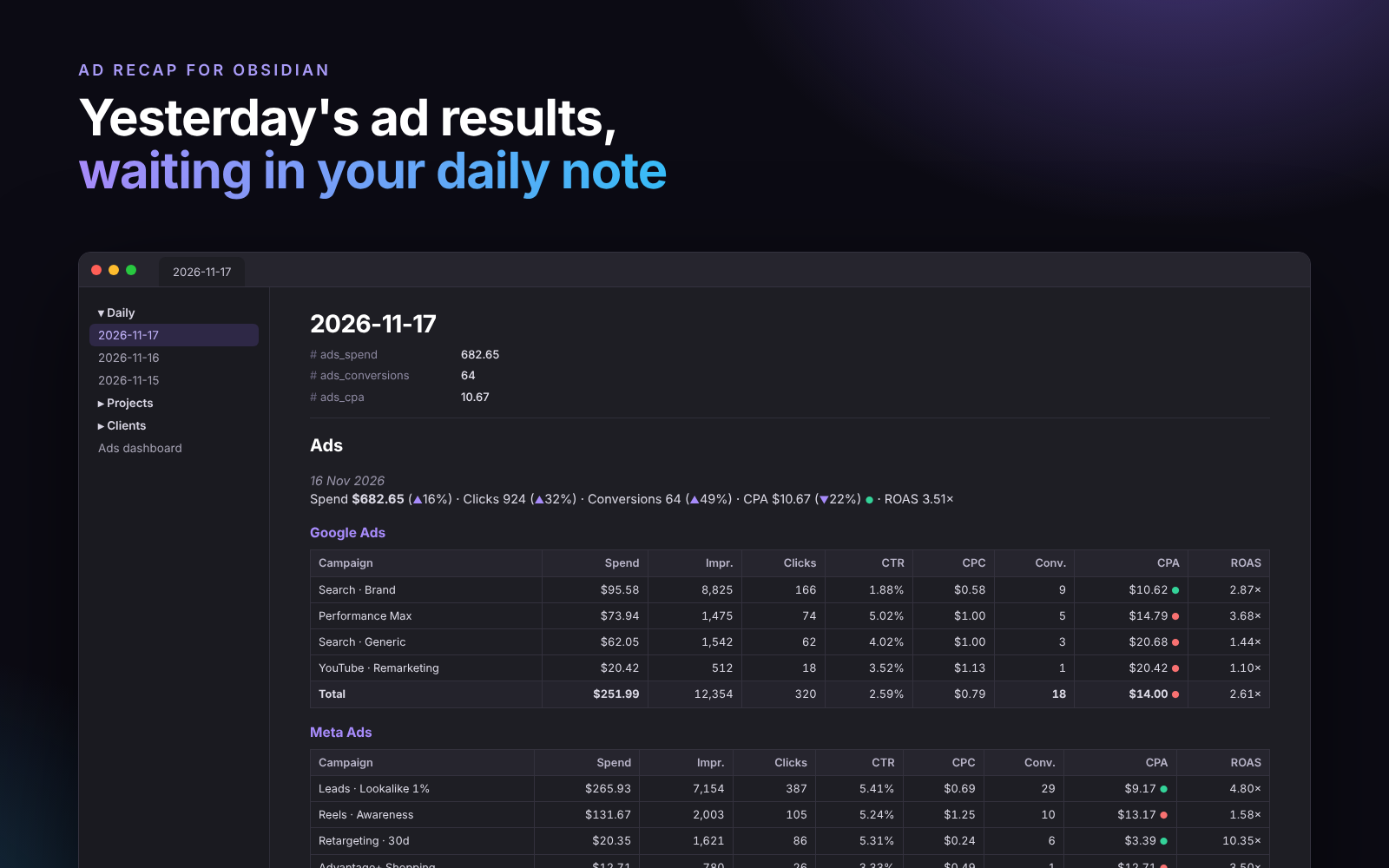
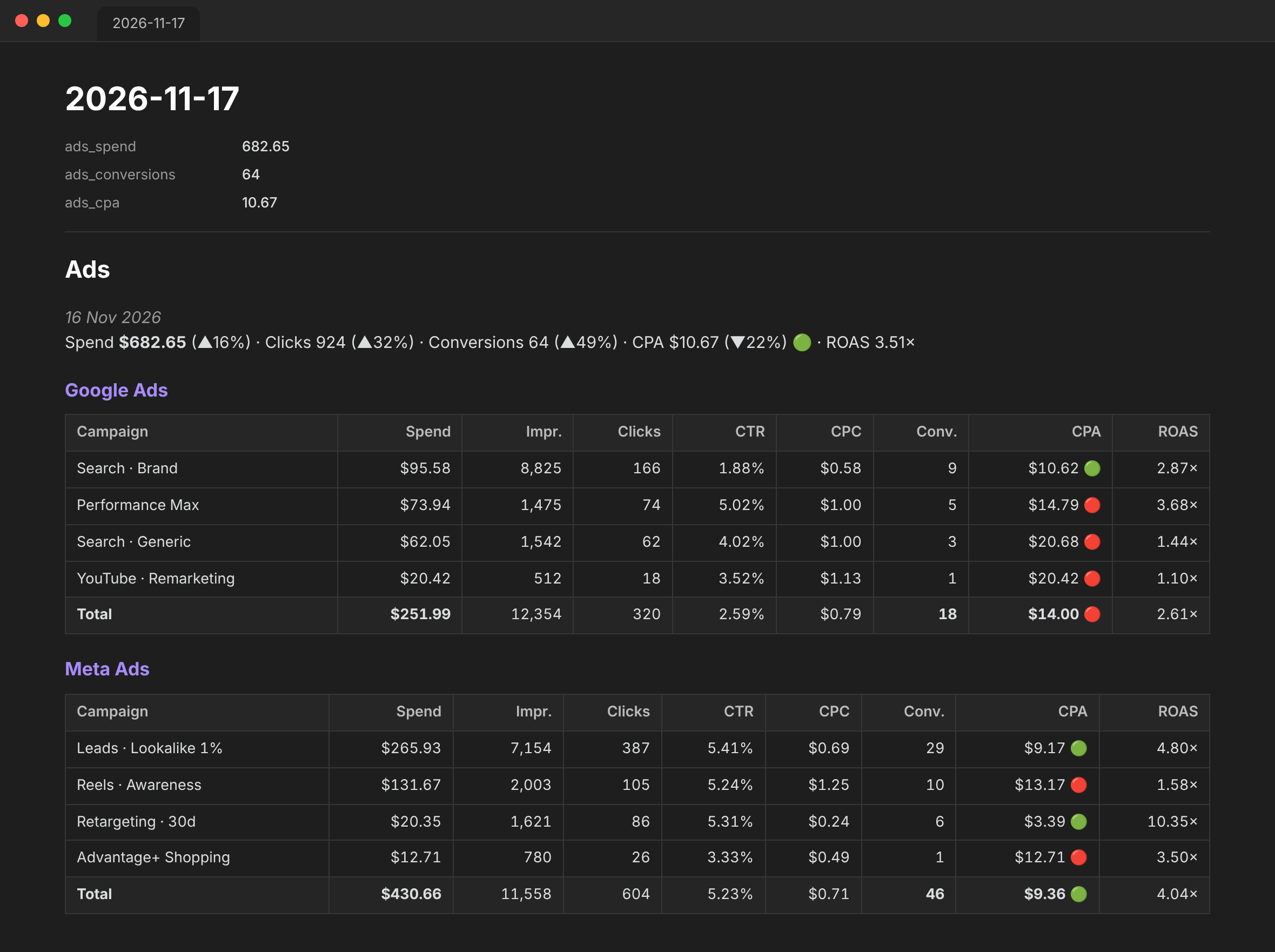
Ad Recap pulls campaign metrics into your notes as clean Markdown tables: spend, impressions, clicks, CTR, CPC, conversions, CPA and ROAS, with changes against the previous period. Open today's daily note and yesterday's results are already there.
Features
- Google Ads via the official API, or without a developer token through a small Google Ads script that fills a Google Sheet
- Meta Ads (Facebook and Instagram) via the Marketing API, with your own choice of conversion actions
- Daily note automation: when today's note is created, yesterday's report is added under a heading you choose (works with core Daily notes and Periodic Notes)
- Note properties:
ads_spend,ads_impressions,ads_clicks,ads_conversions,ads_value,ads_cpa,ads_roas,ads_google_spendandads_meta_spendare saved to the daily note, so you can chart trends with Bases or Dataview - Live block: put an
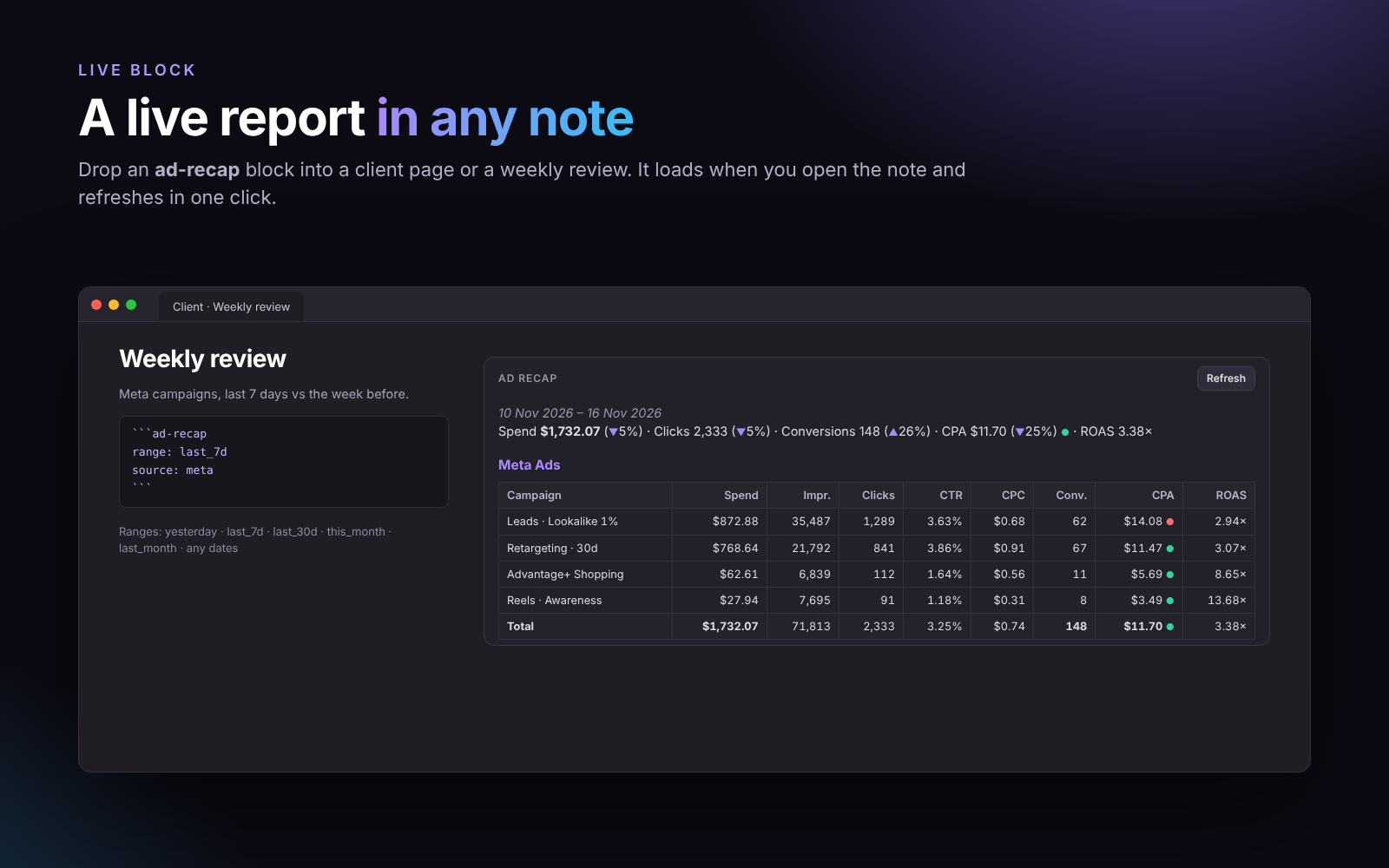
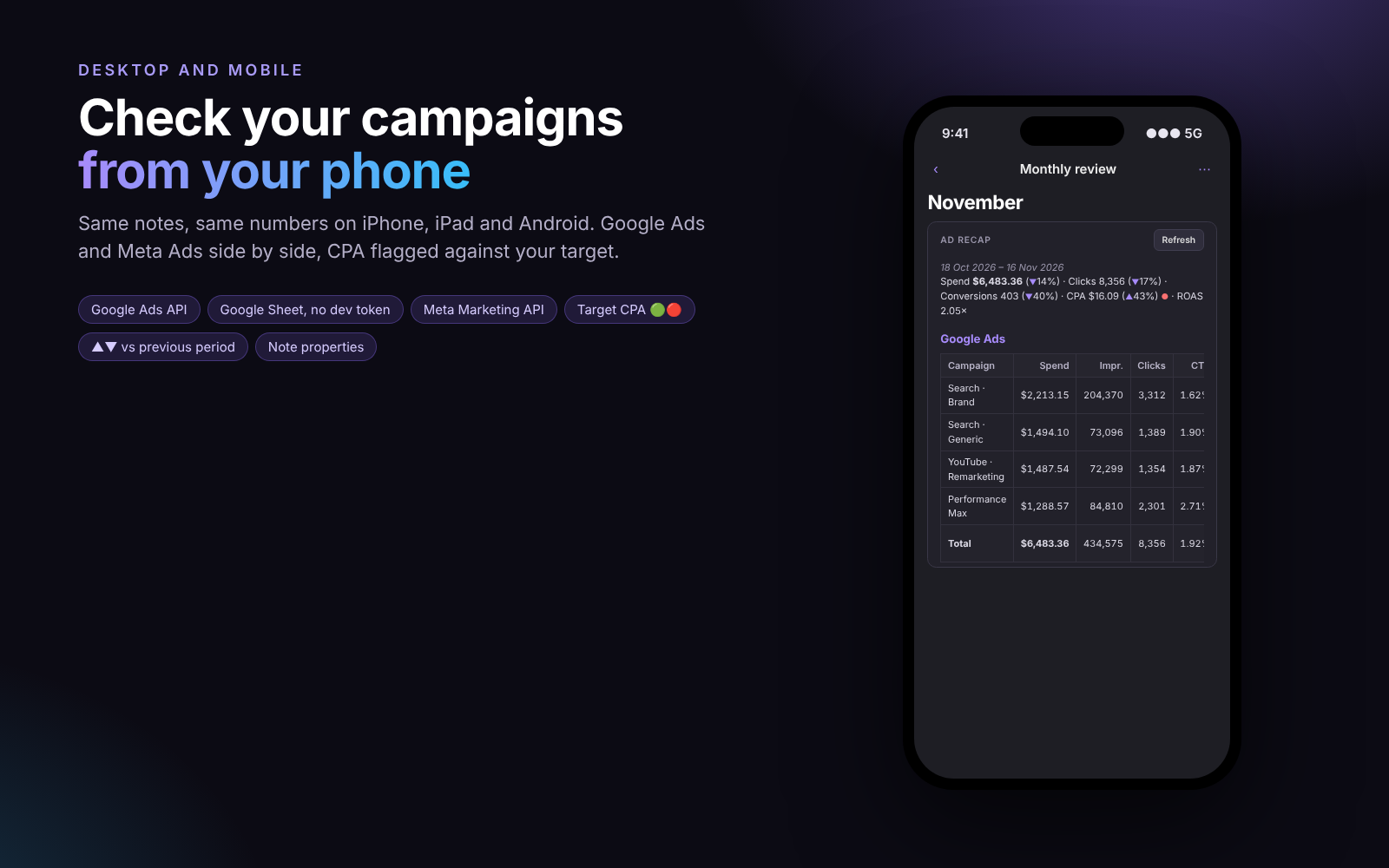
ad-recapcode block in any note for a report that refreshes on open, with per-block account, campaign filter, sorting and currency overrides - Target CPA flags: 🟢 at or under target, 🔴 above (or spending over target with 0 conversions)
- Period comparison: ▲/▼ against the period of the same length just before
- Works on mobile: all requests go through Obsidian's own network API
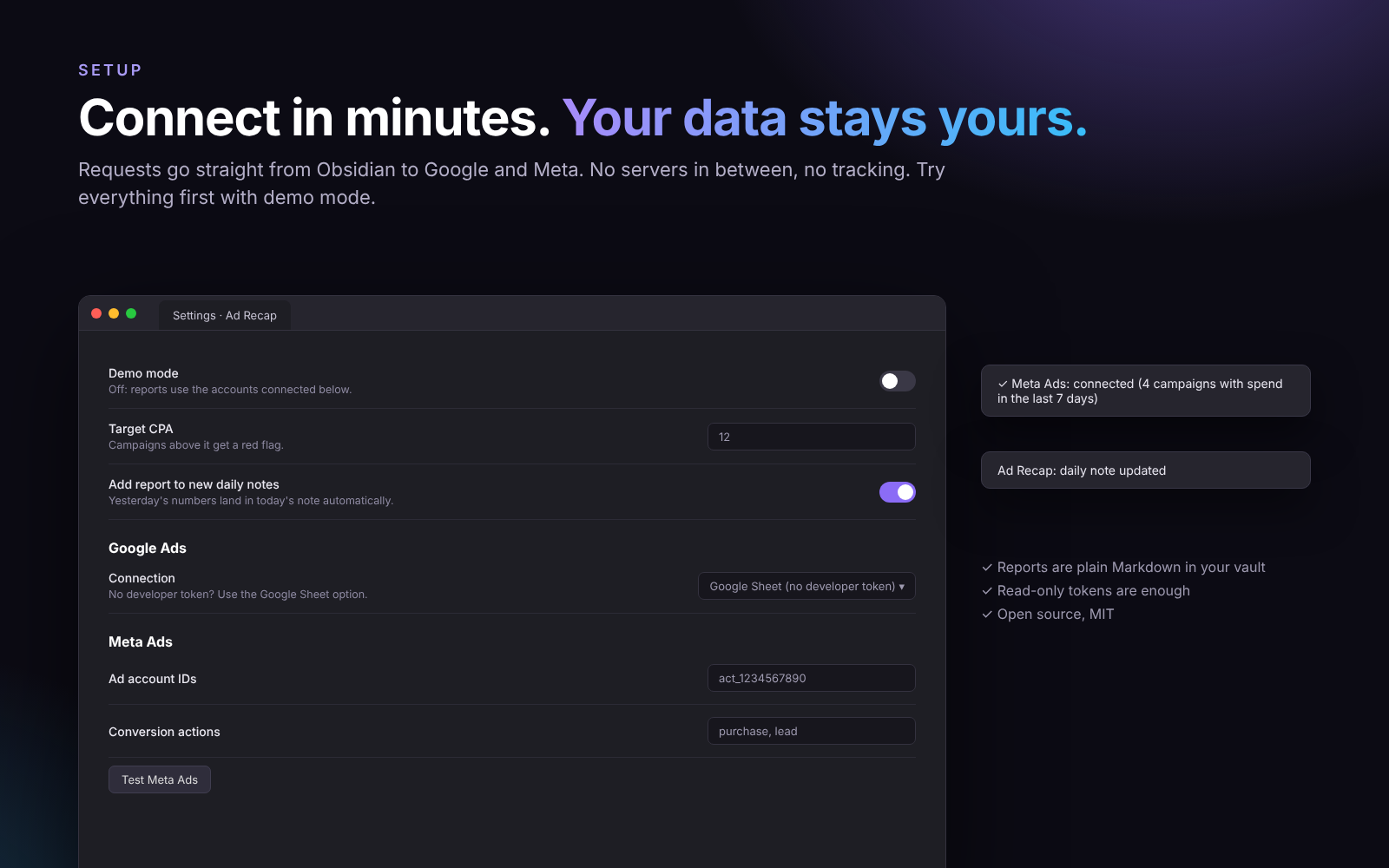
- Demo mode to try everything before connecting an account
Screenshots
 |  |
 |  |
Commands
| Command | What it does |
|---|---|
| Insert report: yesterday | Adds yesterday's report at the cursor |
| Insert report: last 7 days | Adds a 7-day report at the cursor |
| Insert report: choose period… | Pick a period, or type 2026-11-01..2026-11-15 |
| Update report in current daily note | Refreshes the report section and properties of the open daily note |
| Insert live report block | Adds an ad-recap block at the cursor |
Live block
```ad-recap
range: last_7d
source: all
compare: true
```
range:today,yesterday,last_7d,last_14d,last_30d(anylast_Nd),this_month,last_month, a date like2026-11-16, or2026-11-01..2026-11-15source:all,googleormetacompare:trueorfalseaccount: optional account ID(s), comma separated (useful when tracking separate clients in different notes)filter: optional case-insensitive substring filter on campaign namesort:spend(default),cpa,roas,conversions,clicks,impressions,ctrorcpccurrency: optional currency symbol/code override for this blocktarget_cpa: optional Target CPA override for this blocklimit: optional maximum campaigns per table override for this block
Results are cached for 10 minutes. Use the Refresh button for fresh numbers, or Copy to copy the Markdown table.
Connecting Google Ads
Option A: Google Sheet (no developer token, about 5 minutes)
- Create an empty Google Sheet.
- In Google Ads, open Tools → Bulk actions → Scripts, add a script and paste
scripts/google-ads-to-sheet.js. Put your sheet URL inSHEET_URL. - Authorize and run it once, then set it to run daily.
- In the sheet: File → Share → Publish to web, pick the first sheet and CSV, then Publish.
- In Ad Recap settings, enable Google Ads, choose Google Sheet and paste the CSV link.
Anyone with the published link can read the CSV. It's an unguessable URL, but keep that in mind.
Option B: Google Ads API
You need:
- A developer token from the API Center of a Google Ads manager account
- An OAuth client (Desktop app) from Google Cloud Console, with the Google Ads API enabled
- A refresh token for the scope
https://www.googleapis.com/auth/adwords. The quickest way is the OAuth 2.0 Playground: open the settings gear, tick Use your own OAuth credentials, paste your client ID and secret, authorize the scope above and exchange the code for tokens.
Then fill in the customer ID(s), the manager account ID if you use one, the developer token, client ID, client secret and refresh token, and press Test Google Ads.
Connecting Meta Ads
- In Meta Business Settings, create a System user, give it access to your ad account(s), and generate a token with the
ads_readpermission. - Paste the token and your ad account ID(s) (with or without
act_). - Set Conversion actions to the action types you count as conversions, for example
purchase,leadoroffsite_conversion.fb_pixel_lead. - Press Test Meta Ads.
Privacy
- Ad Recap talks only to
googleads.googleapis.com,oauth2.googleapis.com,graph.facebook.comand the Google Sheet link you provide. Nothing is sent anywhere else. - On Obsidian 1.11.4+, API tokens can be stored in Obsidian's built-in Secret Storage so they stay out of
data.jsonand are not synced with your vault files. On older versions, tokens fall back to.obsidian/plugins/ad-recap/data.json(if your vault is synced or shared, those tokens go with it).
Install
Search for Ad Recap in Settings → Community plugins, or install manually: copy main.js, manifest.json and styles.css from the latest release to <vault>/.obsidian/plugins/ad-recap/ and enable the plugin.
Roadmap
- More platforms: Microsoft Ads, TikTok Ads, LinkedIn Ads
- Breakdown by ad group / ad set
- Weekly and monthly notes support
- Budget pacing alerts
Ideas and votes are welcome in issues.
Contributing
Bug reports, ideas and pull requests are welcome. See CONTRIBUTING.md. For security issues, see SECURITY.md.
Disclaimer
Ad Recap is an independent project and is not affiliated with or endorsed by Google, Meta or Obsidian. Google Ads is a trademark of Google LLC. Meta is a trademark of Meta Platforms, Inc.
More Obsidian plugins & themes
- Traffic Recap — GA4, Search Console, Plausible & PostHog metrics in your notes
- UTM Vault — build, validate and audit UTM tracking links
- Bases Conditional Format — colour badges, row highlights and progress bars for Obsidian Bases
- Chili & Popcorn — Obsidian themes
License
MIT © 2026 David (chi-li-peppers)
⭐ Like it? Star the repo · Ideas and bugs: issues
For plugin developers
Search results and similarity scores are powered by semantic analysis of your plugin's README. If your plugin isn't appearing for searches you'd expect, try updating your README to clearly describe your plugin's purpose, features, and use cases.