obsidian-bases-timeline-view
Timeline view for Obsidian Bases.
Chinese documentation: 中文版.md.
Features
- Timeline: Plot notes on a timeline for a clear view of temporal information.
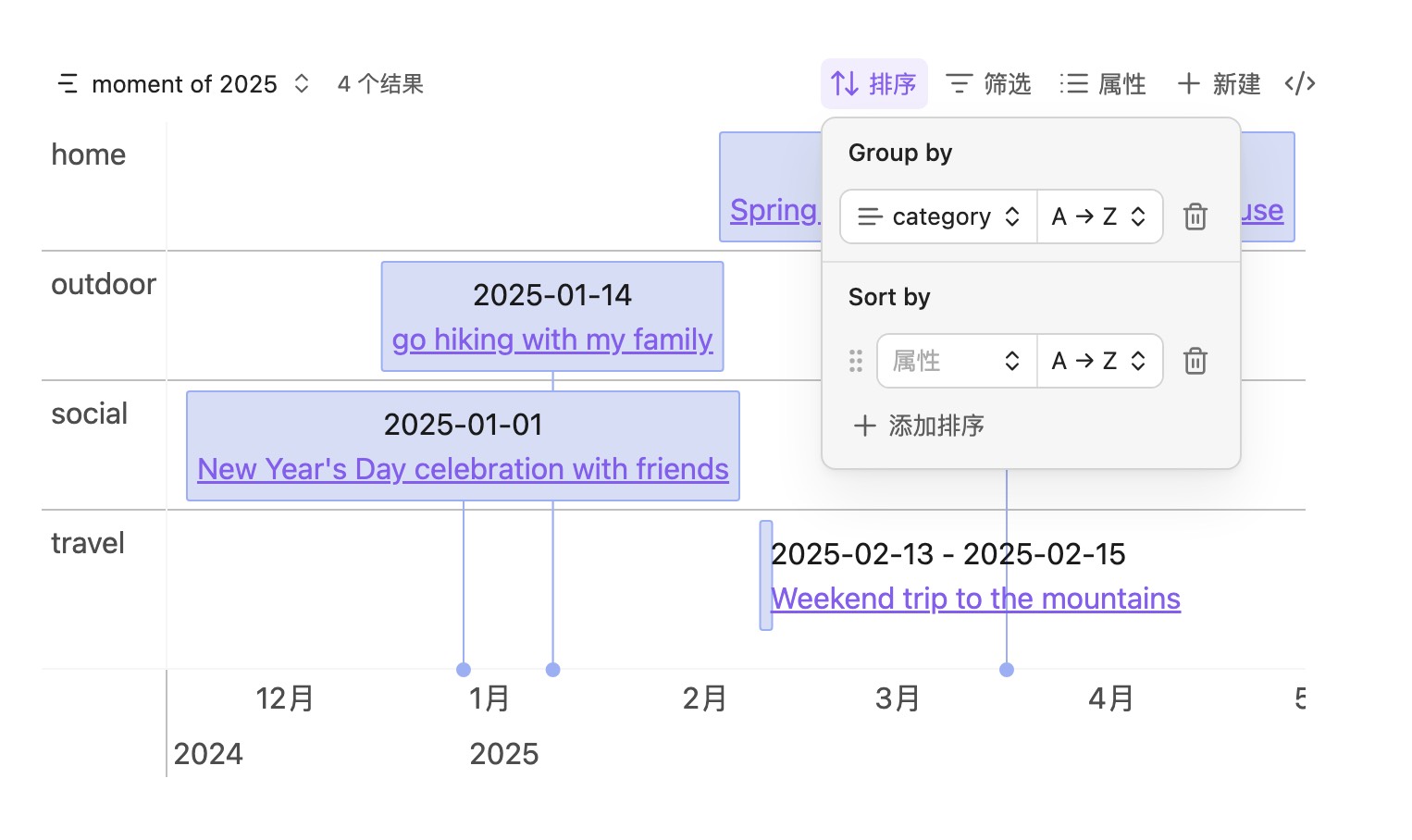
- Grouping: Group timeline items by any note field and visually separate related events.
- Background and markers (Bases): In addition to regular timeline items, support drawing backgrounds and markers.
- Render API: Expose an API for other scripts to customize drawing and extend the timeline.
- Preview: Timeline items support Obsidian's built-in hover preview for immersive reading.
Example
Basic usage
To draw a timeline, add properties to your notes, for example:
start: 2025-01-01
end: 2025-01-04
content: title of the item
tags:

- moment
Then create a Base and add a timeline view:
filters:
  and:
    - file.tags.contains("moment")
    - and:
        - file.ctime >= "2025-01-01"
        - file.ctime <= "2025-12-31"
views:
  - type: timeline-view
    name: moment of 2025
The result looks roughly like this:
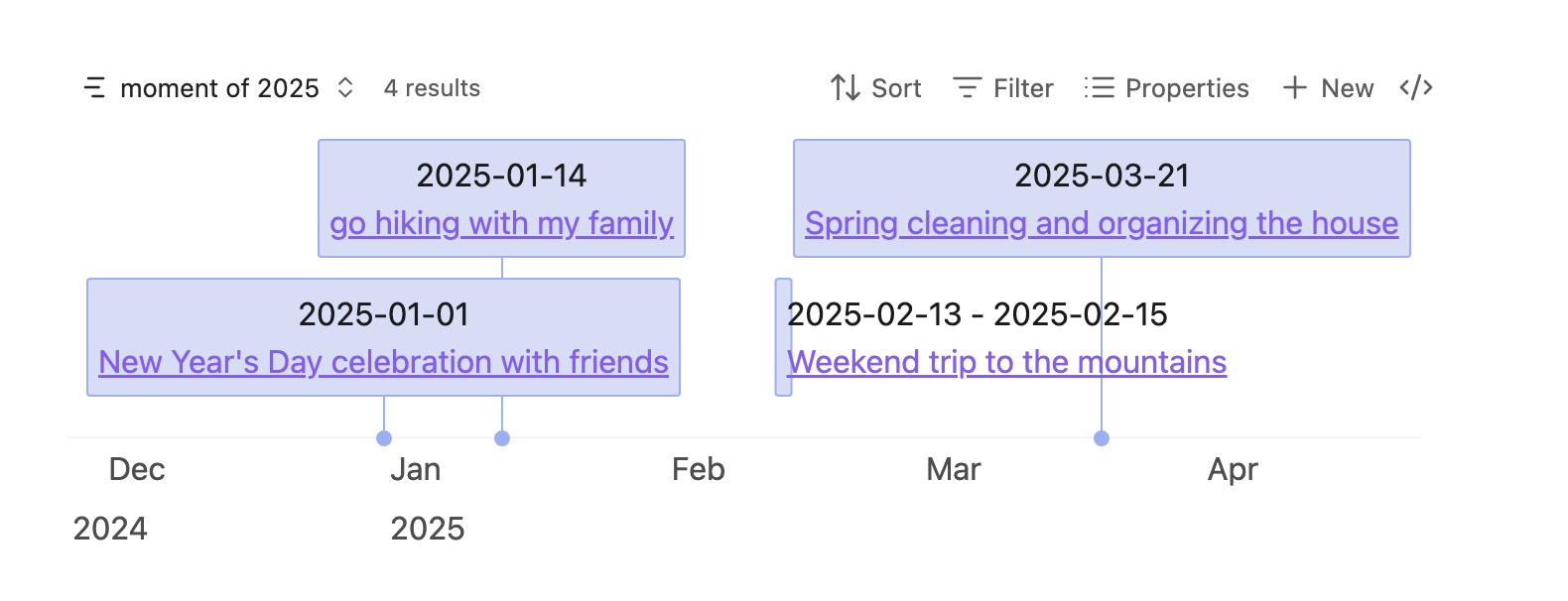
timeline-view reads frontmatter from each file and plots it on the timeline.
Default frontmatter properties:
| Property | Description | Required | Example | Notes |
|---|---|---|---|---|
| start | Start date | No | 2025-01-01 | |
| date | Start date | No | 2025-01-01 | Used when start is not set |
| end | End date of the item | No | 2025-01-04 | |
| content | Item content / title | No | title of the item | Falls back to the file name when unset |
| startLabel | Display label for the start date | No | start | |
| endLabel | Display label for the end date | No | end | |
| cssclasses | CSS classes attached to the vis item | No | phase-bg | Built-in Obsidian list property; join multiple with spaces |
Custom fields
If you prefer not to use the default property names, specify custom fields in the view, for example:
filters:
  and:
    - file.tags.contains("moment")
    - and:
        - file.ctime >= "2025-01-01"
        - file.ctime <= "2025-12-31"
views:
  - type: timeline-view
    name: moment of 2025
    startField: note.startData
    endField: note.endData
Make sure these properties are defined in your notes.
Grouping
With Obsidian 1.10 or later, use group by to group timeline items, for example:
Background and markers
Use backgroundWhen and markerWhen to decide which notes should be drawn as backgrounds or markers. Example:
filters:
  or:
    - file.tags.contains("moment")
    - file.tags.contains("phase")
    - file.tags.contains("milestone")
formulas:
  isPhase: 'file.tags.contains("phase")'
  isMilestone: 'file.tags.contains("milestone")'
views:
  - type: timeline-view
    name: moment of 2025
    startField: note.start
    endField: note.end
    backgroundWhen: formula.isPhase
    markerWhen: formula.isMilestone
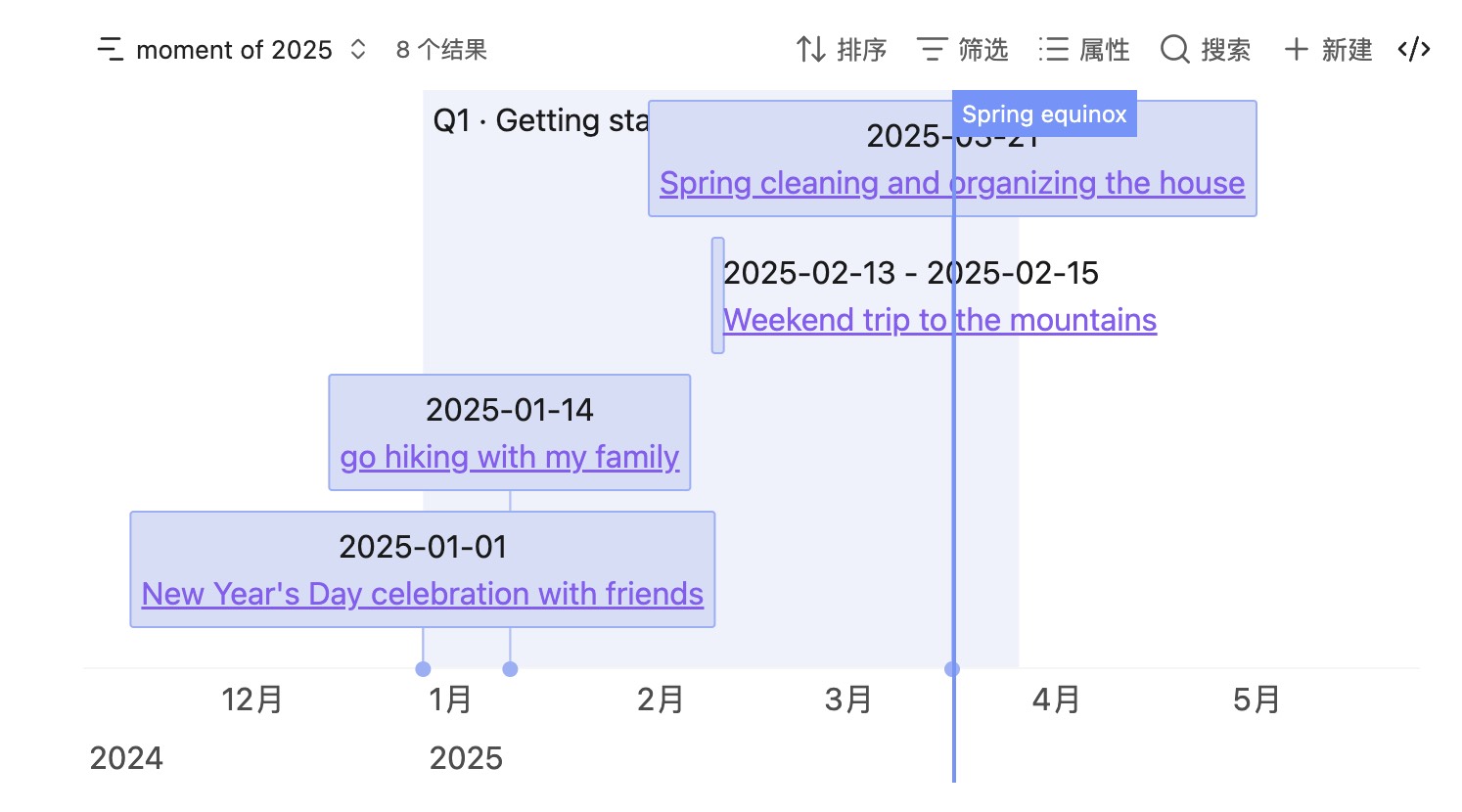
- Background notes need
startandendin frontmatter.- Marker notes need
start(as the vertical line time);content/ file name is used as the marker label.- When multiple roles match, priority is: marker > background > item.
- Backgrounds also support grouping and can be drawn by group.
Custom styles
Use Obsidian's built-in style extensions together with this plugin's hooks to customize the timeline look.
Style via cssclasses
By default the plugin reads Obsidian's built-in cssclasses and sets them as the vis-timeline item/background className. You can also point the class name field in the view to another property.
cssclasses:

- phase-bg
.vis-item.phase-bg {
	background-color: rgba(211, 211, 211, 0.45);
	border-color: #d3d3d3;
}
Style via data attributes
Timeline items also expose tags and frontmatter as data- attributes for CSS selectors, for example:
.vis-item:has(.timeline-item[data-tags~='#projects']) {
	border-width: 1px;
	border-style: solid;
}

.vis-item:has(
	.timeline-item[data-tags~='#projects'][data-status='not started']
) {
	background-color: rgba(211, 211, 211, 0.45);
	border-color: #d3d3d3;
}
#projectsis a tag; replace it with any tagdata-status="not started"comes from frontmatter (status); replace it with any field
API
When you need to query data yourself (for example with DataviewJS), use the plugin's exposed api:
| Method | When to use |
|---|---|
api.render(containerEl, input, options?) | You already have a generic data structure and want full control |
api.dv.render(containerEl, sources) | Pass Dataview page lists directly; the plugin maps fields and default item templates |
Plugin id: bases-timeline-view.
const api = app.plugins.plugins['bases-timeline-view']?.api;
if (!api) {
	// Plugin not enabled
	dv.paragraph('Please update and enable Bases Timeline View');
} else {
	// Call api.render / api.dv.render
}
Full parameters and types: API reference.
Quick example: api.render
```dataviewjs
const api = app.plugins.plugins['bases-timeline-view']?.api;
if (!api) {
  dv.paragraph('请先启用 Bases Timeline View 插件。');
} else {
  const items = [
    {
      id: 'notes/事件-甲.md',
      start: '2025-01-01',
      end: '2025-01-03',
      content: '事件甲',
      group: '工程',
    },
    {
      id: 'notes/事件-乙.md',
      start: '2025-02-10',
      content: '事件乙',
      group: '设计',
    },
  ];

  const backgrounds = [
    {
      id: 'notes/Q1.md',
      start: '2025-01-01',
      end: '2025-03-31',
      content: 'Q1',
      className: 'phase-bg',
    },
  ];

  const markers = [
    { id: 'launch', time: '2025-03-01', title: '发布' },
  ];

  api.render(this.container, { items, backgrounds, markers });
}
```
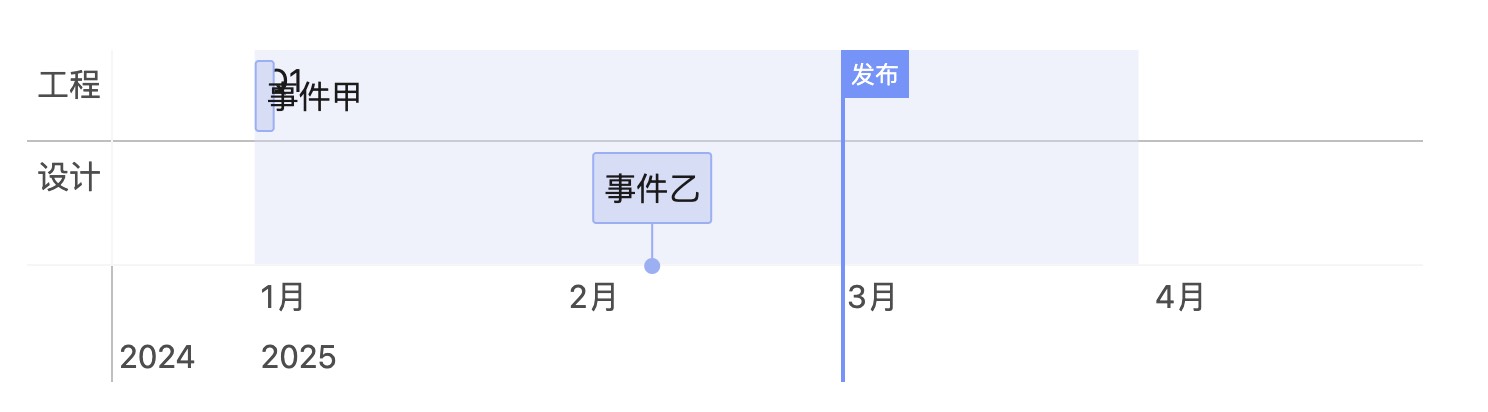
Quick example: api.dv.render
```dataviewjs
const api = app.plugins.plugins['bases-timeline-view']?.api;
if (!api?.dv) {
  dv.paragraph('请先启用 Bases Timeline View 插件。');
} else {
	api.dv.render(this.container, {
		items: dv.pages('#event'),
		backgrounds: dv.pages('#phase'),
		markers: dv.pages('#milestone'),
	});
}

```
Commands
In a Markdown editor, open the command palette and run:
- Insert custom render template — inserts the
api.renderDataviewJS example at the cursor - Insert Dataview render template — inserts the
api.dv.renderDataviewJS example at the cursor
Previewing these blocks requires the Dataview plugin.
Tips
- Bases views and
api/api.dv.rendershare the same date normalization (string,Date, number → moment →YYYY-MM-DD). - Incomplete inputs like
"2025"or"2025-01"are completed by moment into full dates (for example2025-01-01). If a property only needs to represent a year or year-month, you can use a text type, but rendering still normalizes toYYYY-MM-DD.
Installation
Three ways:
- (Recommended)Install from Obsidian Community Plugins, search
bases timeline viewto install - Manual install
- Download the latest release from GitHub Releases
- Create a folder
bases-timeline-viewunder.obsidian/plugins/ - Put the downloaded files into that folder
- Reload Obsidian
- Enable it in Settings → Community plugins
- Install via BRAT
- If you don't have it yet, install BRAT
- Enable BRAT in Settings → Community plugins
- Open the command palette (Ctrl+P) and run
BRAT: Plugins: Add a beta plugin for test - Enter the repository URL: https://github.com/xjiaxiang/obsidian-bases-timeline-view
- Select the latest version
- Click
Add pluginto install - If it is not enabled automatically, enable
bases-timeline-viewin Settings → Community plugins
Other
- Thanks to vis-timeline and obsidian timeline
For plugin developers
Search results and similarity scores are powered by semantic analysis of your plugin's README. If your plugin isn't appearing for searches you'd expect, try updating your README to clearly describe your plugin's purpose, features, and use cases.