by Vladislav Dashtu
Import notes from an encrypted ColorNote backup file, including checklists and locked notes.
ColorNote Importer
Import your notes from an encrypted ColorNote backup into Obsidian as plain Markdown, including checklists and locked notes. Everything happens on your device.
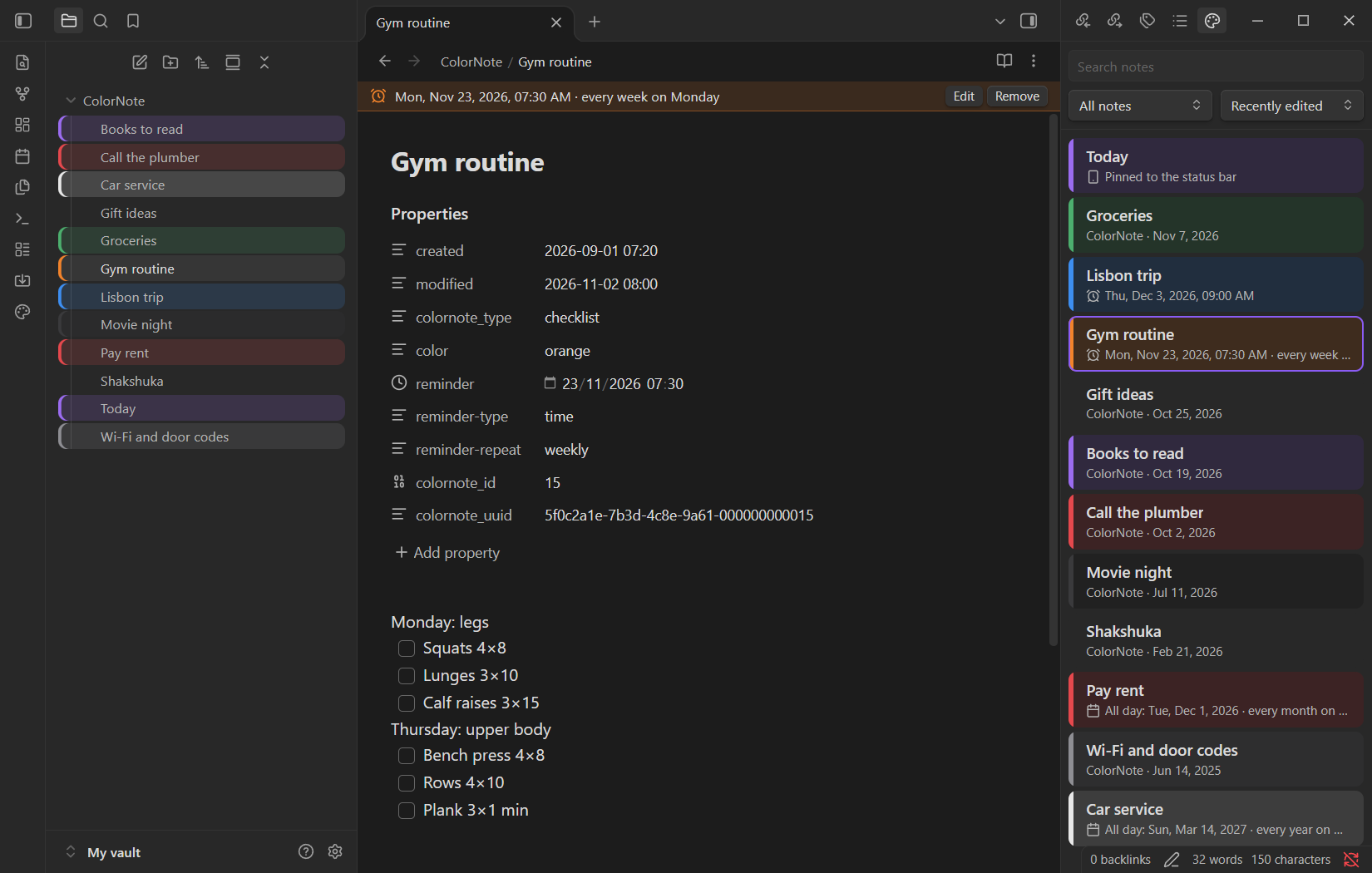
Features
- Reads the encrypted backup file directly. Pick the
.backupfile, type your master password, choose a folder. You don't need the ColorNote app, an online account or a converter. - Current and old backups. Reads the compressed backups of current ColorNote versions (format 9.1, ColorNote 4.9.4) as well as older 8.x and 7.x backups, including the
.docbackups of old app versions. - Locked notes included. Notes you locked in ColorNote are unlocked, imported, and marked with a
locked: trueproperty. - Checklists become task lists.
[ ] itembecomes- [ ] item, and[V] itembecomes- [x] item. - Keeps the metadata as properties: created and modified dates, color, checked state, reminders, and the note's ColorNote ID and UUID.
- Reminders keep working. Time alarms, all-day reminders, notes pinned to the status bar, and every repeat rule are written in the format of the Note Pin plugin, which sends them in Obsidian and on Android. See Reminders and Note Pin.
- Keeps the original dates as the files' created and modified times.
- Readable file names. Each note is named after its title. Characters that file systems or links don't allow are replaced, and the original title is kept as an alias.
- Safe to run again. Notes already in your vault are recognized by their ColorNote UUID and skipped, even if you've moved, renamed or edited them. Import a newer backup to bring in only the new notes.
- Trash is optional. Notes in ColorNote's trash can go into a
Trashsubfolder. - Private. No network requests, no account, no telemetry. Your password is never stored.
- Desktop and mobile. The plugin uses only APIs that both platforms have. To read 9.1 backups on an iPhone or iPad, you need iOS 16.4 or later.
How to use
-
Make a backup in ColorNote. In the app, open Settings → Backup and back up your notes to the device. ColorNote saves backups in its own folder in the phone's internal storage:
Android/data/com.socialnmobile.dictapps.notepad.color.note/files/backup.- Backups you make are named like
1794696057346-MANUAL.backup. - Automatic daily backups end in
-AUTO.backup. - The number is the time the backup was made, so the highest number is the newest.
- Older ColorNote versions kept backups in
data/colornote/backup, named like1648016024853-AUTO.doc. You can import those too.
- Backups you make are named like
-
Copy the backup out of ColorNote's folder. On Android 11 and later, other apps can't open that folder, so Obsidian on the phone can't pick the file there. Copy it somewhere else first, in one of two ways:
- From ColorNote: tap the backup in ColorNote's backup list and choose Send. Android's share menu opens. Pick an app that can save the file where Obsidian can open it, such as a cloud drive or a file manager, or one that gets it to your computer. The copy is named like
colornote-20261108.backup. - With a computer: connect the phone by USB, allow file transfer, and copy the newest file from ColorNote's folder.
Then import the copy, either in Obsidian on the computer or in Obsidian on the phone.
- From ColorNote: tap the backup in ColorNote's backup list and choose Send. Android's share menu opens. Pick an app that can save the file where Obsidian can open it, such as a cloud drive or a file manager, or one that gets it to your computer. The copy is named like
-
In Obsidian, open the importer in one of three ways:
- run ColorNote Importer: Import ColorNote backup from the command palette
- click the ribbon icon
- select Import… in the plugin's settings
-
Select Choose file and pick the backup. Enter your master password, or leave the field empty if you never set one in ColorNote. Then select Decrypt.
-
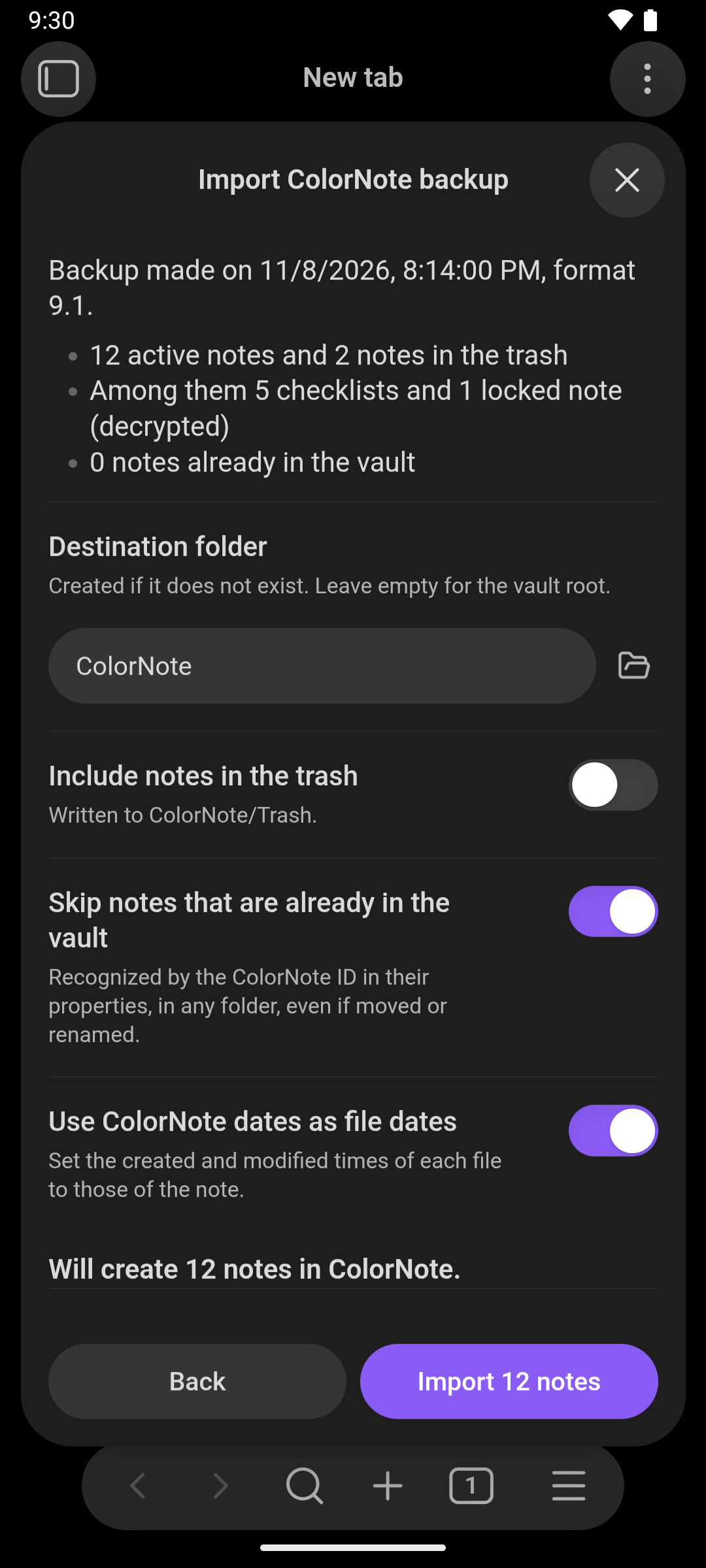
Check the summary: active notes, notes in the trash, checklists, locked notes, and notes that are already in your vault.
-
Choose the destination folder and options, then select Import.
| Choose the backup and decrypt it | Check the summary and import |
|---|---|
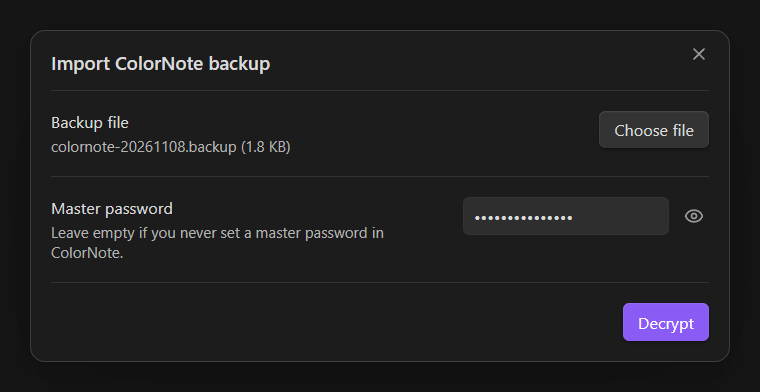 | 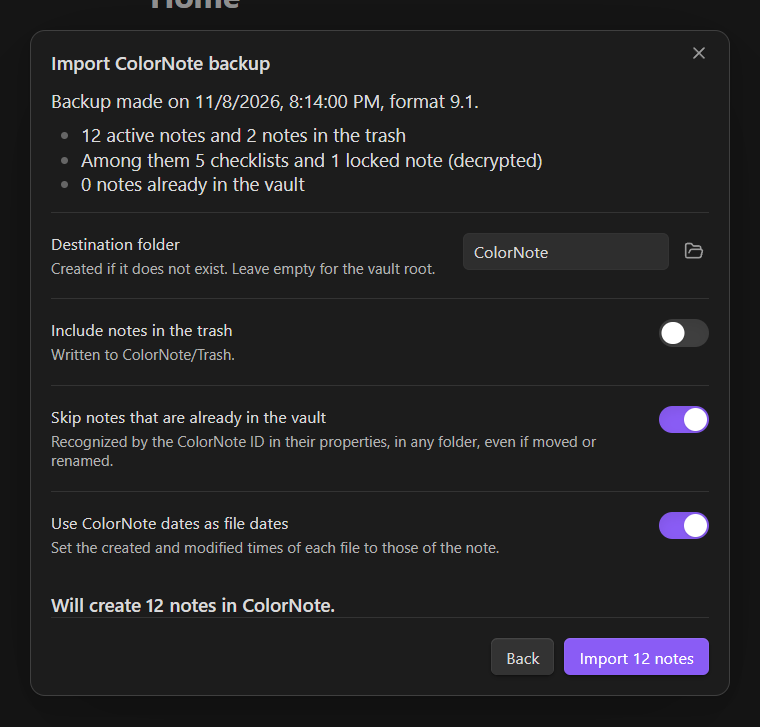 |
Closing the dialog while notes are being written stops the import after the current note. To finish it, import again with Skip notes that are already in the vault turned on.
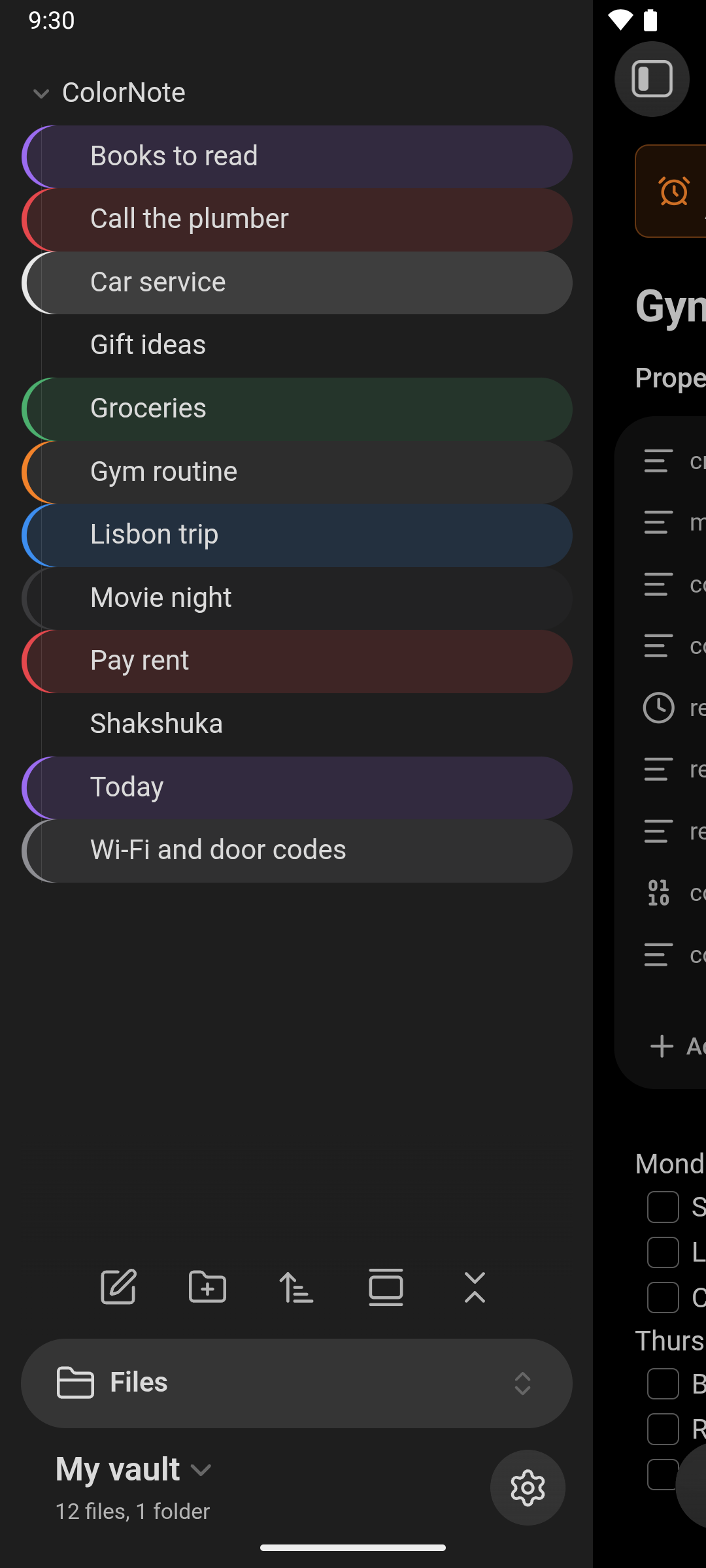
The importer works the same way in Obsidian on your phone:
| Choose the backup | Check the summary | The imported notes | An imported note |
|---|---|---|---|
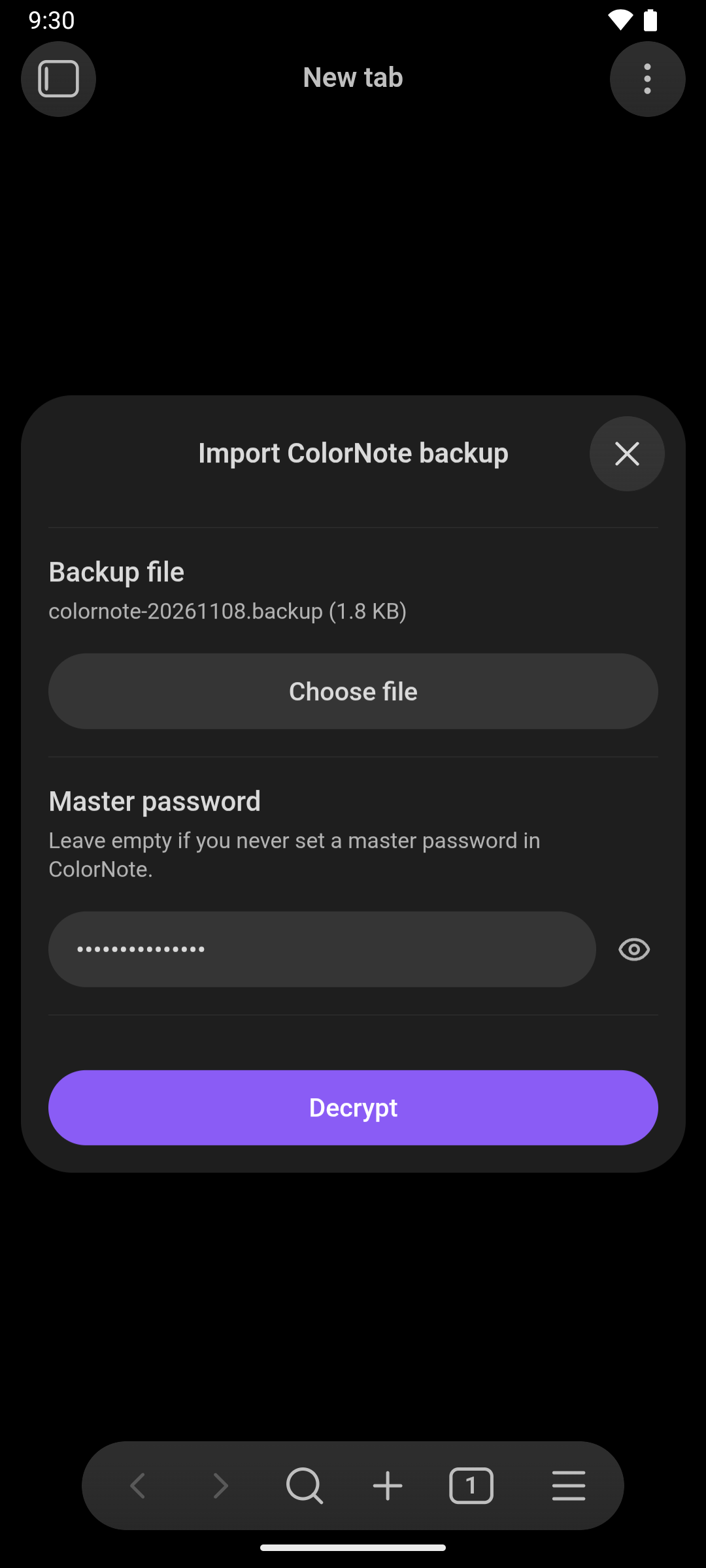 |  |  | 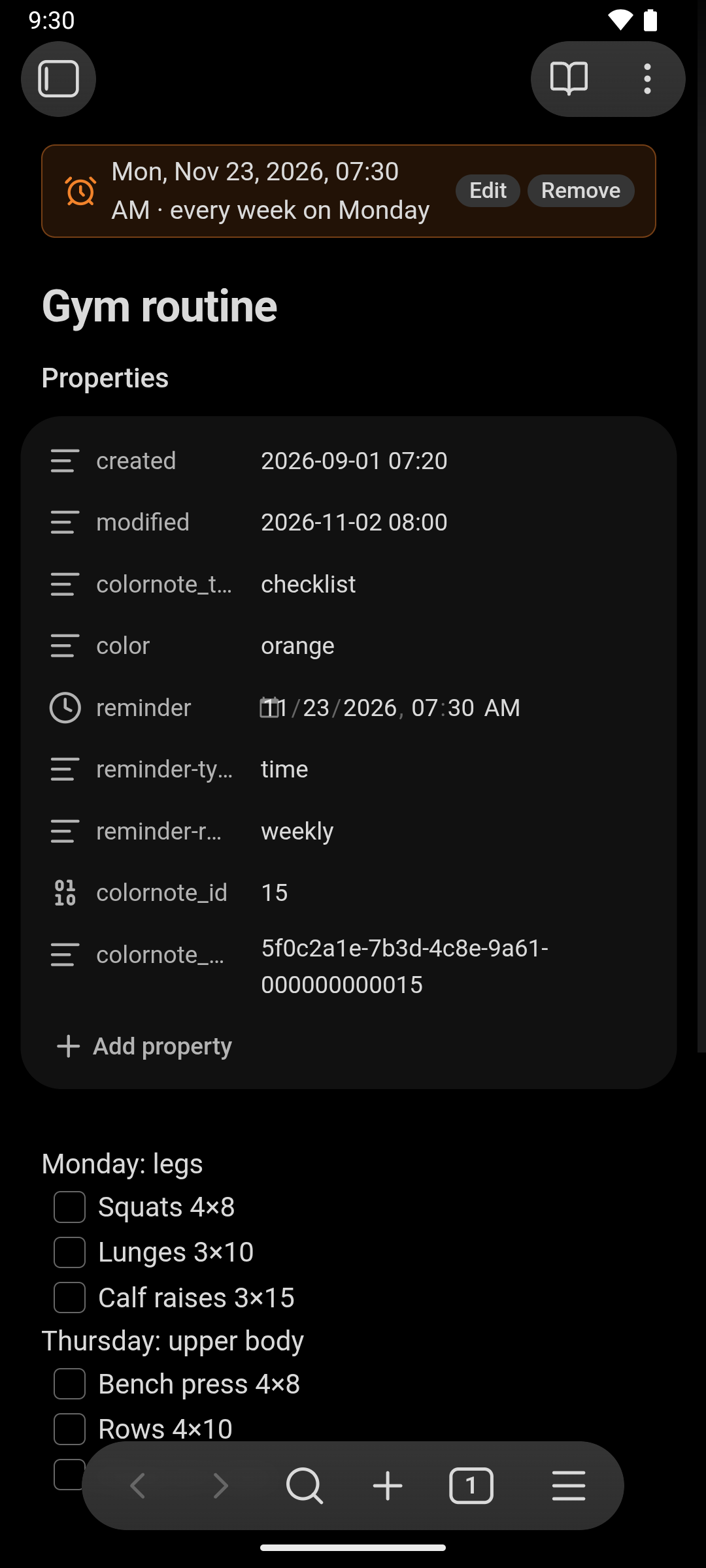 |
What a note looks like
---
aliases:
  - "Trip: Rome/Florence"
created: 2024-05-10 12:12
modified: 2024-05-12 23:03
colornote_type: checklist
color: green
locked: true
checked: true
reminder: 2024-05-20T09:00
reminder-type: time
reminder-repeat: weekly
colornote_id: 412
colornote_uuid: 5320605d-9366-44d2-bb2c-68f42f1bbe95
---
- [x] book train
- [ ] museum tickets
This note's file is Trip- Rome-Florence.md. The : and / aren't allowed in file names, so they become -, and the original title is kept as an alias.
| Property | When it's written | Value |
|---|---|---|
aliases | The title had to change to become a file name | The original title |
created, modified | Always | ColorNote's dates in local time, such as 2026-11-15 14:00. This is the Dated plugin's format, and Obsidian reads it as a Date & time property. |
colornote_type | Always | text or checklist |
color | The note isn't ColorNote's default yellow | red, orange, green, blue, purple, black, gray or white |
locked | The note was locked in ColorNote | true |
checked | The note was checked off (struck through) in ColorNote | true |
reminder | The note has a time alarm or an all-day reminder that hasn't gone off yet | When it's next due, in local time: 2026-11-20T09:00, or a date such as 2026-11-20 for an all-day reminder |
reminder-type | The note has a reminder or is pinned to the status bar | time, allday or statusbar |
reminder-repeat | The reminder repeats | daily, weekly, biweekly, monthly, monthly-weekday, yearly or yearly-lunar (see below) |
reminder-until | The repetition ends on a date | The last day it goes off, such as 2026-11-30 |
colornote_id, colornote_uuid | Always | ColorNote's IDs, used to recognize the note in later imports |
Reminders and Note Pin
Reminders are written in the format of Note Pin, a plugin that colors notes, pins them to the top and sends reminders that repeat. On Android, its companion app sends reminders on time even while Obsidian is closed, and pins notes to the notification bar, as ColorNote does. With Note Pin installed, your ColorNote reminders keep working in Obsidian.
Every reminder option ColorNote has is imported:
| In ColorNote | Properties |
|---|---|
| Time alarm | reminder: 2026-11-15T14:46, reminder-type: time |
| All day | reminder: 2026-11-15, reminder-type: allday |
| Pin to status bar | reminder-type: statusbar |
| Daily | reminder-repeat: daily |
| Weekly (every Sunday) | reminder-repeat: weekly |
| Bi-weekly (every other Sunday) | reminder-repeat: biweekly |
| Monthly (every third Sunday) | reminder-repeat: monthly-weekday |
| Monthly (on day 15) | reminder-repeat: monthly |
| Yearly (on November 15) | reminder-repeat: yearly |
| Lunar (on lunar October 7) | reminder-repeat: yearly-lunar |
| Repetition ends on a date | reminder-until: 2026-11-30 |
reminderis when the reminder is next due, in local time. Note Pin takes the weekday, day of the month or lunar date to repeat on from it.- Reminders that have already gone off in ColorNote aren't imported.
- Both plugins use the same color names. Notes in ColorNote's default yellow get no
colorproperty, so Note Pin shows them uncolored.
Note text is imported as is. ColorNote notes are plain text, so a line that starts with # or - shows up as Markdown formatting in Obsidian.
Settings
These are the defaults for new imports. You can change each of them in the import dialog.
- Destination folder. Default:
ColorNote. Leave empty for the vault root. The folder is created if it doesn't exist. - Include notes in the trash. Off by default. Notes from ColorNote's trash go to
<destination>/Trash. - Skip notes that are already in the vault. On by default. The plugin checks
colornote_uuidin every note of the vault. Notes created by older export tools that only wrotecolornote_idare matched by that ID. - Use ColorNote dates as file dates. On by default.
Privacy and security
- Nothing leaves your device. The backup is read and decrypted inside Obsidian with the built-in Web Crypto API, and unpacked with the built-in Compression Streams API. The plugin makes no network requests.
- Your master password is never saved. It's used for one decryption attempt, then the field is cleared.
- Locked notes become ordinary notes. ColorNote locks notes with a key built into the app, not with your password, which is how the plugin can unlock them. After the import they are plain text in your vault, readable by anything that can read your vault, including sync services. Each one is marked
locked: true, so you can find them with the search[locked:true]and move or protect them. - Account data is skipped. A backup also holds your ColorNote sync account record and app settings. These are never written, logged or displayed.
- The backup file is a copy of all your notes. Delete copies you no longer need.
Clean-room implementation
This plugin contains no ColorNote code. It is a clean-room implementation: a specification of the backup format was written first, and the plugin was then written from that specification and synthetic test files only.
The plugin has no third-party runtime dependencies. AES and SHA-256 come from the platform's Web Crypto API, and zlib decompression from its Compression Streams API. MD5, the PKCS#12 key derivation and the Adler-32 checksum are small routines written from their RFCs.
How it compares to ColorNote Backup Import
ColorNote Backup Import by Michael Lip also imports ColorNote backups. The table below compares the two. It's based on its version 1.2.0 and README, as of November 2026.
| ColorNote Importer | ColorNote Backup Import 1.2.0 | |
|---|---|---|
| Locked notes | Unlocked and imported, marked locked: true | Not imported; listed in the import report |
| Notes in the trash | Optional, into a Trash subfolder | Not imported |
| Reminders | Date, type and repeat rule, in Note Pin's format | Not imported |
| Checked (struck-through) notes | checked: true | Not recorded |
| Where notes go | The folder you choose | A new Import <timestamp> folder for every import |
| File names | Title.md, or Title (2).md for duplicates; the original title is kept as an alias | Title <uuid>.md |
| Color | Color name, such as color: red | Number (color_index); color names are a paid Pro feature |
| Dates | Local time to the minute, which Obsidian reads as Date & time; also set as file dates | UTC with milliseconds; also set as file dates |
| Importing a newer backup | Adds only notes that aren't in the vault yet, matched by UUID even after moves and renames | Imports everything again into a new folder |
| Extra files in the vault | None | An Import report.md for every import |
| Paid features | None | A Pro tier via GitHub Sponsors (color labels, profiles, compare) |
| Network access | Never | Only if you sign in with GitHub for Pro |
| Runtime dependencies | None | @noble/ciphers, @noble/hashes |
| Backup formats | 7.1, 7.2, 8.1 and 9.1 (current ColorNote 4.9.4), all tested with real backups | 7.1, 8.1 and 8.2; only 7.1 tested with real backups; 9.1 not listed |
Limitations
- Only ColorNote's encrypted backup files are supported:
.backup, and.docfrom older app versions. Backups from very old app versions (.datand.idxfiles) haven't been tested. - Backup formats 7.1, 7.2, 8.1 and 9.1 have been tested with real backups. Other versions are attempted the same way. If one doesn't decode, you get a clear message.
- 9.1 backups are compressed. Unpacking them needs the Compression Streams API, which iOS has from version 16.4 and Android's System WebView from version 80. On older devices the plugin says so; import on a computer instead.
- Imported notes are never updated. To pick up edits you later made in ColorNote, delete the note in Obsidian and import again.
- Tested on Android (Obsidian 1.15.1, Android 15): choosing the file with Android's file picker, decrypting, choosing the folder, and importing. Not yet tested on an iPhone or iPad.
Installation
From Community plugins: in Obsidian, open Settings → Community plugins → Browse, search for "ColorNote Importer", then install and enable it.
With BRAT, for beta versions: in BRAT, add ladosha/obsidian_colornote_importer.
Manually:
- Download
main.js,manifest.jsonandstyles.cssfrom the latest release. - Put them in
<vault>/.obsidian/plugins/colornote-importer/. - Enable the plugin in Settings → Community plugins.
Development
npm install
npm run dev        # rebuild main.js on every change
npm test           # decoder, renderer and planner tests in Node; no Obsidian needed
npm run typecheck
npm run lint       # includes eslint-plugin-obsidianmd
npm run build      # production build
The tests use synthetic backups in test/fixtures. They contain no real notes.
Support
Made by vladmas. If you like this plugin, you can support me on Ko-fi.

Disclaimer
This is an independent project. It is not affiliated with, endorsed by or connected to ColorNote or its developer. "ColorNote" is a trademark of its owner and is used here only to say which app the plugin imports from.
License
For plugin developers
Search results and similarity scores are powered by semantic analysis of your plugin's README. If your plugin isn't appearing for searches you'd expect, try updating your README to clearly describe your plugin's purpose, features, and use cases.