by ParanoiaDev
Redesign the whole app with glass panels and soft colors, and turn your notes into living neural graphs: graph view, canvases, a daily journal, a start screen and a case board.







Flora redesigns every surface of Obsidian in a calm, glassy style inspired by iOS,
and turns your vault into living neural tissue: notes are cells, links are glowing axons,
and signals run along them while you think.
Recorded straight from the Neurograph. Hover a cell and it lights up together with everything it links to.
🆕 New in 7.0: Space Neurons and Neuron
Recorded in Flora with a made-up demo vault of about a thousand notes.
Space Neurons
Your vault becomes space. Every note is a star-like neuron, every link a thread of light, and folders gather into constellations around a black hole whose light really bends around it, or around a bright white star with orbits and comets. Turn it any way, click a constellation to fly there, open Overview for your writing at a glance, and tune everything in Customize. AI projects can join the same sky.
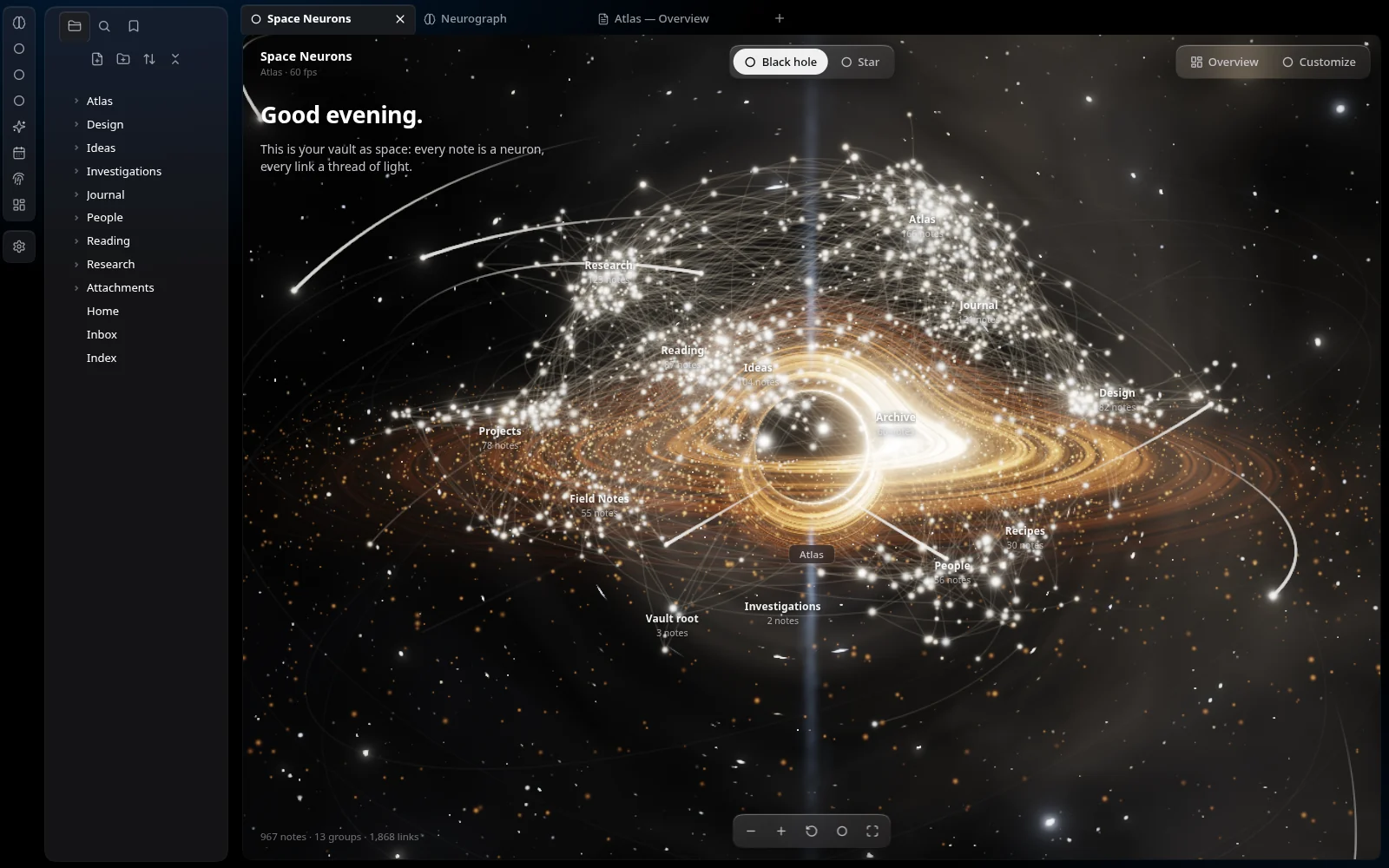
The black hole scene: disk, photon ring, comets and your folders as constellations.
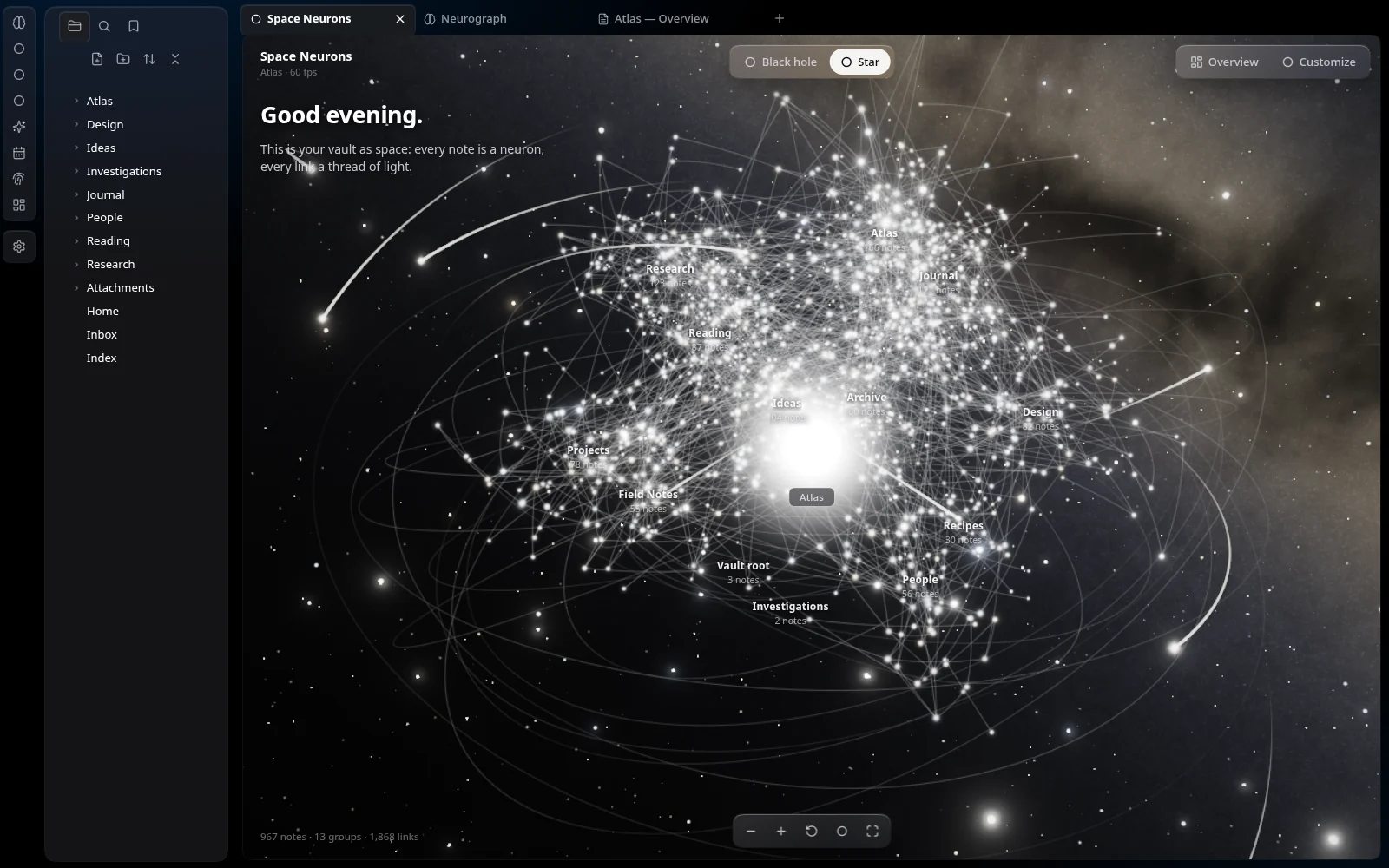
The white star scene.
Neuron
Your whole vault grows into one living nerve cell inside brain tissue. Folders are dendrites, notes are spines on them, open tasks glow on the axon terminals, and signals run from your notes through the cell to your tasks. Four lenses explain your notes in plain words: Neuron, Synapse (tasks cross over when you tick them off, and the note gets its check), Time (when you write and which folders went quiet) and Links (how your folders connect). The Today panel lists what is due and writes quick thoughts into today's journal.
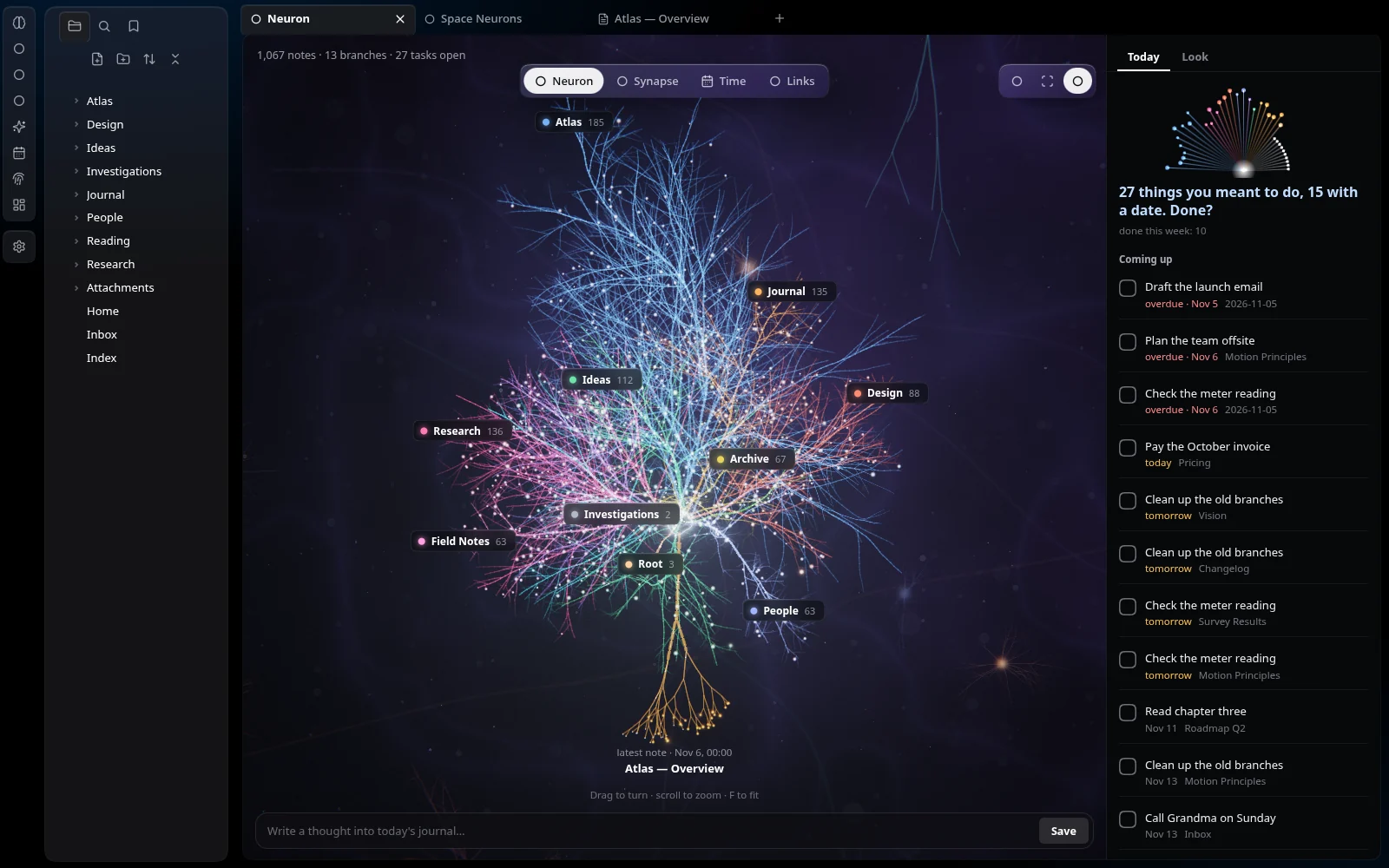
Every folder is a branch, every note a spine. The Today panel is on the right.
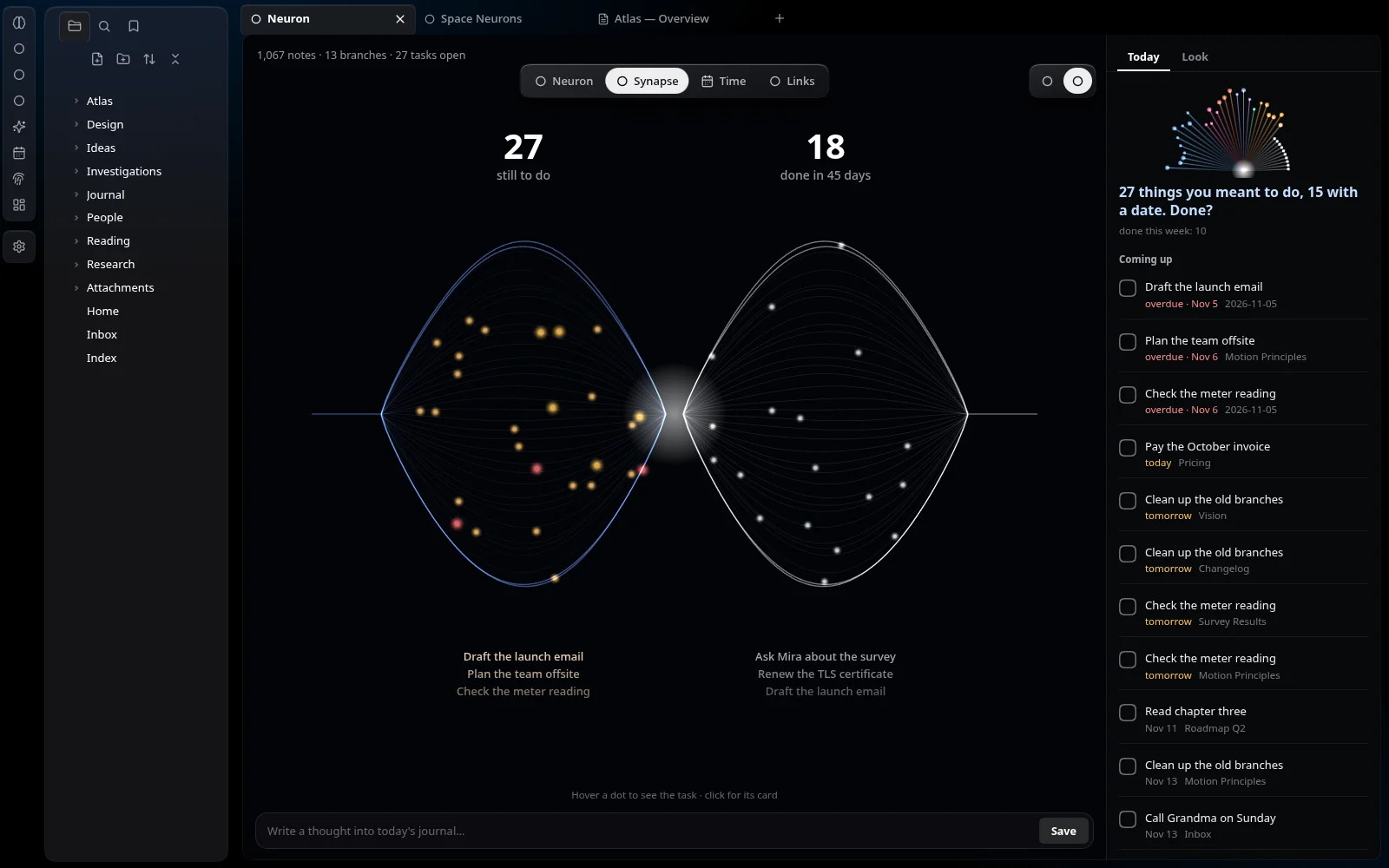
Synapse: what is left and what is done, coloured by urgency.
🆕 New in 6.5: AI projects
Press Sync: your Claude Code and Codex projects grow into neurons, and the spider links them. Shown with made-up demo projects.
Open AI projects, pick Claude Code, Codex or both, and press Sync. Flora reads their histories on your computer, finds every project you built with them and grows it into a neuron: sessions and the AI's memory notes become smaller cells around it. Then the spider walks the projects and links them: the AI remembers them together, one session touched both, they share a name, a tool or the same days of work.
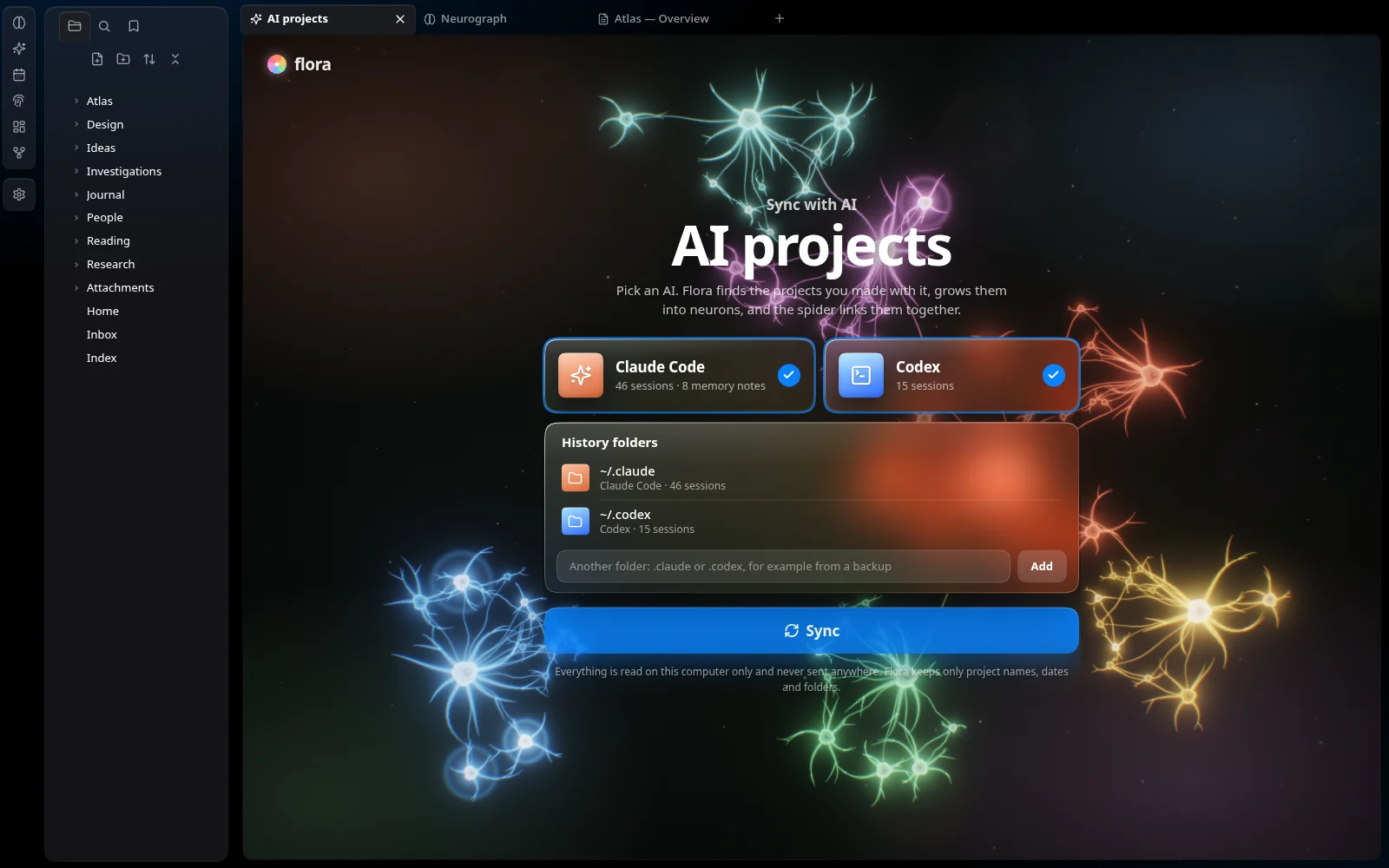
Pick the AIs. Flora shows what it found on this computer, and you can add a history folder from another machine.
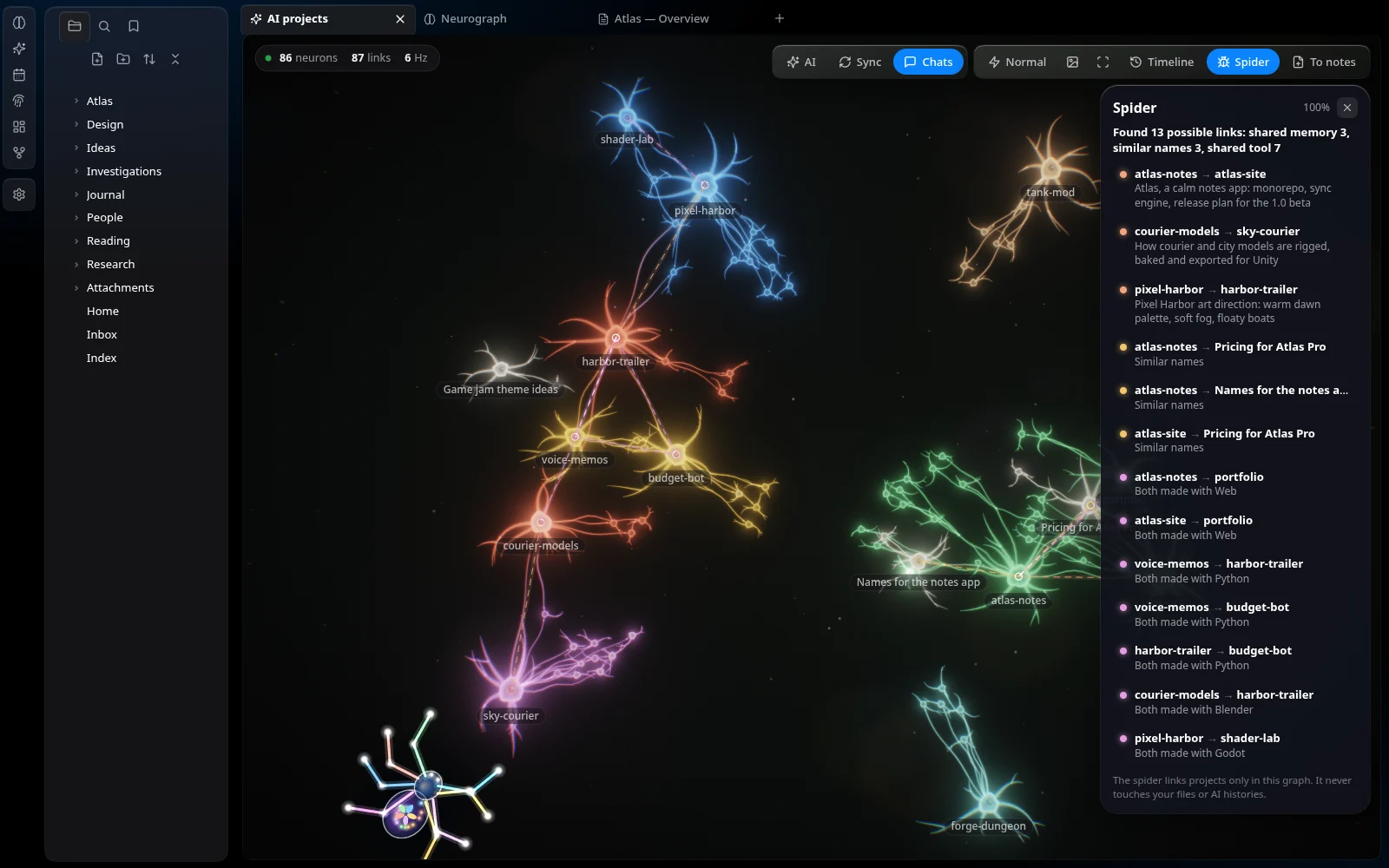
Every project is a neuron, its sessions and memory notes grow around it. The spider explains each link it weaves.
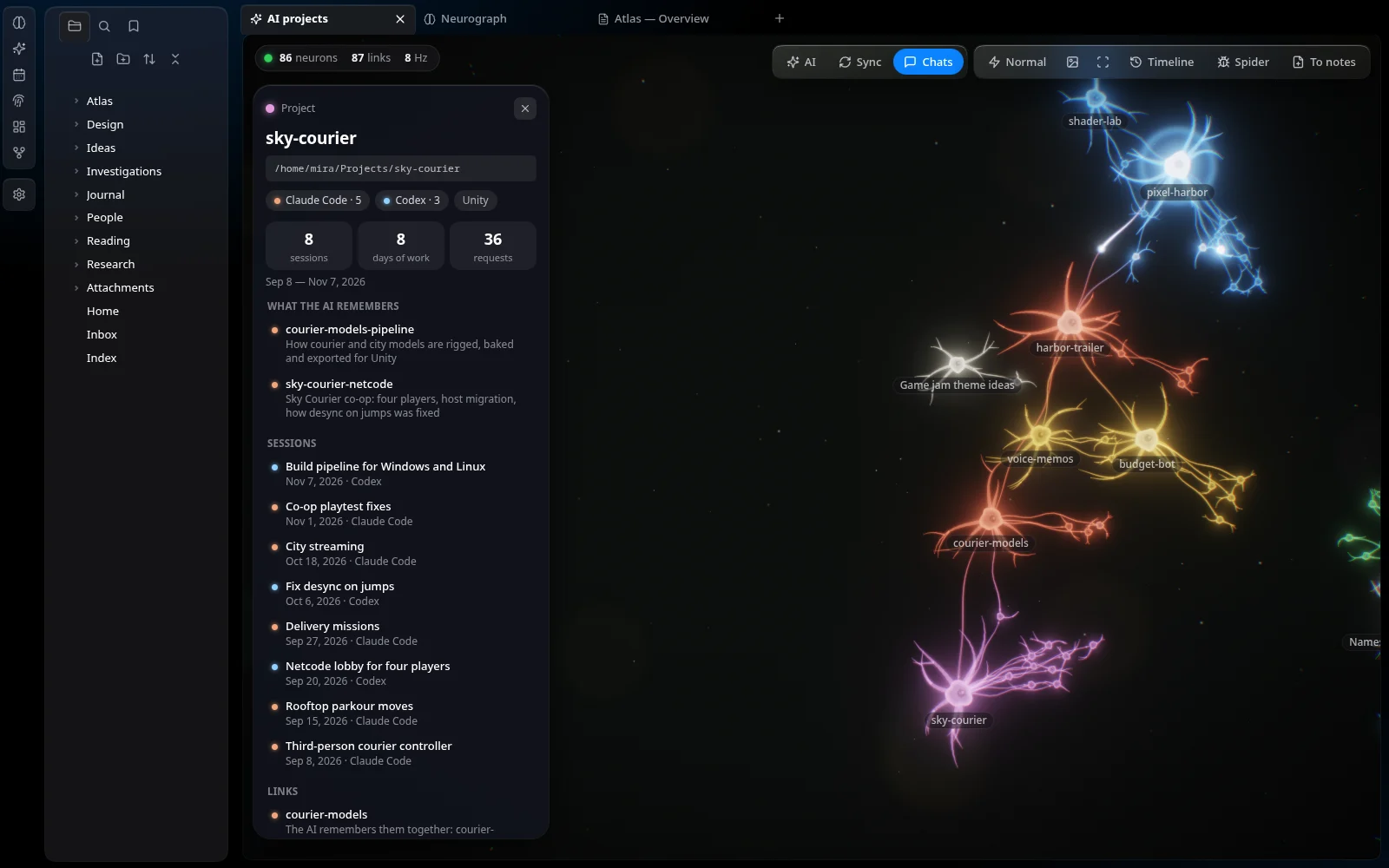
Click a project: its folder, sessions, days of work and what the AI remembers about it.
Open the folder or copy the command to continue the last session. To notes saves one note per project into a Flora AI folder, linked to each other. Desktop only; nothing leaves your computer (see PRIVACY.md).
🆕 New in 6.0
Your notes can take any shape
Captured from Flora 3D in Obsidian. One vault, five shapes: a human, a heart, a butterfly, a jellyfish and DNA.
Flora 3D now has a shape catalog with 17 shapes. Five of them follow your links, twelve are figures that the neurons build step by step. Some are alive: the heart beats, the butterfly moves its wings, the jellyfish sways. You can also type a word or pick a picture, and the neurons build that.
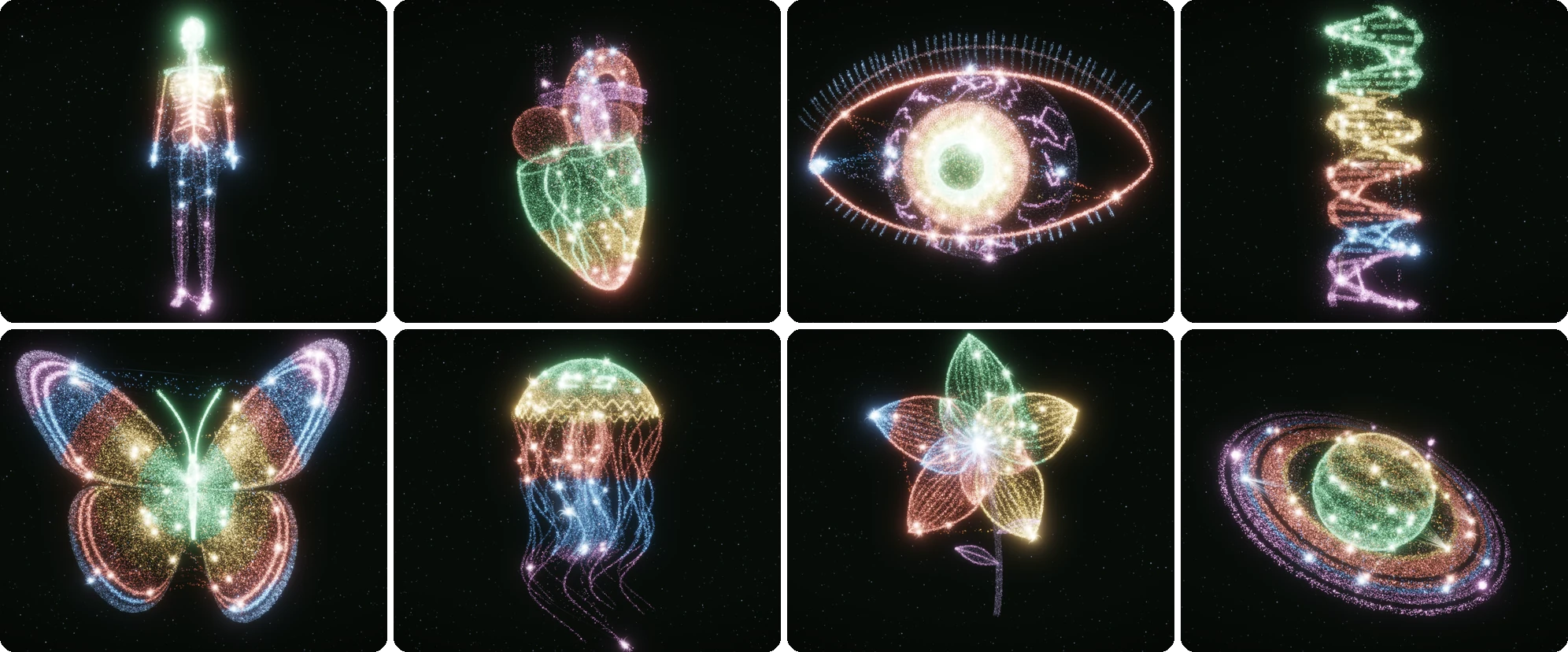
Human, heart, eye, DNA, butterfly, jellyfish, flower and planet. The bright stars are your notes, the dust around them fills in the figure.
A spider that finds the links you forgot
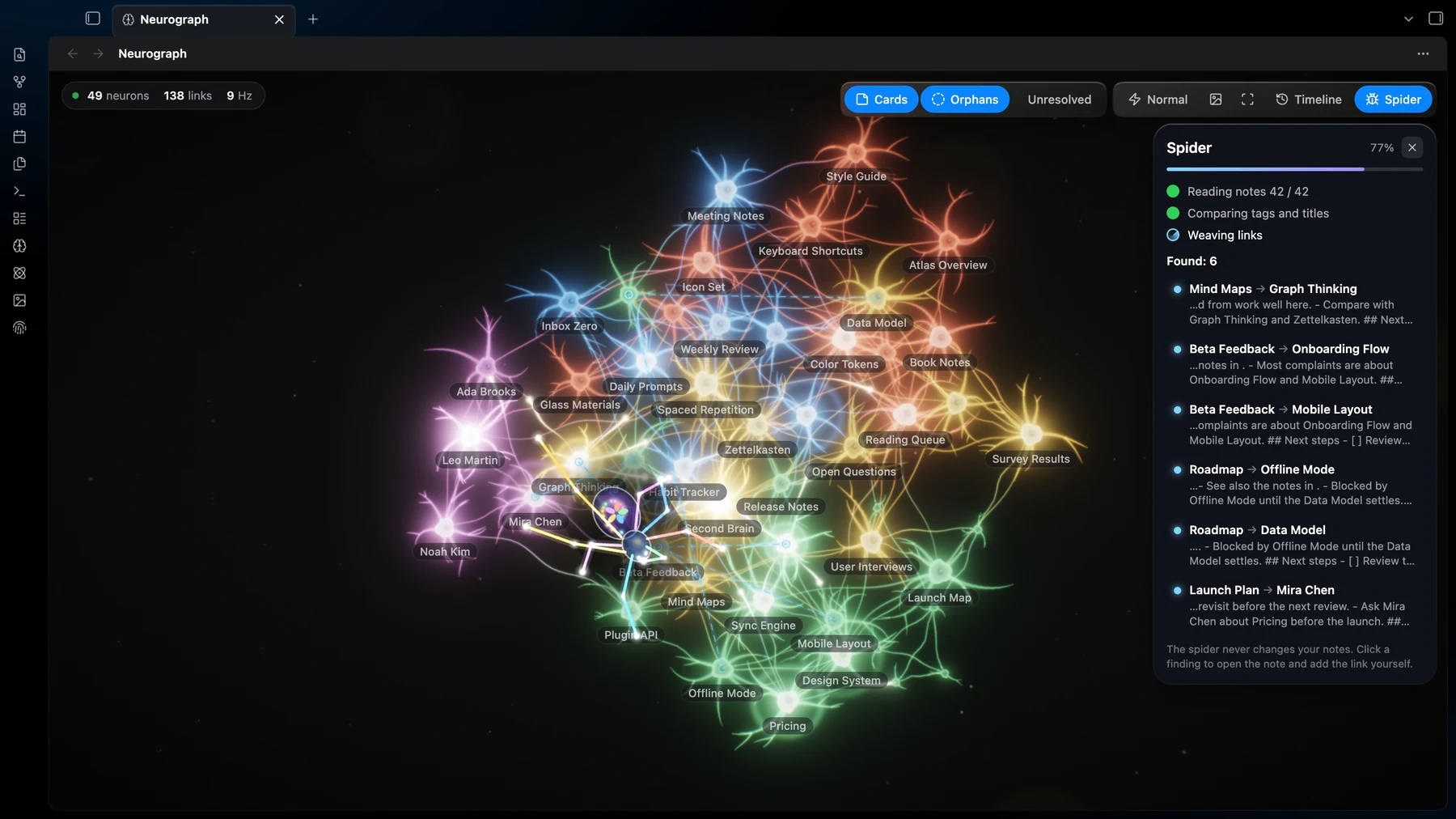
Press the Spider button in the Neurograph or in the graph view. A spider made of neurons walks your graph, reads the notes and lists the links that are missing: a note mentioned by name without a link, notes that share rare tags, notes with similar titles. Click a finding to open the note and add the link yourself. The spider works on your computer and never changes a note.
Live wallpapers under your notes
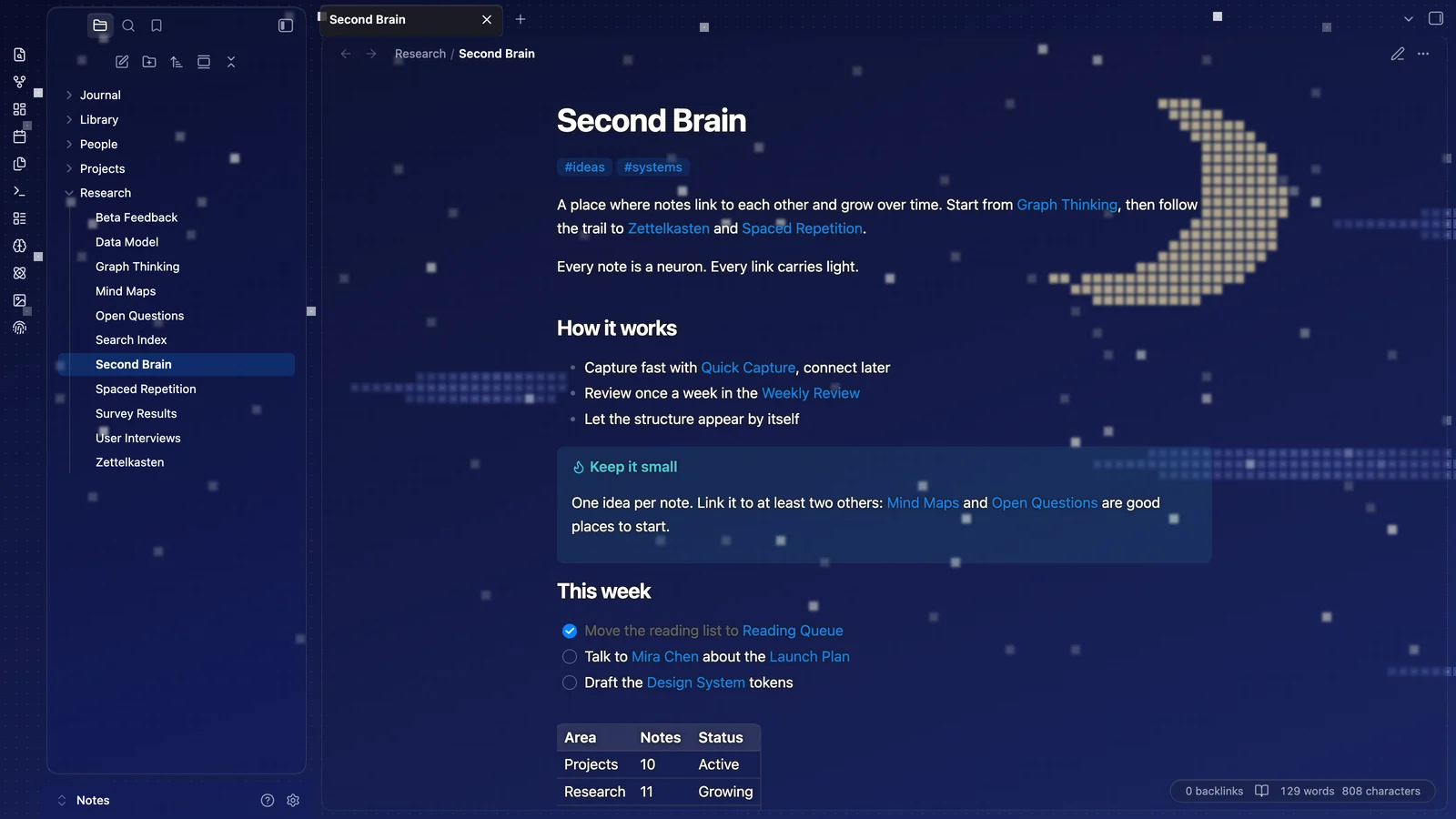
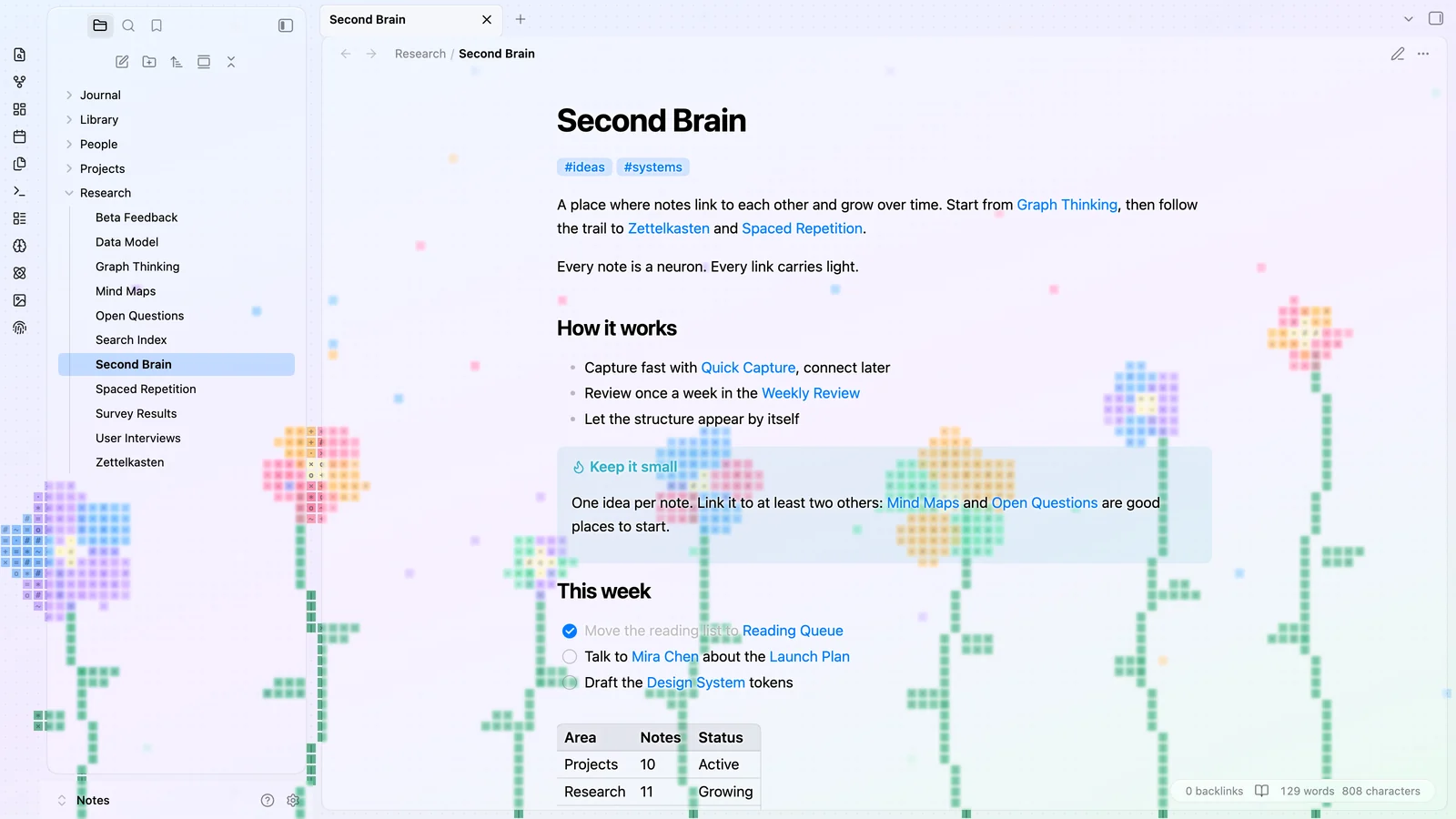
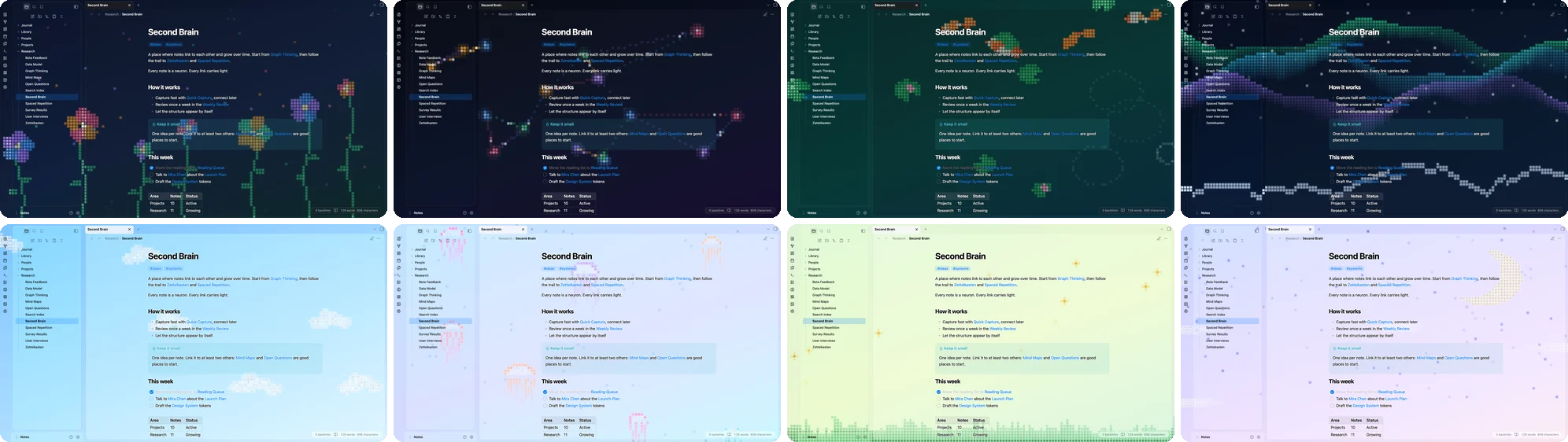
Bloom, Neurons, Pond and Aurora in dark mode. Clouds, Jellyfish, Fireflies and Moonlit in light mode.
Eight backgrounds painted in small cells that are always gently moving. Each has a dark and a light version, and you choose how solid the glass over it is. The wallpaper also shows under the Neurograph, Flora 3D, canvases and the graph view.
Everything else that changed is in the changelog.
📸 Gallery
Before and after
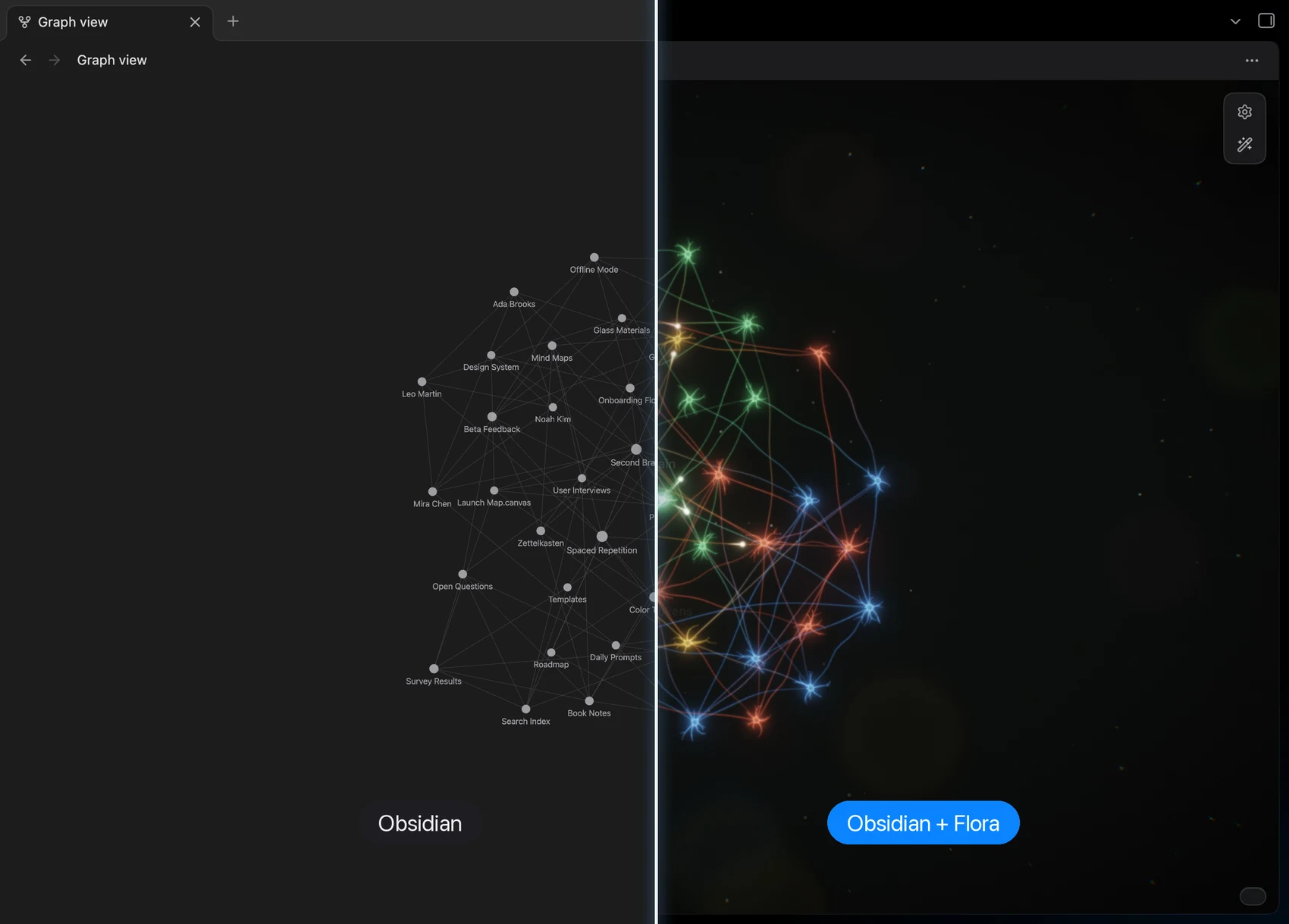
Left: the graph view as it comes. Right: the same screen with Flora turned on.
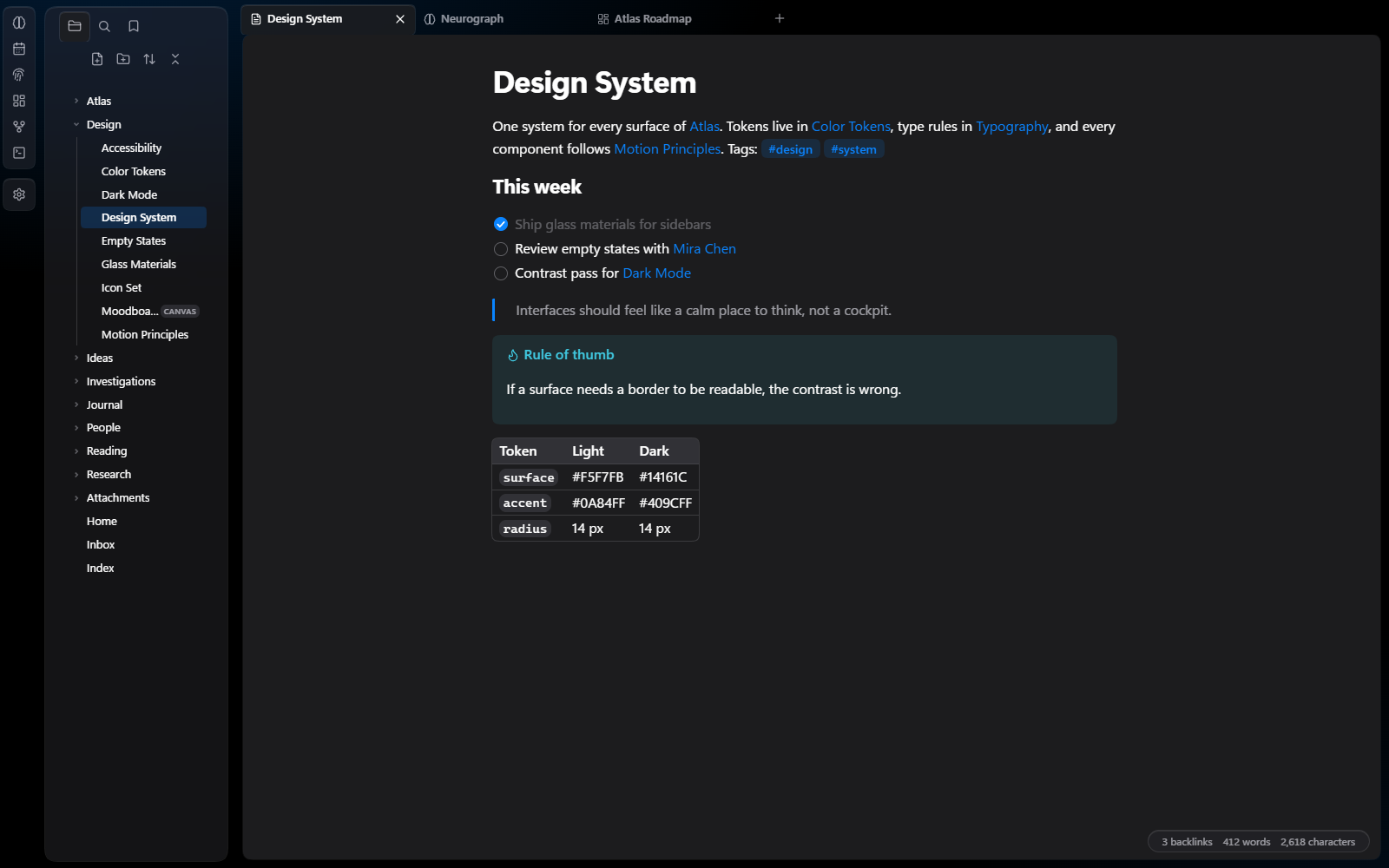
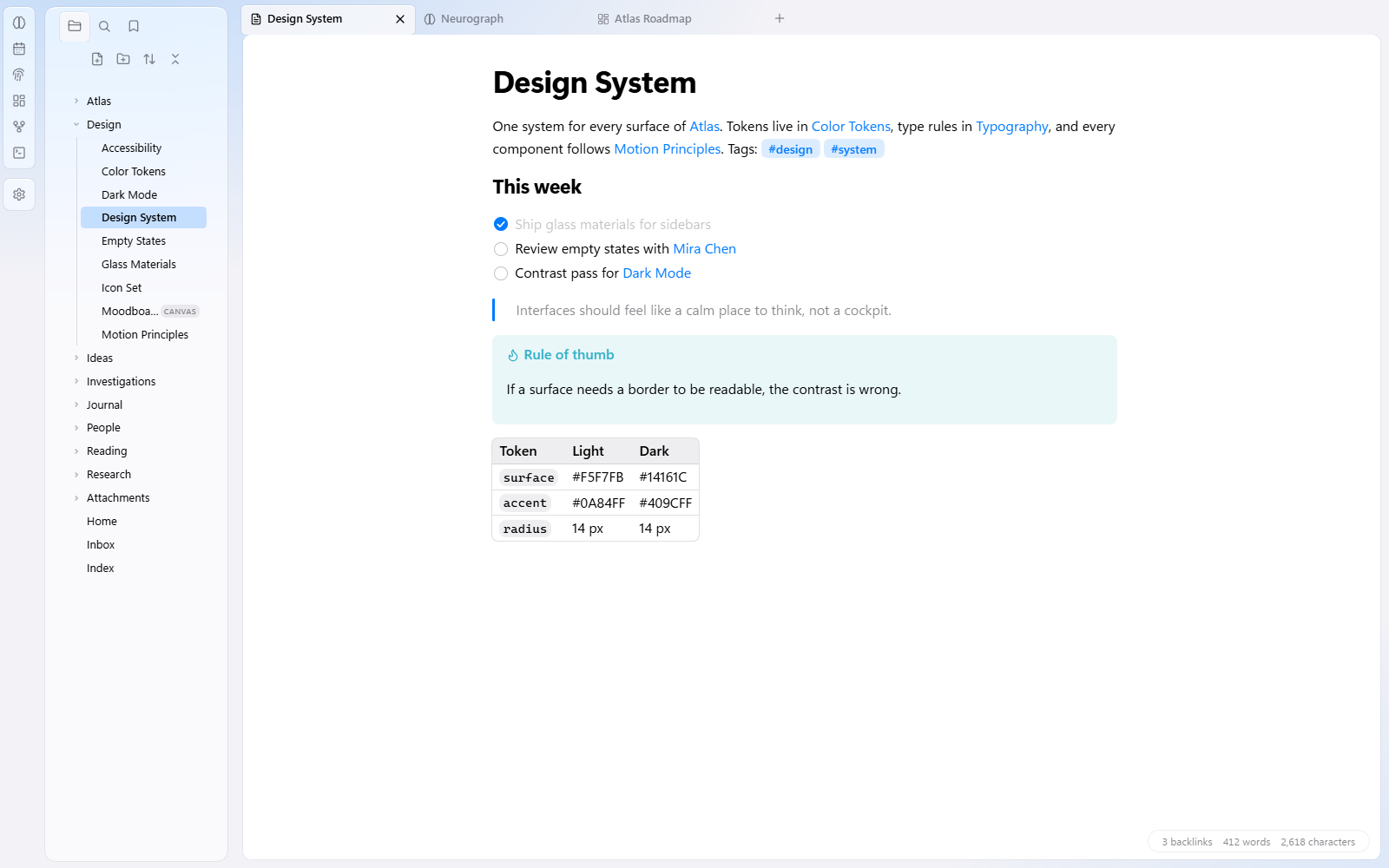
The whole app, in light and dark
Neurograph
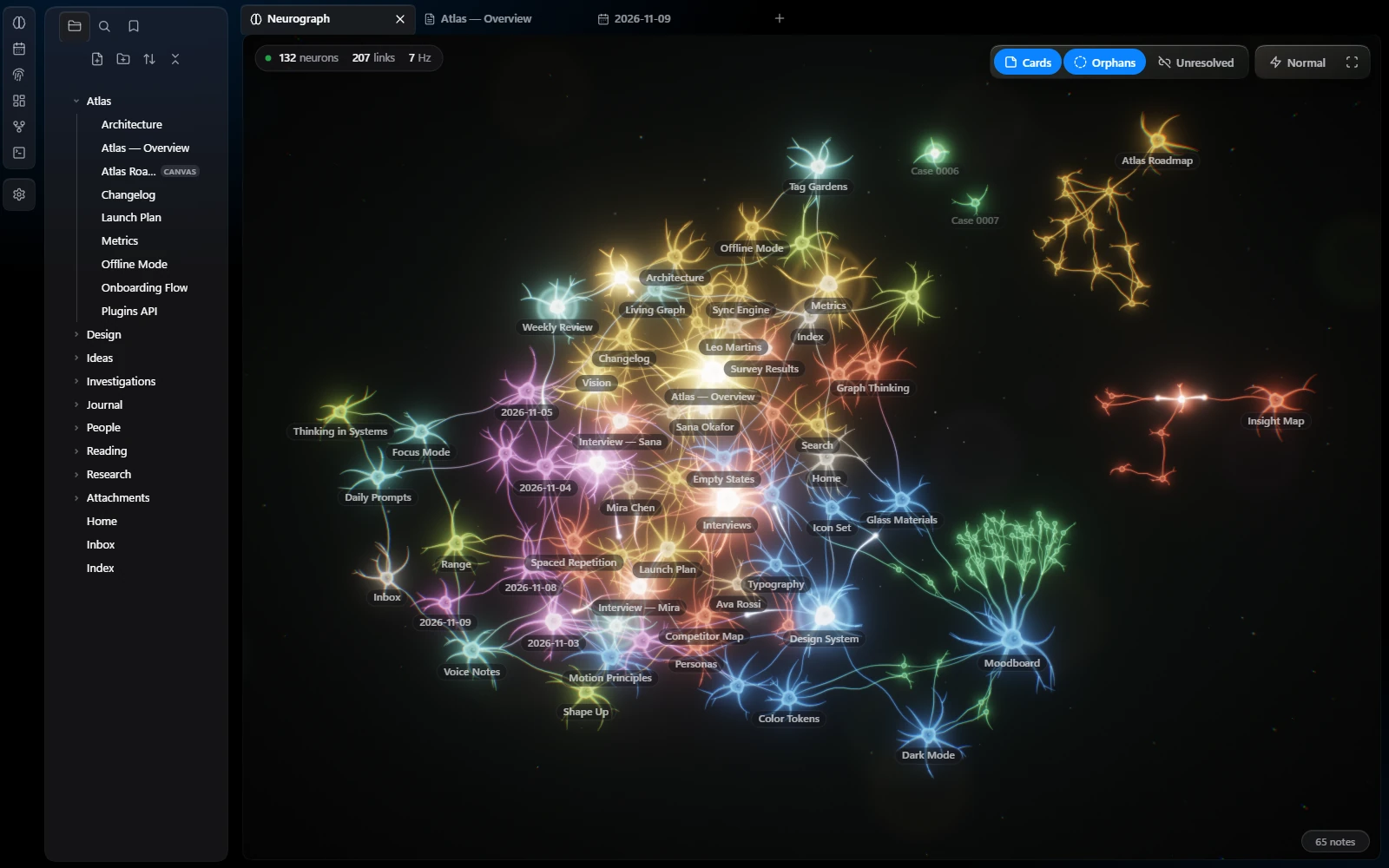
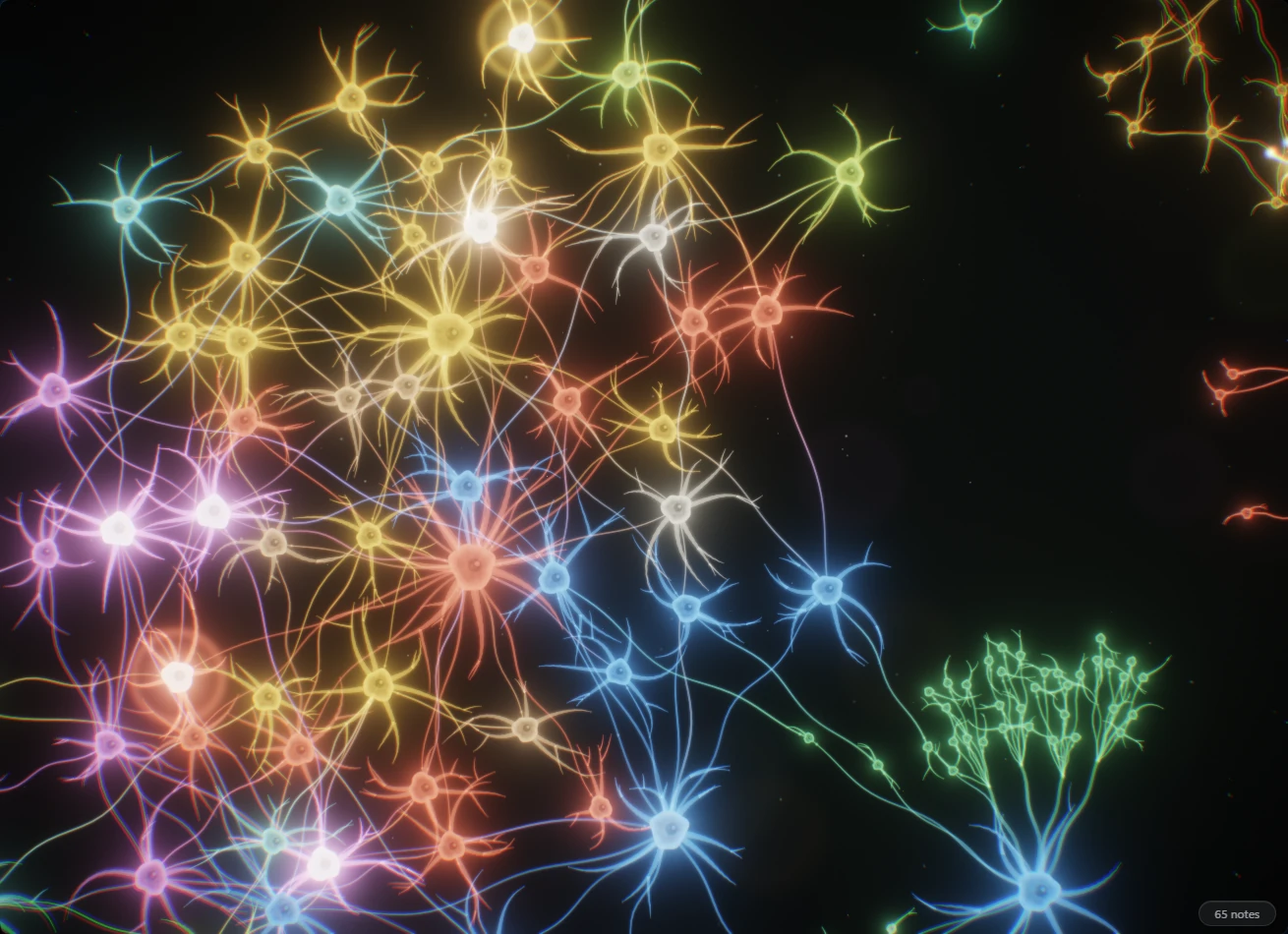
Up close, each note is a cell with a nucleus, a wobbling membrane and its own dendrites. Signals fire on their own and spread along real links.
Flora 3D
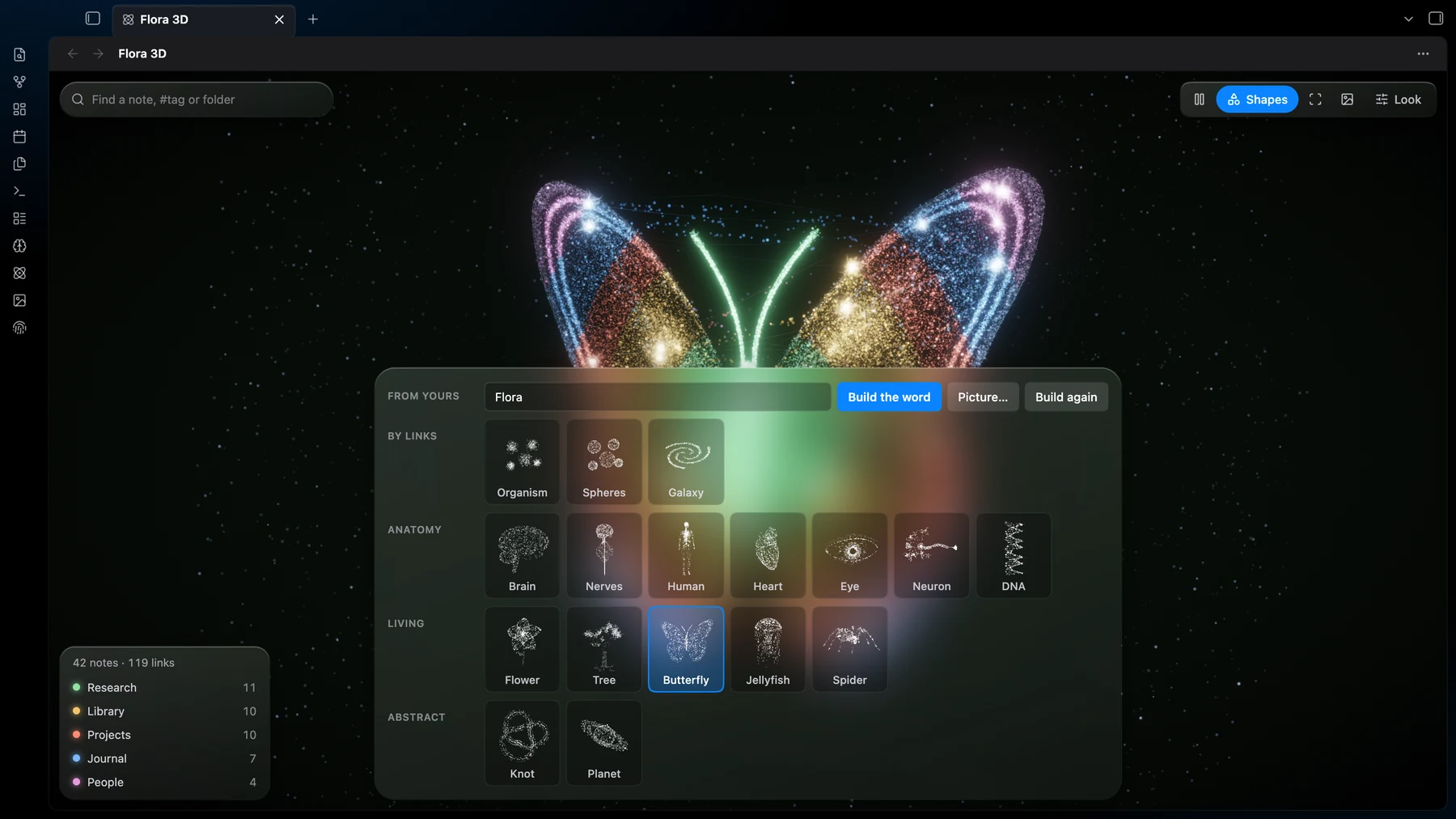
The shape catalog: 17 shapes in four groups, plus your own word or picture.
Canvas
Today's journal
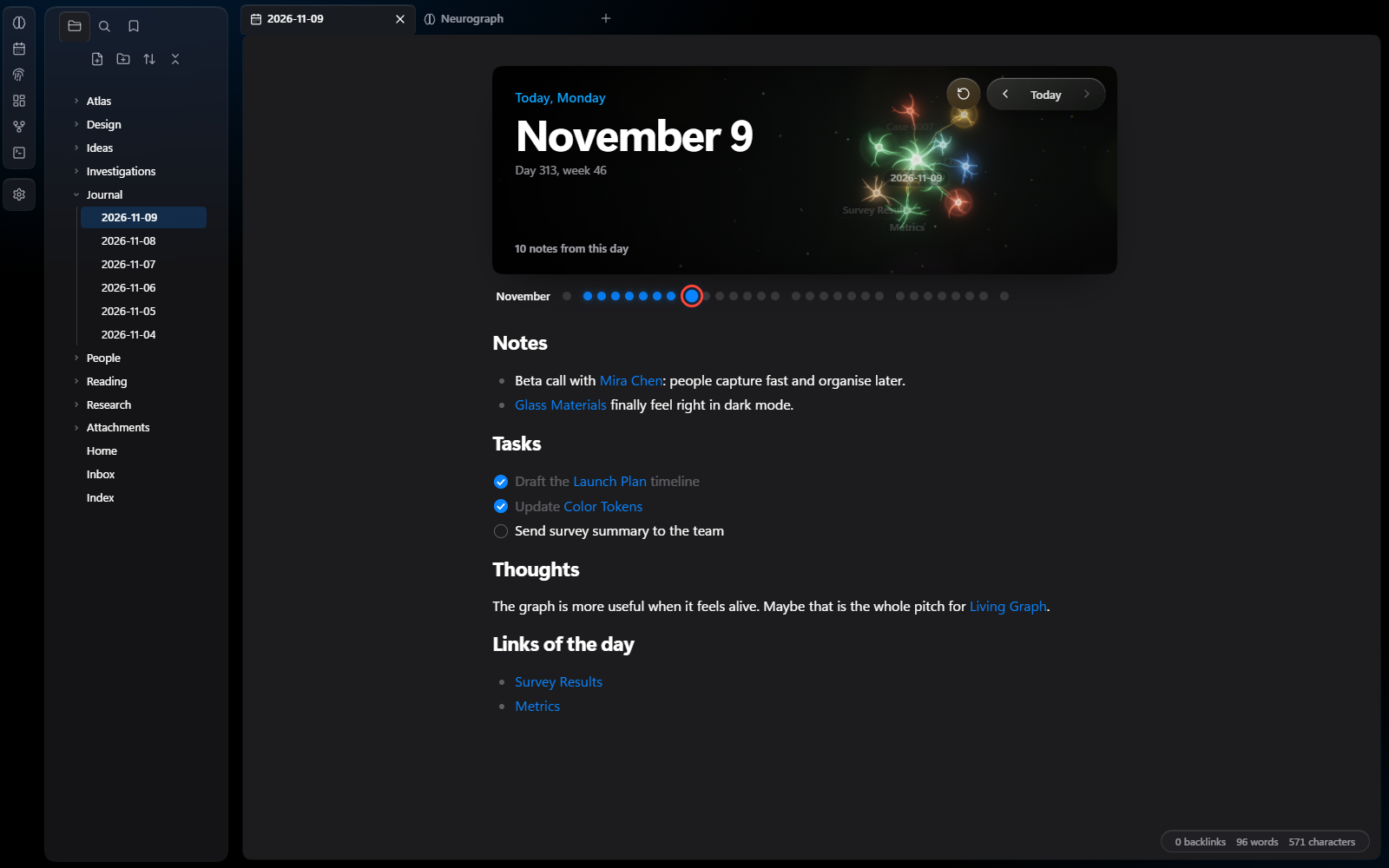
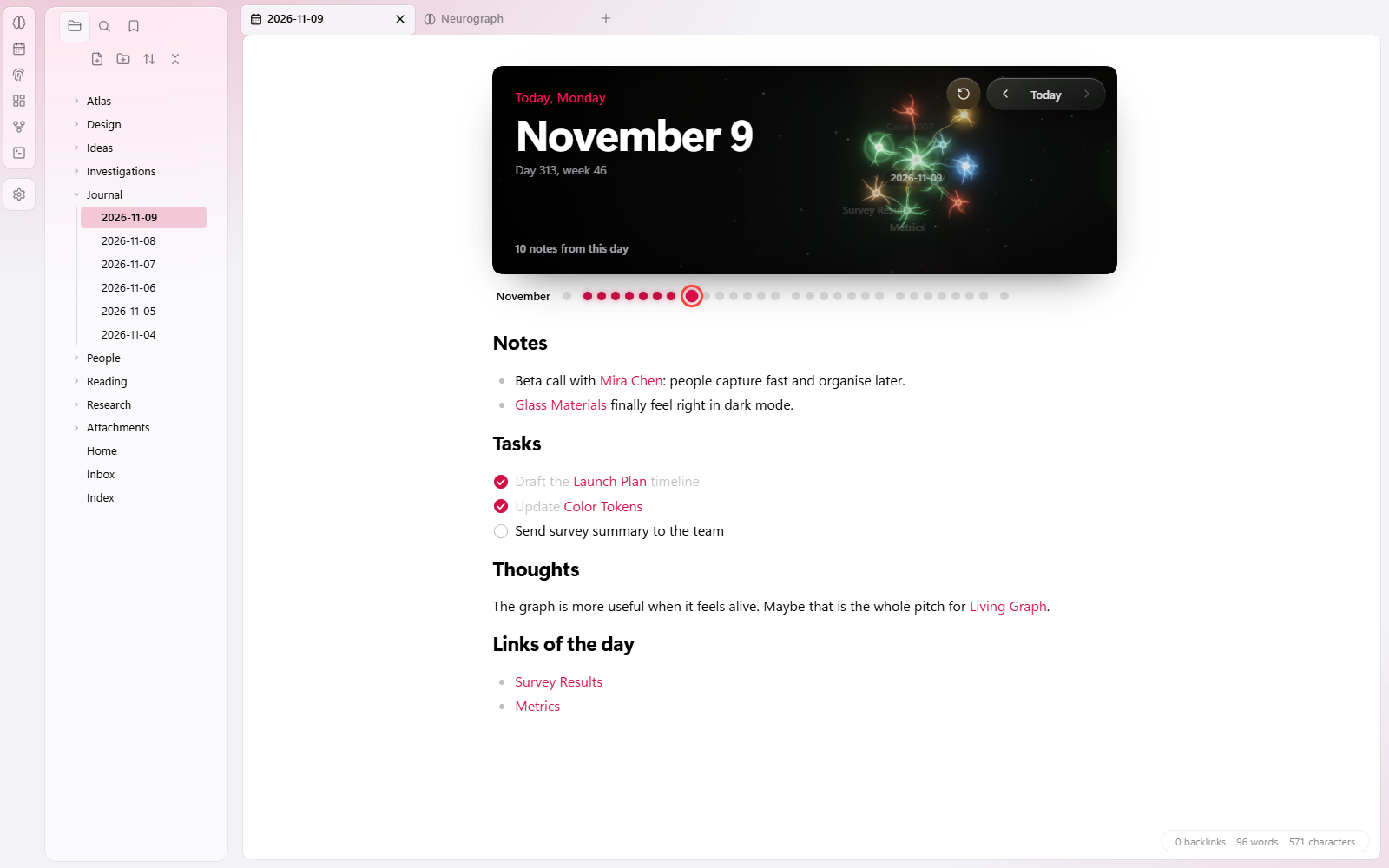
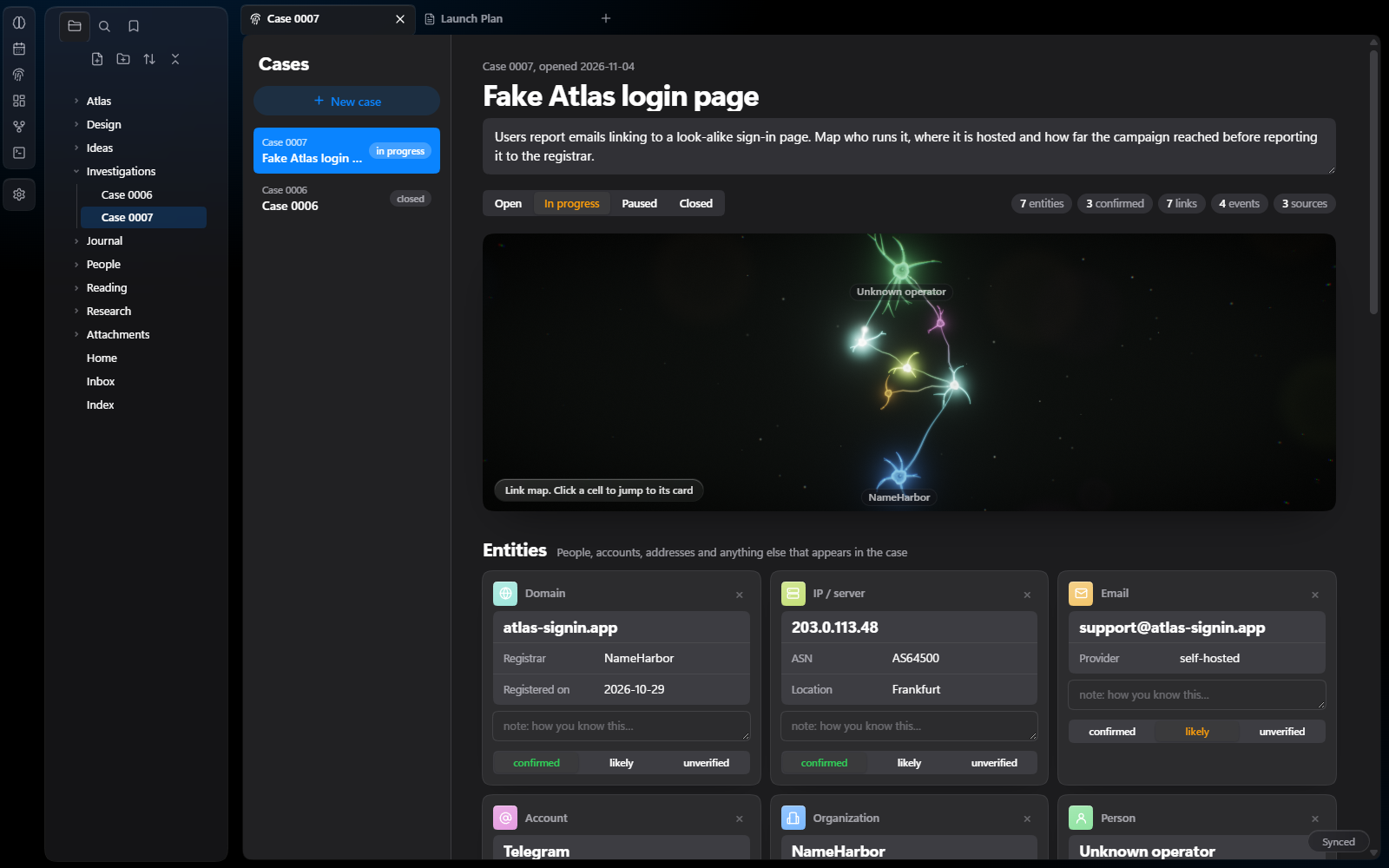
Investigation board
Start screen
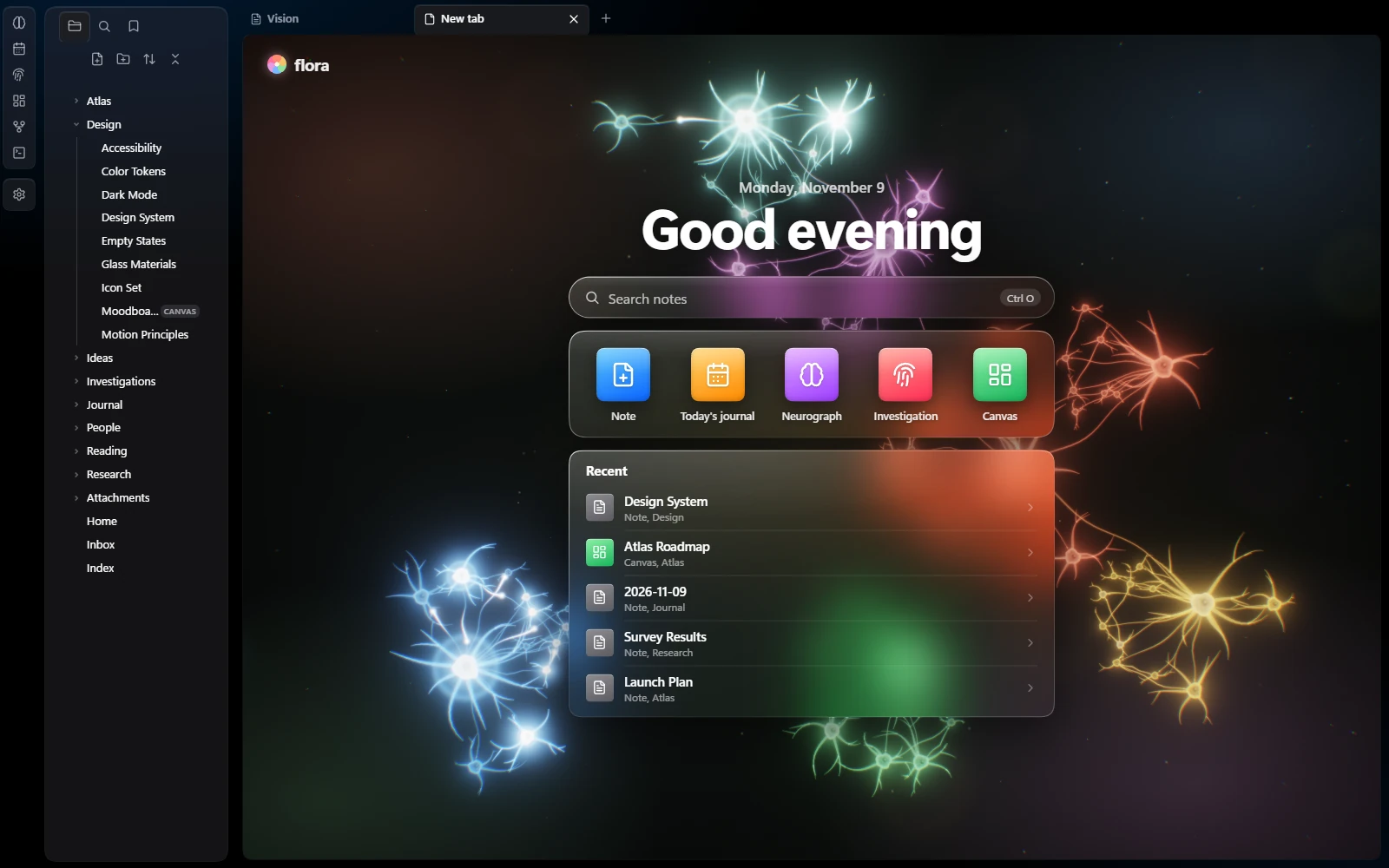
Replaces "No file is open" in every empty tab.
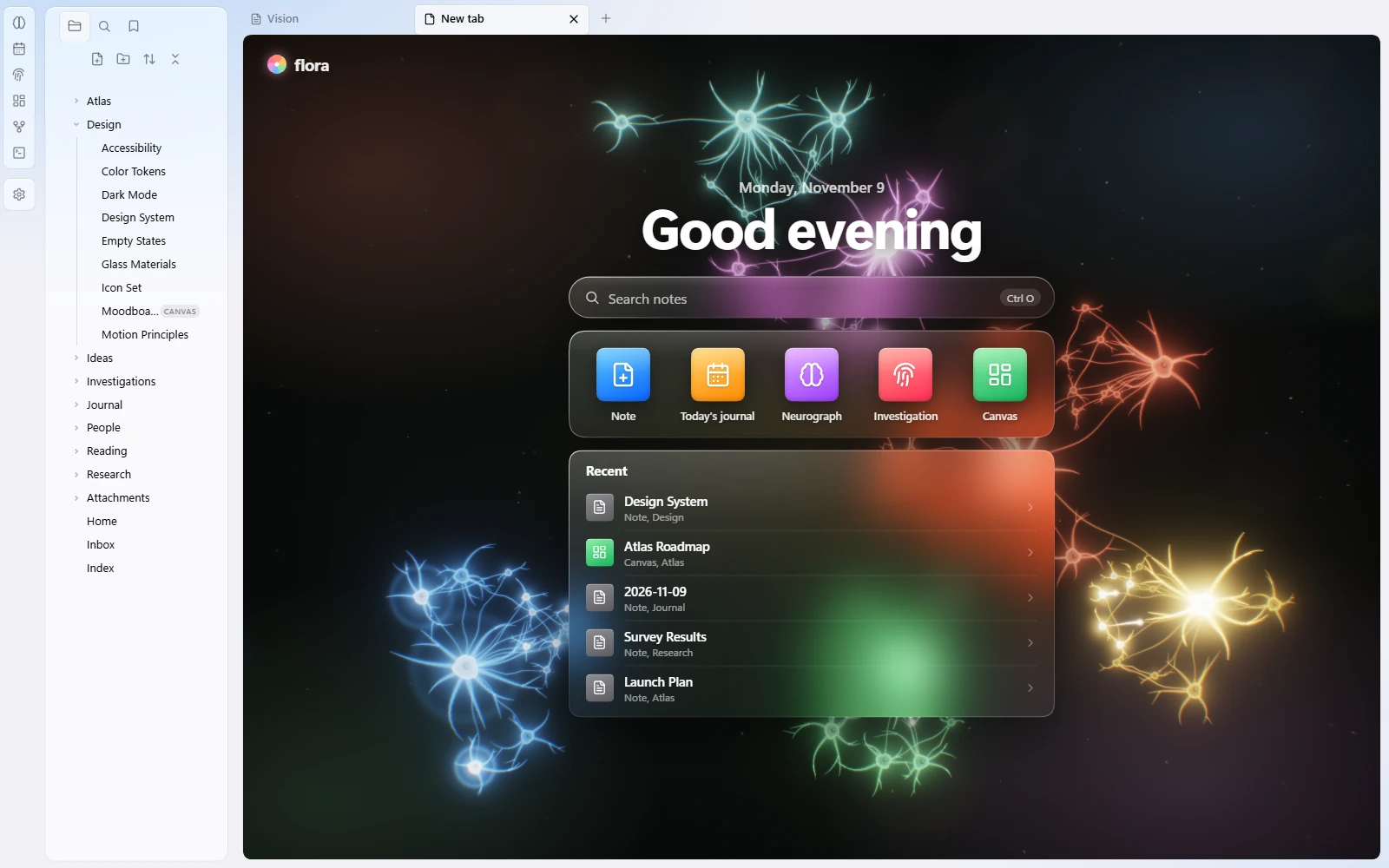
All screenshots use a made-up demo vault. Nothing in them is real data.
🚀 Install
From Obsidian (recommended)
Flora is in the official Obsidian community directory.
- In Obsidian, open Settings → Community plugins and turn on community plugins if they are off.
- Select Browse, search for Flora and select Install, then Enable.
Or open the Flora page in the directory and select Add to Obsidian.
One command
Installs or updates Flora from the latest release. The script finds your vaults, asks which one to use, downloads the plugin into it and turns it on. Your Flora settings are kept.
Windows (PowerShell):
irm https://raw.githubusercontent.com/ParanoaiDev/obsidian-flora/main/install.ps1 | iex
macOS and Linux (Terminal):
curl -fsSL https://raw.githubusercontent.com/ParanoaiDev/obsidian-flora/main/install.sh | bash
Restart Obsidian afterwards if it was open. You can read both scripts first: install.ps1, install.sh.
Choose the vault yourself
Windows:
& ([scriptblock]::Create((irm https://raw.githubusercontent.com/ParanoaiDev/obsidian-flora/main/install.ps1))) -Vault "C:\path\to\vault"
macOS and Linux:
curl -fsSL https://raw.githubusercontent.com/ParanoaiDev/obsidian-flora/main/install.sh | bash -s -- "/path/to/vault"
By hand
- Open the latest release and download
main.js,manifest.jsonandstyles.css. - Put the three files into
<your vault>/.obsidian/plugins/flora/. Create the folder if it doesn't exist. - In Obsidian, open Settings → Community plugins and enable Flora.
With BRAT
- Install BRAT from the community plugins.
- Run BRAT: Add a beta plugin for testing and paste
ParanoaiDev/obsidian-flora. - Enable Flora in Settings → Community plugins.
Build from source
You only need Node.js. There are no dependencies to install.
git clone https://github.com/ParanoaiDev/obsidian-flora.git
cd obsidian-flora
node build.js
main.js and styles.css land in the repository root, next to manifest.json. You can also build straight into a vault:
node build.js "/path/to/vault/.obsidian/plugins/flora"
⌨️ Commands
| Command | What it does |
|---|---|
| Flora: Open Neurograph | Opens your vault as living tissue in a new tab |
| Flora: Open Flora 3D | Opens your vault as a 3D organism of particles in a new tab |
| Flora: Open AI projects | Opens the projects you built with Claude Code and Codex as neurons (desktop) |
| Flora: Open Space Neurons | Opens your vault as space around a black hole or a white star |
| Flora: Open Neuron | Opens your vault as one living nerve cell, with tasks, time and links |
| Flora: Choose wallpaper | Opens the live wallpaper picker |
| Flora: Open today's journal | Opens or creates today's daily note with the journal header |
| Flora: Open the investigation board | Opens the case board with your cases |
| Flora: New case | Creates a new case note and opens it on the board |
| Flora: Toggle the neural look of the graph view | Switches the built-in graph between neurons and the original style |
The Neurograph, Flora 3D, live wallpapers and the investigation board also have their own icons in the left ribbon. The spider starts from its button in the Neurograph and in the graph view.
⚙️ Settings
| Setting | Default | |
|---|---|---|
| Language | Auto | Follows Obsidian. English and Russian are built in. |
| Flora design | On | The new look for the whole app |
| Accent color | Blue | Blue, green, orange, pink or graphite |
| Start screen in empty tabs | On | Living tissue, quick actions and recent notes |
| Neural look for the graph view | On | The built-in graph, drawn as neurons |
| Neural look for the local graph | On | The same for the local graph in the sidebar |
| Scale and counters | On | Counters and a scale in the corners of the graph |
| Neural look for canvases | On | Space backdrop, glass cards and living connections |
| Today's journal | On | The header for daily notes |
| Auto tasks | On | New lines under Tasks become checkboxes |
| Neuron activity | ×1 | How often cells fire on their own, from off to ×4 |
| Live wallpaper | None | One of eight moving backgrounds, and how solid the glass over it is |
🔋 Built to stay light
- One GPU pass. The living layers are drawn with WebGL2: HDR bloom, ACES tone mapping and instanced cells in a single canvas per view.
- Frame budget. 30 fps when idle, 60 while you drag or zoom, 12 when the window is in the background. Embedded views (the journal band, the case map) pause when you scroll them out of sight.
- No freezes. The layout is computed between frames behind a loading screen, and the physics runs on typed arrays without allocating per frame.
- Zero dependencies. A single
main.jsand a singlestyles.css, built by a 25-line script. - No network. Flora never sends or fetches anything. See PRIVACY.md.
🧩 Good to know
- Obsidian has no official API for re-drawing the graph view and canvases, so those two skins hook into the app's internals. If a future Obsidian update changes them, the skin simply stops attaching and you get the original graph or canvas back. Nothing breaks and no data is touched.
- Cases live as ordinary notes in an Investigations folder. The board edits a small data block inside the note and rewrites a readable summary under it, so your cases stay searchable and linkable.
- AI projects is the only part of Flora that reads files outside your vault: the Claude Code and Codex histories on your computer, and only after you press Sync. It keeps a small cache of names, folders and dates in its plugin folder.
- Neuron changes your notes only when you ask it to: Done turns
- [ ]into- [x]on that one line (and Undo puts it back), and a quick thought is added as a new line to today's journal. - Flora only styles and organizes what you write yourself. The investigation board does not search, scrape or contact anything.
🗺️ Project
| CHANGELOG.md | What changed in each version |
| ROADMAP.md | What's planned next |
| CONTRIBUTING.md | How the code is laid out and how to send a change |
| PRIVACY.md | What Flora does and doesn't do with your data |
Source layout
| File | What it does |
|---|---|
src/core.js | Graph building, physics, the WebGL2 renderer, graph and canvas skins, language helpers |
src/daily.js | Today's journal and auto-tasks |
src/lab.js | The start screen in empty tabs |
src/case.js | The investigation board |
src/plugin.js | Wiring into Obsidian: views, commands, settings |
src/skin.css | The Flora design for Obsidian's own interface |
src/plugin.css, src/case.css, src/lab.css | Styles for Flora's own views |

Made by Paranoia Dev · MIT License
For plugin developers
Search results and similarity scores are powered by semantic analysis of your plugin's README. If your plugin isn't appearing for searches you'd expect, try updating your README to clearly describe your plugin's purpose, features, and use cases.