by Kenroy Harrison
Show a dashboard homepage with a clock, calendar, favourites, tasks, quick note, web clips and recent notes, plus optional Pebble ring voice notes. Works on desktop and mobile.
Genkan
Genkan (玄関) is the entryway of a Japanese home: the place you step in. This plugin is the entryway to your vault, a dashboard homepage for Obsidian that works on desktop, iPhone and iPad.
- Clock, greeting and date, with 12 or 24 hour time
- Search your whole vault from the homepage (press
/to focus it) - Favourites: one-click chips for the notes you open most
- Tasks and a quick note that sync with the rest of your vault
- Calendar that opens (or creates) your daily notes
- Web clips from the Obsidian Web Clipper and your recent notes
- Quick links to commands, notes or web pages
- Ring notes: an optional card for voice notes from a Pebble Index ring
- A photo of the day and a daily quote (both optional)
It reads and writes your vault directly through Obsidian's own API. There is no server, no account and no API key required.
Screenshots
Dark and light themes (the dashboard follows Obsidian's theme by default):
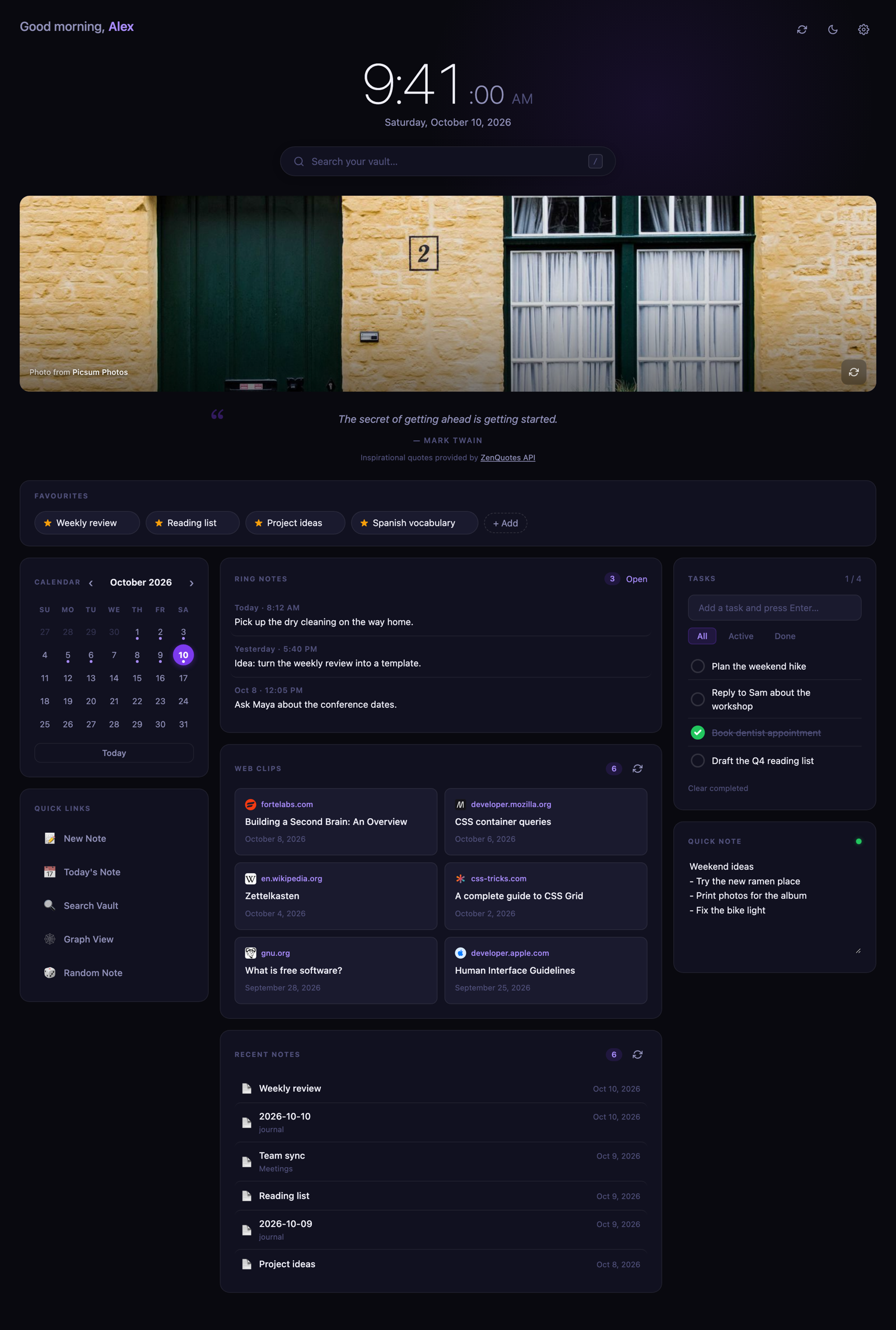
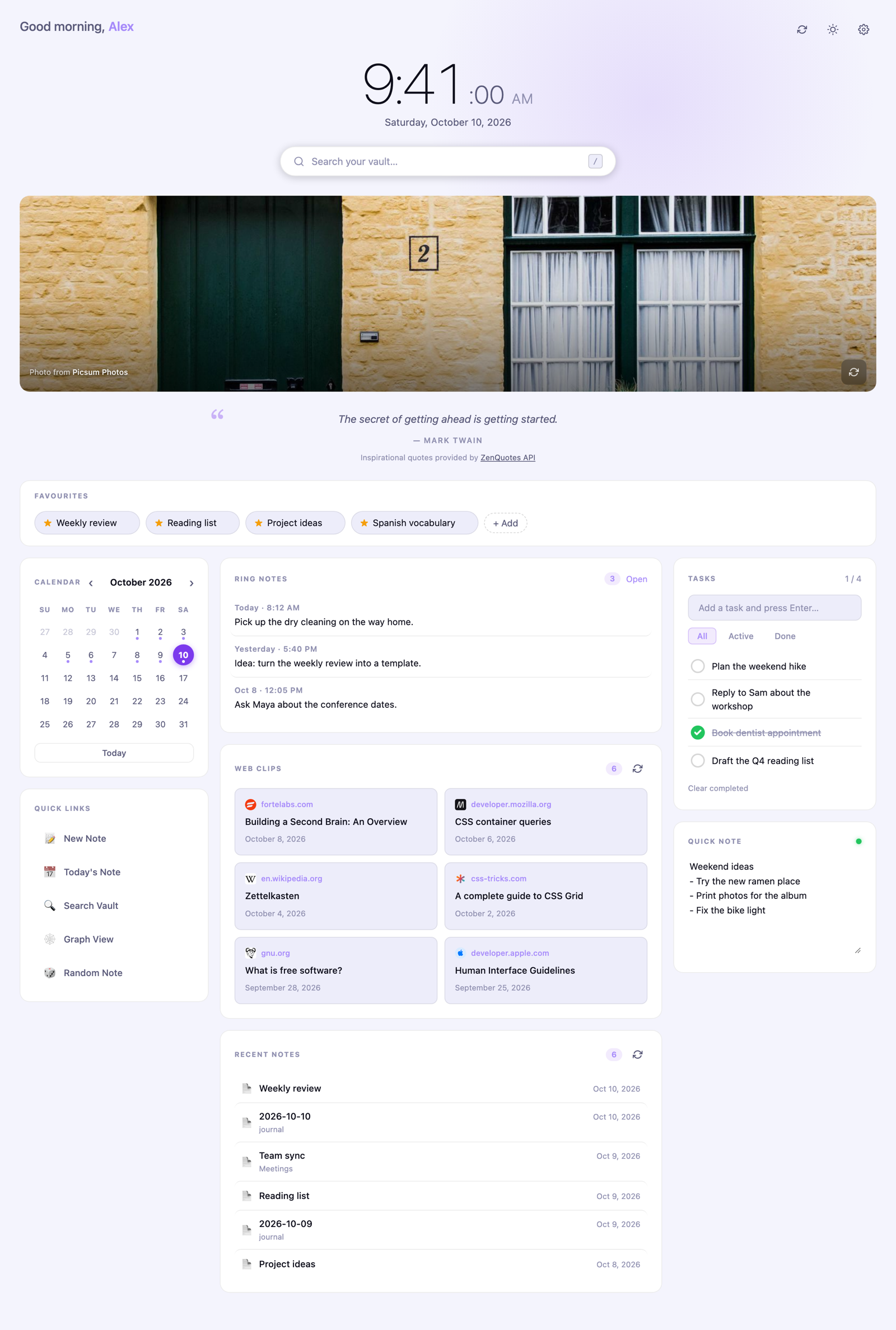
On a phone it becomes a single column with tasks and the quick note first:
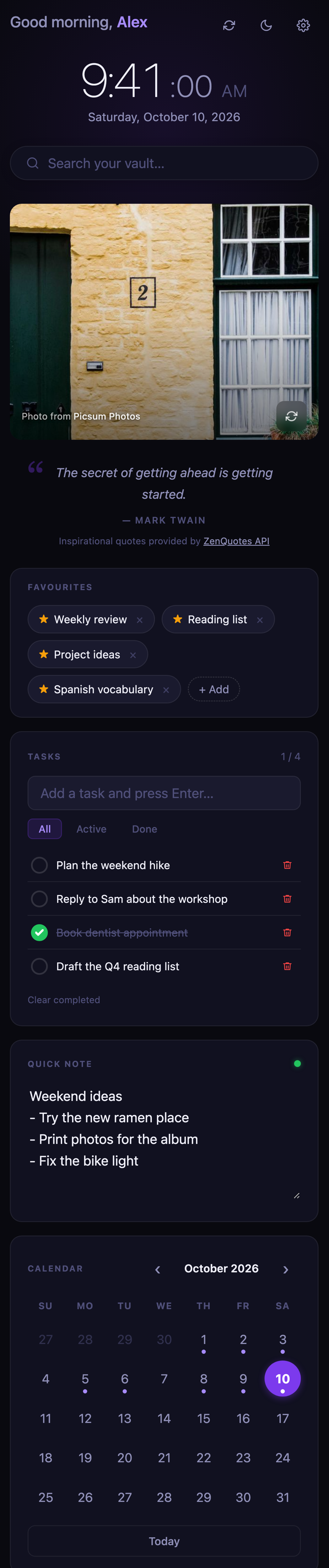
The screenshots use sample data.
Install
With BRAT: install the BRAT plugin, choose "Add beta plugin", and enter kenroy/genkan.
Manually:
- Download
main.js,manifest.jsonandstyles.cssfrom the latest release. - Put them in
<your vault>/.obsidian/plugins/genkan/(create the folder). - In Obsidian, open Settings → Community plugins, reload, and turn on Genkan.
Open it from the home icon in the ribbon, or run Genkan: Open homepage from the command palette. Turn on Open on startup in the settings to make it your landing page.
On iPhone and iPad the plugins folder is hidden. The easy route is to install on a computer and let Obsidian Sync carry the plugin across (Settings → Sync → installed community plugins).
Using Genkan
Favourites
Click + Add and pick a note, click the star in any note's header, right-click inside a note, or run Genkan: Add or remove current note from homepage favourites. Click the × on a chip to remove it. Favourites are plain [[wikilinks]] in Favourites.md, so Obsidian keeps them correct when you rename a note, and you can reorder them by editing the file.
Tasks and the quick note
Tasks are a checklist in Tasks.md, written like - [ ] Buy milk ➕ 2026-10-10 ^id (compatible with the Tasks plugin). The quick note is Quick Note.md. Because they are normal notes, they sync with the rest of your vault, and changes made on another device appear live. You can edit them by hand; tasks typed without an id get one automatically.
By default these live in genkan/data/. Change the Data folder setting to put them elsewhere.
Calendar and daily notes
Click a day to open that day's note, creating it if it does not exist. Genkan uses your Daily Notes or Periodic Notes settings for the folder, date format and template, or the Daily notes folder setting if you set one. A dot marks days that have a note.
Quick links
Edit them in settings, one per line: icon | label | action, where the action is command:<command id>, open:<note path>, daily, random or an https:// address.
Ring notes (Pebble Index)
Turn on Pebble ring notes, then set Where does the ring save notes? to match the Obsidian setting in the Pebble app:
| Pebble app setting | Genkan setting | What Genkan reads |
|---|---|---|
| One main note | One main note | Pebble Index.md, with entries appended under headings like ## 2026-10-05 21:55 |
| An existing note | An existing note I choose | The note you pick (with autocomplete). Same heading format; other sections of the note are ignored |
| A separate file for each note | A separate file for each note | Every note in the folder you pick (default Pebble Index; use the subfolder you chose in the app). Each note's time comes from its frontmatter (created: 2026-10-11T00:21, also date, timestamp, …), else its file name (2026-10-11 0021, 2026-10-11 09-15, …), else when it was created |
Newest first. Click an entry to open it. The card updates live as the ring saves notes, and Max ring notes sets how many are shown.
Network use and privacy
Genkan does not collect analytics or telemetry, does not require an account, shows no ads, does not download or run code, and never reads files outside your vault. The contents of your notes are never sent anywhere. The only network requests are below, and each can be turned off.
| Service | When | What it receives | How to turn it off |
|---|---|---|---|
ZenQuotes (zenquotes.io/api/today) | Once a day, for the daily quote | Nothing from your vault; the server sees your IP address, as for any web request | Settings → Daily quote |
Unsplash (api.unsplash.com) | At most once a day (and when you press the photo's refresh button), only if you enter an Unsplash access key | Your access key and fixed nature search terms. The photo itself loads from Unsplash's image servers whenever the dashboard opens, with credit links back to the photographer and Unsplash | Remove the key, or turn off Photo of the day |
| Picsum Photos | Whenever the dashboard opens, for the photo, when you have no Unsplash key | An image address seeded with today's date; nothing from your vault | Settings → Photo of the day |
Google favicon service (www.google.com/s2/favicons) | When web clips are shown | The domain (not the full address, title or contents) of each clipped page, to fetch a small site icon | Settings → Site icons on web clips |
Notes:
- The Unsplash key is optional. It is stored in this plugin's settings file (
.obsidian/plugins/genkan/data.json) in your vault. If you use Obsidian Sync with plugin settings, the key syncs with it, so keep your vault private. - Quotes are credited to ZenQuotes in the interface, as their free API requires: "Inspirational quotes provided by ZenQuotes API". Built-in quotes are used when the request is off or fails.
- Links you click (photographer credits, the ZenQuotes link, any
https://quick link) open in your browser.
Settings
Settings → Genkan: your name, open on startup, appearance (follows Obsidian's light or dark theme by default), clock format and clock font (your Obsidian theme's interface, text or monospace font, the system serif, or the name of any font installed on the device; it never downloads fonts), Web Clipper, daily notes and data folders, how many clips and recent notes to show, the Pebble ring options, photo of the day and Unsplash key, daily quote, site icons, and quick links.
Development
The repo has no dependencies besides Python 3 for the build step.
python3 build.py
main.template.js: the plugin sourcesrc/icons.js,src/quotes.js: the icon and built-in quote datasrc/base.cssandstyles.extra.css: the styles.build.pyscopessrc/base.cssunder.hp-root, addsstyles.extra.css, and writesstyles.cssmain.jsandstyles.cssare generated; edit the sources above instead
To release, set version in manifest.json (and add it to versions.json), run the build, then create a GitHub release whose tag matches the version exactly, with main.js, manifest.json and styles.css attached.
Credits and licence
Genkan is released under the MIT licence.
Quotes by ZenQuotes. Photos from Unsplash and Picsum Photos. Site icons from Google's favicon service.
Genkan is an independent project. It is not affiliated with or endorsed by Obsidian, Pebble or Core Devices. "Pebble" and "Pebble Index" belong to their owners and are used only to describe compatibility.
For plugin developers
Search results and similarity scores are powered by semantic analysis of your plugin's README. If your plugin isn't appearing for searches you'd expect, try updating your README to clearly describe your plugin's purpose, features, and use cases.