historica
approvedby nhannht
Intelligently generates timeline from your content
Historica
Turn prose into a timeline, automatically.
An Obsidian plugin that reads your notes, finds every date with NLP, and renders an interactive timeline - right inside a code block.
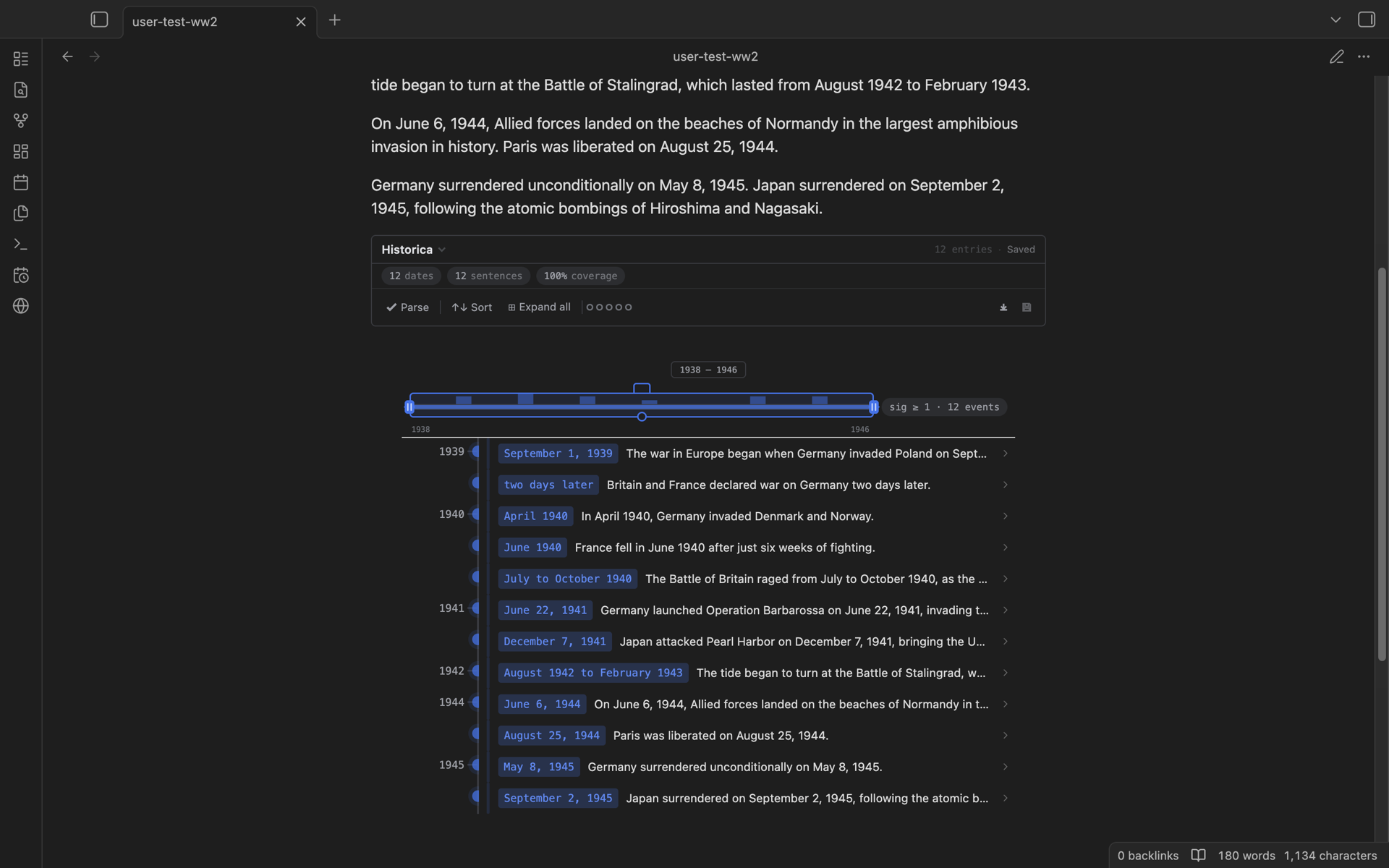
Real screenshot, not a mock: the note's prose above, the timeline it produced below. More shots in showcase/. The marketing site source lives in its own repository, nhannht/historica-website.
[!note] These docs cover the redesigned UI shipped in 0.3; the current release is 0.4.x. Desktop only - mobile support was dropped in 0.3.
- User documentation: historica.pages.dev
- API documentation: obsidian-historica-code-doc.pages.dev
Quick start
Create a historica block in any note:
```historica
```
That is it. The block reads the prose of the current file (code blocks are ignored), splits it into sentences, and every sentence containing a string that parses as a date or time becomes a timeline entry.
Languages
Historica is English-first, but it also parses several other languages. By default the language setting is auto: it detects the language of each note and picks the matching parser. Besides English it currently handles German, French, Japanese, Chinese, Dutch, and Vietnamese (English has the richest coverage; the others focus on absolute dates, months, centuries, and eras). You can also pin a language explicitly instead of auto.
Parsing is tested against real annotated corpora - WikiWarsDE, WikiWars-NL, French FTiB, and hand-curated Japanese and Chinese sets. The suites live in __tests__/.
Editing
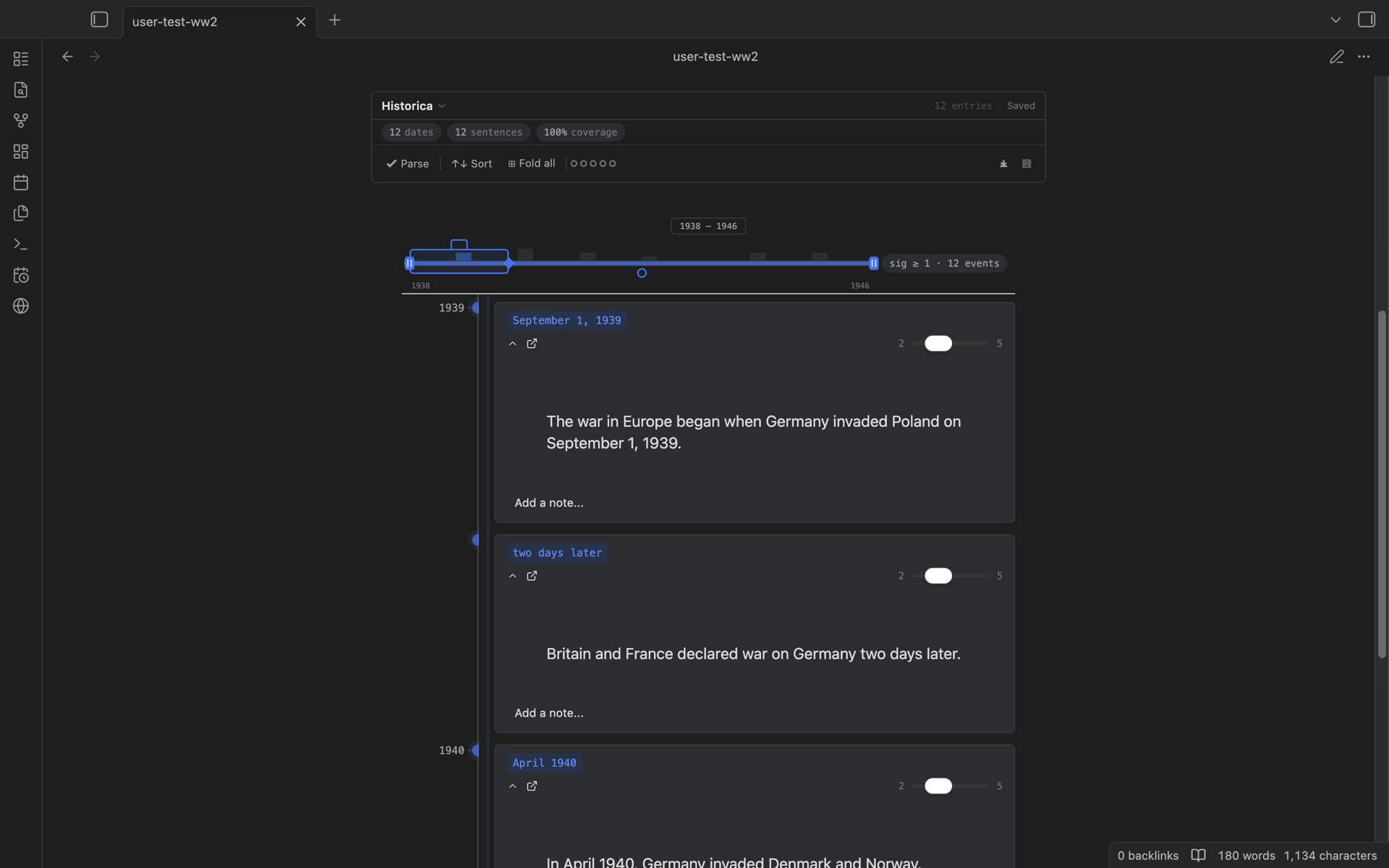
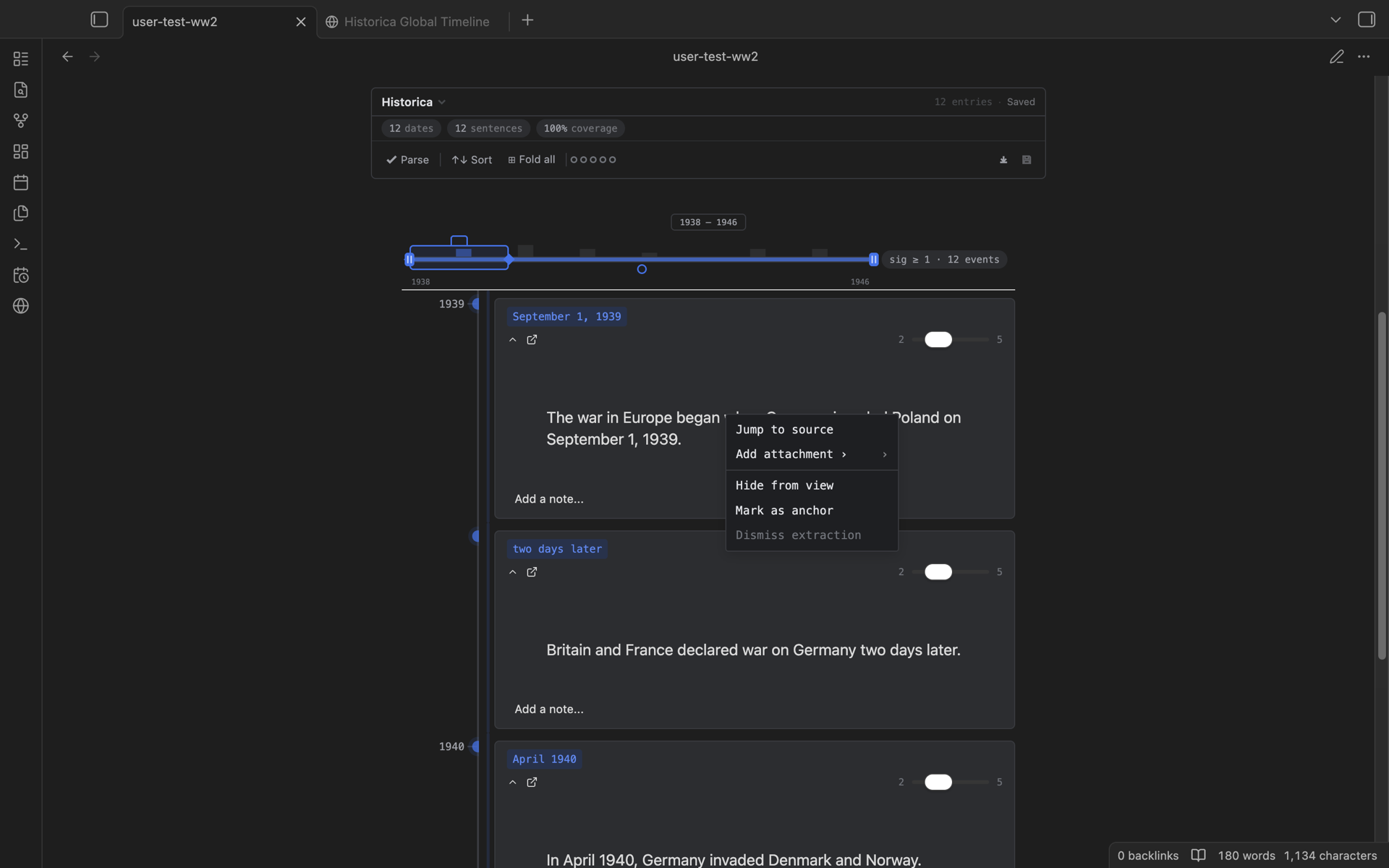
Every entry expands into a card with a significance slider (1-5), a free-text note, and attachments picked from your vault. Right-clicking gives you two menus:
- On the timeline: sort, expand or fold all entries, re-parse the note, and export (PNG, HTML, Markdown, JSON, plain text).
- On an expanded card: jump to the source sentence, add an attachment, hide the entry, mark it as an anchor, or dismiss a bad extraction.
To reword an entry or fix its date, edit the source sentence and re-parse - or hand-edit the saved timeline file, which is plain Markdown (see below).
Save your plot
A fresh empty historica block is bound to the hidden blockId -1, and blocks with blockId -1 do not auto-save: re-render the block and your customizations are gone. So save the plot:
- Click the save button at the right end of the toolbar (the status beside it reads
Not saved yet). The data is written tohistorica-data/xxxx.mdand the generated id is stamped into the block. From then on every change auto-saves. - Or give the block an id yourself when you create it:
```historica
{
"blockId":"It-is-so-kute-and-I-know-it"
}
```
Now the block auto-saves to historica-data/It-is-so-kute-and-I-know-it.md.
Saved timelines are plain Markdown in the HMD format - YAML frontmatter for settings, one ## heading per entry, inline fields for date and significance. Obsidian can open and even render them directly; you can read, diff, grep, and hand-edit them. The format spec is in docs/hmd-spec.md. Saved blocks are also indexed into the vault-wide Global Timeline view (command palette: Historica: Open Global Timeline).
Install
- Obsidian: Settings, Community plugins, search for
Historica. - Manual: grab
main.js,manifest.json, andstyles.cssfrom the latest release and drop them into.obsidian/plugins/historica/.
License
MIT
For plugin developers
Search results and similarity scores are powered by semantic analysis of your plugin's README. If your plugin isn't appearing for searches you'd expect, try updating your README to clearly describe your plugin's purpose, features, and use cases.