Stratify Mindmap
approvedby LK
Turn Markdown notes into deep, editable mind maps with drag-and-drop and keyboard navigation. - This plugin has not been manually reviewed by Obsidian staff.
Stratify Mindmap
English | 简体中文
Stratify Mindmap is a Markdown-native mind map plugin for Obsidian. It keeps the source readable on desktop and mobile while supporting structures deeper than Markdown's six heading levels.
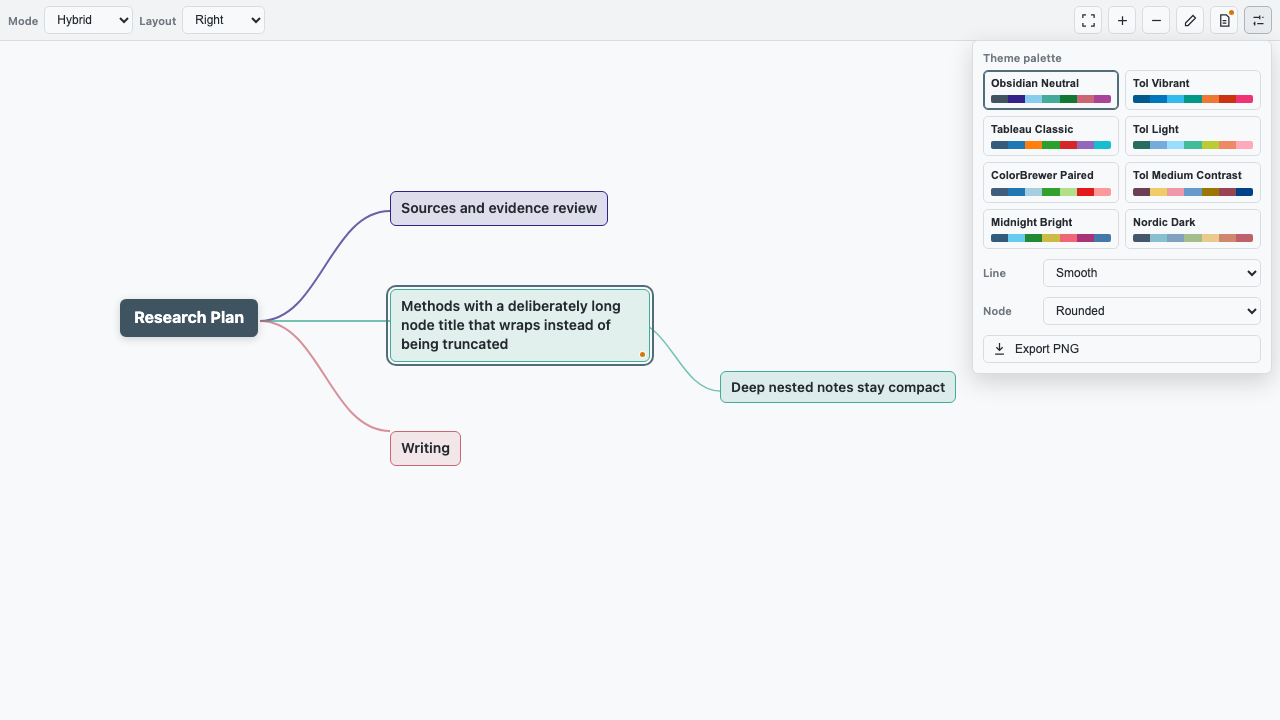
The interface is deliberately compact: structure and layout stay in the main toolbar, common view controls use icons, and appearance/export options live in one menu.
What's New in 1.2.0
- Restores mind map layout after Obsidian reloads or a background tab becomes visible.
- Rejects invalid startup canvas dimensions instead of saving a broken near-zero zoom.
- Refits automatically while the workspace is settling, without overriding later user pan or zoom.
Highlights
- Mind maps deeper than six levels
- Heading, Hybrid, and List Markdown structure modes
- Automatic source-format detection when converting existing notes
- Direct node editing with Markdown write-back
- Pointer-based drag and drop across parents and sibling positions
- Arrow-key selection and keyboard restructuring
- Undo and redo for map operations
- Obsidian wikilinks, node collapse, multiple layouts, and PNG export
- Visual theme picker with curated categorical color palettes
- Configurable node font size and matching PNG export text
- Automatic wrapping for long labels and a more compact layout
- Source-only Markdown preservation indicators
- Reliable layout recovery after workspace and tab restoration
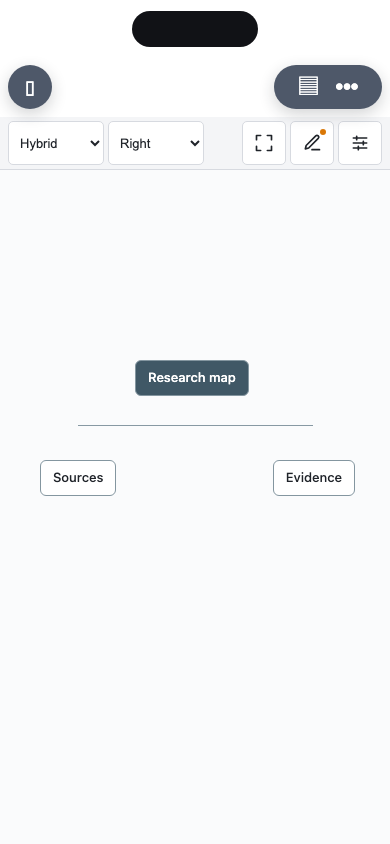
- Mobile toolbar below the system safe area and Obsidian view controls, with 44-pixel touch targets
- Desktop and mobile support
Interface Preview
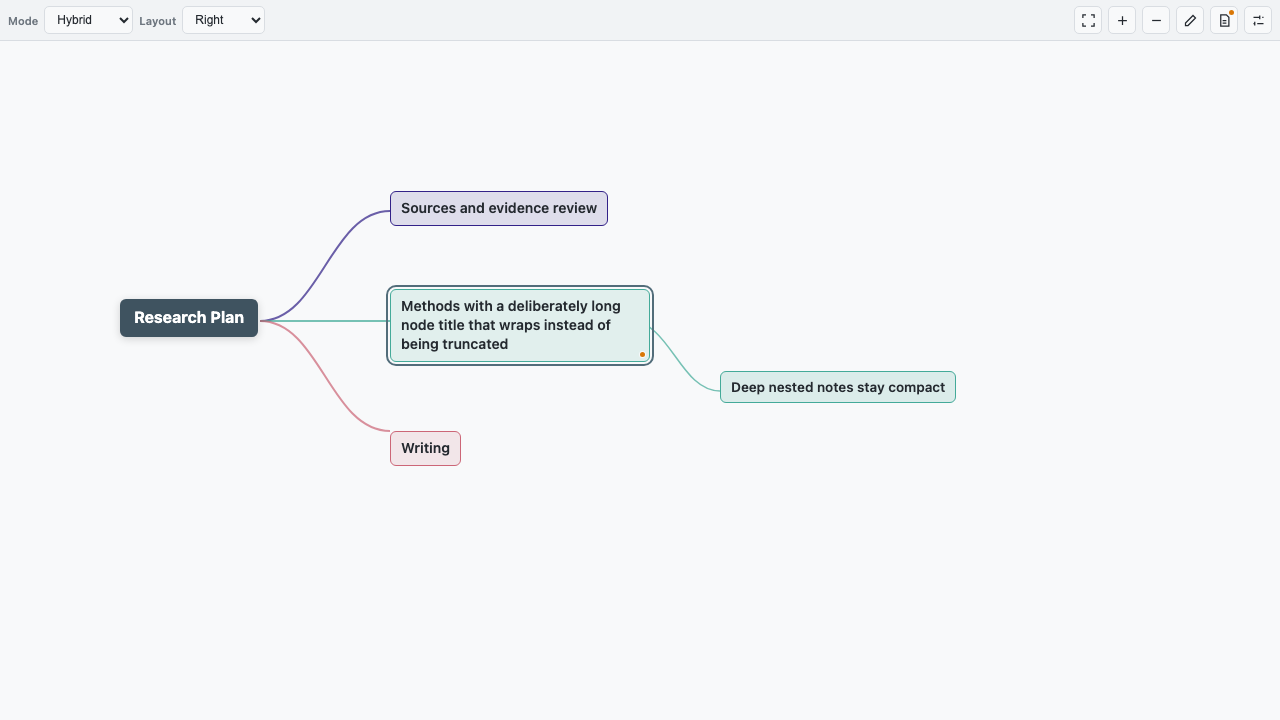
The images below are interface previews of the current Stratify layout.
Mind Map Overview
Appearance and Export Menu
Mobile Toolbar
Markdown Structure Modes
| Mode | Source | Recommended use |
|---|---|---|
| Heading | # through ###### | Short document-style maps up to six levels |
| Hybrid | Headings followed by nested lists | Deep maps that remain readable as documents |
| List | Nested Markdown lists | Compact mobile editing and unrestricted practical depth |
The selected mode is stored as mindmap-structure. When that field is missing, Stratify detects heading-only, heading-plus-list, or list-only content automatically.
---
type: mindmap
mindmap-structure: hybrid
mindmap-layout: right
mindmap-theme: minimal
mindmap-line: curve
mindmap-node: rounded
---

# Project
## Research
### Sources
#### Review
##### Methods
###### Evidence
- Primary studies
  - Included papers
    - Detailed notes
Markdown-only Content
Headings and list items become mind map nodes. Other Markdown, including ordinary paragraphs, blockquotes, code blocks, tables, and comments, remains in the source instead of being silently converted into nodes or comments.
Content before the first node is preserved as document-level source. Content after a node stays attached to that node. An orange marker on a node indicates that source-only Markdown is present. The desktop toolbar shows a matching file-text button; on mobile, the Edit Markdown button carries the status marker instead.
Normal rendering, node editing, and structure-mode conversion preserve this content. Moving a node also moves its attached source block. Deleting that node deletes the attached block as part of the same undoable operation. A document containing only source-only content renders an empty-map state while leaving the Markdown unchanged.
Editing
| Action | Gesture or shortcut |
|---|---|
| Select a node | Click or use plain arrow keys |
| Edit text | Double-click or F2 |
| Add sibling | Enter |
| Add child | Tab |
| Delete | Delete or Backspace |
| Collapse or expand | Space |
| Reorder siblings | Shift + ArrowUp/ArrowDown |
| Promote | Shift + Tab or Mod + ArrowLeft |
| Demote | Mod + ArrowRight |
| Undo | Mod + Z |
| Redo | Mod + Shift + Z or Mod + Y |
Collapsed state is stored by wrapping the complete node label in single emphasis markers, for example # *Deferred*. A heading or list label written this way is therefore interpreted as a collapsed node.
Dragging onto the upper or lower part of a node inserts before or after it. Dropping on the outer edge of a leaf can make the dragged node its child; this behavior can be disabled in settings.
Toolbar and Settings
The desktop toolbar keeps Mode, Layout, Fit, Zoom, and Edit Markdown available. On mobile, a single top row keeps Mode, Layout, Fit, Edit Markdown, and options below both the system safe area and Obsidian's view controls, with 44-pixel touch targets; zoom moves into the full-width options panel. The options menu shows every theme as a named row of color swatches, followed by connector style, node shape, zoom on mobile, and PNG export. Exported images are saved beside the source note as <note-name>.mindmap.png, on both desktop and mobile.
The Obsidian settings page controls defaults for new or unconfigured maps, the global node font size, keyboard navigation, and leaf-node drop behavior. Existing frontmatter is not overwritten by changing defaults.
Create or Convert a Mind Map
- Use the ribbon command or command palette action Convert current note to mind map.
- Right-click a Markdown file and choose Convert to Stratify mind map.
- Right-click a folder and choose Create Stratify mind map.
Conversion adds the required frontmatter and detects the source structure without rewriting the note body.
Installation
Install Stratify Mindmap from Settings -> Community plugins -> Browse in Obsidian.
For manual installation from a GitHub release:
- Create
<vault>/.obsidian/plugins/stratify-mindmap/. - Download the release assets
main.js,manifest.json, andstyles.cssand place them in that directory. - Reload Obsidian.
- Enable Stratify Mindmap under Settings -> Community plugins.
Do not enable Stratify Mindmap and Light Mindmap/Light Mindmap Plus at the same time because they render the same type: mindmap notes.
Migration from Light Mindmap
Existing notes remain compatible because Stratify keeps type: mindmap and the existing mindmap-* frontmatter fields. The plugin ID is different, so plugin-level settings are stored separately; copy or recreate those defaults once, then disable the old plugin.
Compatibility
- Obsidian 1.8.7 or later
- macOS, Windows, Linux, iOS, and Android
- Obsidian Sync-compatible because map content remains Markdown
Privacy and Network Use
Stratify Mindmap works locally and offline. It does not make network requests, collect telemetry, display ads, access files outside the current vault, or implement its own update mechanism. It reads or writes file contents only for mind map notes, PNG exports requested by the user, and its local plugin settings.
When you type [[ while editing a node, the wiki-link autocomplete uses Obsidian's vault.getMarkdownFiles() API to list Markdown file paths and metadata in the current vault. It does not read the contents of those notes. The list is cached in memory for up to five seconds and is never transmitted or stored by the plugin.
Development
The repository contains TypeScript source in src/; the generated main.js is attached only to GitHub releases.
npm install
npm run check
npm run check runs the official Obsidian ESLint rules, regression tests, TypeScript validation, and the production build.
Credits and License
Stratify Mindmap is an independent derivative of Light Mindmap by Light Ning. It retains the original copyright notice and is distributed under the MIT License.
The built-in categorical palettes reference Paul Tol's color schemes, Tableau Classic palettes, and ColorBrewer.
For plugin developers
Search results and similarity scores are powered by semantic analysis of your plugin's README. If your plugin isn't appearing for searches you'd expect, try updating your README to clearly describe your plugin's purpose, features, and use cases.