Flat Financing
pendingby Pranjul
Beancount integration that allows you to add accounts and transactions easily and get the summary and transactions in the dashboard.
Obsidian Flat Financing Plugin
A simple Beancount integration for Obsidian, allowing you to manage your personal finances, track expenses, and view interactive dashboards directly within your vault.
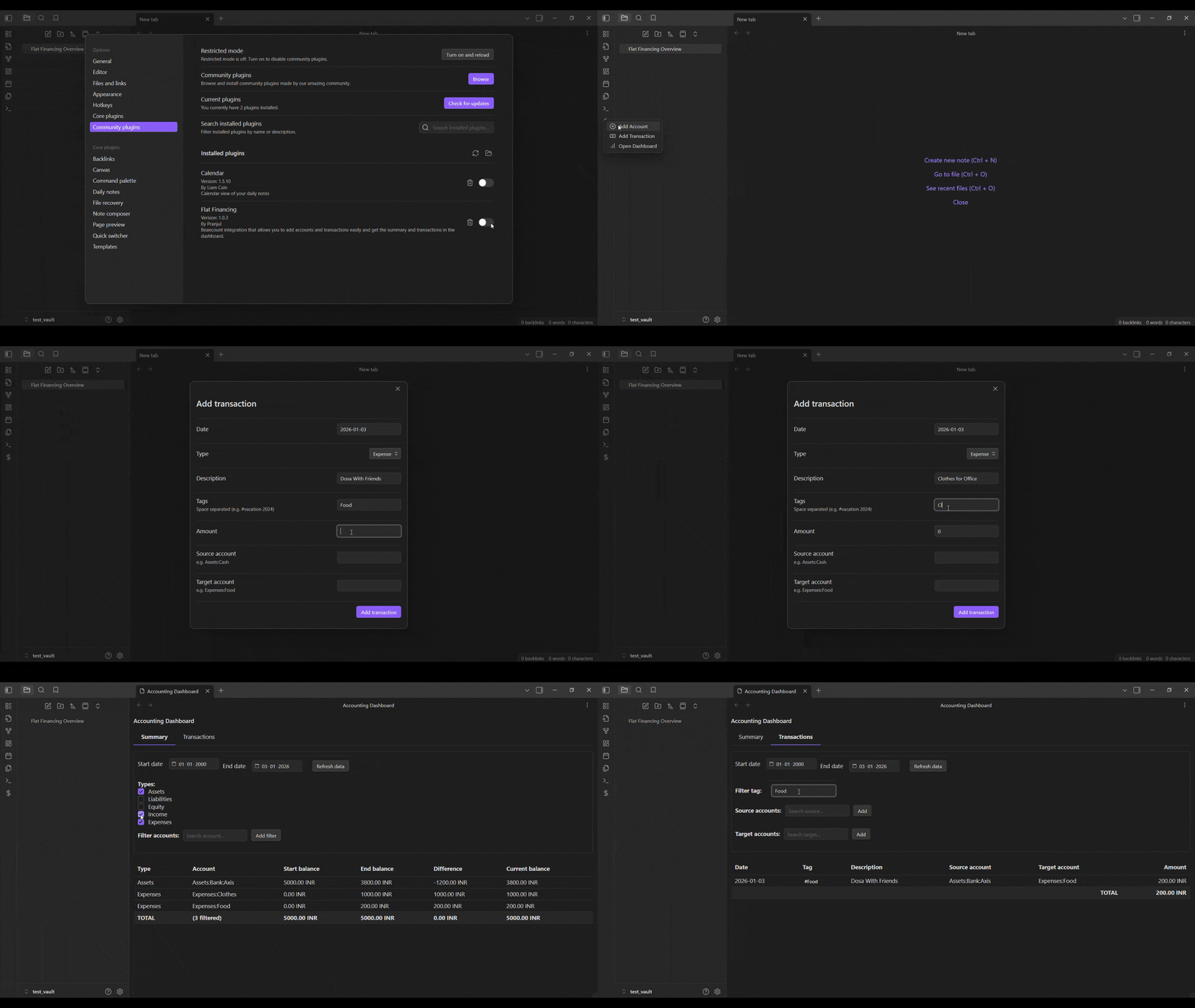
Features
- Interactive Dashboard:
- Summary View: View account balances filtered by Date, Type (Assets, Income, etc.), and specific Accounts.
- Transactions View: List transaction details with powerful filtering.
- Tabs: Easily switch between Summary and Transaction lists.
- Advanced Filtering:
- Multi-select filters for Source Accounts (Credits) and Target Accounts (Debits).
- Filter by Tags (e.g.,
#vacation). - Standard Date Range filters.
- Easy Data Entry:
- Add Account: Create new accounts with opening balances.
- Add Transaction: Quick entry modal with auto-completion for account names.
- Auto-Creation: Automatically initializes new accounts found in transaction entries.
- Seamless Integration:
- Works with your existing
.beancounttext files. - Updates in real-time.
- Works with your existing
Installation
- Clone this repository into your vault's
.obsidian/plugins/directory. - Run
npm installto install dependencies. - Run
npm run buildto compile the plugin. - Reload Obsidian and enable Obsidian Accounting in Community Plugins.
Usage
1. Configuration
Go to Settings > Obsidian Accounting:
- Beancount File Path: Enter the absolute path to your main
.beancountfile. - Currency Symbol: Set your default currency (e.g.,
USD,EUR).
2. The Dashboard
Open the dashboard via the Ribbon icon (Graph) or the Command Palette (Accounting: Open Dashboard).
Summary Tab
- View start/end balances for all accounts.
- Filter by Account Type (Assets, Liabilities, etc.) or specific Account Names.
Transactions Tab
- View a detailed line-item list of transactions.
- Source Filter: See where money is coming from (e.g., filter
Assets:Bankto see all payments made from the bank). - Target Filter: See where money is going to (e.g., filter
Expenses:Foodto see all food purchases). - Tag Filter: Search for transactions with specific tags like
#reimbursable.
3. Adding Data
- Add Account: Use the command
Accounting: Add Accountto open a new account. - Add Transaction: Use the Ribbon icon ("+" symbol) or command
Accounting: Add Transaction.- Supports Description, Amount, Source/Target accounts, and Tags.
Development
- Build:
npm run build - Dev Mode (Auto-watch):
npm run dev - Unit Tests:
This project uses a custom test runner for the Ledger logic.
npx tsc tests/ledger.test.ts --esModuleInterop --resolveJsonModule --target ES6 --module commonjs
node tests/ledger.test.js
License
MIT
About
This plugin was entirely generated by Google Gemini models (specifically the Antigravity agentic coding assistant) within Antigravity.
- Model: Google Gemini
- Editor: Antigravity
For plugin developers
Search results and similarity scores are powered by semantic analysis of your plugin's README. If your plugin isn't appearing for searches you'd expect, try updating your README to clearly describe your plugin's purpose, features, and use cases.