Bases Timeline View
pendingby xjiaxiang
timeline view for bases.
obsidian-bases-timeline-view
timeline view for obsidian bases.
Features
-
Custom Fields Support: Define timeline items using custom fields in your notes. You can specify
start,end,content,startLabel, andendLabelfields, or use Bases formulas to dynamically calculate these values. The plugin automatically falls back to default values (note.start,note.end, etc.) when custom fields are not specified. -
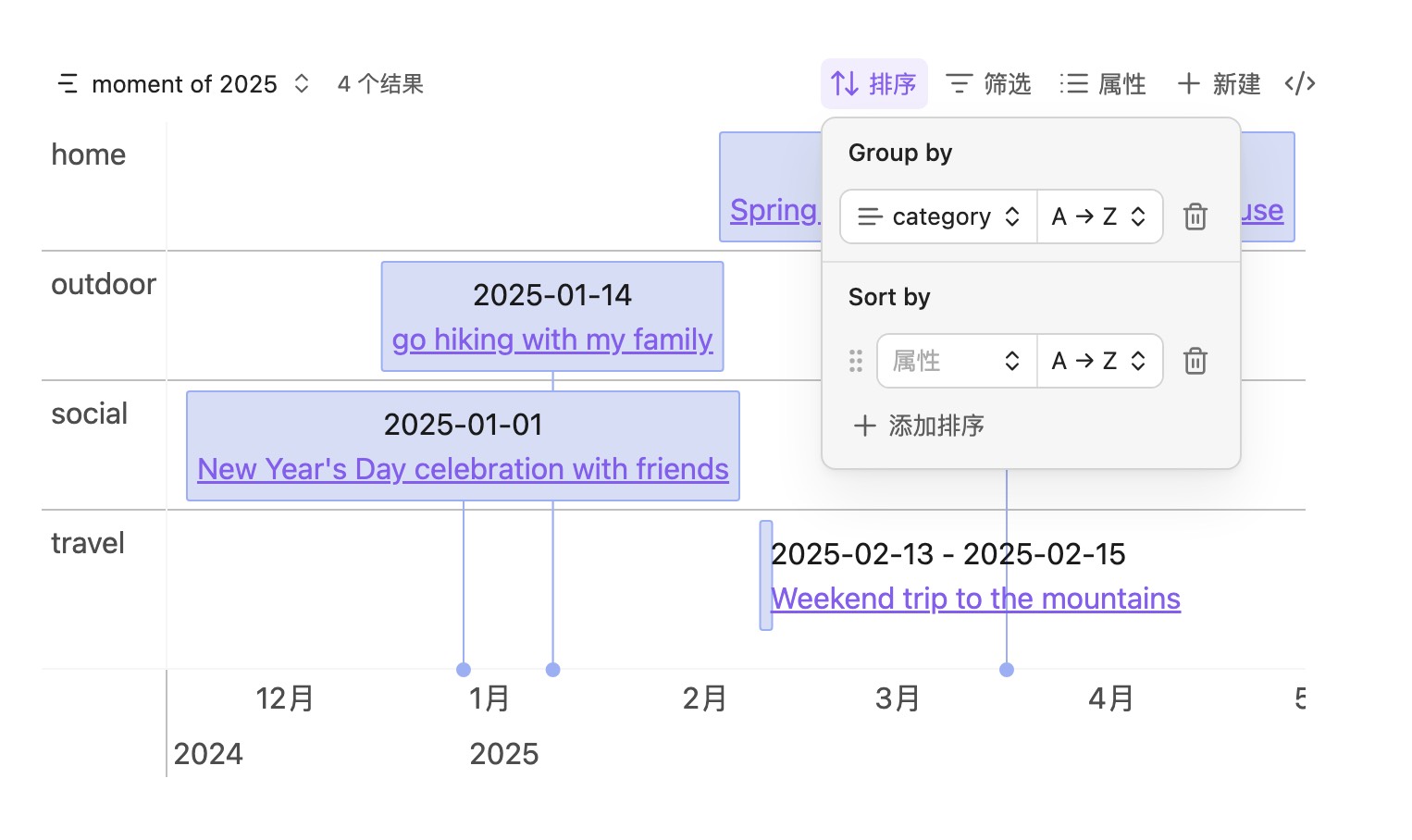
Group Support: Organize timeline items into groups using Bases'
group-byfunctionality (requires Obsidian 1.10 or later). This allows you to categorize and visually separate timeline items based on any field in your notes, making it easier to view related events together.
Example
Basic Usage
to draw the timeline view, you need to add some properties to your obsidian file, for example:
start: 2025-01-01
end: 2025-01-04
content: title of the item
tags: - moment
then you can use the bases and add a timeline view.
filters:
  and:
    - file.tags.contains("moment")
    - and:
        - file.ctime >= "2025-01-01"
        - file.ctime <= "2025-12-31"
views:
  - type: timeline-view
    name: moment of 2025
and the result may be looked like this:
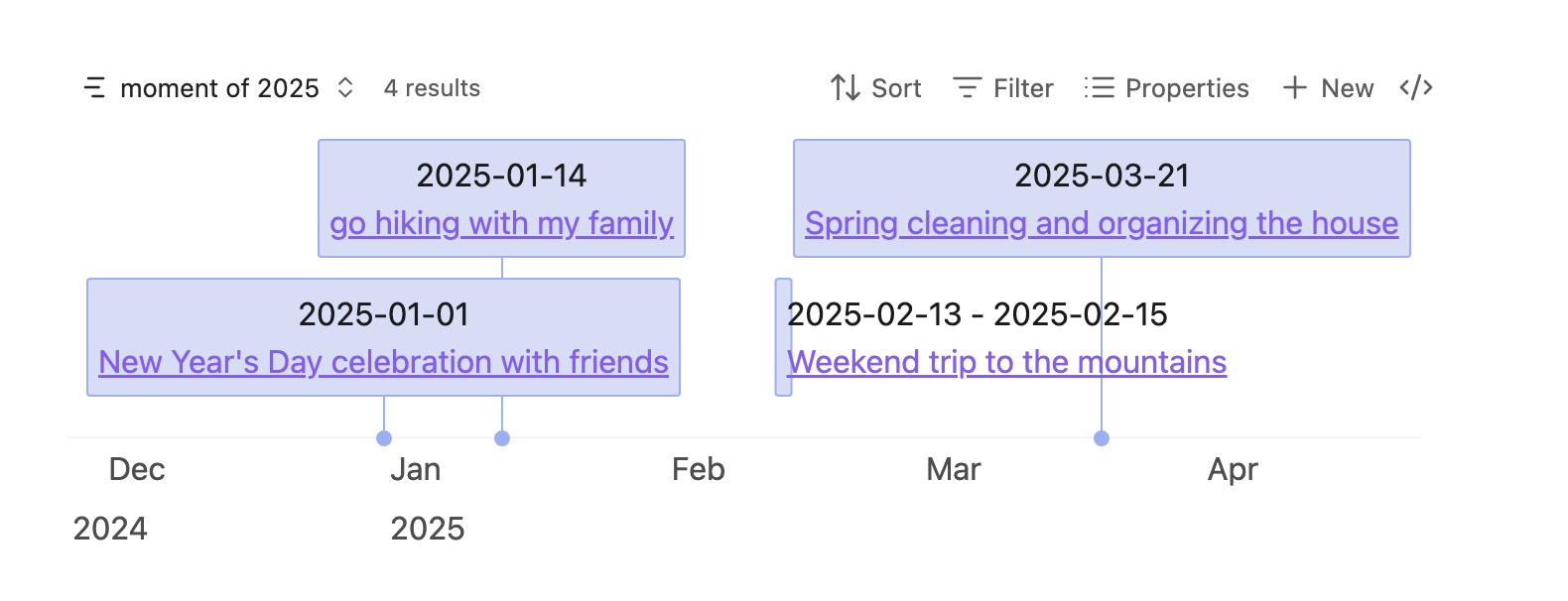
if you want to use the default properties, here is a quick look of the default properties:
Here is the explanation of the properties that we used:
| Property | Description | Required | Example | Remark |
|---|---|---|---|---|
| start | the start date of the item | no | 2025-01-01 | |
| end | the end date of the item | no | 2025-01-04 | |
| content | the content of the item | no | title of the item | if not set, it will use the file name |
| startLabel | custom label for display start date | no | start | |
| endLabel | custom label for display end date | no | end |
Custom Field
if you don't want to use the default properties, you can use the custom properties to define the timeline items. for example:
filters:
  and:
    - file.tags.contains("moment")
    - and:
        - file.ctime >= "2025-01-01"
        - file.ctime <= "2025-12-31"
views:
  - type: timeline-view
    name: moment of 2025
    startField: note.startData
    endField: note.endEnd
Make sure that the properties you used are defined in your obsidian file.
Group
if your Obsidian is 1.10 or later, you can use group by to group the timeline items. for example:
Tips
- basically,
startandendshould beDatetype, but if yourstartis something unusual, for example "2025" or "2025-01", you should useStringtype
Installation
Three ways to install:
- Install from Obsidian Community Plugin(Not released yet)
- Manual install
- Download the latest release from GitHub Releases
- Create a new folder named
bases-timeline-viewin your Obsidian plugins folder(.obsidian/plugins/) - Move the downloaded files to the new folder
- Reload Obsidian
- Enable the plugin in Settings → Community plugins
- Install from BRAT(Currently Recommended)
- Install BRAT if you haven't installed it yet.
- Enable BRAT in Settings → Community plugins
- Open Command Palette(Ctrl+P) and type
BRAT: Plugins: Add a beta plugin for testto open the Community Plugin Manager. - input the plugin repository url: https://github.com/xjiaxiang/obsidian-bases-timeline-view
- select the latest version
- click
Add pluginbutton to install the plugin. - enable
bases-timeline-viewplugin in Settings → Community plugins if it's not enabled automatically.
Others
- Thanks to vis-timeline and obsidian timeline
For plugin developers
Search results and similarity scores are powered by semantic analysis of your plugin's README. If your plugin isn't appearing for searches you'd expect, try updating your README to clearly describe your plugin's purpose, features, and use cases.