by Fuad Laguda
Colour-coded highlighting that stays readable on any theme, recolours highlights in place, and shows every highlight in a note in one panel. Built on Highlightr by Chetachi Ezikeuzor.
Tinted Highlights
Colour-coded highlighting for Obsidian that stays readable on any theme, with a panel that shows every highlight in a note.
Using Highlightr? Tinted Highlights is maintained, works on current Obsidian, and picks up your Highlightr colours and settings the first time it runs. Your highlighted notes stay exactly as they are. How to switch.
Tinted Highlights is built on Highlightr by Chetachi Ezikeuzor, under the Mozilla Public License 2.0. It is a separate plugin and is not made or endorsed by the author of Highlightr.
What it does
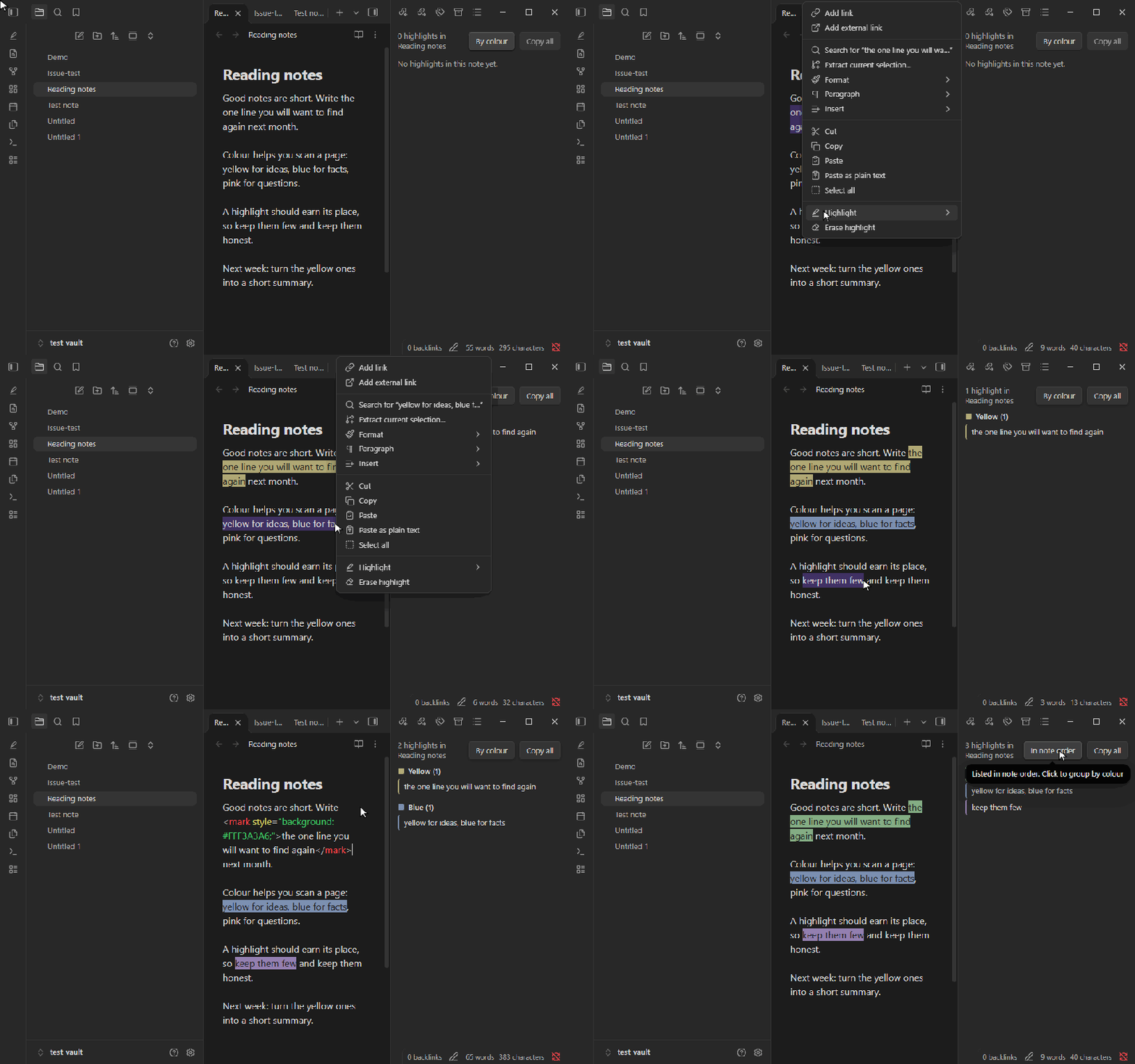
- Highlight in your colours. Select text, right-click and hover Highlight, and pick a colour. Or open the highlight menu from the command palette. Every colour is also its own command, so you can give each one a hotkey.
- Change a highlight without selecting it. Click anywhere inside a highlight and pick another colour, from right-click or the highlight menu. Pick the same colour, or Erase highlight, to remove it.
- Readable text on any theme. Each highlight colour gets dark or light text, chosen for how the colour actually looks on your theme, and it updates when you switch between light and dark. You can turn this off in settings.
- Highlights panel. Every highlight in the open note, grouped by colour or in the order they appear in the note (one click to switch). Click one to jump to it. Copy all gives you a Markdown list to paste into another note. It also lists Obsidian's own
==highlights==, skips code blocks, and updates as you type. - Edit a colour. Change a colour's name or value in place. It keeps its place in your list.
- Your colours, your way. Add colours with Obsidian's colour picker or a hex code, drag to reorder, and choose a style (plain, lowlight, floating, rounded, realistic). Keep colours in the note (best for exporting) or as CSS classes (easy to restyle).
- Works on current Obsidian, including settings opened in their own window.
Coming from Highlightr
If you used Highlightr, the first time Tinted Highlights runs it brings over your colours, their order and your choices. Turn Highlightr off so the two do not both add menu items. Your notes do not change: highlights are the same <mark> HTML, so everything you highlighted before keeps its colour. Hotkeys belong to each plugin, so set your highlight hotkeys again.
Privacy
- Clipboard: the plugin writes to the clipboard only when you press Copy all in the Highlights panel, and only the list of highlights from the open note. It never reads the clipboard.
- Network: none. The plugin makes no network requests and collects nothing.
- Your notes: it changes only the text you select and highlight. The Highlights panel only reads the open note.
Known limit
On iPhones and iPads older than iOS 16.4, the colour rules the plugin adds cannot load. Highlights still show their colours, but the automatic readable text does not apply there.
Credit
Highlightr was created by Chetachi Ezikeuzor, and Tinted Highlights is built on their code and design. Ideas for the readable text and recolouring came from community pull requests to Highlightr by SyncroIT, sozokin and romyi.
Licence
Mozilla Public License 2.0, the same licence as Highlightr. See LICENSE.
Problems and ideas
For plugin developers
Search results and similarity scores are powered by semantic analysis of your plugin's README. If your plugin isn't appearing for searches you'd expect, try updating your README to clearly describe your plugin's purpose, features, and use cases.