Epochs
unlistedby V3IX
A full-tab timeline of your vault with nested categories, click-to-add events and periods, and zoom-aware month and year grouping.
Epochs
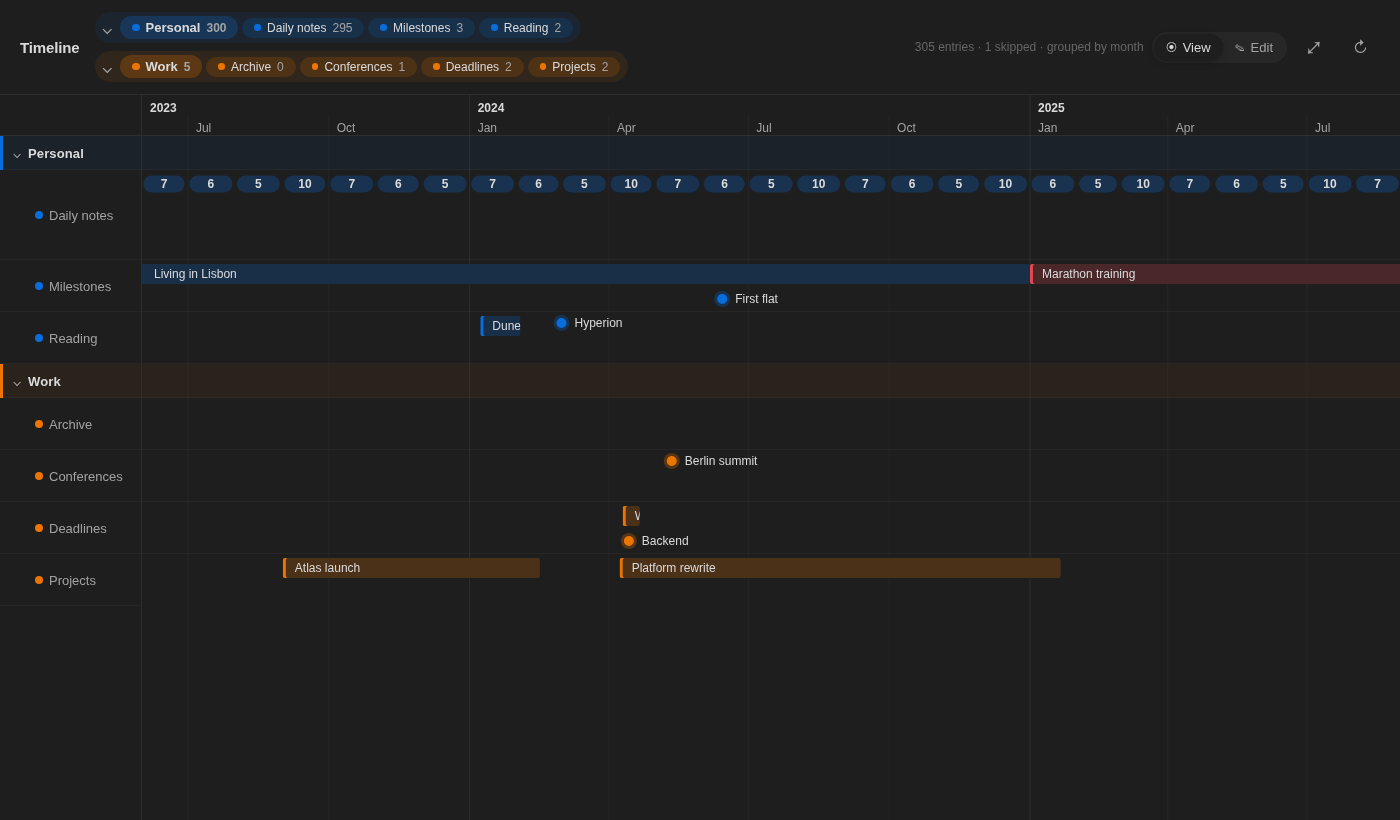
A full-tab timeline for your vault. Put everything on one canvas: daily notes, projects, life periods, family history. Group them into nested categories, and add or edit events by clicking directly on the timeline.
Features
- A real tab, not a code block. Open it from the ribbon or the command palette and it fills the whole pane, themed with your current Obsidian theme.
- Nested categories. Top-level categories (for example Personal, Work) each hold their own swimlanes (Daily notes, Projects…). Toggle a whole category or a single lane from the header. Collapse, recolor, reorder and resize lanes.
- Flexible data sources. Define what appears with Dataview queries, or use note properties, a folder of date-named notes, or a plain-text events file that the plugin writes for you.
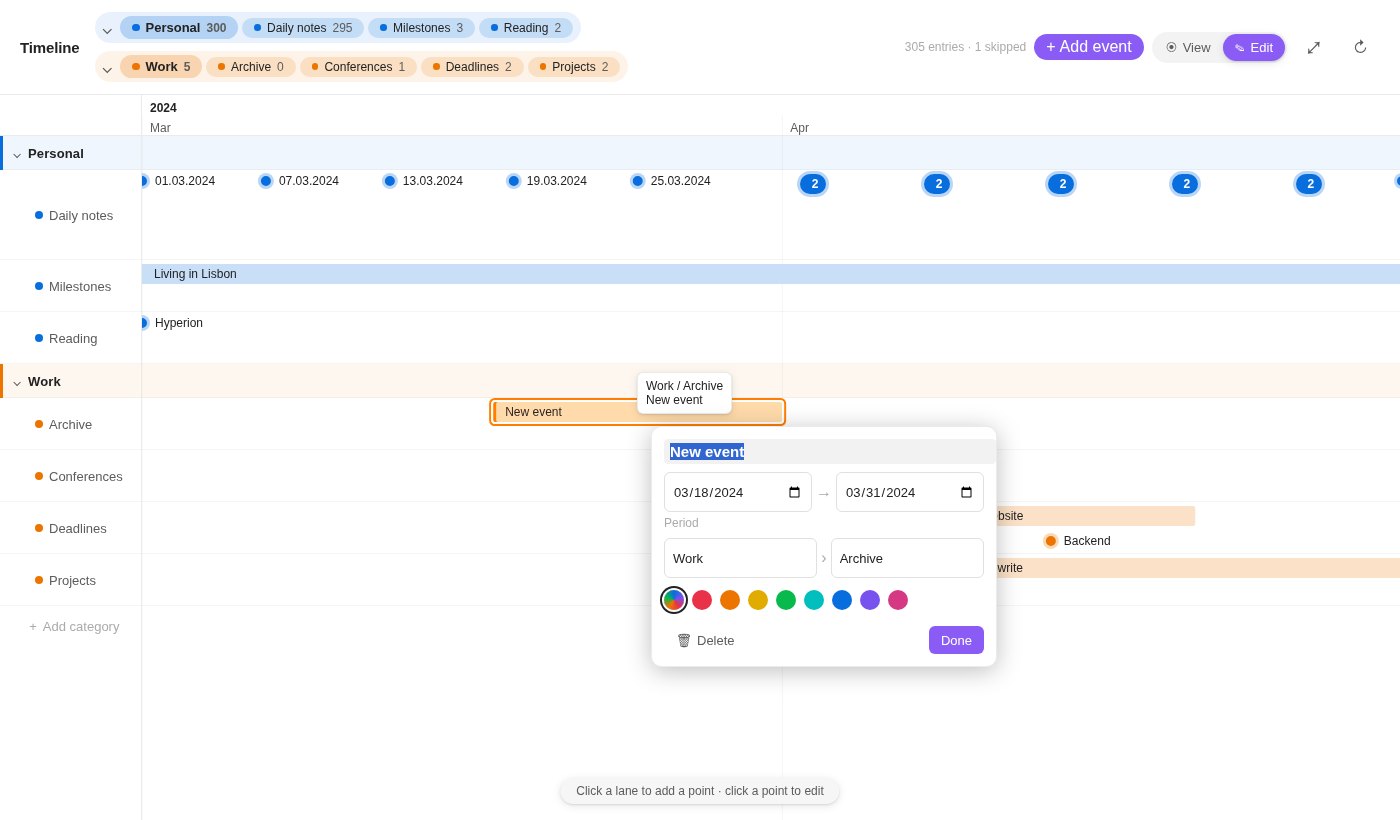
- Click to create. In Edit mode, click a lane to drop a point. Click again to stretch it into a period. Click any event to edit it in a small popover. Changes save as you type.
- Zoom-aware. Zoomed out, hundreds of dots collapse into one bar per month, then per year, each showing a count. Click a bar to zoom in. Dates snap to the day, month or year to match your zoom.
- View and Edit modes. View mode is read-only: click a note to open it, click an event to read it. Anything that changes data lives in Edit mode.
Getting started
- Enable the plugin and click the timeline icon in the ribbon (or run Open Global Timeline).
- Switch to Edit, click an empty lane area, and you have your first event.
Data sources
Use any mix of these. Everything lands on the same timeline.
1. Note properties (best for people, projects, anything that is already a note):
---
timeline_parent: Work
timeline_child: Projects
timeline_date: 2024-04-08~2025-01-20   # a single date, or start~end
---
A note appears if it has timeline_parent or timeline_child. Dates can be yyyy, yyyy-mm, yyyy-mm-dd or dd.mm.yyyy. timeline_end is an optional separate end date. Without a date, the note's creation date is used. The property names are configurable.
2. A folder of date-named notes (daily notes and similar): set Folder in settings. Only notes whose title is exactly dd.mm.yyyy are included. Everything else is ignored, so a note called Meeting notes or 23.04.2026 - Talk will not show up.
3. The events file (Timeline/Events.md by default): everything you create with Edit mode lands here as one readable line each. You can edit it by hand too:
- [2024-03-05] {Personal/Travel} Lisbon weekend
@ [2022-01-01~2024-12-31] {Personal/Milestones} #3a86ff Living abroad
- is a point, @ is a period (start~end, end inclusive), {Parent/Child} picks the lane, and an optional #color sets a custom color. A bare {Child} goes under the default parent.
4. Dataview queries (the most flexible option). Needs the Dataview plugin. Instead of fixed rules about folders or property names, you decide which notes appear and where they go with an ordinary Dataview TABLE query. In Settings → Epochs → Dataview sources, pick a starting template and edit it, or write your own.
Columns are understood without any special naming:
- The first date column is the start, and a second date column is the end (making a period).
- A link column (such as
file.link) gives the title and makes the item open its note when clicked. - Rows go into the source's default category.
TABLE file.link, started, finished
FROM "Books"
WHERE started
When you want control, name columns with AS. These names are recognised: start (or date), end, title, parent, child, color. A parent or child column sends each row to its own category, so one query can fill several lanes.
TABLE WITHOUT ID file.link AS title, due AS start, status AS child
FROM "Projects"
WHERE due
Templates in the settings cover common cases, and each is just an editable query:
| Template | What it pulls in |
|---|---|
Notes named dd.mm.yyyy | Daily notes, dated from the title. Add FROM "Folder" to limit it. |
| Notes with a date property | Anything with a date field. |
| Notes with start and end properties | Each note becomes a bar. |
| Notes with a tag | Dated by each note's creation date. |
For example, this puts every note titled dd.mm.yyyy on the timeline. It is the Dataview version of a date-named journal folder:
TABLE WITHOUT ID file.link AS title, date(regexreplace(file.name, "^([0-9]{2})[.]([0-9]{2})[.]([0-9]{4})$", "$3-$2-$1")) AS start
WHERE regexmatch("^[0-9]{2}[.][0-9]{2}[.][0-9]{4}$", file.name)
Notes on using it:
- Use the Test button on a source to see how many events it finds and why rows were skipped. Rows with an unreadable start date are skipped and counted in the header status.
- Dataview items are read-only here. Edit the note, and the timeline refreshes when Dataview re-indexes.
- If you rename a category, a source's default category is updated, but category names written inside your query or note fields are not.
- If you place everything with Dataview, you can turn off Read note properties in settings.
Edit mode
| You do | What happens |
|---|---|
| Click empty lane space | A point is added at that date. |
| Move the mouse, click again in the same lane | The point becomes a period. A preview band follows your cursor. |
| Press Esc | Keeps it as a single point. |
| Click a point or period | Opens an inline editor: title, dates, category, color, delete. |
| Click a lane name | Opens category settings: rename, color, height, grouping, delete. |
| Drag the bottom edge of a lane label | Sets the lane height. |
| Hover a lane label, use the arrows | Reorders it. |
| Click + Add category (bottom of the lanes) | Creates a category and its first lane. |
Renaming a category updates the events file and the properties of any notes that use it (with a confirmation first if notes are affected).
Settings
Property names, the default category, the events file path, Dataview sources, and the optional date-named-notes folder. All of it is under Settings → Epochs.
Credits and compatibility
Epochs is inspired by Chronos Timeline by Claire Froelich, which renders timelines from Markdown code blocks. The events-file line format (- [date] {Group} text and @ [start~end] …) is a subset of Chronos' syntax, so simple lines carry over. Epochs is an independent implementation. It does not include Chronos code and is not affiliated with it. If you want timelines embedded inside a note, use Chronos. If you want one big timeline of your whole vault, use Epochs. They can be installed side by side.
Timeline rendering is powered by vis-timeline. Query sources are optional and use the Dataview plugin's public API; Epochs does not bundle it.
Development
npm install
npm run dev       # watch build
npm run build     # type-check + production build
dev/ contains a small harness that renders the real view in a browser with a stubbed Obsidian API, useful for checking layout and replaying the edit flow without opening Obsidian:
npm run harness && node dev/shot.mjs preview "light,edit"
node dev/flow.mjs   # replays create → period → edit → delete with real mouse input
(It needs a Chromium that Playwright can find: npx playwright-core install chromium.)
License
MIT. Bundled third-party libraries and their licenses are listed in THIRD_PARTY_NOTICES.md.
For plugin developers
Search results and similarity scores are powered by semantic analysis of your plugin's README. If your plugin isn't appearing for searches you'd expect, try updating your README to clearly describe your plugin's purpose, features, and use cases.