Vertical Timeline List
approvedby Jalad
Utilizes lists to create a timeline... or something resembling a timeline.
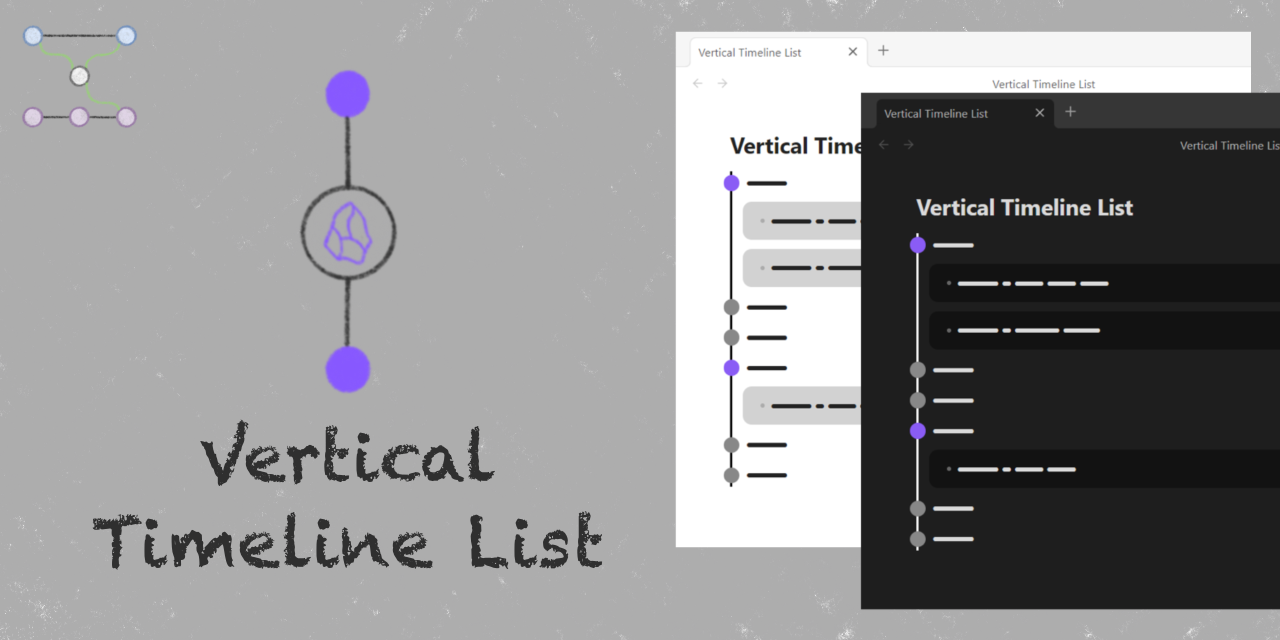






Vertical Timeline List
An Obsidian plugin that utilizes task lists to create a timeline... or something like a timeline.
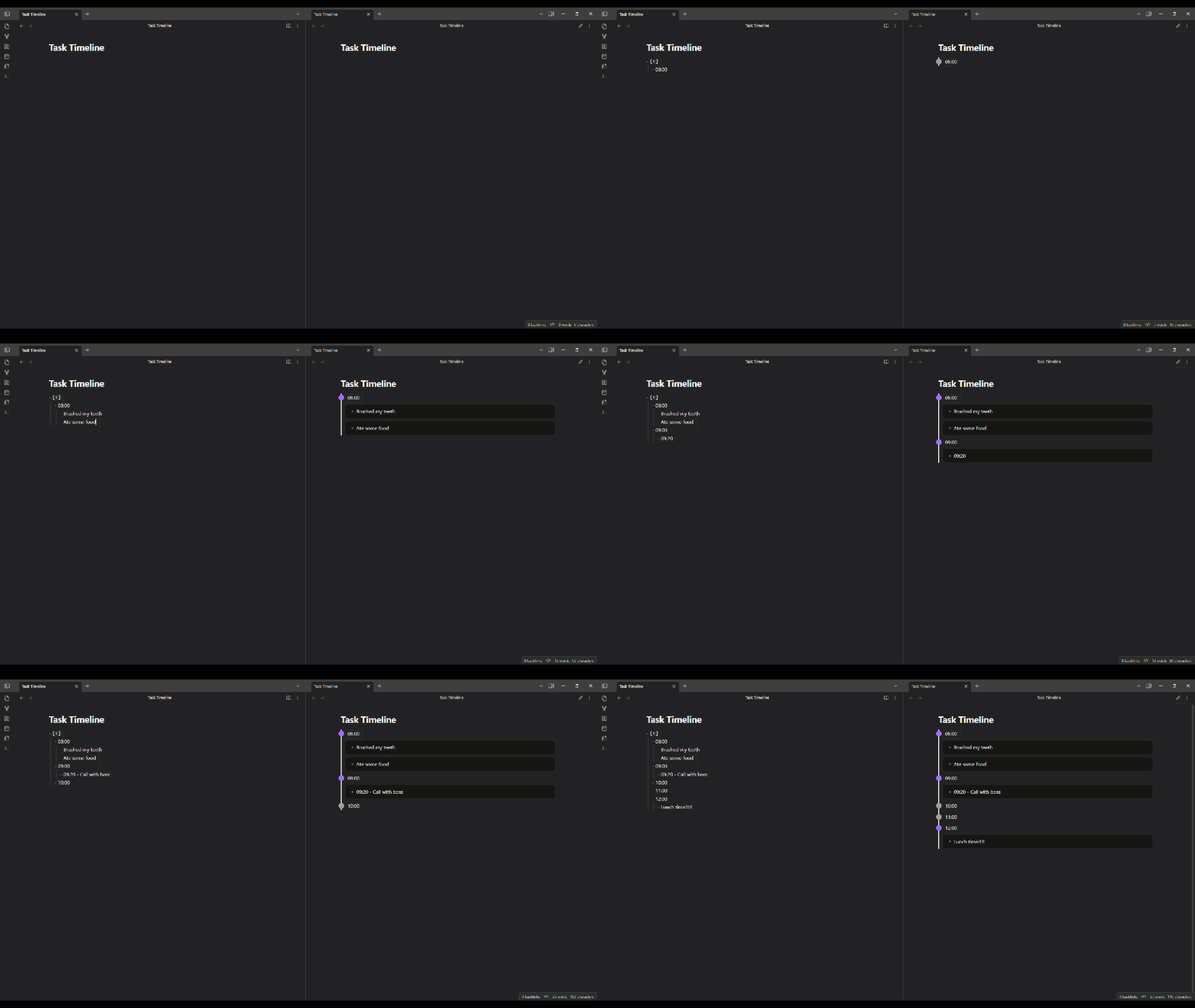
Features
- Timeline Rendering — Any task list whose parent task has a
tstatus (e.g.- [t]) is rendered as a vertical timeline in Reading View. - Customizable Spacing — Adjust dot separation, line padding, and detail block spacing from the settings tab.
- Theme-aware Colors — Independent light- and dark-mode color values for the line, dots, hover state, and detail backgrounds. The active set switches automatically when Obsidian's theme changes.
- Collapsible Dots — Toggle whether timeline entries with details can be collapsed and expanded.
Installation
Obsidian Community Plugins
- Open Obsidian and go to Settings → Community plugins.
- If restricted mode is on, click Turn on community plugins.
- Click Browse and search for Vertical Timeline List.
- Click Install, then Enable.
BRAT
BRAT installs plugins directly from their GitHub repository and auto-updates them on each release.
- Install BRAT from Settings → Community plugins → Browse and enable it.
- Open the command palette (
Ctrl+P(Windows) orCommand+P(macOS)) and run BRAT: Add a beta plugin for testing. - Enter the repository URL:
https://github.com/Jalad25/vertical-timeline-list. - Choose whether to track the latest release or the latest commit, then select Add Plugin.
- Open Settings → Community plugins and enable Contact Note.
To get future updates, run BRAT: Check for updates to all beta plugins from the command palette, or enable auto-update in BRAT's settings.
Manual
- Download
main.js,manifest.json, andstyles.cssfrom the latest release. - In your vault, create the folder
.obsidian/plugins/vertical-timeline-list/if it does not already exist. - Copy the downloaded files into that folder.
- Open Obsidian, go to Settings → Community plugins, and enable Vertical Timeline List.
Usage
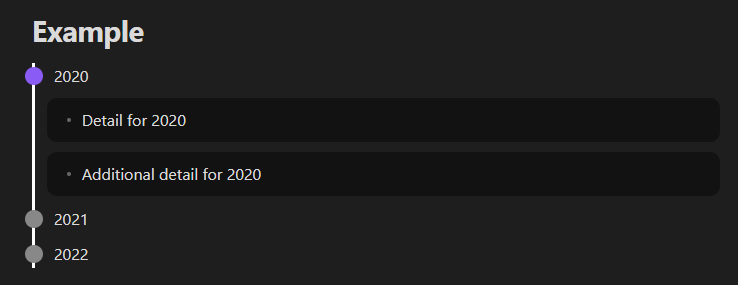
A timeline is denoted by a task list whose parent task has a t status. Nested list items become the timeline's entries. Further nesting under each entry becomes its details.
For example:
# Example
- [t]
  - 2020
    - Detail for 2020
    - Additional detail for 2020
  - 2021
  - 2022
renders as:
[!IMPORTANT] Add a space after the
[t]. Without it, Obsidian does not recognize the line as a task and the timeline will not render.
Settings Reference
Spacing
| Setting | Description | Default |
|---|---|---|
| Dot separation | Vertical gap between dots on the line. | 10 px |
| Line padding | Left and right padding around the line. | 12 px |
| Dot details padding | Padding inside the detail block (all sides). | 10 px |
| Dot details top separation | Space above the detail block. | 10 px |
| Dot details bottom separation | Space below the detail block. | 10 px |
Theme Colors
Each color has independent light- and dark-mode values. The active value applies whenever Obsidian's theme matches.
| Setting | Description | Light Default | Dark Default |
|---|---|---|---|
| Dot color | Dots without details. | #888888 | #888888 |
| Dot collapsible color | Dots with details. | #8A5CF5 | #8A5CF5 |
| Dot collapsible hover color | Hover ring on collapsible dots (only visible when Dot collapsible is on). | #8A5CF5 | #8A5CF5 |
| Line color | The vertical line itself. | #000000 | #ffffff |
| Dot details background color | Background of each detail block. | #8f8f8f67 | #00000067 |
Behavior
| Setting | Description | Default |
|---|---|---|
| Dot collapsible | When on, dots with details can be collapsed and expanded. | Off |
Other Plugin Compatibility
Tested with:
Dataview
Internal links into nested timeline items work normally, but Dataview's TASK query only highlights a navigated-to task when every date in the note is already expanded in Reading View. The collapsible-dot option is therefore off by default. If you turn it on, this Dataview-specific highlight behavior will not work as expected.
Tasks
No issues were observed when using the Tasks plugin alongside this plugin. To exclude the timeline parent task from Dataview TASK queries, register t as a custom task status in the Tasks plugin and filter on that status.
Contributing
Contributions of all kinds are welcome!
See CONTRIBUTING.md for full guidelines.
License
GNU Affero General Public License v3.0. See LICENSE for details.
For plugin developers
Search results and similarity scores are powered by semantic analysis of your plugin's README. If your plugin isn't appearing for searches you'd expect, try updating your README to clearly describe your plugin's purpose, features, and use cases.