Word Count Heatmap
approvedby Aluxes
Visualizes your daily writing productivity with GitHub-style word count heatmaps. - This plugin has not been manually reviewed by Obsidian staff.
Word Count Heatmap
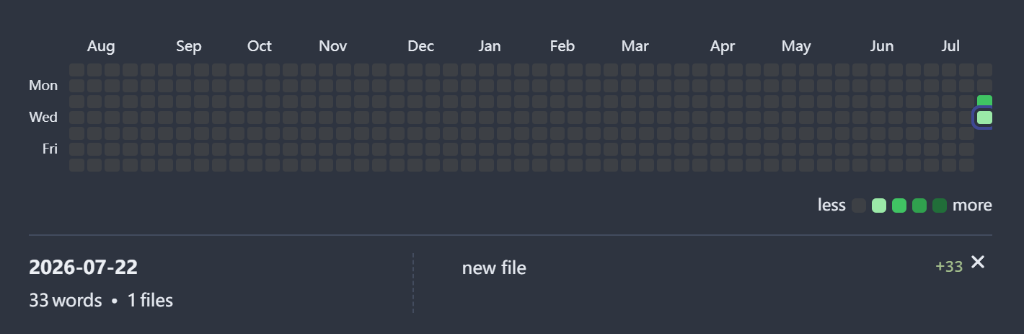
An Obsidian plugin that visualizes your daily writing productivity with a GitHub-style word or character count heatmap.
Features
- GitHub-Style Heatmap: Visualizes your daily word or character counts over a custom date range (e.g., last 30 days, 365 days, or a fixed year).
- Interactive Details Panel: Click any day in the heatmap to inspect the breakdown of words written, including which files were edited and how many words were added to each.
- Customizable Color Thresholds: Define your own color shading intervals (steps 1 to 3) in the settings menu to match your writing goals.
- Flexible Exclusions: Exclude specific folders from being tracked in your word counts.
- Multilingual Support: Supports English and Chinese UI, seamlessly adapting to your Obsidian system locale.
- Toggleable Metrics: Choose between tracking word count (for English) or character count (recommended for Chinese).
Usage
Method 1: Command Palette (Ctrl/Cmd + P)
- Open the Command Palette using
Ctrl + P(Windows/Linux) orCmd + P(macOS). - Type and select
Word Count Heatmap: Insert Word Heatmap(or插入字数热力图in Chinese environment). - The plugin will automatically insert a code block at your current cursor position:
```word-heatmap
```
Method 2: Manual Code Block Insertion
Simply insert the following code block in any note to render the heatmap:
```word-heatmap
```
You can configure the heatmap directly by clicking the Set (settings) button in the upper-right corner of the rendered block, or by defining config parameters inline using YAML.
Settings
Access the plugin configuration modal via the gear icon on the heatmap block to customize:
- Basic Settings: Title, Language, Date Range, Start of Week.
- Metrics & Filters: Word/Character Count tracking, folder exclusions, and details retention policy.
- Style & Layout: Themes and grid layout behavior.
- Color Shading Intervals: Set the specific count thresholds for each color intensity level (Light → Medium-Light → Medium-Dark → Darkest).
Installation
From Community Plugins
- Open Obsidian settings.
- Go to Community plugins -> Browse.
- Search for
Word Count Heatmap. - Click Install, then Enable.
Via BRAT (Beta Reviewer's Auto-update Tool)
- Install the BRAT plugin from the community plugin store and enable it.
- Open Obsidian settings and find BRAT in the sidebar.
- Click Add Beta plugin.
- Enter the GitHub repository URL:
https://github.com/AshenAshes/word-count-heatmap. - Click Add Plugin, then enable
Word Count Heatmapunder Community plugins settings.
Manual Installation
- Download
main.js,manifest.json, andstyles.cssfrom the releases. - Create a folder named
obsidian-word-heatmapunder your vault's.obsidian/plugins/directory. - Copy the downloaded files into that folder.
- Reload Obsidian and enable the plugin in the Community plugins settings.
License
This project is licensed under the MIT License.
For plugin developers
Search results and similarity scores are powered by semantic analysis of your plugin's README. If your plugin isn't appearing for searches you'd expect, try updating your README to clearly describe your plugin's purpose, features, and use cases.