Flowcharts
approvedby land0r
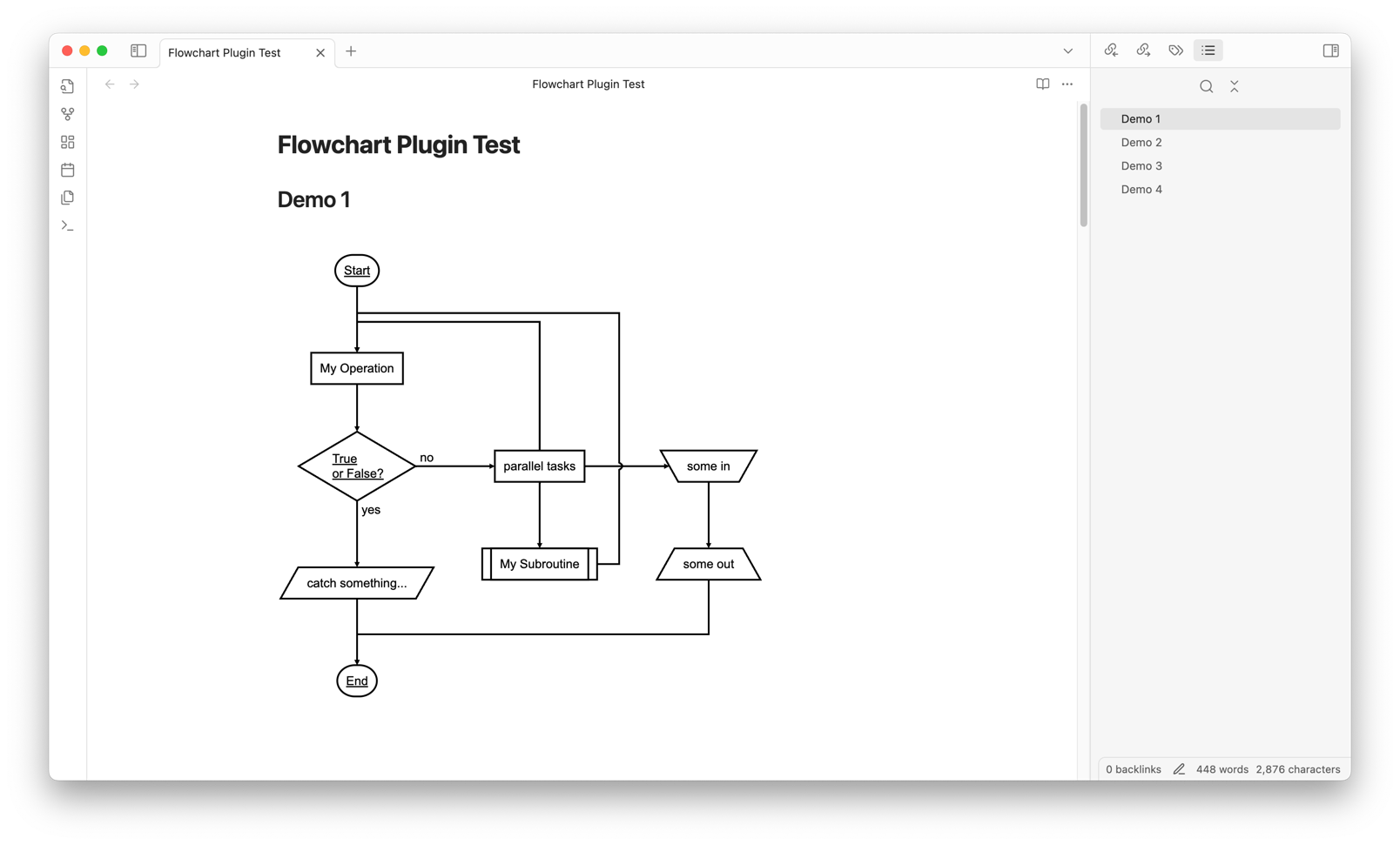
Render flowcharts using flowchart.js markup.
Flowchart Plugin


This is a custom plugin for rendering flowcharts in Obsidian using flowchart.js. It allows users to insert and render flowcharts directly within Obsidian notes using a dedicated code block syntax.
Features
- Renders flowcharts using
flowchart.jssyntax within Obsidian notes. - Supports customization of flowchart styles, such as line width, font size, colors, and element styling, directly from the plugin settings.
- Adjustable settings for each part of the flowchart, including start and end symbols, decision conditions, operations, and more.
- Provides an easy way to create interactive and visually appealing diagrams in your notes.
How to Use
-
Open a note in Obsidian and add a
flowchartcode block, like this:```flowchart st=>start: Start op=>operation: My Operation cond=>condition: Yes or No? e=>end: End st->op->cond cond(yes)->e cond(no)->op ``` -
The plugin will render the flowchart according to the configuration specified in the plugin settings. You can check more examples here: Flowchart Plugin test.
Plugin Settings
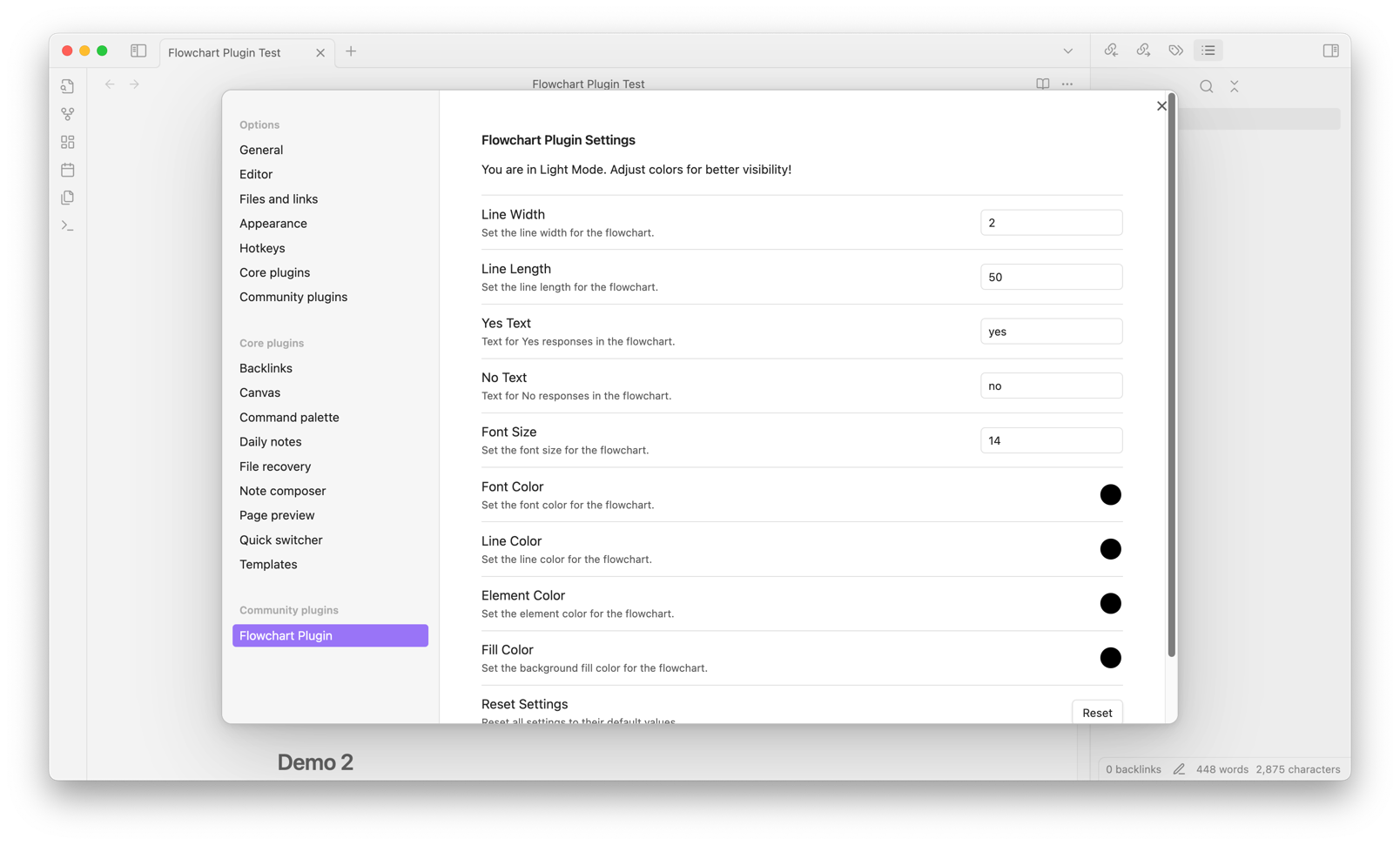
The plugin includes various settings that allow you to customize the appearance of the flowchart:
- Line Width: Controls the width of lines in the flowchart.
- Font Size: Sets the font size for text within the flowchart.
- Font Color: Changes the color of the font.
- Line Color: Sets the color of the lines connecting elements.
- Element Color: Adjusts the color of the shapes around text.
- Fill Color: Sets the background fill color for elements.
- Yes/No Text: Customizes the labels for decision paths.
You can access these settings under Settings > Community Plugins > Flowchart Plugin.
Development Guide
Building the Plugin
To build the plugin:
- Run
npm run buildto compile the TypeScript code. - Files will be output to the
distfolder for use in Obsidian.
Manually Installing the Plugin
If you'd like to install the plugin manually:
- Copy
main.js,styles.css, andmanifest.jsonto your Obsidian vault at.obsidian/plugins/obsidian-flowchart-plugin/. - Reload Obsidian and enable the plugin in Settings > Community Plugins.
Releasing New Versions
- Update
manifest.jsonwith the new version. - Update
versions.jsonto specify compatible Obsidian versions. - Create a GitHub release using the new version number as the tag.
- Upload
manifest.json,main.js, andstyles.cssto the release.
Troubleshooting
If you encounter issues with rendering or plugin behavior:
- Ensure you are using a compatible version of Obsidian.
- Check the developer console (
Cmd + Option + Ion macOS orCtrl + Shift + Ion Windows/Linux) for error messages. - Adjust settings to verify if certain configuration options are causing issues.
Contributing
Contributions to improve the plugin or add new features are welcome! Submit a pull request or open an issue to discuss potential changes.
License
This plugin is licensed under the MIT License.
For plugin developers
Search results and similarity scores are powered by semantic analysis of your plugin's README. If your plugin isn't appearing for searches you'd expect, try updating your README to clearly describe your plugin's purpose, features, and use cases.