Heading Mindmap
approvedby JhihJian
Open Markdown headings as editable mind maps and edit section content in a bottom pane. - This plugin has not been manually reviewed by Obsidian staff.
Heading Mindmap
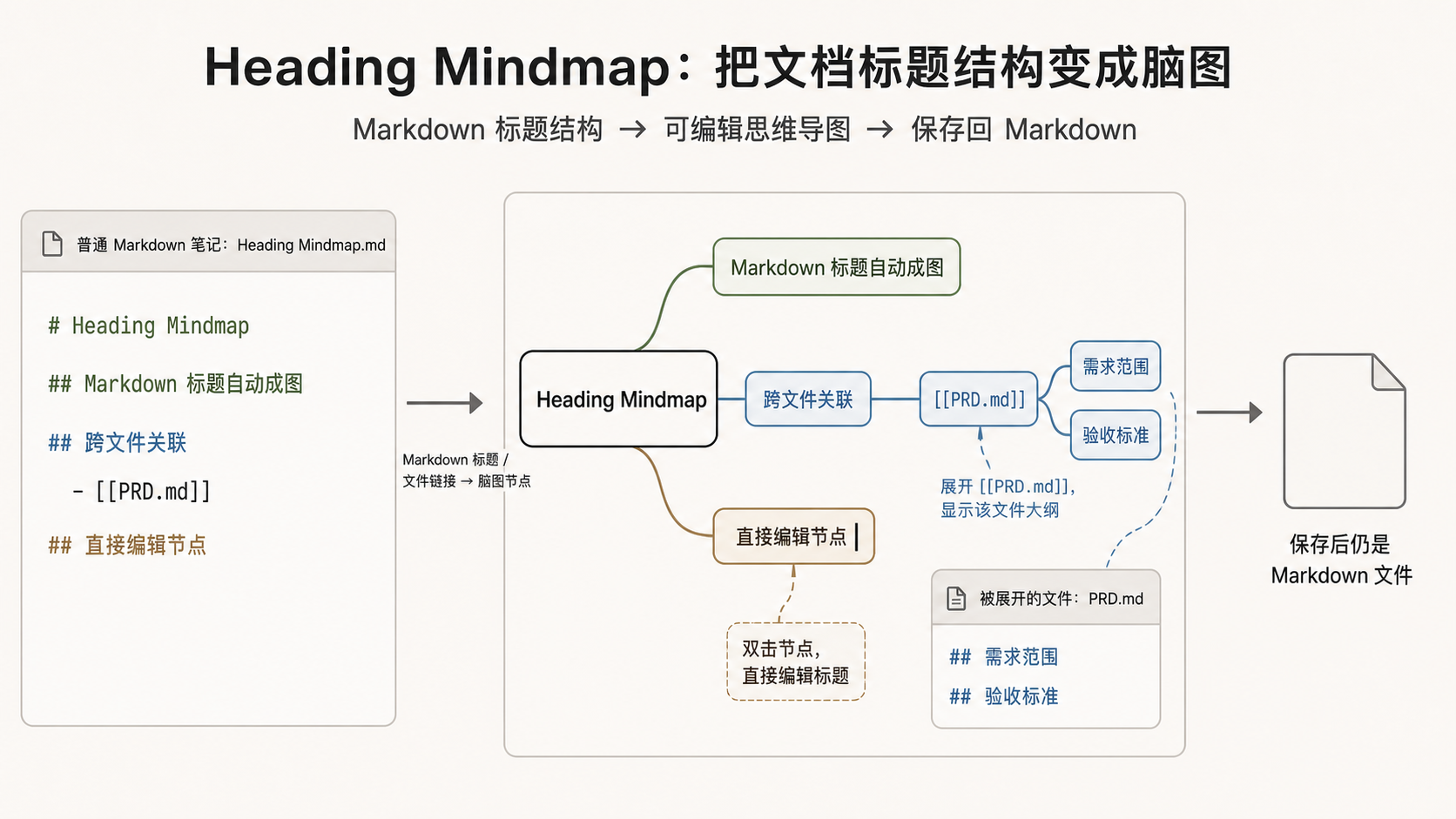
Heading Mindmap is an Obsidian plugin that opens Markdown heading structures as editable mind maps.
It keeps Markdown as the source of truth. The mind map shows the heading tree, while the pane below renders only the selected heading body with Obsidian's Markdown renderer. Editing switches the same pane to a focused Markdown source editor for the selected body.
Features
- Open a Markdown note as a dedicated mind map view.
- Show the Markdown file as a document root while keeping every real heading, including multiple H1 headings, editable as heading nodes.
- Edit heading titles inline in the mind map.
- Read and edit the selected heading body in the embedded mind map pane.
- Keep the selected heading context visible while editing, including expanded cross-file outlines.
- Save only the current heading body without changing the surrounding document structure.
- Add, delete, promote, and reorder nodes with keyboard shortcuts.
- Add Markdown file nodes and expand target file headings as read-only outlines.
- Search Markdown files from a fuzzy list when adding a file node.
- Optionally show Markdown list items from the current body as read-only virtual child nodes.
- Use toolbar zoom controls to zoom in, zoom out, reset to 100%, or fit the whole mind map into the current canvas.
- Open a shortcut reference table from the mind map toolbar.
- Preserve collapsed nodes, expanded file nodes, selection, scroll, and zoom state.
Usage
Enable Heading Mindmap in Obsidian settings, then run the command Open mind map (heading-mindmap:open). In Chinese Obsidian languages, the same command is shown as 打开思维导图.
The command opens the current Markdown file as a mind map. If the current tab is already a mind map for the same file, the existing view is reused; otherwise a new tab is opened so the normal Markdown source view can stay available.
Keyboard shortcuts:
Tab: add child node.Shift+Enter: add sibling node, including another H1 when an H1 is selected.Enter: edit selected node title.Ctrl+Enter: edit the selected node body in place.Ctrl+Space: minimize or restore the body pane.Shift+Tab: promote selected node.Alt+Up/Alt+Down: reorder sibling nodes.Space: collapse or expand the selected subtree.Delete: delete the selected node.- Arrow keys: move selection.
The mind map toolbar also includes a keyboard button for the full shortcut reference.
中文说明
Heading Mindmap 是一个 Obsidian 思维导图插件,让 Markdown 笔记可以用“可编辑思维导图”方式打开。
导图是笔记内容的结构化视图。标题层级决定节点层级;脑图下方阅读时由 Obsidian Markdown 渲染器显示当前标题的正文,编辑时在同一位置切换为 Markdown 源码编辑器,不再改变工作区分栏。
产品需求见 docs/PRD.md。
核心能力
- 导图上方只显示标题树,节点内不放操作按钮或正文内容;长标题会按节点宽高自适应完整展示。
- 文件名作为文档根节点展示,真实 Markdown 标题作为其子节点;多个 H1 会作为同级一级标题保留和编辑。
- 脑图下方的内嵌正文面板使用
MarkdownRenderer渲染当前正文,不显示 Obsidian 标签栏;点击铅笔按钮或按Ctrl+Enter后在原位置编辑当前标题正文,完成或取消后回到预览。 - Markdown 文件节点标题显示文件名,双击后根据目标文件大纲展开子导图;展开内容不重复显示目标文件的文档根节点。
- 添加 Markdown 文件节点时使用可搜索的文件列表,文件多时可以按路径检索。
- 导图工具栏提供快捷键速查表按钮。
- 可选把正文里的 Markdown 列表项作为只读虚拟子节点展示到导图上,不改写原 Markdown。
- 工具栏提供放大、缩小、适配全图和 100% 缩放重置,移动端可直接点按查看导图全局。
- 思维导图本身保存为普通 Markdown 文件。
- 支持键盘交互:
Tab新建子节点,Enter内联编辑标题,Ctrl+Enter原位编辑正文,Ctrl+Space最小化或展开正文区域,方向键移动选中节点。
当前实现状态
已实现:
- 打开独立思维导图视图。
- 从 Markdown 文件解析导图结构。
- 新建子节点、新建兄弟节点、删除节点及子树、同级排序、节点升级;H1 可新建同级 H1。
- 从当前库选择 Markdown 文件并添加为文件节点。
- 以可搜索列表选择 Markdown 文件,避免文件较多时在下拉选项中查找。
- 双击文件节点展开/收起目标文件标题层级。
- 文件节点展开时只显示目标文件的标题层级,不重复显示已有的文件名节点。
- 下方正文区域是导图内嵌面板。选择脑图节点时立即更新节点标题,空正文明确显示“暂无正文”;点击铅笔按钮或按
Ctrl+Enter后在原位置编辑,Ctrl/Cmd+S保存并回到预览,Esc放弃本次编辑。 - 工具栏提供快捷键速查表。
- 正文列表项可选展示为只读虚拟导图子节点。
- 节点标题在导图内联编辑,正文在下方内嵌 Markdown 编辑器中编辑。
- 导图节点使用当前主题和字体的真实 DOM 排版结果调整尺寸,并保留安全余量;数字采用等宽字形,长标题稳定、完整地换行显示。
- PRD 定义的键盘操作。
- 第六级标题边界提示。
- 普通 Markdown 视图修改后,导图视图自动刷新。
- 子树折叠、文件展开状态记忆。
- 同一文件的多个导图视图分别保存选中节点、滚动和缩放状态。
- 基础缩放和平移,工具栏可一键适配全图以减少移动端反复滚动。
待补齐:
- 更完整的撤销/重做集成。
开发命令
npm install
npm run lint
npm run build
npm test
发布或修改 Obsidian 运行时交互前,额外运行真实 Obsidian 端到端验证:
npm run build
npm run test:e2e:obsidian
该脚本需要 Node.js 22 或更高版本,并默认使用 C:\Program Files\Obsidian\Obsidian.exe;如安装路径不同,可通过 OBSIDIAN_EXE 环境变量指定。
ESLint 使用类型感知检查,并将异步 Promise 错误、未使用代码、测试误用以及文件/函数复杂度纳入质量门禁。自动修复可运行:
npm run lint:fix
开发监听:
npm run dev
部署到 Obsidian 测试库
推荐使用脚本:
npm run deploy -- "D:\path\to\your\test-vault"
也可以手动复制以下文件到库目录:
.obsidian/plugins/heading-mindmap/
需要复制:
main.js
manifest.json
styles.css
然后在 Obsidian 设置中启用 Heading Mindmap,用命令面板执行 打开思维导图(英文界面显示为 Open mind map)。命令默认在新 tab 打开导图以保留当前 Markdown 源码视图;如果当前 tab 已经是同一文件的导图,则复用当前导图。
For plugin developers
Search results and similarity scores are powered by semantic analysis of your plugin's README. If your plugin isn't appearing for searches you'd expect, try updating your README to clearly describe your plugin's purpose, features, and use cases.