Rich Mindmap
approvedby Younian
Editable mind maps backed by plain Markdown lists — priority, progress and flag marks, drag to reorganize. - This plugin has not been manually reviewed by Obsidian staff.
Rich Mindmap
English · 简体中文
An Obsidian plugin that turns an indented Markdown list into an editable mind map, with priority, progress and flag marks, and per-node notes. The source of truth stays a plain .md file — the same structured Markdown you and any AI read and write.
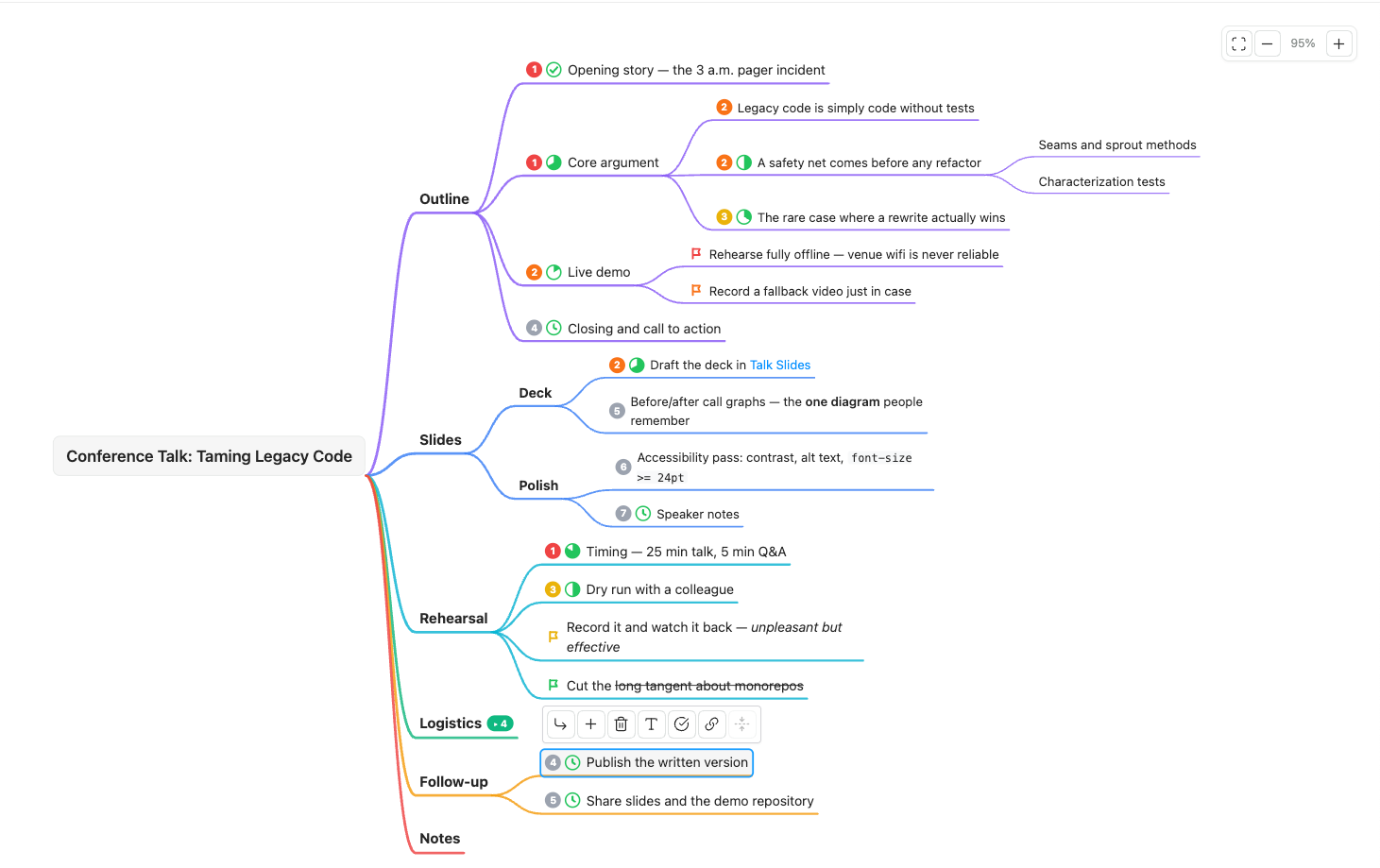
The example file open in mindmap view.
How it differs from other mindmap plugins
Mindmap plugins in the Obsidian community mostly fall into two groups: read-only previews built on markmap (they render a note as a mind map but you cannot edit on the map), and plugins built on Obsidian Canvas, whose data is .canvas JSON.
This plugin uses the same hierarchy model as markmap — headings plus nested lists — so a note you have been previewing with one of those plugins opens here and is editable on the map. It deliberately does not implement markmap's own dialect: the markmap: frontmatter options and the <!-- markmap: fold --> magic comments. Collapse state here lives in the mindmap-collapsed frontmatter key, and having two sources for it would force write-back to arbitrate between them — which conflicts with the promise that write-back does only the five normalizations listed below.
This one aims for:
- Editing directly on the map, while the data remains a plain Markdown indented list — no proprietary format, no coordinates, no JSON
- Priority / progress / flag marks written inline in the node text, readable and writable by both humans and AI
- Nodes can carry notes, shown on hover; a note is stored as a plain Markdown blockquote under the node, readable without this plugin
- An explicit file-safety boundary: only five byte-level normalizations are permitted (listed below), locked down by round-trip property tests
Editing is not unique to this plugin — several others manage it too. The mark system is, at the time of writing, uncommon in this category.
Example
Copy examples/conference-talk.md into your vault and open it in mindmap view. It covers: ## / ### sections forming the outer hierarchy, all seven priorities, all seven flag colours, progress across every stage, nested lists, wiki links, inline formatting, a parenthesized group that is not a mark, a collapsed heading recorded in mindmap-collapsed, plus frontmatter keys, and a prose paragraph that the plugin carries along without showing. (Notes came later; neither the example file nor the screenshot above uses one yet.)
---
mindmap: true
tags:
  - talk
  - 2026
speaker: me
mindmap-collapsed:
  - Logistics
---

# Conference Talk: Taming Legacy Code

## Outline

- (p1 100%) Opening story — the 3 a.m. pager incident
- (p1 67%) Core argument
  - (p2) Legacy code is simply code without tests
  - (p2 50%) A safety net comes before any refactor
    - Seams and sprout methods
    - Characterization tests
  - (p3 33%) The rare case where a rewrite actually wins
- (p2 17%) Live demo
  - (flag:red) Rehearse fully offline — venue wifi is never reliable
  - (flag:orange) Record a fallback video just in case
- (p4 0%) Closing and call to action

## Slides

### Deck

- (p2 60%) Draft the deck in [[Talk Slides]]
- (p5) Before/after call graphs — the **one diagram** people remember

### Polish

- (p6) Accessibility pass: contrast, alt text, `font-size >= 24pt`
- (p7 0%) Speaker notes

## Rehearsal

Run through it three times; the third one is the one that counts.

- (p1 83%) Timing — 25 min talk, 5 min Q&A
- (p3 50%) Dry run with a colleague
- (flag:yellow) Record it and watch it back — *unpleasant but effective*
- (flag:green) Cut the ~~long tangent about monorepos~~

## Logistics

- (flag:blue) Flights booked
- (flag:purple) Hotel confirmation filed under [[Travel 2026]]
- (flag:gray) Expense report — after the trip
- (draft) this line opens with parentheses but is not a mark

## Follow-up

1. Ordered lists are nodes too, numbering preserved
2. Nested ones work the same way
  1. Including their own numbering

- (p4 0%) Publish the written version
- (p5 0%) Share slides and the demo repository

## Notes

Headings and nested lists together form the hierarchy, so every `##` above is a
node on the map. What is *not* on the map: this paragraph and the `tags` and
`speaker` keys in the frontmatter — both carried along invisibly. Open this
file in mindmap view, switch back to source,
and it should come back byte for byte identical.
Installation
From the community plugin browser (recommended)
Settings → Community plugins → Browse, search for Rich Mindmap, install and enable it. The listing is at community.obsidian.md/plugins/rich-mindmap.
Requires Obsidian 1.8.7 or newer (the interface-language setting reads Obsidian's own language via an API added in that version).
From a release
Download main.js, manifest.json and styles.css from the latest release, put all three into <your vault>/.obsidian/plugins/rich-mindmap/, then enable Rich Mindmap under Settings → Community plugins.
From source
git clone https://github.com/YounianC/obsidian-rich-mindmap.git
cd obsidian-rich-mindmap
npm install
npm run build          # produces main.js
Then copy (or symlink) main.js, manifest.json and styles.css into <your vault>/.obsidian/plugins/rich-mindmap/.
main.jsis a build artifact and is not committed — build it yourself or take it from a release.
Data format
Top-of-line ATX headings (# through ######) and nested lists (unordered -/*/+ and ordered 1./1)) together form the hierarchy — the same hierarchy model markmap uses, so notes written for a markmap-based preview plugin open here directly.
- If the file's first node line is a level-1 heading, it becomes the root node. Otherwise the root node takes its text from the file name, and the first heading in the file becomes a child of it.
- A heading of level L attaches to the nearest heading of level < L; if there is none, it attaches to the root. So
# Tfollowed by### Cputs C under T (a level jump is fine), and a second# Xin the same file attaches to the root rather than nesting. - Within a heading, nested lists work as before: indentation depth defines the hierarchy, and the indent unit is remembered per heading.
On a heading node, Tab adds a list item child, and Enter adds a sibling heading reusing the same # prefix. What a heading node cannot do:
- It cannot be dragged. Moving
## Aunder## Bwould be written as## Bfollowed by## A, which re-reads as A being B's sibling — the move would be silently undone. The format cannot express "an H2 nested inside an H2" without rewriting the#count, and rewriting it is not allowed. - It cannot be deleted while it carries content that is invisible on the map (see the paragraph below). Deleting it would delete something you cannot see. When its only hidden content is a blank line, deletion is allowed and removes the whole section, subtree included.
- The root node specifically cannot carry marks, because a file without an H1 has no line to write them to.
Prose paragraphs, tables, code blocks and images under a heading are not shown on the map. They are carried along invisibly and replayed byte-for-byte on write-back — which is exactly why deleting a heading that carries them is refused.
Inline marks
A parenthesized group at the very start of a node's text is parsed as marks only if every space-separated token in it is a known mark:
| Syntax | Meaning |
|---|---|
p1 … p7 | Priority (p1 red, p2 orange, p3 yellow, p4+ grey) |
0% … 100% | Progress (mapped to a 7-stage pie; the value you wrote is preserved verbatim) |
flag:red flag:orange flag:yellow flag:green flag:blue flag:purple flag:gray | Flag |
Combine them freely: - (p1 60% flag:blue) node text. Order does not matter when reading.
If the group contains anything unrecognised, the whole group is treated as ordinary text — - (draft) some note is not a mark.
Marks work on heading nodes too, written after the #: ## (p2) Slides. Be aware that this leaks outside the plugin in a way marks on list items do not — heading text is addressable in Obsidian, so (p2) will show up in the Outline panel, in search results and in the graph, and adding a mark to a heading breaks any existing [[note#heading]] reference to it. The root node's H1 is the one exception: marks are refused there, because a file without an H1 has nowhere to write them.
Notes
A run of blockquote lines directly under a node line is that node's note:
- Q3 goals
  > Waiting on A to confirm the definition.
  > See last quarter's retention breakdown.
  - Acquisition
The map shows a badge; hovering it pops the note up. Select the node and use the toolbar's "Note" button to edit, Cmd/Ctrl + Enter to save.
It is an ordinary Markdown blockquote — it renders in reading view, it is searchable, and it stays readable and editable without this plugin. A blockquote separated from the node line by other content is not a note. The root node does not support notes, for the same reason marks are refused there: a file without an H1 has nowhere to write them.
As long as you leave a note alone, its lines are preserved byte for byte — >note with no space, > note with two, a Tab indent, all survive untouched. Only two actions rewrite them: editing that note on the map, or dragging a node that carries one to a different depth (the indent has to follow the new level). A node with a note can still be deleted and dragged — a note is visible on the map, so it does not count as hidden carried content.
Inline formatting
After the marks group is stripped, the rest of a node's text is rendered as inline Markdown on the canvas:
| Syntax | Renders as |
|---|---|
**bold** | bold |
*italic* | italic (only * — _ is left as a literal underscore, so font_size doesn't turn into emphasis) |
~~strikethrough~~ | strikethrough |
`code` | inline code |
[[page]] / `[[page | alias]]` |
[text](url) | a clickable external link, opened in a new tab |
Unmatched or malformed markers (an unclosed **, a stray *) fall back to plain text — they are never dropped or turned into an error. #tags and raw HTML are not rendered; a node's text is preserved as-is (that's how #tags keep working elsewhere in your vault). There is no image support:  is not recognised as an image syntax, so it degrades to a literal ! followed by a plain clickable link to the image file — the same treatment any other [text](url) gets — not an embedded picture. This rendering is what the toolbar's bold/italic/strikethrough/link buttons write.
Working with AI
The plugin embeds no AI. Point any AI at the .md file and let it edit directly — adding a node is one ordinary list item, with no ids, coordinates or JSON involved. When the file changes on disk the canvas re-parses and refreshes, keeping your viewport and selection where they were. If you had a local edit that had not yet been written to disk, the external content wins and a notice tells you so.
Content outside the list block — other frontmatter keys, preamble, code blocks, trailing paragraphs — is never rewritten.
Write-back normalizations
Opening a file in mindmap view and switching away can cause Obsidian to rewrite it even if you changed nothing. That rewrite may produce these five byte-level changes and only these five:
- A file not ending in a newline gains one.
- A loose list (blank lines between items) becomes compact. Unordered and ordered are different lists, and switching the delimiter (
1.to1)) also starts a new one, so a blank line is only compacted when both sides belong to the same list. CRLF(\r\n) becomesLF(\n).- List indentation follows whatever the file already uses — 2 spaces, 4 spaces, tabs are all preserved, and the unit is inferred per heading, so different sections may use different units without being rewritten. Only two cases are rewritten to 2 spaces per level: one list block mixes indentation styles internally so that no one consistent unit can be inferred; or several list blocks under the same heading disagree, in which case they are unified to the first unit that could be inferred.
-is two columns wide and1.is three, so mixing ordered and unordered in one block hits the first case more often. - Inline marks are written in a fixed order: priority → progress → flag (
(flag:blue 60% p3)becomes(p3 60% flag:blue)).
Everything else is byte-for-byte stable — including * and + list markers (never converted to -), ordered item numbers and delimiters (never renumbered or pulled back to start at 1), the # count and surrounding whitespace of every heading line, trailing whitespace after the frontmatter fence, and every line that is not a node line.
Known limits of the hierarchy parsing
##with no space after it is a valid empty ATX heading in CommonMark, but is not recognised here. That space requirement is precisely why a line starting with#tagis not mistaken for a heading.- A heading must start at column 0. CommonMark allows up to three leading spaces; those are not recognised, which is what keeps
## xinside a list item's continuation from being mistaken for a heading. - Setext headings (
Afollowed by===) are not recognised. - An ATX closing sequence is not stripped:
## A ##yields the node textA ##. The bytes round-trip, but the text on the map carries the trailing##. - A list block's boundary is "a run of consecutive list items"; prose between two items joins the earlier item's continuation without ending the block. So in
- a/ blank / prose /- b, the- bis treated as a child ofa, whereas CommonMark would have ended the list and read it as a code block. Same root cause as the pre-existing 4-space limitation.
Parse failure
If a file cannot be parsed as a mind map, the canvas shows an error card with a "switch to source mode" button. In that state the plugin does not write to the file at all.
Keyboard
| Key | Action |
|---|---|
Tab | Add child node |
Enter | Add sibling node |
F2 / double-click | Edit text |
Delete / Backspace | Delete node and its subtree |
| Arrow keys | Move selection through the tree |
Space | Collapse / expand |
Esc | Cancel editing / clear selection |
Cmd/Ctrl + wheel | Zoom (see Zoom below) |
| Drag empty space | Pan |
Dragging a node changes its parent and its position among siblings.
Zoom
The controls in the top-right corner of the canvas are Fit to window, Zoom out, the current zoom level, and Zoom in. The percentage in the middle is itself a button: click it to reset to 100% (actual size). It keeps the centre of the viewport fixed, so whatever you were reading grows in place instead of being pulled back to the root node (to go back to the root, hit Fit to window first, then the percentage). The range is 20%–300%.
Fitting a large mindmap to the window makes it tiny — a few hundred nodes typically land around 30%, which is barely readable. If you would rather open at actual size, set Settings → Rich Mindmap → Zoom when opening a mindmap to 100% (actual size): the viewport starts at the root node on the left, at 100%. The default is still Fit to window. The setting only affects views opened from that point on, not ones already open.
Toolbar
Selecting a node brings up a floating toolbar next to it: bold / italic / strikethrough, the marks panel (priority, progress, flag — clicking an active item clears it), insert a [[link]], edit the note (a multi-line box; Cmd/Ctrl + Enter saves, Esc cancels), and button equivalents for add child, add sibling, delete and collapse. The note button is disabled on the root node.
Commands
- New mindmap (folder context menu) — creates
未命名思维导图.mdin that folder (auto-numbered未命名思维导图 1.md,2, … if taken), containing amindmap: truefrontmatter block plus an H1 matching the file name, then opens it in mindmap view in the current pane. The H1 is there so the root node can be renamed directly in the map; renaming the file afterwards does not update the root text. - Toggle mindmap / source view — the mindmap view also has a "switch to source" icon button in its header (top right) that does the same thing. Switching back to source manually is not undone by auto-open; the file only re-enters mindmap view the next time it is opened.
- Open source pane side by side — the mindmap view header has a matching icon button. Opens the same file in source mode in a new pane to the left; click again to close it. If a pane is already showing that file it is reused rather than opening a third one. Both sides are editable and Obsidian handles the syncing (both views read and write the same file) — the plugin moves no text of its own. Two known limits: typing on the left takes about 2 seconds to reach the map on the right (that is Obsidian's own editor save debounce; the map writes back after 400ms), and edit one side at a time — editing both at once runs into Obsidian's own conflict merge, which this plugin does not control. The entry point is hidden on mobile.
- Mark as mindmap (write frontmatter) — writes
mindmap: trueso the file opens in mindmap view from then on (can be turned off in settings). On a file with no frontmatter it creates one. This command also normalizes the whole file's line endings toLF(normalization 3 above); visible content is unaffected.
With auto-open enabled, once a file is already showing in mindmap view in some pane, other panes showing the same file are no longer flipped automatically — this is the rule that keeps the source split alive. The cost: opening the same file as a mindmap in a second pane leaves that pane in source mode; use Toggle mindmap / source view to switch it by hand.
Language
The interface is available in English and Simplified Chinese. Settings → Rich Mindmap → Interface language offers three choices: Follow Obsidian (the default — it shows the language code it detected in parentheses), 简体中文, and English. Switching takes effect immediately, including the names in the command palette.
The default name of a file created by New mindmap follows the language too (Untitled Mindmap.md / 未命名思维导图.md). Existing files are never renamed.
Two limits worth knowing: zh-TW and zh-HK fall back to Simplified Chinese, and the plugin description in manifest.json is English only — Obsidian does not support localized manifests.
Development
npm install
npm run dev            # esbuild watch
npm test               # vitest
npm run typecheck
npm run check:purity
npm run check:i18n
src/model/ (collapse-state.ts, marks.ts, parser.ts, serializer.ts, tree-ops.ts, types.ts) plus src/view/layout.ts and src/view/camera.ts form a pure-function layer with no dependency on the Obsidian API or the DOM. npm run check:purity enforces that boundary; all of it is unit tested.
Releasing
Pushing a version tag builds and publishes a release automatically:
# 1. Bump version in manifest.json and add the matching entry to versions.json
# 2. Tag it — the name must equal manifest.version exactly, with no v prefix
git tag -a 0.2.0 -m "..."
git push origin 0.2.0
GitHub Actions runs the type check, unit tests, purity check and build, and only then creates the release with main.js, manifest.json and styles.css attached.
Project status
- The pure-function layer (parsing, serialization, marks, notes, collapse state, tree operations, layout, camera, i18n) is covered by automated tests throughout, including Markdown round-trip property tests and adversarial-input tests.
- The view layer (rendering, zoom/pan, keyboard, drag, toolbar, the note badge and its popovers) is verified by hand by design — being published does not change that. The checklist lives in docs/MANUAL-VERIFICATION.md; the "does it open, render and leave the file alone" section and all 16 🔴 high-risk items have passed, the remaining sections have not been worked through yet. Its appendix lists the defects found and fixed during development — that is where regressions are most likely.
Because the plugin rewrites your notes, verify write-back behaviour in a test vault or a git-tracked directory first, and only point it at notes you care about once you are satisfied.
Documentation
- AGENTS.md — guide for AI agents working in this repo: architecture boundaries, the hard constraints, the gates, and what the automated checks cannot see
- docs/MANUAL-VERIFICATION.md — manual verification checklist
- docs/superpowers/specs/ — design and decision record, including known limitations
License
For plugin developers
Search results and similarity scores are powered by semantic analysis of your plugin's README. If your plugin isn't appearing for searches you'd expect, try updating your README to clearly describe your plugin's purpose, features, and use cases.