Heatmap Bases View
pendingby Peter Peirce
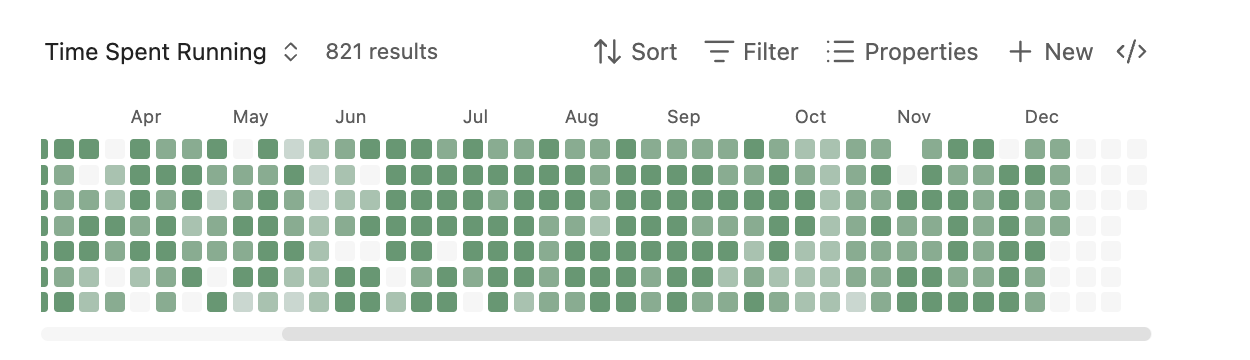
A GitHub-contributions-style heatmap view for Bases. Visualize boolean or numeric properties from daily notes over time.
Heatmap Bases View
A GitHub-contributions-style heatmap view for Obsidian Bases. Visualize boolean or numeric properties from your daily notes over time.
Requires Obsidian 1.10.0 or later (Bases feature)
Features
- Calendar heatmap visualization of note properties
- Support for boolean (checkbox) and numeric properties
- Parse dates from filenames (daily notes) or date properties
- Customizable color schemes (5 built-in, add your own in Settings)
- Light and dark theme support
- Configurable date ranges
- Layout direction (horizontal or vertical)
- Cell size presets (small, medium, large)
- Click cells to open corresponding notes
- Keyboard navigation support
Installation
Manual Installation
-
Build the plugin (or download release files):
npm install npm run build -
Create a folder for the plugin in your vault:
<YourVault>/.obsidian/plugins/heatmap-bases-view/ -
Copy these files to the plugin folder:
main.jsstyles.cssmanifest.json
-
Reload Obsidian (Ctrl/Cmd + R)
-
Enable the plugin in Settings > Community Plugins
Usage
Setting Up a Base with Heatmap View
-
Create some daily notes with a boolean or numeric property. For example, create notes named
2025-01-01.md,2025-01-02.md, etc. with frontmatter:--- exercise: true ---Or with numeric values:
--- mood: 7 --- -
Create a new Base:
- Open the command palette (Ctrl/Cmd + P)
- Search for "Create new base"
- Give it a name like "Exercise Tracker"
-
Configure the Base source:
- In the Base, click the filter icon or settings
- Set the source folder to where your daily notes are stored (e.g.,
Daily Notes/)
-
Switch to Heatmap view:
- Click the view switcher (usually shows "Table" by default)
- Select "Heatmap" from the dropdown
-
Configure the Heatmap:
- Click the settings/options for the view
- Date property: Leave empty to parse dates from filenames, or select a date property
- Value property: Select the property to visualize (e.g.,
exerciseormood) - Optionally configure color scheme, date range, and label visibility
Example: Habit Tracker
Create daily notes with this frontmatter structure:
---
meditated: true
exercise: false
water_glasses: 8
mood: 7
---
Then create separate Bases for each habit:
- "Meditation Tracker" → Value property:
meditated - "Exercise Tracker" → Value property:
exercise - "Hydration" → Value property:
water_glasses - "Mood" → Value property:
mood
Example: Using a Date Property
If your notes aren't named with dates, you can use a date property instead:
---
date: 2025-01-15
completed: true
---
In the Heatmap settings:
- Date property: Select
date - Value property: Select
completed
Configuration Options
| Option | Description |
|---|---|
| Date property | Property containing the date, or leave empty to parse from filename |
| Value property | Boolean or number property to visualize |
| Start date | Beginning of date range (YYYY-MM-DD), or leave empty for auto |
| End date | End of date range (YYYY-MM-DD), or leave empty for today |
| Color scheme | Select from available schemes (customize in Settings) |
| Week starts on | Sunday or Monday |
| Show weekday labels | Toggle Mon/Wed/Fri labels |
| Show month labels | Toggle month labels at top |
| Layout direction | Horizontal (GitHub-style) or vertical (calendar-style) |
| Cell size | Small (11px), medium (16px), or large (24px) |
Color Interpretation
- Empty (hollow): No note exists for this date
- Dim filled: Note exists but value is false/0/missing
- Colored intensity: Note exists with positive value
- For booleans: full intensity when true
- For numbers: intensity scaled between min and max values
Development
# Install dependencies
npm install

# Development build with watch mode
npm run dev

# Production build
npm run build

# Lint code
npm run lint

# Lint and auto-fix
npm run lint:fix
Linting runs automatically on staged files before each commit via husky pre-commit hooks.
Releasing
See RELEASING.md for the complete release process and version management.
For plugin developers
Search results and similarity scores are powered by semantic analysis of your plugin's README. If your plugin isn't appearing for searches you'd expect, try updating your README to clearly describe your plugin's purpose, features, and use cases.