QuickTimeBox
approvedby loudinthecloud
Embed interactive timeboxing in any note (quickly). - This plugin has not been manually reviewed by Obsidian staff.
QuickTimeBox — Obsidian Plugin
Plan your day directly inside your notes. Drop a quicktimebox code block anywhere in a note and get an interactive, editable timeline — no extra bloat needed.
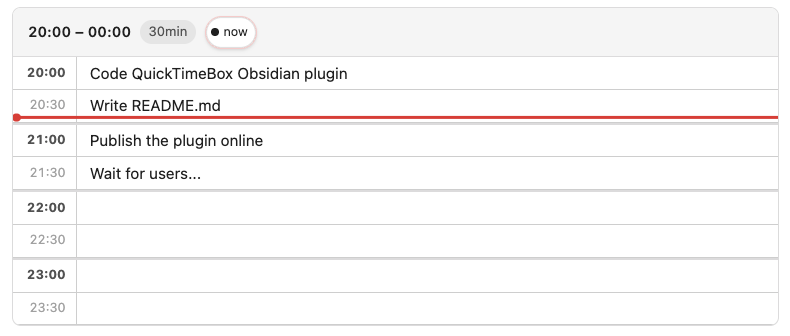
What it does
QuickTimeBox renders a structured time grid inside your Obsidian note. Each row is a time slot, you type your task directly into it. Changes are saved back to the note automatically.
Features
- Inline time grid — a clean table of time slots rendered right inside your note, from any start time to any end time
- Editable slots — click any slot and type; the note updates itself automatically after you finish
- Configurable granularity — slots of 15, 30, 60, or 120 minutes
- Live "now" indicator — a red line tracks the current time across the grid, updating every minute
- Now-line toggle — click the
● nowbutton in the header to show or hide the current time marker - Midnight-wrap support — ranges like
22:00–03:00work correctly across midnight - RTL support — set
"rtl": truein the block or write in a right-to-left note; the layout mirrors automatically
Installation (from source)
- Navigate to your vault's plugins folder:
<your-vault>/.obsidian/plugins/ - Clone the repository:
git clone https://github.com/loudinthecloud/obsidian-quick-timebox - Install dependencies and build:
cd obsidian-quick-timebox npm install npm run build - Reload Obsidian
- Go to Settings → Community plugins, find QuickTimeBox, and enable it.
Usage
Use the QuickTimeBox: Insert timeboxing command on any note.
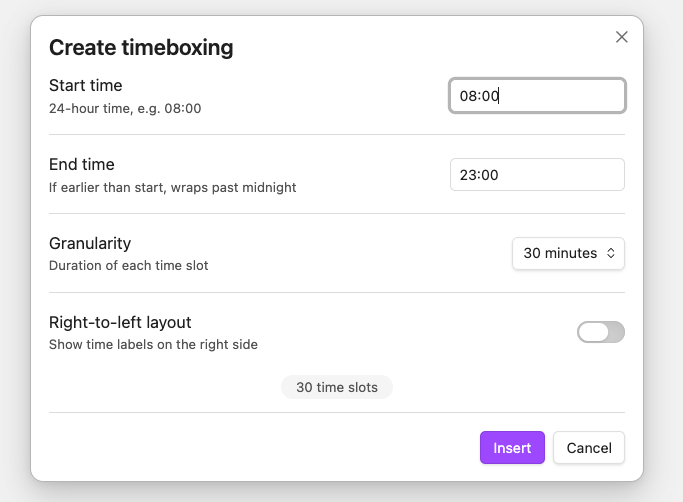
This will add a fenced code block with the language tag quicktimebox:
```quicktimebox
{
  "startTime": "20:00",
  "endTime": "00:00",
  "granularity": 30,
  "entries": {
    "20:00": "Code QuickTimeBox Obsidian plugin",
    "20:30": "Write README.md",
    "21:00": "Publish the plugin online",
    "21:30": "Wait for users..."
  },
  "rtl": false
}
```
| Field | Description |
|---|---|
startTime | Start of the timeline (HH:MM) |
endTime | End of the timeline (HH:MM) — can cross midnight |
granularity | Minutes per slot: 15, 30, 60, or 120 |
entries | Map of "HH:MM" → task text (pre-filled slots) |
rtl | true to force right-to-left layout (optional) |
showNow | false to hide the current-time indicator (optional, default true) |
Empty slots are blank and ready to type in. You don't need to list every time slot — only the ones you want pre-filled.
For plugin developers
Search results and similarity scores are powered by semantic analysis of your plugin's README. If your plugin isn't appearing for searches you'd expect, try updating your README to clearly describe your plugin's purpose, features, and use cases.