by theluckystrike
Convert default Vimwiki pages into Markdown notes with working local links.
Vimwiki Import
Vimwiki Import converts default Vimwiki pages that are already in your vault into Markdown notes. Select the source folder, choose a new destination folder, and review the conversion before you import. The source pages stay in place so that you can compare the result with the original.
The free import covers headings, basic lists, simple tasks, code blocks, and local wiki links. It keeps relative folder paths. A report shows skipped pages and syntax that needs review. Use this tool for default .wiki syntax; Markdown mode and media mode are outside its scope.
Features
Select folders in the vault
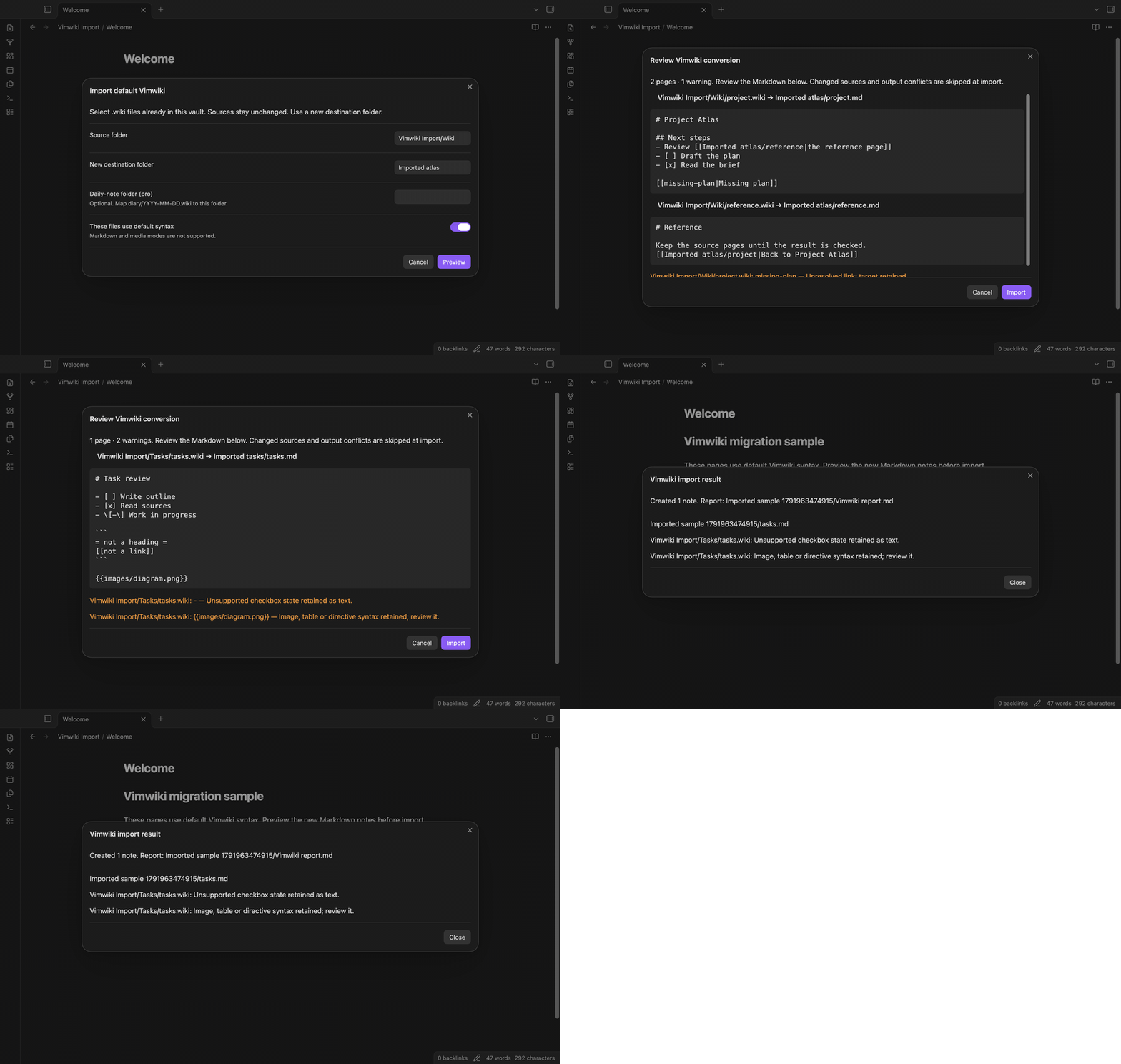
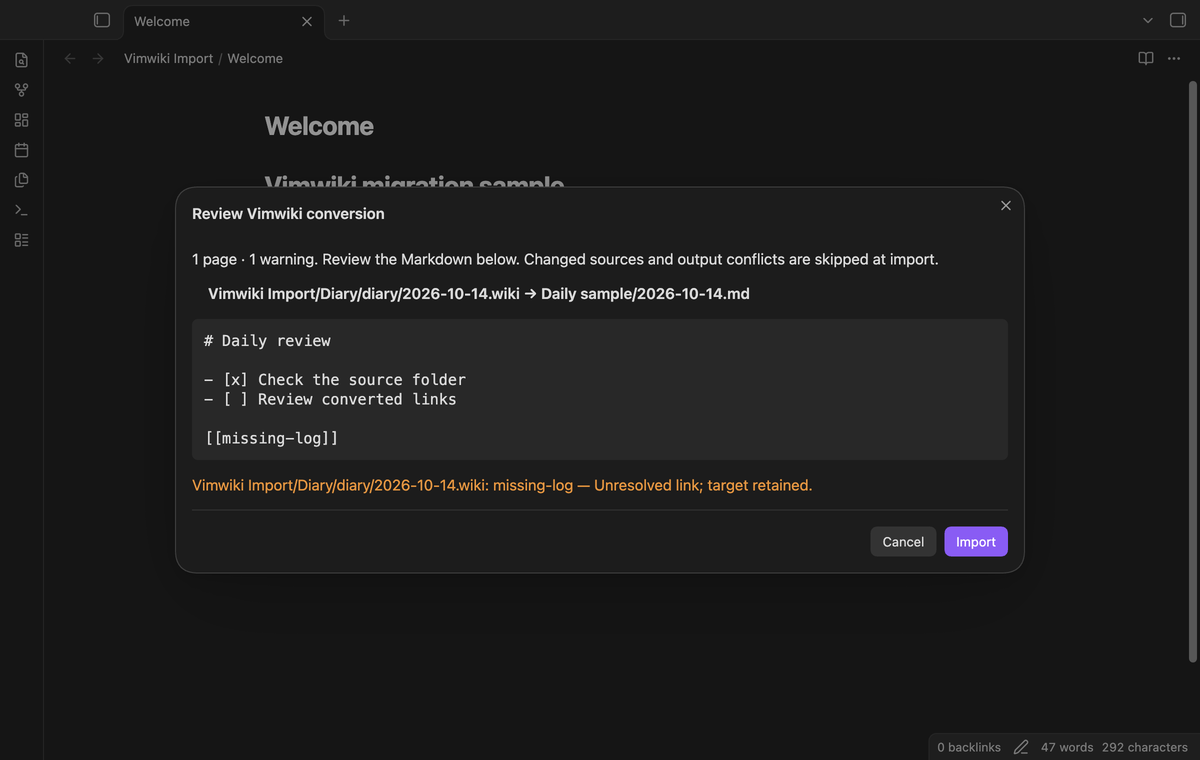
Run the preview command and type a source folder path relative to the vault. Select a new destination folder and turn on “These files use default syntax”. This explicit mode selection helps prevent a conversion of files from the wrong Vimwiki mode. The plugin reads .wiki pages below the source folder, including nested folders.
There is no external folder picker. Copy your Vimwiki pages into the vault before you start. The destination must be separate from the source; one folder cannot contain the other. Paths that leave the vault or contain unsupported characters are refused. A source page with an unsupported character in its name is skipped with a warning.
Review headings and mapped local links
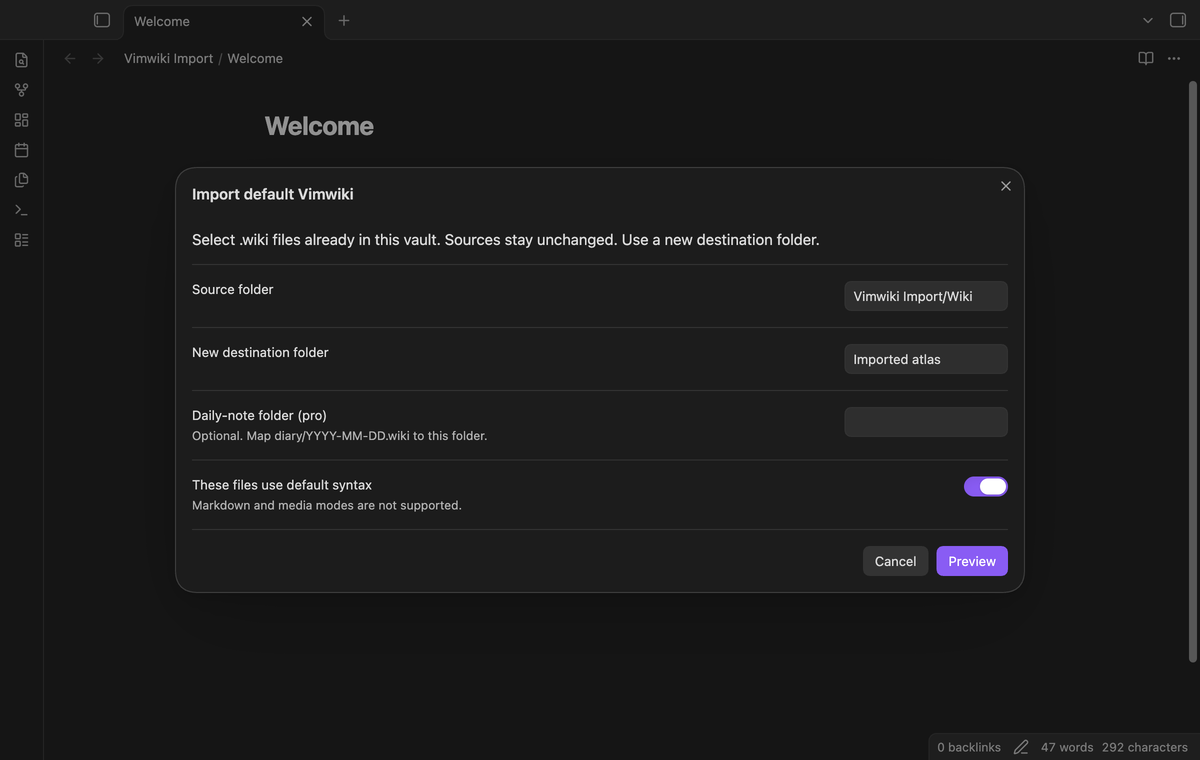
The preview shows the output path and Markdown text of each selected page. Spaced default headings from one to six equal signs become Markdown headings. A source link such as [[b|Label]] becomes a link to the mapped output note with its label. A parent target such as ../b resolves from the source page folder. A rooted wiki target such as /b resolves from the selected source root.
The file map uses the selected source pages. It does not search for a similar note name elsewhere in the vault. An absent page keeps its original target and adds a warning. HTTP and HTTPS links become Markdown links without a request to the linked website.
Convert lists, tasks, and code blocks
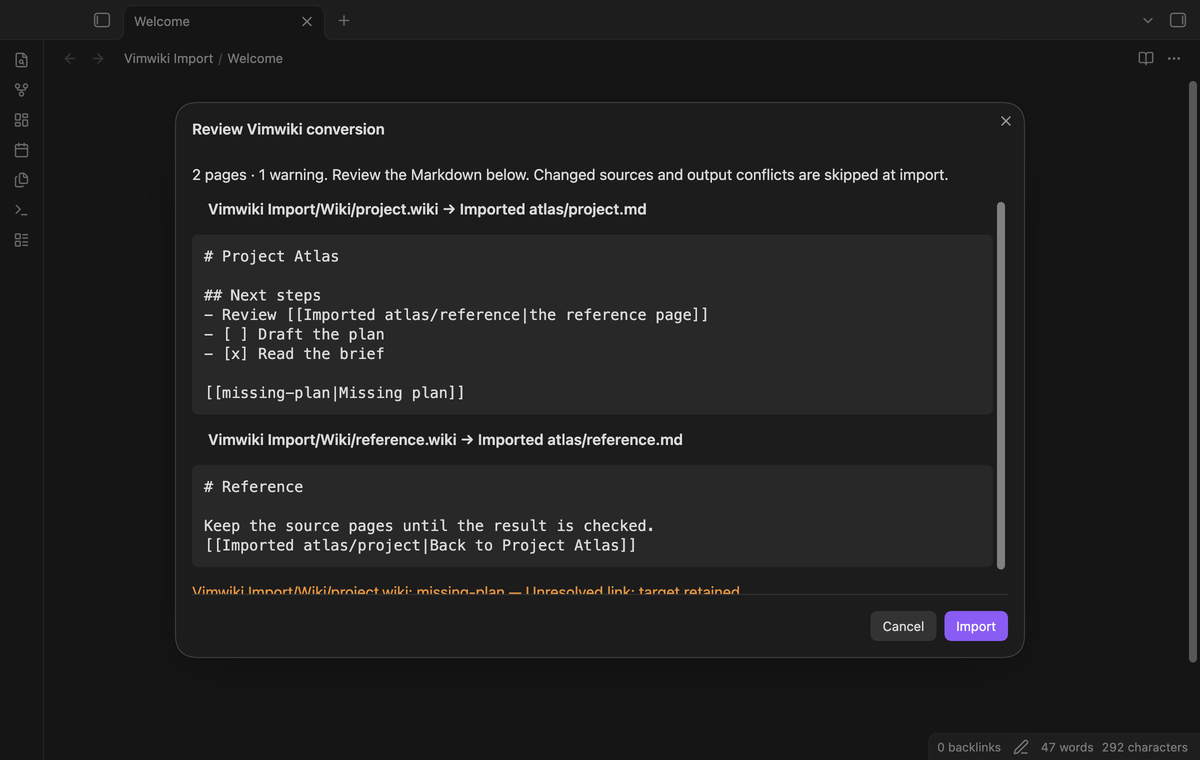
Basic bullet lists become Markdown bullet lists. Default numbered items that start with #, and numeric items, become items that start with 1.; Markdown supplies the displayed sequence. Indentation stays in the output. An unchecked box becomes - [ ], and X or x becomes - [x].
Other checkbox states stay as escaped text with a warning. Code between a {{{ line and a }}} line becomes a fenced block. Its body stays unchanged. The fence is longer than backtick runs in the source text, so a backtick line inside the block does not close it. An unclosed block gets a closing fence and a warning.
Keep sources and read the import report
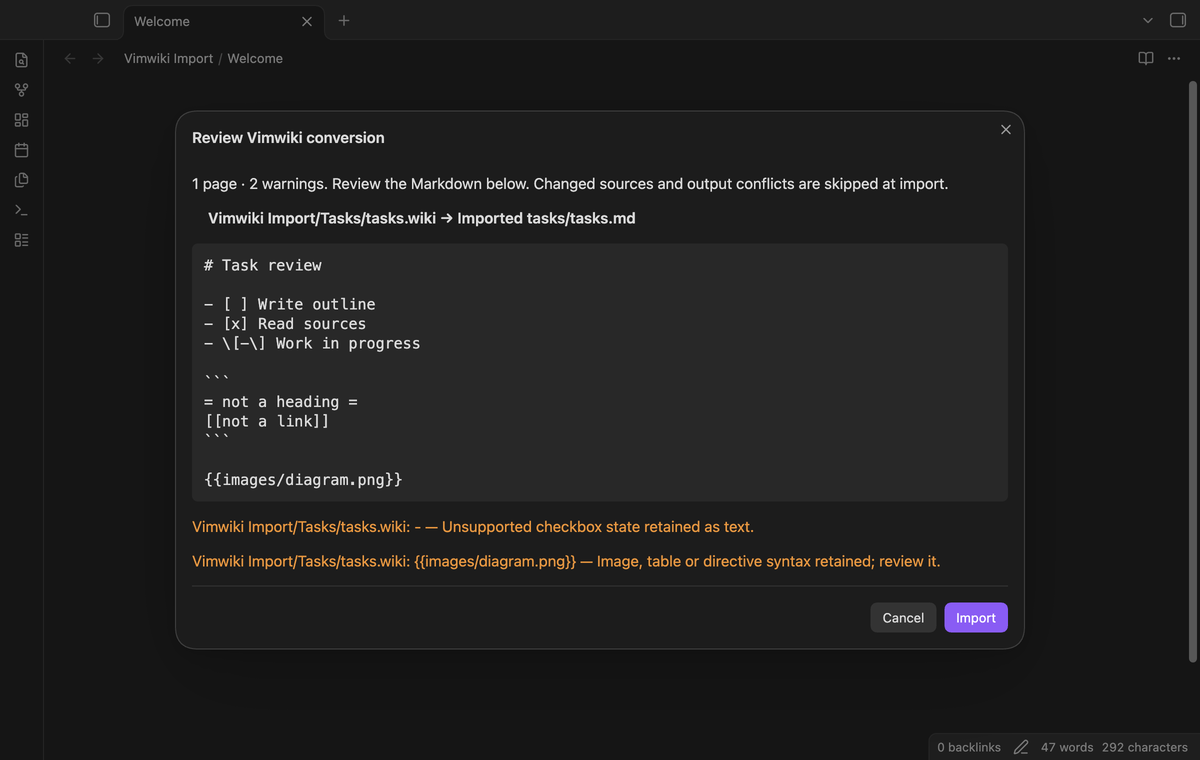
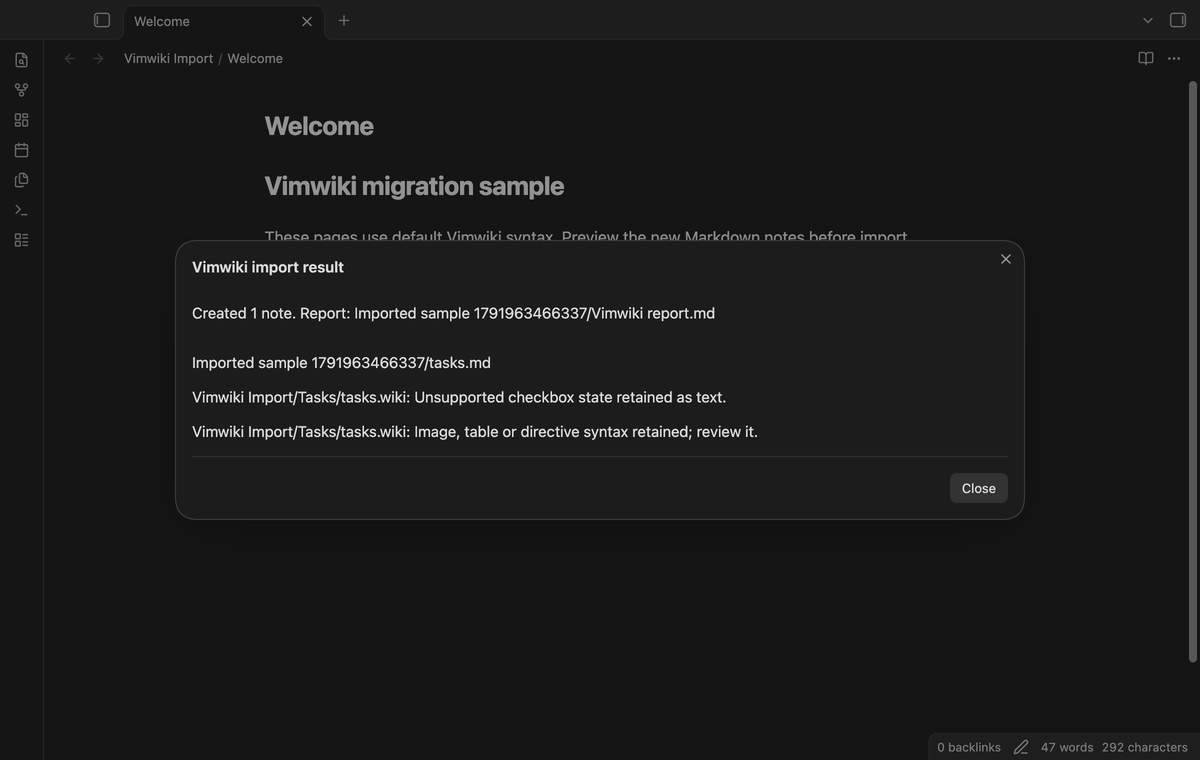
Import creates new notes. It reads each source again before the write and skips a page whose content changed or whose source is missing. If an output file or folder exists at the planned note path, that page is skipped. Existing contents keep their value. A failed page write adds a warning and the import continues with the next page.
The destination gets a Markdown report with created paths and review items. A report name conflict gets a numbered name. Cancel from the preview closes the dialog without an import. Once you select Import, closing the dialog does not cancel writes that started.
Map ISO diary filenames (Pro)
Enter a daily-note folder to map valid YYYY-MM-DD.wiki names below the source diary/ folder into that folder. For example, Wiki/diary/2026-10-14.wiki can become Daily/2026-10-14.md. Local links use this mapped path too.
An invalid calendar date keeps its normal destination-relative path. A duplicate mapped output is reported and skipped, and links to the skipped page stay unresolved. Paths that differ only in letter case count as duplicates. The daily-note folder cannot overlap the source. Existing daily notes are skipped, so review their conflicts in the report. Pro is checked at preview and again at import.
Combine unresolved-link reports (Pro)
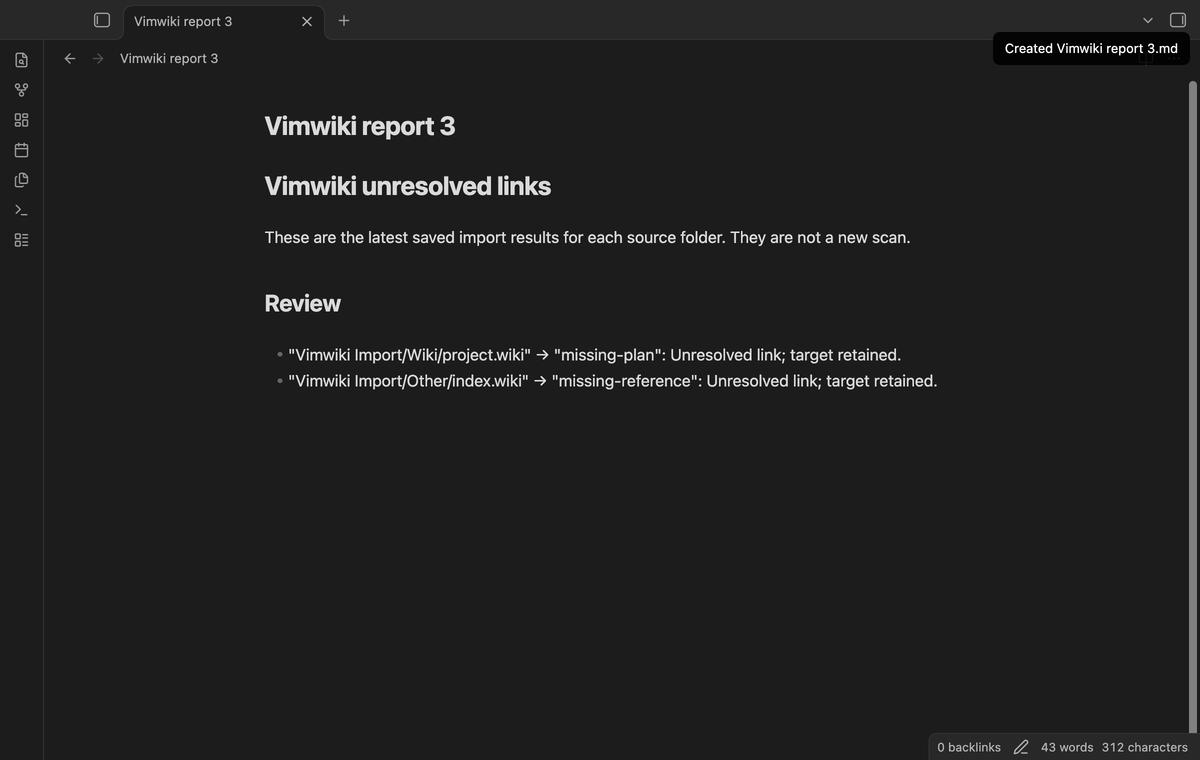
After you import several source folders, run “Create unresolved-link report (pro)”. It creates a new report in the vault root with unresolved targets from the latest saved import result for each source folder. This gives you one place to review missing pages from separate imports.
This report uses saved results. It does not scan the imported notes again or check edits made after an import. Importing the same source folder again replaces that folder’s saved result. Folder names and unresolved targets are stored in the plugin’s local settings data.
Install
For manual installation, copy main.js, manifest.json, and styles.css from the plugin release into <vault>/.obsidian/plugins/vimwiki-import/. Open Community plugins in Settings and enable Vimwiki Import. This version needs Obsidian 1.13.4 or later. The plugin has no runtime dependency on Vim.
Usage
- Make a vault backup and place the source pages in a folder in the vault.
- Run “Vimwiki Import: Preview import” from the command palette.
- Enter separate source and destination paths and select the default syntax mode.
- Select Preview and inspect the paths, converted text, and warnings.
- Select Import, then open the report from the destination folder.
Compare a few converted notes with their source pages before you remove or move source data yourself. Links to pages skipped during import can need manual review. The preview is plain Markdown text so that the conversion is visible without theme-dependent rendering.
Settings
The dialog remembers source, destination, and daily-note paths after an import. A blank daily-note path disables diary mapping. The default destination is Vimwiki notes. Mode selection starts off when you open a new dialog. The plugin settings tab contains the GitHub Sponsors controls and account status.
FAQ
Which syntax needs manual review?
Images, attachments, tables, anchors, directives, and rich text can need edits. Attachments are not copied. Image syntax keeps its original path and a warning. Anchor targets, Windows rooted paths, // absolute file paths, and unsupported link schemes stay unchanged. A relative link outside the selected source map is unresolved. A plain language name after {{{, such as {{{python, becomes the fence language. Other options on the opening delimiter are dropped with a warning. Alphabetic and Roman list markers are not converted.
What was not tested?
Desktop end-to-end tests passed on Obsidian 1.13.4 and 1.14.4 on macOS. Linux, Windows, and light-theme CI were not run locally. This run did not test phones, tablets, Vimwiki Markdown mode, Vimwiki media mode, attachment copying, live GitHub payment, or a large real migration. The tests use small source fixtures and simulated sponsorship answers. No import speed claim is made.
Payment, account and network
The core features are free. Pro features need a GitHub Sponsors sponsorship of theluckystrike: $5 a month or more, or $15 once. A total payment of $15 meets the payment requirement for Pro without further payment. Sign-in and the checks below still apply. Your notes stay readable and editable with or without Pro.
GitHub handles the payment. Sponsor at https://github.com/sponsors/theluckystrike. You need no account for the free features. Pro needs the GitHub account that sponsors.
Until you select "Sign in with GitHub" in the settings, Vimwiki Import makes no network requests. Sign in uses the GitHub device flow. Vimwiki Import sends its public client ID and the scope read:user to https://github.com/login/device/code and shows you a code. While you enter the code at https://github.com/login/device, it asks https://github.com/login/oauth/access_token every few seconds to check the sign-in status. The scope permits profile reads only. GitHub needs this access to show the sponsorship tier. It grants no repository scope and no write access.
After sign in, Vimwiki Import sends one query to https://api.github.com/graphql. It checks if the signed-in account sponsors theluckystrike. It asks for the tier and the total payment to theluckystrike. The plugin reuses a successful check for 7 days. Failed checks can retry after 6 hours. Select Refresh to request an earlier check. It sends no note content, file names or other vault data, and it has no telemetry.
After a successful check, Pro can work offline for up to 14 days. Sign out or a negative sponsorship answer turns Pro off. The plugin stores the GitHub token through the secret storage API of Obsidian. It does not put the token in its saved settings or its local sponsorship data. The local storage of this device keeps your GitHub login, the tier and the time of the last check. Sign out clears the token. You can also revoke the access in your GitHub settings, under Applications.
Support
Report a defect in the repository issues with your Obsidian version and a small sample that reproduces it. Remove private text from the sample. Include the source path structure and the relevant report warning so that the link map can be checked.
For plugin developers
Search results and similarity scores are powered by semantic analysis of your plugin's README. If your plugin isn't appearing for searches you'd expect, try updating your README to clearly describe your plugin's purpose, features, and use cases.