by theluckystrike
Import WordPress XML exports as notes with dates, tags, and comments.
WordPress WXR Import
WordPress WXR Import turns a local WordPress XML export into Markdown notes. Use it to keep a blog archive in your vault, then read posts beside your other notes. The free import includes posts, pages, properties, approved comments, an index, and a report.
Features
Preview a local export
Select one UTF-8 WXR XML file. The window shows separate post and page counts before you create notes. It also shows skipped records, omitted comments, and shortcode counts. The file size limit is 20 MiB, with a second limit of 10000 item records. Preview writes no notes. The source file stays unchanged. XML namespace identifiers do not cause network requests.
Notes with source IDs and properties
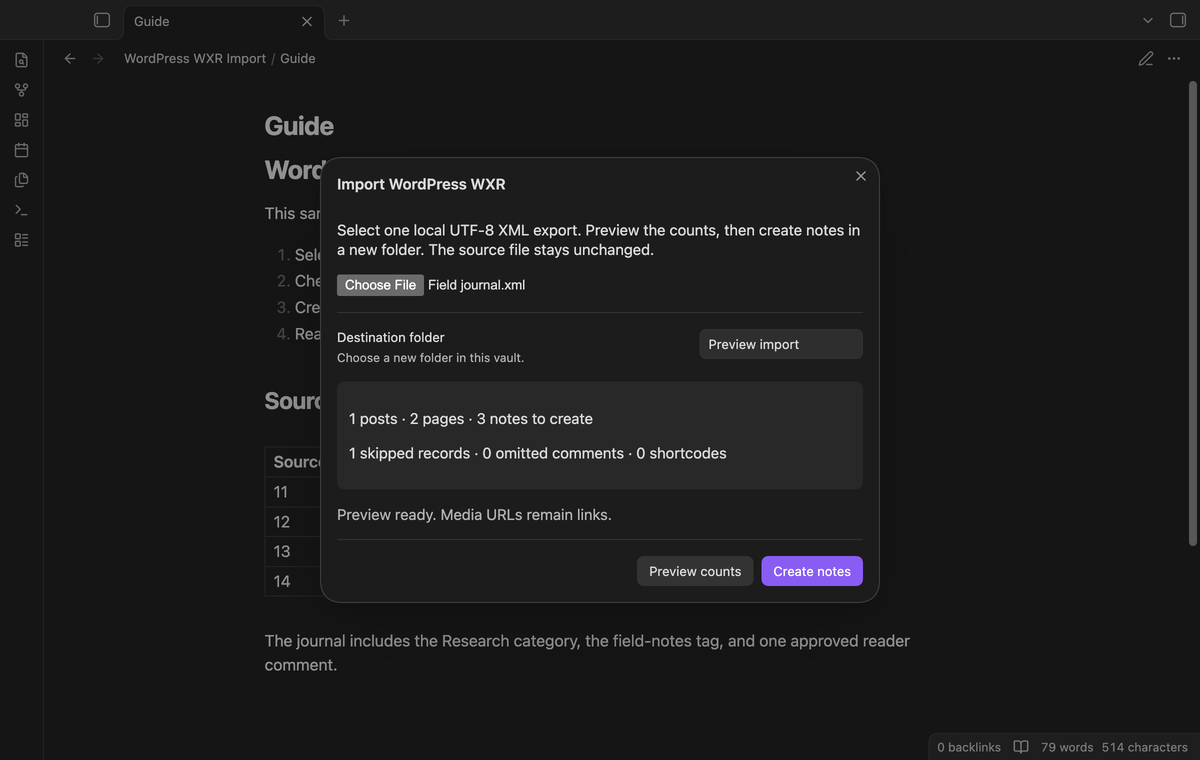
An import creates one note per post or page in a new folder. Two posts titled Plan with IDs 11 and 12 become Plan-11.md and Plan-12.md. An empty title with ID 13 becomes Post-13.md. The properties keep the title, source ID, record type, creation and modification dates, author, status, categories, and tags. Valid dates also set the note file dates. A draft with a zero GMT date uses its local date.
Body text and approved comments
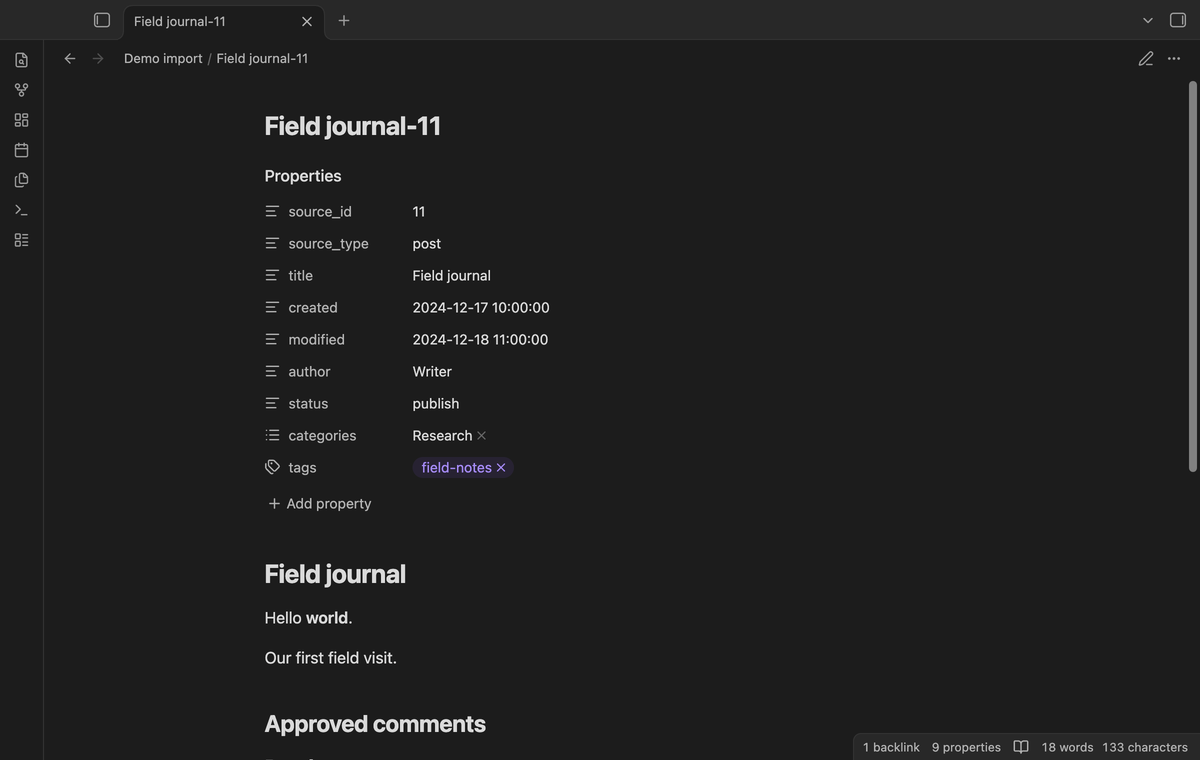
The importer uses the HTML to Markdown function of Obsidian. A paragraph with bold text becomes a Markdown paragraph with bold text. Approved comments follow the body under an Approved comments heading. Their author and date stay with the comment. Comments marked pending, spam, or trash are omitted and counted in the report.
Media URLs become links rather than image embeds. An image inside a link becomes the link text. Shortcodes such as [gallery ids="1"] stay as text. The report gives their count so that you can find formatting that needs a manual check. The importer does not download media bytes.
Index and skipped record report
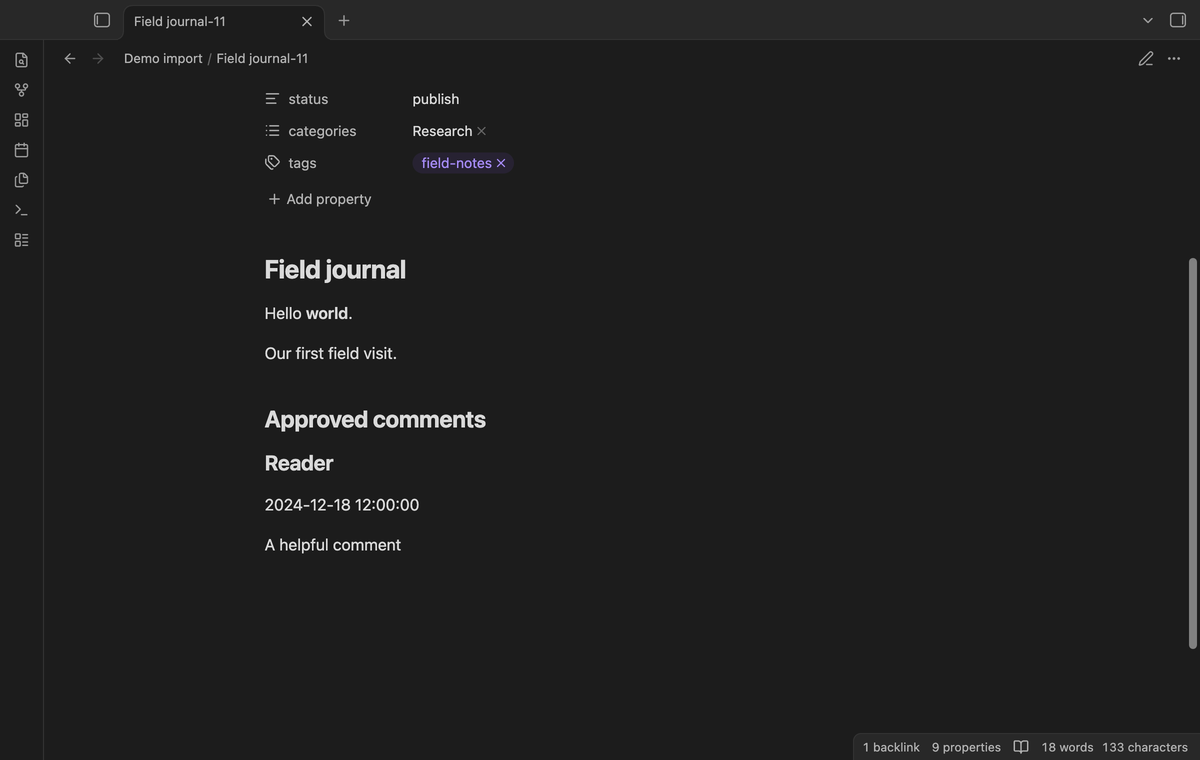
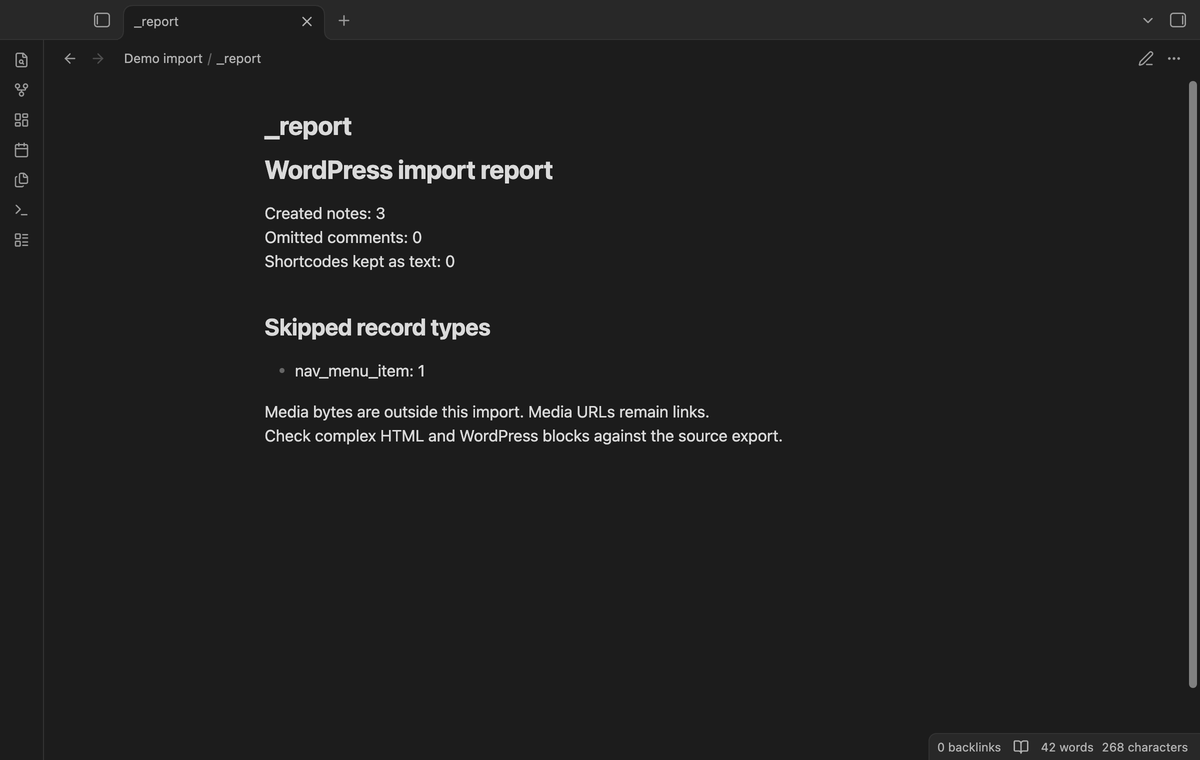
Open _index.md to find links to the imported notes. Open _report.md to check the skipped record types. Attachments and navigation items are examples of records that do not become notes. An existing destination folder stops the import. This protects the notes in an earlier import from replacement.
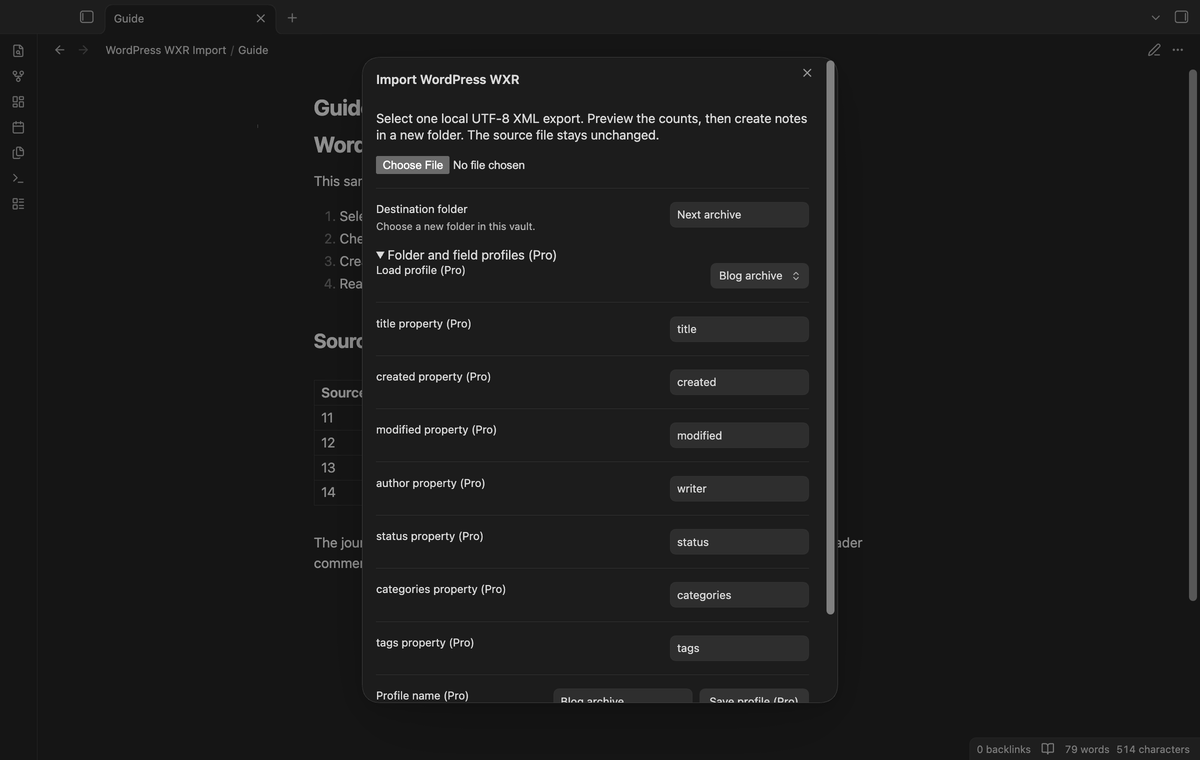
Folder and field mapping profiles (Pro)
Save a named profile with a destination folder and property names. For example, map author to writer and title to heading. Source ID and record type keep their fixed names. Property names must be distinct and use letters, numbers, _, or dashes. Expand Folder and field profiles in the import window to load a profile, then choose a new destination if its folder exists. Profiles are saved in the plugin data on this device.
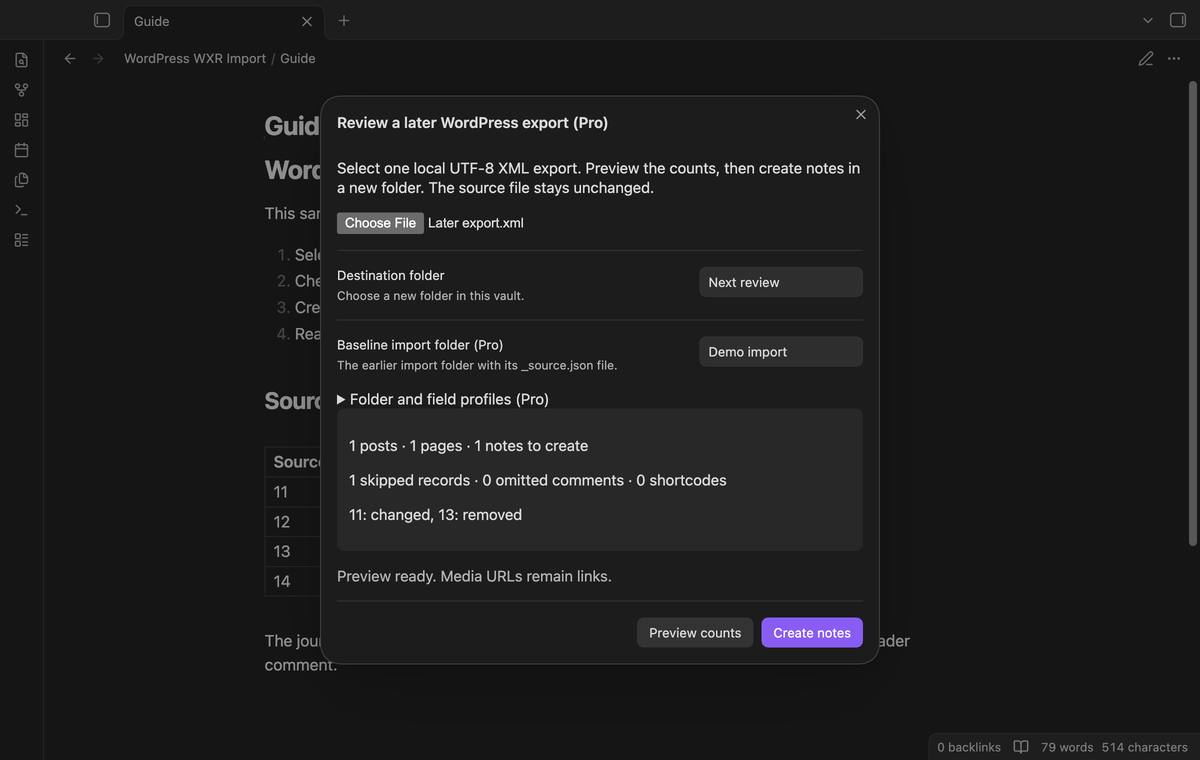
Compare a later export (Pro)
An import keeps _source.json, a local snapshot of its source records. Select Compare a later WordPress export, choose the later XML file, and enter the earlier import folder. The preview lists source IDs that were added, changed, or removed. Create the review in a new folder. Only added and changed posts or pages become review notes. Removed IDs appear in the report. The earlier notes stay in place.
Comparison uses the exported source records, including properties, body HTML, and approved comments. It does not compare manual edits to your imported Markdown notes. Keep the snapshot if you plan to compare another export. Use exports from the same site, because source IDs can overlap between sites.
Install
When this plugin is listed, open Settings, Community plugins, then Browse. Search for WordPress WXR Import, select Install, and enable it.
For manual installation, copy main.js, manifest.json, and styles.css from a release into <vault>/.obsidian/plugins/wordpress-wxr-import/. Reload community plugins and enable it. The minimum Obsidian version is 1.13.4. The code uses browser and public Obsidian APIs.
Usage
- Export content from WordPress as a WXR XML file.
- Run Import a local WordPress XML export from the command palette.
- Select the local file and enter a new destination folder.
- Check the counts. If you change the folder or mapping, select Preview counts again.
- Select Create notes, then open the index and report in the destination.
Start with a small export. Check its body formatting and dates before you use a larger archive. The plugin reads the selected file outside the vault through the file picker. It writes the output inside the vault. Keep the original XML as a separate backup.
Settings
The settings tab shows the import limits and GitHub Sponsors controls. The import window holds the destination folder. With Pro active, it also shows profile names and field mapping controls. Save profile replaces the stored profile with the same name. Up to 30 profiles can be stored. Sign out turns off profile and comparison access; your created notes remain readable.
FAQ
Why did the import stop?
The plugin rejects malformed XML, DOCTYPE or entity declarations, unsupported WXR namespaces, duplicate post or page IDs, unsafe paths, and an existing destination folder. Read the cause in the import window. If a disk write fails after creation starts, the new folder can contain partial output. Check it and use a different folder for a retry.
What formatting needs review?
Complex WordPress blocks and shortcodes can lose layout. Shortcodes remain text and are not executed. Scripts, styles, and frames are removed. Media links do not carry the image, audio, or video bytes. Select a link to open its target; that action can contact its host through your browser.
What was not tested?
Physical phones and tablets, live WordPress site exports, non-UTF-8 files, and a live GitHub payment or sign-in were not tested. The named files mywordpresswebsite.WordPress.2024-12-17.xml and testing.wordpress.xml were not supplied. Synthetic fixtures test their stated record counts. Linux desktop execution and light-theme captures were not tested. Large archives near the size limit and custom theme layouts were not measured.
Payment, account and network
The core features are free. Pro features need a GitHub Sponsors sponsorship of theluckystrike: $5 a month or more, or $15 once. A total payment of $15 meets the payment requirement for Pro without further payment. Sign-in and the checks below still apply. Your notes stay readable and editable with or without Pro.
GitHub handles the payment. Sponsor at https://github.com/sponsors/theluckystrike. You need no account for the free features. Pro needs the GitHub account that sponsors.
Until you select "Sign in with GitHub" in the settings, WordPress WXR Import makes no network requests. Sign in uses the GitHub device flow. WordPress WXR Import sends its public client ID and the scope read:user to https://github.com/login/device/code and shows you a code. While you enter the code at https://github.com/login/device, it asks https://github.com/login/oauth/access_token every few seconds to check the sign-in status. The scope permits profile reads only. GitHub needs this access to show the sponsorship tier. It grants no repository scope and no write access.
After sign in, WordPress WXR Import sends one query to https://api.github.com/graphql. It checks if the signed-in account sponsors theluckystrike. It asks for the tier and the total payment to theluckystrike. The plugin reuses a successful check for 7 days. Failed checks can retry after 6 hours. Select Refresh to request an earlier check. It sends no note content, file names or other vault data, and it has no telemetry.
After a successful check, Pro can work offline for up to 14 days. Sign out or a negative sponsorship answer turns Pro off. The plugin stores the GitHub token through the secret storage API of Obsidian. It does not put the token in its saved settings or its local sponsorship data. The local storage of this device keeps your GitHub login, the tier and the time of the last check. Sign out clears the token. You can also revoke the access in your GitHub settings, under Applications.
Support
Report a fault in this repository's issue tracker. Give the Obsidian version, the error text, and a small XML sample with private text removed. Do not include account tokens or private reader details. The plugin uses the MIT license. Source and test files are included for review.
For plugin developers
Search results and similarity scores are powered by semantic analysis of your plugin's README. If your plugin isn't appearing for searches you'd expect, try updating your README to clearly describe your plugin's purpose, features, and use cases.