by theluckystrike
Import Substack writer exports as notes with post bodies, dates, and publication fields.
Substack Export Import
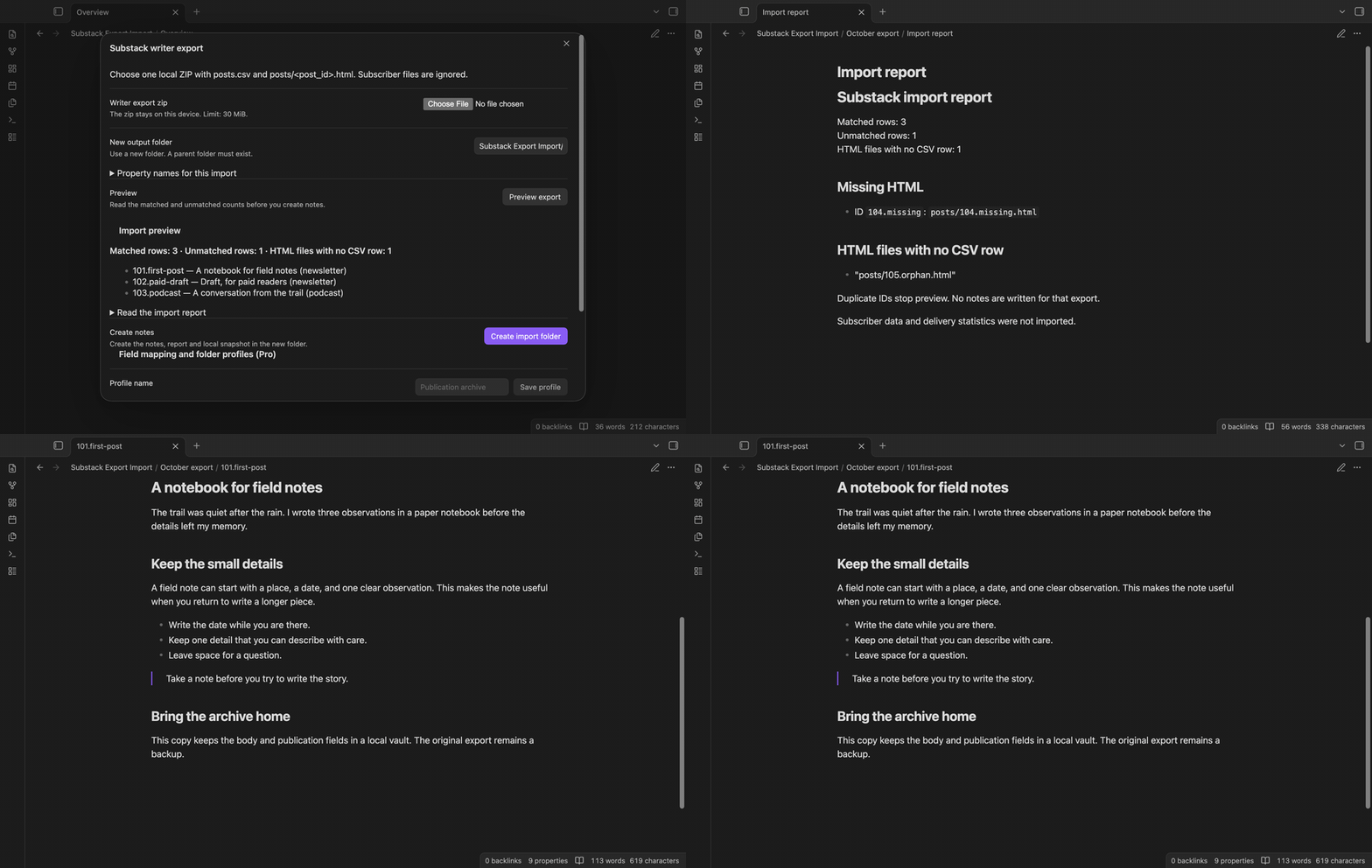
Import a local Substack writer export into Obsidian. The plugin joins CSV rows to HTML bodies, converts the bodies to Markdown, and keeps publication fields as note properties. Start with a ZIP on your device and finish with a new folder of notes and a report.
The core import is free. Saved profiles and comparison of later exports are optional Pro features. A Substack account is not used by the plugin. It reads the file that you select with the local file picker. This picker can read an export outside the vault.
Features
Preview a local export
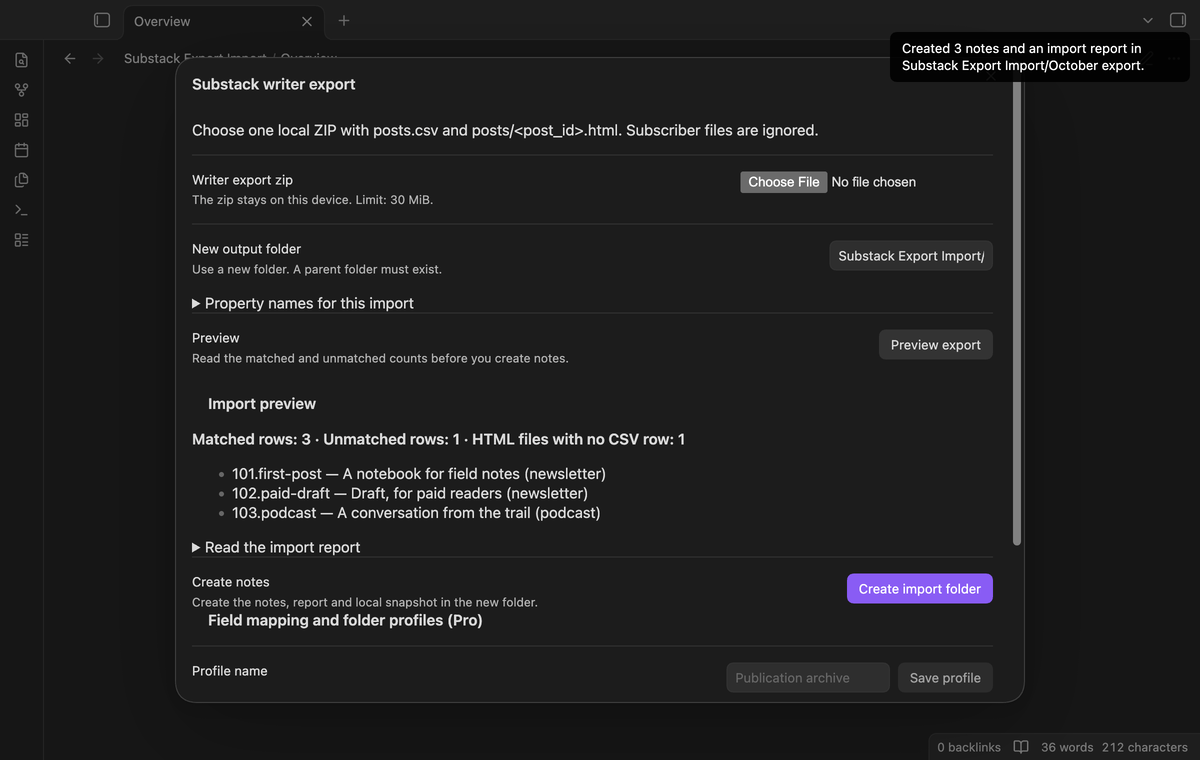
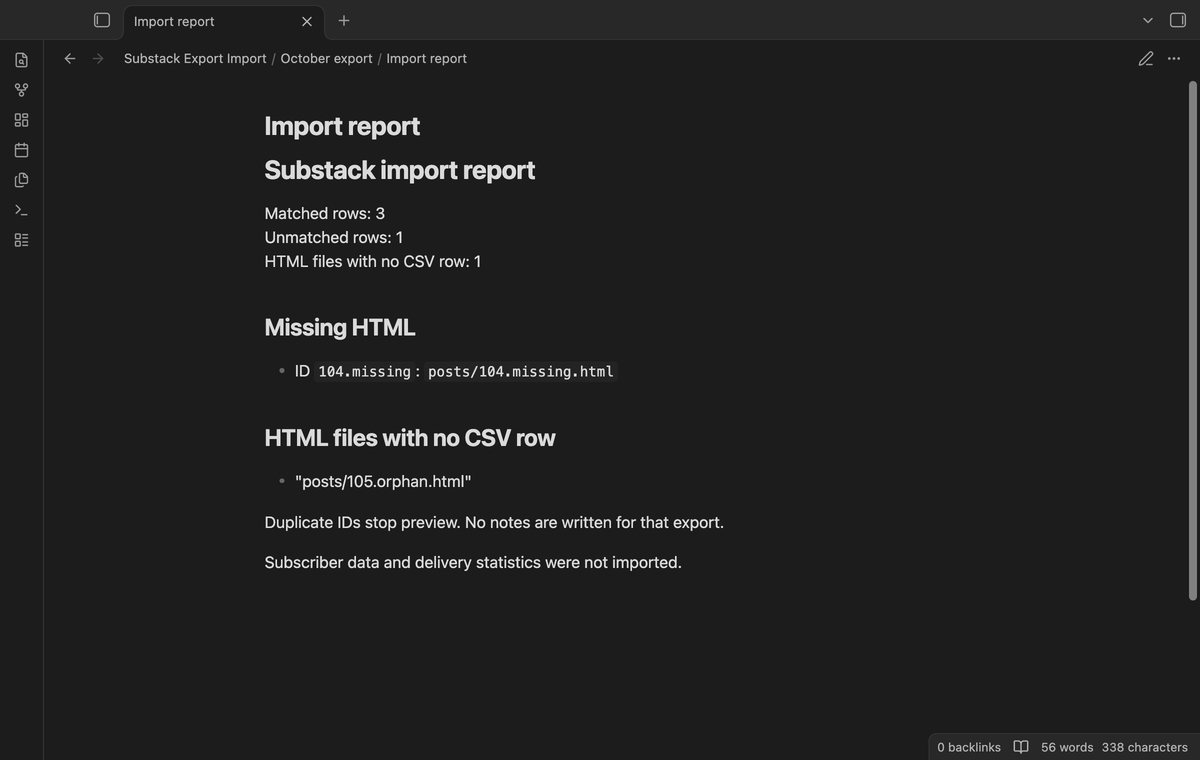
Choose one ZIP with posts.csv at its root. The preview shows matched rows, rows without HTML, and HTML files with no CSV row. It lists the first twelve matched posts so you can check their titles and types. Open the report in the window to see missing paths before you create notes.
Convert post bodies to Markdown
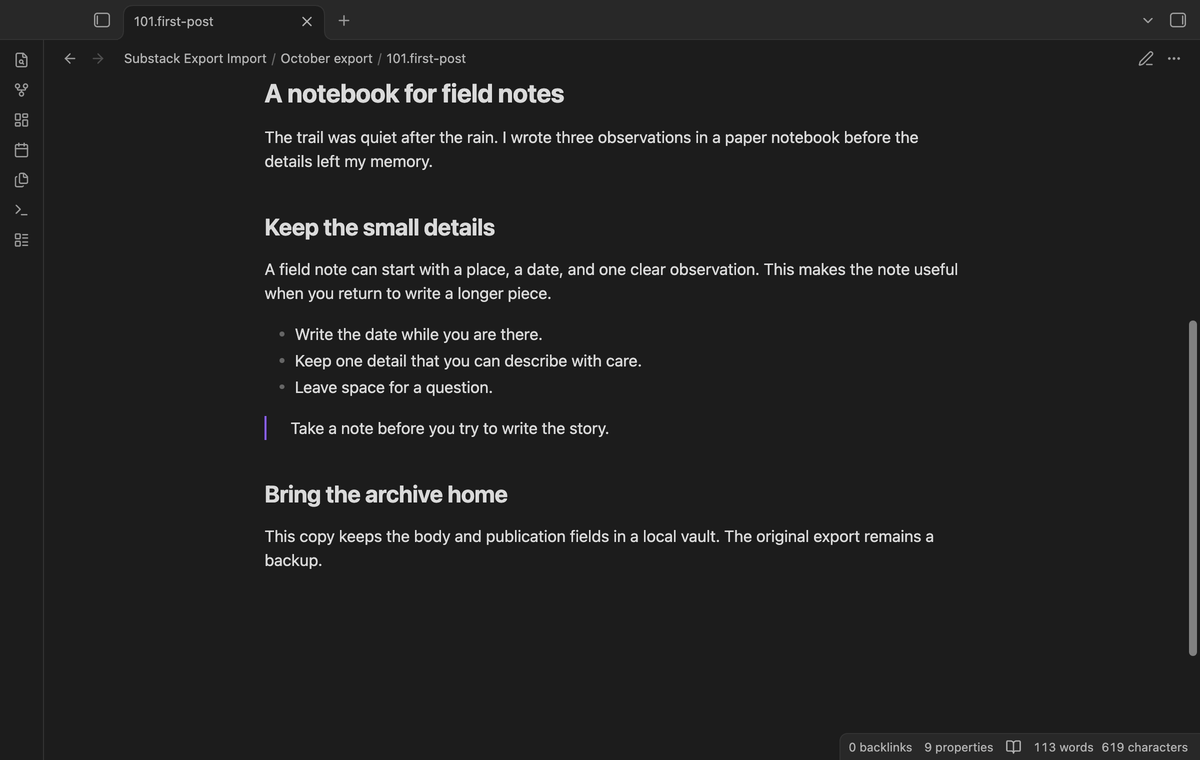
The join uses the complete post_id value. A row with ID 123.first-post needs posts/123.first-post.html. A row with ID 123 needs posts/123.html. The plugin does not guess a match from the title or numeric prefix. Obsidian converts the cleaned HTML body to Markdown. The source ID is also the note filename.
Keep publication fields
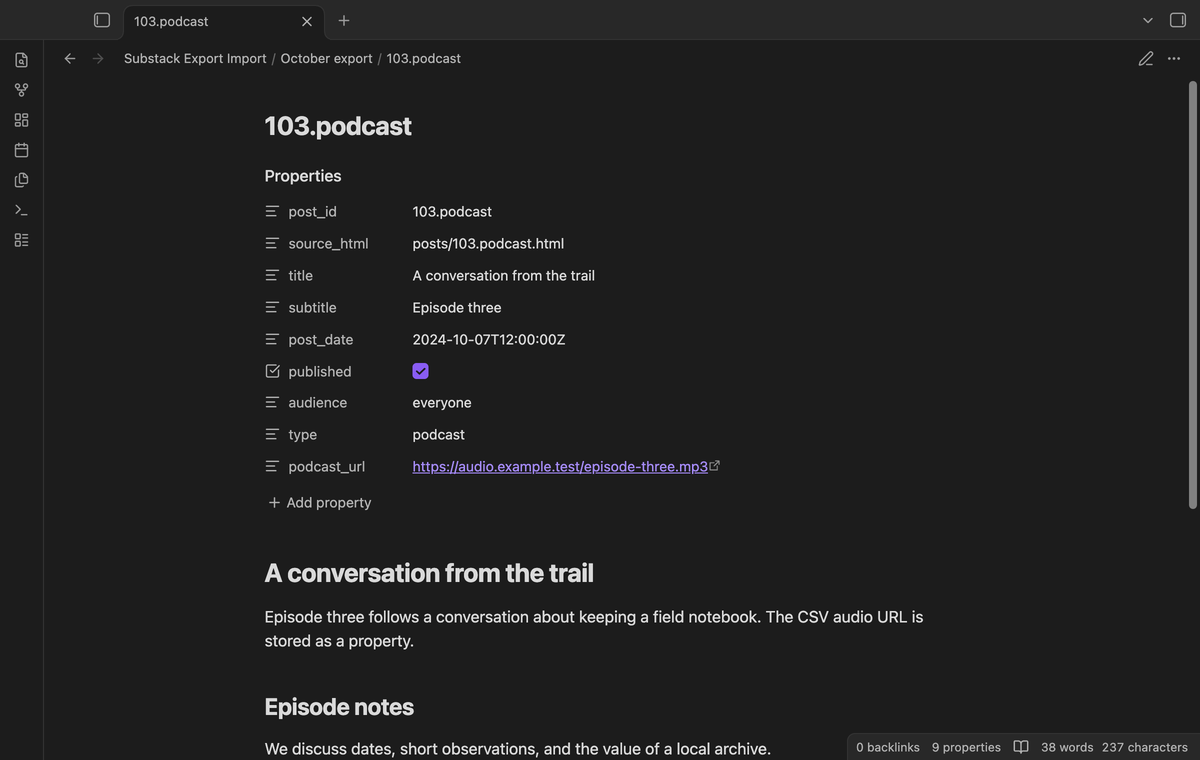
Each matched note keeps title, subtitle, post date, published state, audience, type, and podcast URL. is_published becomes published; CSV values true and false become YAML booleans. The source ID and HTML path are also properties. A parseable post date sets the requested creation and modification timestamps. An invalid or empty date stays in the properties as text and uses default file timestamps.
Read the import report
The report names CSV rows without HTML and HTML files without CSV rows. A row without its body does not create a post note. Duplicate IDs stop preview with an error and produce no notes. Subscriber files and delivery statistics are ignored. Their contents are excluded from the report. Import writes use a new folder; an existing output folder stops the operation.
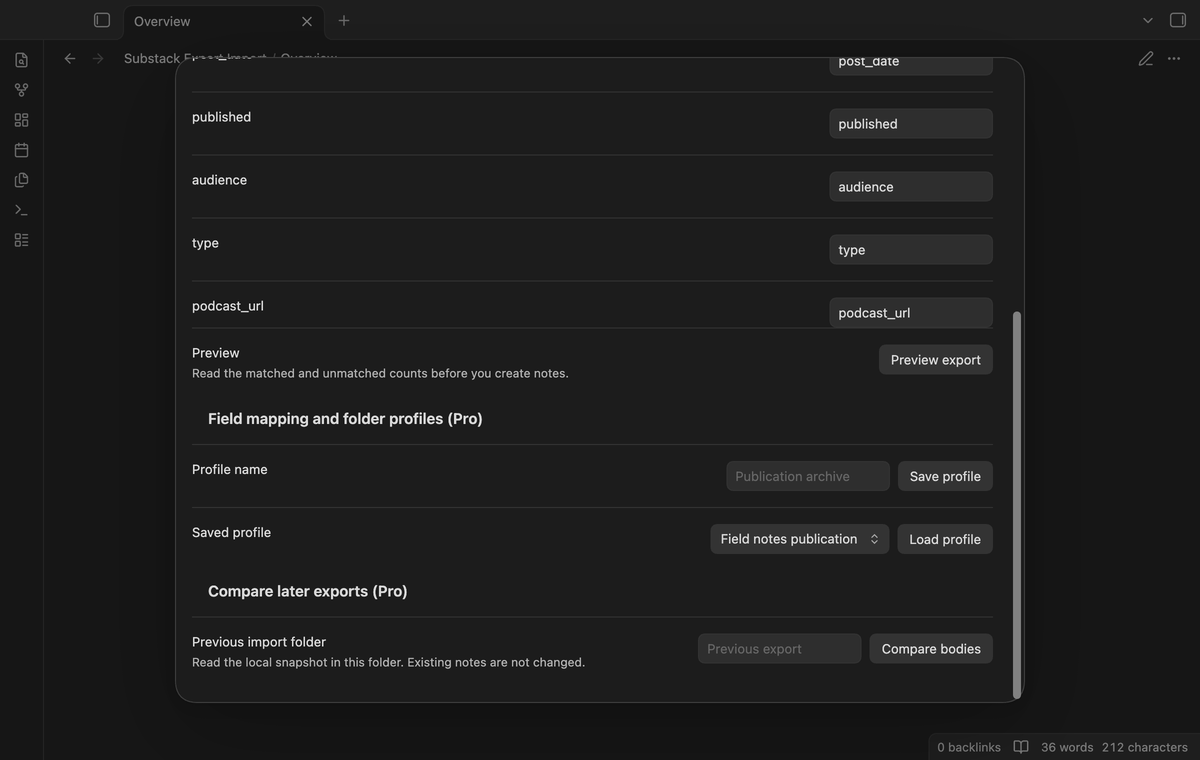
Save field mappings and folder profiles (Pro)
Open the property names panel to change names for the current import. That control is free. Pro saves a named profile with those names and an output folder path. Load a profile for your next import, then change the folder to a new path. Profiles stay in the plugin data in your vault. Up to thirty profiles can be saved; saving an existing name replaces that profile.
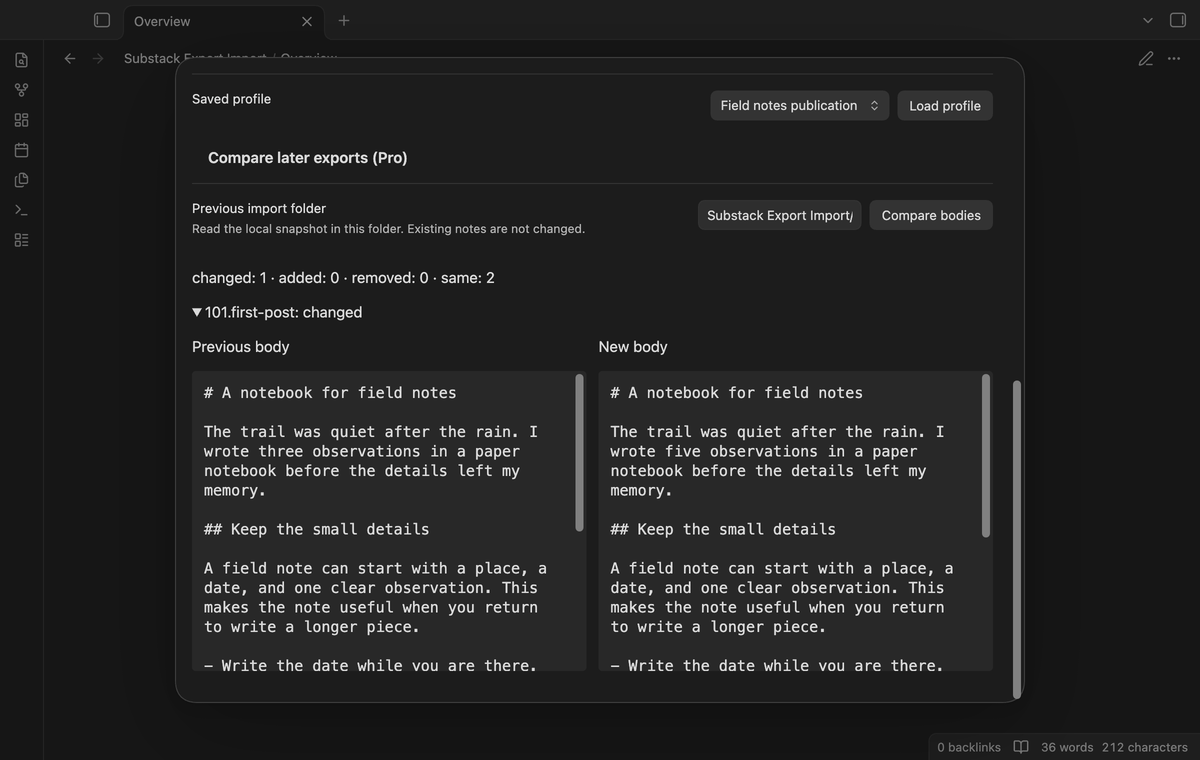
Compare later exports by post ID (Pro)
Preview a later ZIP and enter the previous import folder. The plugin reads that folder's _substack-snapshot.json, compares Markdown bodies by ID, and shows counts for changed, added, removed, and unchanged posts. Expand a changed post to read its previous and new body side by side. This comparison does not update the previous notes. Property changes alone do not count as changed bodies.
Install
For manual installation, copy main.js, manifest.json, and styles.css into <vault>/.obsidian/plugins/substack-export-import/. Enable the plugin in Community plugins. Use Obsidian 1.13.4 or later. When a community directory entry is available, search for Substack Export Import in Browse and select Install, then Enable.
Usage
- Keep the original ZIP as a backup. Open the command palette and run
Substack Export Import: Import writer export. - Enter a new output folder. A nested path can be used when its parent folder exists.
- Select the local writer export. Read the preview and report. If the folder already exists, choose another path and select Preview export.
- Select Create import folder. Open the new notes and check the report before you remove your backup.
A successful import writes post notes, Import report.md, and a body snapshot. The snapshot supports a later comparison and contains the imported Markdown bodies. It is separate from your edited notes: changes that you make to a note after import do not change the snapshot. If a disk write fails, the new folder can contain a partial import. Inspect it, remove that new folder if appropriate, and retry in a different folder.
Settings
The plugin settings contain the GitHub Sponsors controls and a count of saved profiles. Import controls are in the command window. Property names must start with a lowercase letter and contain lowercase letters, digits, or the underscore character. Names must be different. post_id and source_html are reserved.
The ZIP limit is 30 MiB. Selected uncompressed CSV and HTML text has a combined limit of 50 MiB, and the archive has a limit of 12,000 members. Unsafe member paths stop preview, including unsafe paths in ignored files. Output paths cannot use hidden folders, parent path segments, or reserved Windows names.
FAQ
Which exports were tested?
Tests use synthetic writer export fixtures, including quoted commas, escaped quotes, multiline titles, a podcast URL, missing HTML, and an orphan file. The fixtures are not exports from a current Substack account. A current account export, physical iOS and Android devices, Windows and Linux execution, large production archives, and a live paid GitHub account were not tested. Desktop checks use the earliest supported public Obsidian version and the latest public version.
What happens to remote images and podcast audio?
Remote image URLs stay in Markdown. The importer does not download images or podcast audio. It does not create a podcast player. Obsidian can request an image from its original host when you open a rendered note. That request can disclose your network address to the image host. Source HTML is converted locally; scripts, frames, and selected active elements are removed before conversion.
Why did my preview stop?
Check that posts.csv is at the ZIP root and has a post_id column. CSV field counts must match the header. IDs must be safe filenames and must not have a case conflict. A ZIP wrapped in an extra folder is not supported. The plugin reports a duplicate-ID error before it converts or writes posts. Correct the source export or use a separate local copy for repairs.
Payment, account and network
The core features are free. Pro features need a GitHub Sponsors sponsorship of theluckystrike: $5 a month or more, or $15 once. A total payment of $15 meets the payment requirement for Pro without further payment. Sign-in and the checks below still apply. Your notes stay readable and editable with or without Pro.
GitHub handles the payment. Sponsor at https://github.com/sponsors/theluckystrike. You need no account for the free features. Pro needs the GitHub account that sponsors.
Until you select "Sign in with GitHub" in the settings, Substack Export Import makes no network requests. Sign in uses the GitHub device flow. Substack Export Import sends its public client ID and the scope read:user to https://github.com/login/device/code and shows you a code. While you enter the code at https://github.com/login/device, it asks https://github.com/login/oauth/access_token every few seconds to check the sign-in status. The scope permits profile reads only. GitHub needs this access to show the sponsorship tier. It grants no repository scope and no write access.
After sign in, Substack Export Import sends one query to https://api.github.com/graphql. It checks if the signed-in account sponsors theluckystrike. It asks for the tier and the total payment to theluckystrike. The plugin reuses a successful check for 7 days. Failed checks can retry after 6 hours. Select Refresh to request an earlier check. It sends no note content, file names or other vault data, and it has no telemetry.
After a successful check, Pro can work offline for up to 14 days. Sign out or a negative sponsorship answer turns Pro off. The plugin stores the GitHub token through the secret storage API of Obsidian. It does not put the token in its saved settings or its local sponsorship data. The local storage of this device keeps your GitHub login, the tier and the time of the last check. Sign out clears the token. You can also revoke the access in your GitHub settings, under Applications.
Support
Report a fault at the repository issues page. Include your Obsidian version, the error text, and a small sample with private data removed. Do not attach subscriber lists or access tokens. Source code uses the MIT license. ZIP parsing uses fflate, and CSV parsing uses Papa Parse; both use the MIT license.
For plugin developers
Search results and similarity scores are powered by semantic analysis of your plugin's README. If your plugin isn't appearing for searches you'd expect, try updating your README to clearly describe your plugin's purpose, features, and use cases.