Stoker
pendingby Dinar Garipov
Manage items in your stock.
Stoker - Inventory Tracker for Obsidian
Track any inventory in your Obsidian vault. Monitor stock levels, set minimum thresholds, get warnings when running low, and generate shopping lists.
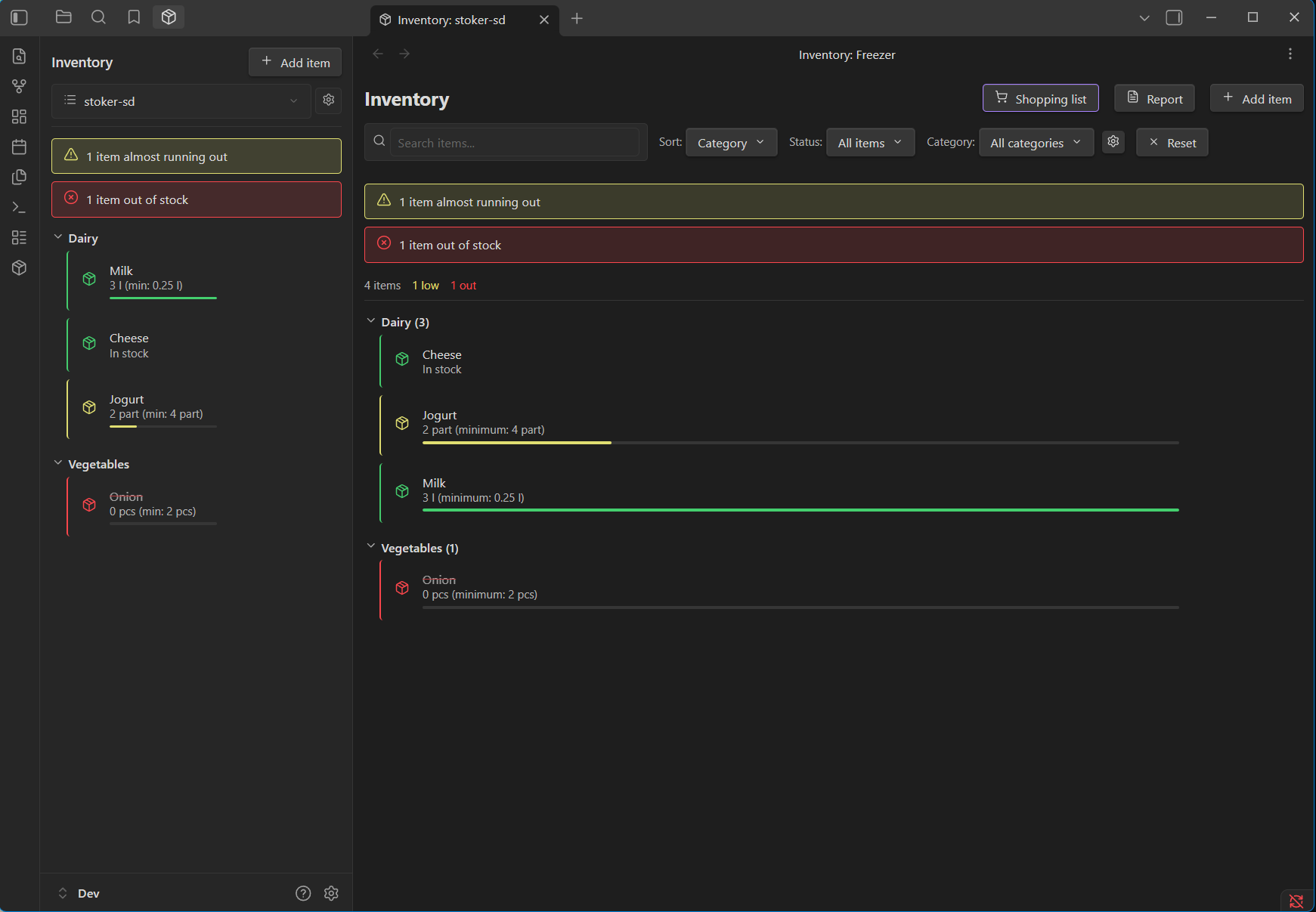
Features
- Track anything: Products, supplies, tools, collectibles - whatever you need to keep stock of
- Multiple lists: Create separate inventory lists (home, office, workshop) each stored in a markdown file
- Stock status tracking: Visual indicators for normal, low, and out-of-stock items
- Minimum thresholds: Set warning levels for each item
- Shopping list: Mark items for restock and generate shopping lists
- Unit types: Support for count, portion, weight, volume, and boolean (in/out of stock)
- Categories: Organize items by custom categories (created dynamically as you add items)
- Reports: Generate printable inventory reports
- Syncs with Obsidian Sync: All data stored in standard markdown files
Installation
From Obsidian Community Plugins
- Open Settings → Community plugins
- Select Browse and search for "Stoker"
- Select Install, then Enable
Manual Installation
- Download
main.js,manifest.json, andstyles.cssfrom the latest release - Create a folder
<vault>/.obsidian/plugins/stoker/ - Copy the downloaded files into this folder
- Reload Obsidian and enable the plugin in Settings → Community plugins
Usage
Getting Started
- Select the package icon in the ribbon or run the command Stoker: Open inventory
- Create your first inventory list when prompted
- Add items using the Add item button
Managing Items
- Select an item row to edit it
- Use +/- buttons to quickly adjust amounts
- Select the shopping cart icon to mark items for restock
- Set minimum thresholds to get low-stock warnings
Categories
Categories are created automatically when you add items. To manage categories:
- Open the inventory view
- Select the settings icon next to the category filter
- Rename or delete categories as needed
Multiple Lists
Create separate lists for different locations or purposes:
- Open Settings → Stoker
- Select Open list manager
- Create new lists or switch between existing ones
Commands
- Open inventory: Open the main inventory view
- Add new item to inventory: Quick add without opening the view
- Toggle inventory sidebar: Show/hide the sidebar panel
- Show low stock items: Filter to items needing attention
- Open inventory report: Generate printable reports
- Open inventory list manager: Manage multiple lists
- Switch to inventory list...: Quick list switcher
- Create new inventory list: Create a new list
Data Format
Inventory data is stored in markdown files with the following format:
---
stoker: inventory
version: 1
lastUpdated: 2025-01-29
---

## Category Name

- Item Name | 5 pcs | min: 2
- Low Stock Item | 1 pcs | min: 3
- Out of Stock | 0 pcs
- Boolean Item | in stock
- Another Item | out of stock
- Planned Restock | 2 pcs | restock
Support
- Report issues on GitHub
- For questions, use GitHub Discussions
License
0-BSD License - see LICENSE
For plugin developers
Search results and similarity scores are powered by semantic analysis of your plugin's README. If your plugin isn't appearing for searches you'd expect, try updating your README to clearly describe your plugin's purpose, features, and use cases.